Workspace ONE UEM (WS1 UEM) is commonly used to deploy apps to managed Android devices so end-users have access to the tools they need. However, app deployment is only one part of effective mobile endpoint management. Organizations must also be able to restrict apps that are unwanted, unapproved, or considered high risk within the managed device context.
Without strong app governance, corporate-managed Android devices can become security liabilities. Unwanted apps may introduce risks such as data exposure, user tracking, credential theft, malware, and compliance concerns. On managed devices, even a single high-risk app can expand the attack surface and create avoidable security and operational risk.
To reduce this risk, organizations need more than basic app delivery. They also need controls that limit how apps are introduced into the managed environment and that prevent unwanted apps from being used where corporate data is accessed. In Android Enterprise, the extent of that control depends on the selected management mode and the platform boundaries that apply to it.
This blog focuses on Android COPE devices and demonstrates how WS1 UEM can be used to block an unwanted application within the managed Work Container. It also highlights the broader governance controls that help reduce app risk and explains the Android 11+ privacy boundary that limits how far app control can extend into the Personal Container on COPE devices.
Objectives
The objective of this blog is to demonstrate how WS1 UEM can be leveraged as a native solution to block an unwanted app within the managed Work Container on corporate-owned Android devices enrolled in Corporate-Owned Personally Enabled (COPE) mode and running Android 11 or later. COPE is a common enterprise deployment model because it allows organizations to support both work and personal use on the same company-owned device while maintaining a separate managed workspace.
Using DeepSeek AI app as the example use case of an unwanted app, the configuration presented in this blog demonstrates how an Android Denylist App Group combined with an Application Control profile can be used to prevent the app from being used in the managed workspace. The scenario also assumes that some COPE devices may already have the app installed in the Work Container by end-users. In that case, the configuration is intended to make the app inaccessible within the managed workspace, even if it was not originally deployed through WS1 UEM.
Note: This blog focuses specifically on the native controls available in WS1 UEM. It does not cover the broader Mobile Threat Defense (MTD) ecosystem, such as Lookout MTD or Microsoft Defender for Endpoint, which can provide additional malicious app detection, risk evaluation, and compliance integrations.
Android Management Modes in WS1 UEM
On Android, the selected management mode directly affects how much control WS1 UEM can apply to the endpoint, how corporate data is separated from personal data, and the level of app governance that can be enforced. For this reason, an understanding of Android management modes is important before reviewing WS1 UEM application blocking capabilities.
In most environments, the managed Android fleet in WS1 UEM may include Work Profile (BYOD Android devices), COPE (corporate-owned Android devices with personal use), Fully Managed (lock down corporate Android devices), or a combination of these deployment models based upon user personas and organizational business requirements. Each mode is designed for a different ownership and privacy scenario and therefore provides a different level of administrative control over the device. At a high level, Omnissa positions Android management modes along a spectrum of administrator control and end-user privacy. A section at the end of this section provides a high-level summary of the Android management modes discussed in this blog. It is important to first understand each mode individually, as described below.
- Work Profile is commonly used for employee-owned Android devices, wherein WS1 UEM manages the corporate workspace, referenced in this blog as the Work Container, on a personal device. In this mode, a separate Work Container is created so that corporate apps and corporate data remain isolated from the personal side, referred to in this blog as the Personal Container, where personal apps and personal content reside. Administrative control is limited to the Work Container, such that personal apps and personal data remain outside the management boundary. Managed work apps are visually identified by the briefcase badge, visually captured below.
- Corporate-Owned Personally Enabled (COPE) is designed for corporate-owned Android devices that support both work and personal use. This management mode has become a common Android model for enterprise mobility because it provides a practical balance between corporate ownership and personal use. By allowing personal usage on a company-owned device via the Personal Container while still maintaining a separate managed Work Container, COPE can improve user acceptance and support day-to-day productivity without moving entirely to a restrictive work-only device model. This balance between usability and administrative control is one of the reasons COPE remains an important option in Android enterprise deployments. Common user personas for COPE include police officers, doctors, sales staff, human resources staff, and other knowledge workers. From the endpoint user interface (UI) perspective, Android COPE provides a user experience similar to Work Profile while still maintaining the company’s ownership of the device.
- Historically, prior to Android 11, COPE provided broader enterprise visibility and control than standard Work Profile because the device remained company-owned. This included greater administrative visibility into personal apps installed on the device, as well as broader management and application control over the Personal Container.
- Beginning with Android 11 and continuing through later Android versions, Google introduced stronger privacy protections for COPE, significantly reducing the level of visibility endpoint management platforms have into the Personal Container and narrowing the supported management actions that can be applied in that container. As a result, WS1 UEM administrators should expect more limited visibility and control over the Personal Container on newer Android versions with COPE management mode.
- Fully Managed is intended for corporate-owned Android devices used exclusively for work purposes. In this mode, neither a Personal Container nor a Work Container is present, because the device is managed as a whole, rather than through a separate work profile. This model provides the highest level of administrative device control, including broader authority over device configuration, application deployment, restrictions, and compliance enforcement. As a result, Fully Managed is typically the strongest option when strict application governance is required. Common user personas for Fully Managed devices include frontline workers such as facility technicians, warehouse workers, and visiting nurses.
The sections below provide a high-level overview of the Android endpoint experience across WS1 UEM management modes:
Personally Owned
Work Profile
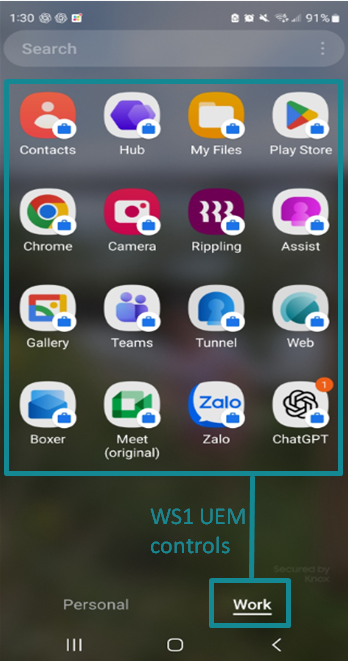
In Work Profile (BYOD Android devices) management mode, WS1 UEM can control only the Work Container. The Personal Container is where personal apps and personal data reside and remains outside the management boundary of WS1 UEM due to privacy policies.
Managed apps deployed by WS1 UEM are installed only within the Work Container and have a briefcase with them. From an administrative action perspective, Device Wipe is not available for this mode. Instead, Enterprise Wipe can be used to remove the Work Container, including all corporate apps, profiles, and data deployed within it, while leaving personal apps and personal data intact. This model is therefore best suited for scenarios wherein corporate resources must remain separate from personal content while preserving end-user privacy on their Android BYOD device.
Company Owned
COPE
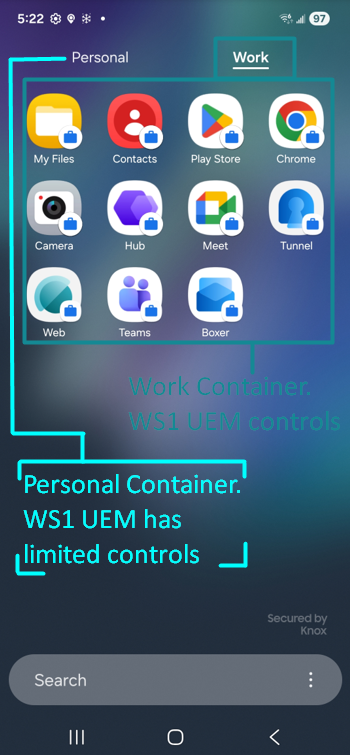
In COPE management mode, the endpoint experience is similar to Work Profile (BYOD Android devices) because the device still presents separate Personal and Work Containers to the end-user. However, within the WS1 UEM console, the device is identified as Corporate Owned Personally Enabled, reflecting that the device remains company-owned while still allowing personal use.
From an application management perspective, WS1 UEM deploys and controls managed apps within the Work Container. Prior to Android 11, the company-owned nature of the device provided broader administrative visibility than a standard Work Profile. Beginning with Android 11, Google introduced stronger privacy protections for company-owned devices with a personal profile or Personal Container, which significantly reduced the visibility endpoint management platforms have into the personal side.
Fully Managed
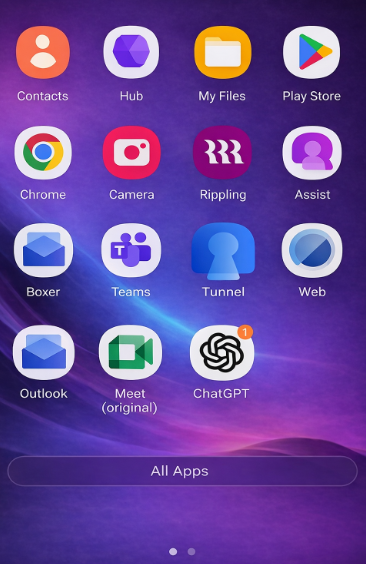
In Fully Managed mode, the entire Android device is placed within the corporate management boundary of WS1 UEM. No Personal Container is present, and the device is managed in full rather than via a separate work profile. This provides the highest level of administrative control across device settings, restrictions, compliance enforcement, and application governance.
From an application management perspective, WS1 UEM can deploy and control apps across the entire device experience, not just within a Work Container. Administrative wipe actions are also broader in this mode because the device itself is corporate-managed, end-to-end. As a result, Fully Managed is typically the strongest option when strict application governance and tighter corporate control are required.
App Control Options by Android Management Mode
Before reviewing how to block unwanted apps on Android COPE devices, it is important to first understand the broader principles of Android app governance in WS1 UEM. Across Android management modes, one of the top priorities is controlling how apps are introduced into the managed device context. If unmanaged account access or untrusted installation paths are left open, end-users may be able to install apps outside the organization’s intended governance model.
For this reason, the Android Restrictions profile in WS1 UEM is one of the most important tools for strengthening app governance. It provides baseline controls that help reduce unwanted app risk before app-specific blocking is even considered. In practice, three control areas are especially important: restricting account use in Managed Google Play, blocking non-market app installation where appropriate, and enforcing data separation between work and personal contexts where those boundaries exist.
Together, these controls help establish a stronger governance baseline by limiting how apps enter the managed environment, reducing exposure to unmanaged installation sources, and protecting corporate data from interaction with personal apps. How these controls apply depends on the Android management model in use.
When configuring an Android Restrictions profile in WS1 UEM, some settings are presented under two columns: Work Managed and Work Profile.
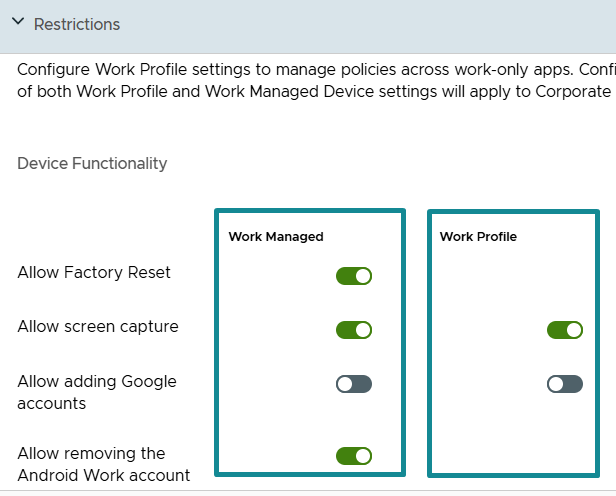
These labels can be confusing if they are interpreted too literally:
- Work Managed – settings applied to Fully Managed Android devices.
- Work Profile – settings applied to Android devices that use a Work Container, including both Work Profile (BYOD Android devices) and COPE (corporate-owned Android with personal use) devices.
Because of this, the Work Profile column should not be interpreted as applying only to BYOD Work Profile deployments. It also applies to COPE devices because COPE includes a managed Work Container.
The following sections review the key app governance controls that support this baseline and explain how they can be used to strengthen application control in WS1 UEM.
Disable Personal Google Account Injection in Managed Google Play Store
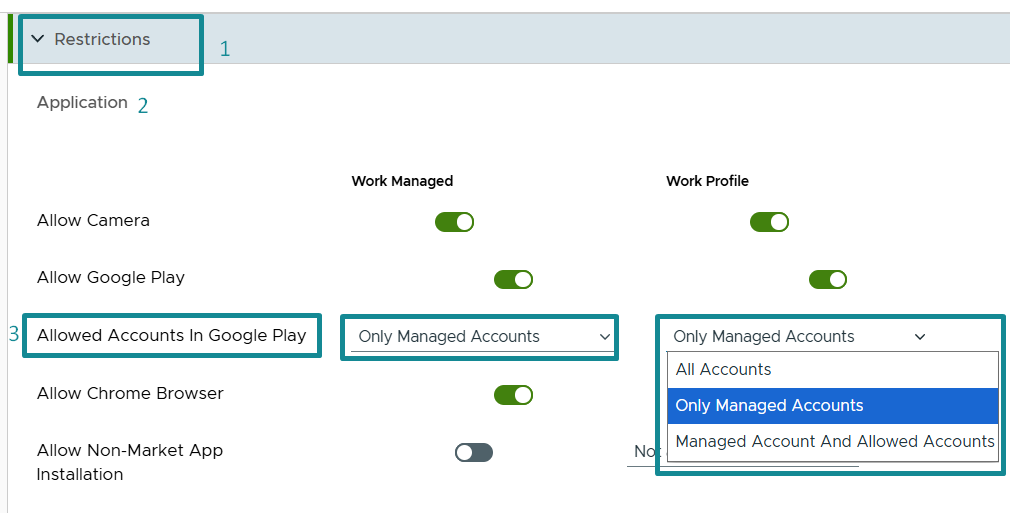
For Work Profile, COPE, and Fully Managed devices, a recommended baseline is to configure the Android Restrictions profile so that “Allowed Accounts in Google Play” under the Application settings is set to “Only Managed Accounts” under both Work Managed and Work Profile.
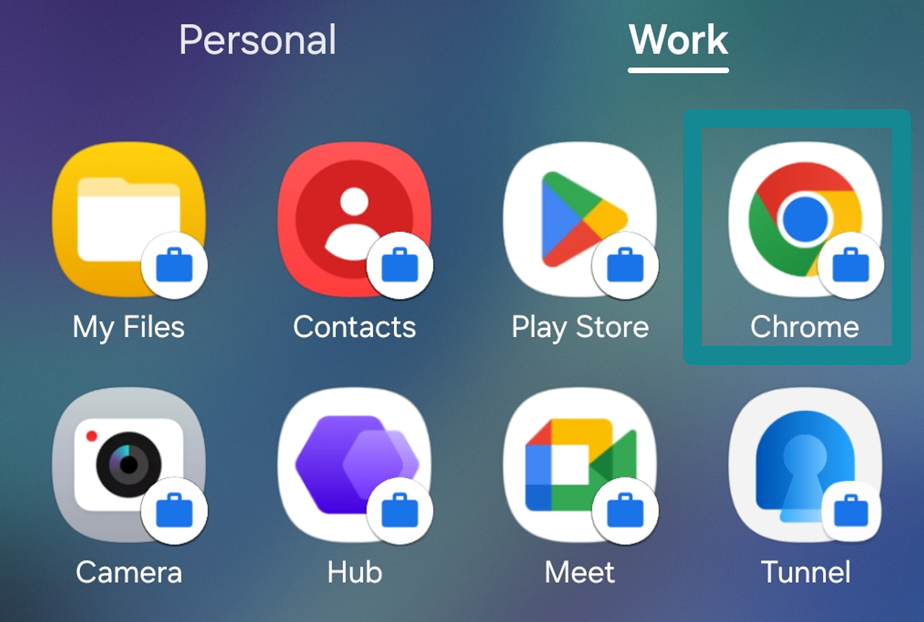
The Google Play instance affected by this setting is the Managed Google Play Store. On Work Profile and COPE devices, this is the Google Play Store within the Work Container (the instance indicated by the briefcase).
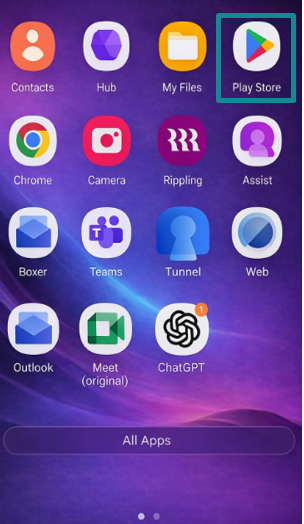
On Fully Managed devices, it is the only Google Play Store available on the device.
With this setting in place, the Managed Google Play Store experience is limited to the default Managed Google Account automatically established through the WS1 UEM and Android Enterprise integration during device enrollment. This managed account supports app deployment governed by WS1 UEM, meaning the apps presented in the Managed Google Play Store are limited to those assigned to the managed Android device through WS1 UEM. At the same time, this setting restricts the ability to add personal or non-managed Google accounts that could otherwise expand access to unmanaged or unapproved apps.
If the setting is left at “All Accounts”, the Managed Google Play Store experience becomes less restrictive and may allow broader app installation behavior than intended. As a result, a personal Google account is allowed to be added to the Managed Google Play Store; the end-user may gain broader access to the public Google Play ecosystem, wherein apps exist outside of the organization’s intended governance model. Consequentially, unwanted or unapproved apps may be introduced into the Work Containers on BYOD and COPE devices or into the Fully Managed Android devices, thereby weakening the organization’s overall application governance posture.
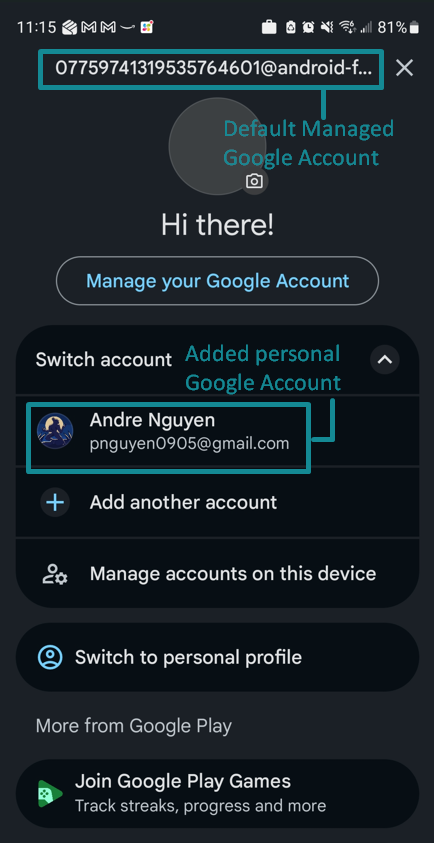
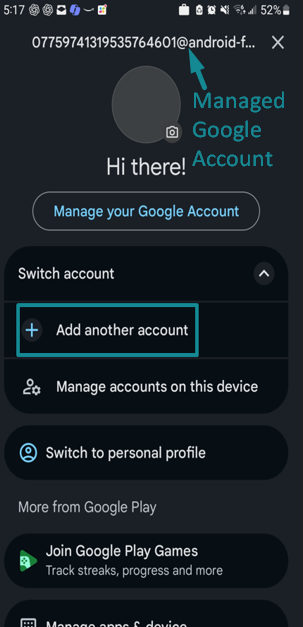
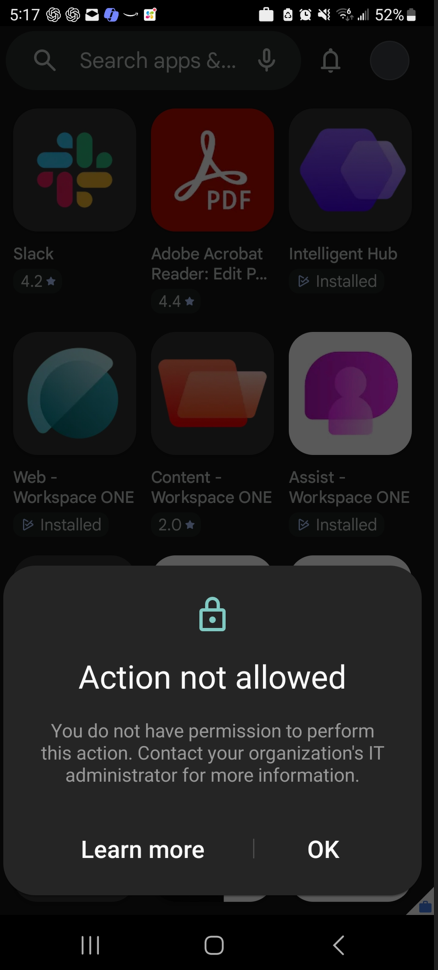
When “Only Managed Accounts” is enforced, a stronger app governance baseline is established because app installation on the managed side is driven primarily through WS1 UEM and managed Google Play Store rather than through unrestricted end-user account choice. In practical terms, when an attempt is made to add a personal Google account to the Managed Google Play Store, the device returns an “Action not allowed” message, as shown in the example screenshots. Therefore, the user is unable to download apps that are not deployed by WS1 UEM (i.e. prohibits unapproved apps).
Disable Non-Market App Installation
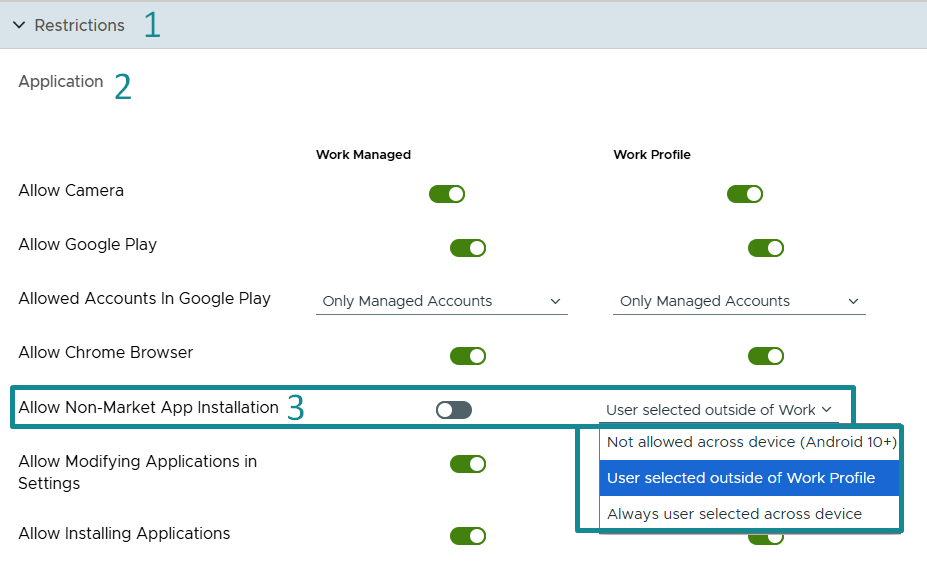
Another important baseline control is to restrict non-market app installation in the “Application” settings of the Android Restrictions profile. This setting governs whether users can sideload Android apps by installing APK files from outside Google Play. Sideloading matters because it bypasses the organization’s approved app delivery path and can introduce apps from untrusted sources. Even when an APK is not overtly malicious, it still falls outside the managed Google Play governance model and adds unnecessary risk to the managed device. Omnissa’s KB on blocking unknown sources for Android Enterprise also identifies Allow Non-Market App Installation as a control point across Work Profile, COPE, and Fully Managed scenarios.
For Fully Managed devices, the recommended posture is to disable non-market app installation under Work Managed column, so app delivery remains limited to apps governed through WS1 UEM.
For Work Profile and COPE devices, the stronger security posture is also to disallow sideloading on the managed device entirely (both Personal and Work Containers) by configuring “Not allowed across devices (Android 10+)” under Work Profile column. However, in scenarios wherein a Work Profile (BYOD devices) use case requires greater end-user freedom on the Personal Container, the Work Profile section of the profile for this setting can be configured so that non-market app installation is “user selected outside of the Work Profile”. This provides a balanced approach: APK sideloading remains blocked inside the managed Work Container, while the Personal Container can retain greater flexibility where organizational policy allows it.
Data Separation Between Personal and Work Containers
For Work Profile and COPE devices, data separation between the Work and Personal Containers remains an important control because even if an unwanted app, such as the DeepSeek AI app, cannot be fully blocked in the Personal Container, corporate data in the Work Container should still be prevented from flowing to it.
Within the Android Restrictions profile, configuration in the “Work and Personal” section, under the Work Profile column, can further strengthen data protection by limiting how corporate data moves between managed work apps and personal apps. A common configuration approach includes the following:
- Allow pasting clipboard from work to personal – Disable
- Allow work apps to access documents from personal apps – Enable
- Allow personal apps to access documents from work apps – Disable
- Allow personal apps to share data with work apps – Enable
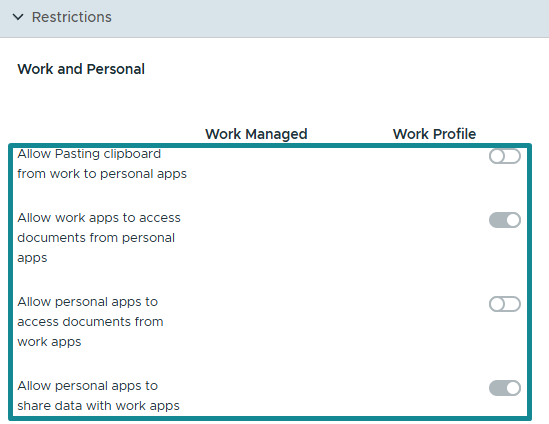
When applied appropriately, this combination supports a practical data loss prevention posture. Personal apps in the Personal Container may still pass selected content into work apps that reside within the Work Container, where business use cases require it for end-user ease of use on the device, but work apps are prevented from exposing corporate data outward to personal apps or personal storage locations in the Personal Container. As a result, the Work Container remains the protected boundary for corporate apps and corporate data.
For Fully Managed, these same work/personal settings do not apply in the same way because no separate Personal or Work Container exists, and the full device remains inside the corporate management boundary.
Blocking Unwanted Apps on Android COPE
The example use case for this blog is a security requirement that the DeepSeek AI application must not be used on Android COPE devices. In the previous section, a recommended app governance baseline was discussed: Disable Personal Google Account Injection in Managed Google Play Store within the managed workspace context. On COPE devices, this refers to the Managed Google Play Store inside the Work Container.
In practice, however, this restriction may not always be in place. In some environments, the Android Restrictions profile may have been previously configured with “Allowed Accounts” in Google Play set to “All Accounts” due to various business reasons or requirements, or the setting may simply have been overlooked during earlier Android profile deployment. As a result, end-users may be able to inject personal Google accounts into the Managed Google Play Store and install apps that fall outside the organization’s intended app governance model. For the example use case in this blog, this means the DeepSeek AI app may already have been installed by end-users within the Work Container of the Android COPE devices.
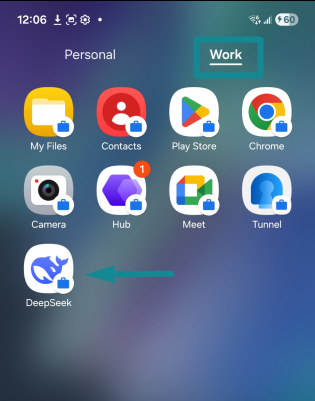
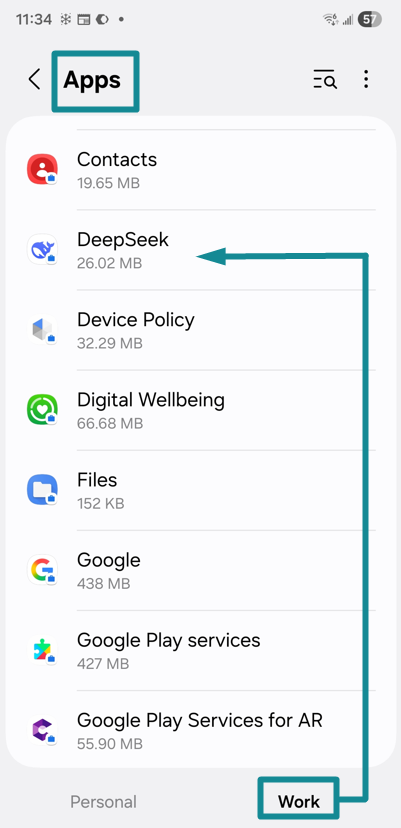
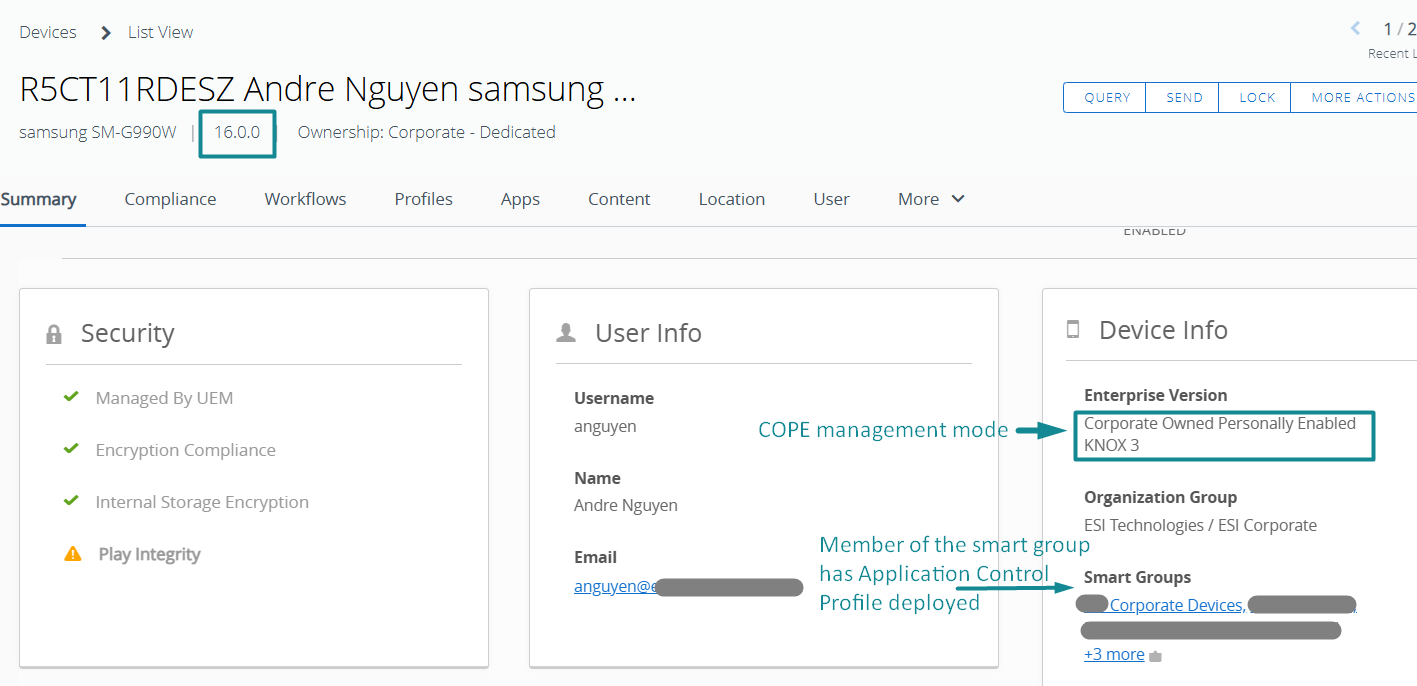
On the WS1 UEM admin console, the device record can show that DeepSeek AI is present on a COPE Android device and marked as “Installed but not assigned”. This indicates that the application was installed by the end-user rather than deployed via WS1 UEM. Because the app is present in the managed workspace (Work Container) but is not assigned by WS1 UEM, direct removal via standard app assignment actions is not available.
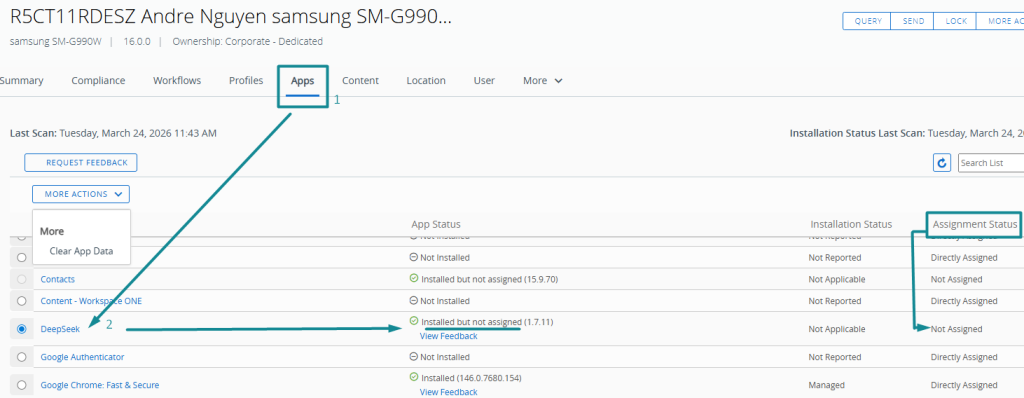
The configuration presented in the following sub-sections addresses this scenario by using native WS1 UEM capabilities to block access to the unwanted app within the Work Container on COPE devices. This is achieved using an Android Denied List application group together with an Application Control profile.
Create the Android Denylist App Group
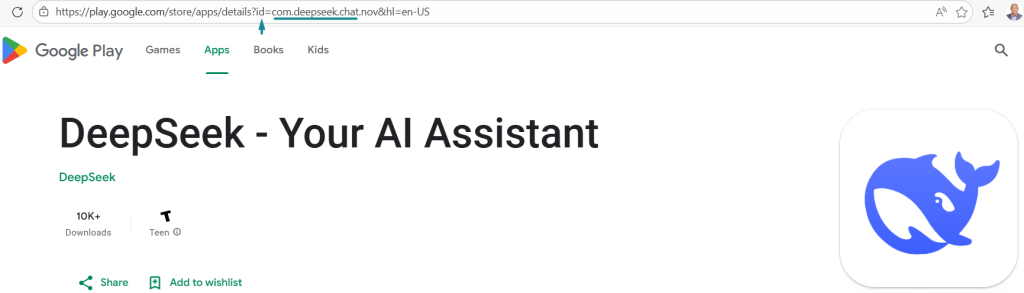
To create the Android Denylist App Group, the administrator must specify the exact Application ID of the target app that is to be blocked. As such, the first step is to identify the DeepSeek AI Application ID from the Google Play Store. It is also recommended to verify the authenticity and accuracy of the target app before enforcing the block.
- Open a web browser, search for the target DeepSeek application on Google Play Store, and then select the corresponding Google Play Store listing.
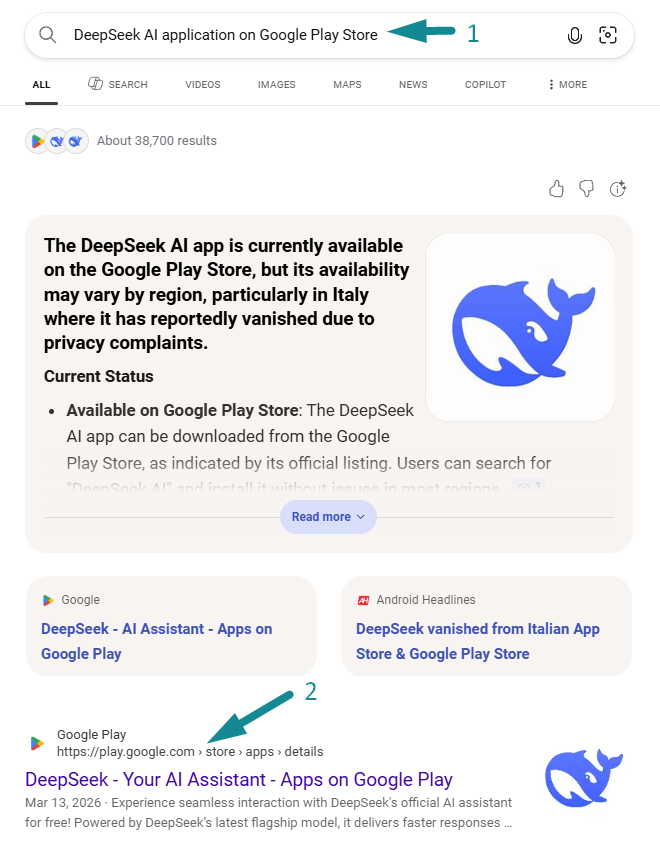
On the Google Play Store listing page, locate the application ID in the browser URL string that has “id=…”. For the DeepSeek AI app shown in this example, the application ID is “com.deepseek.chat”.
As a best practice, the application logo and developer name should also be validated to confirm the correct target app is being selected. In this case, the app is identified by its single Whale logo and the developer name DeepSeek, confirming that it is the correct app to target blocking.
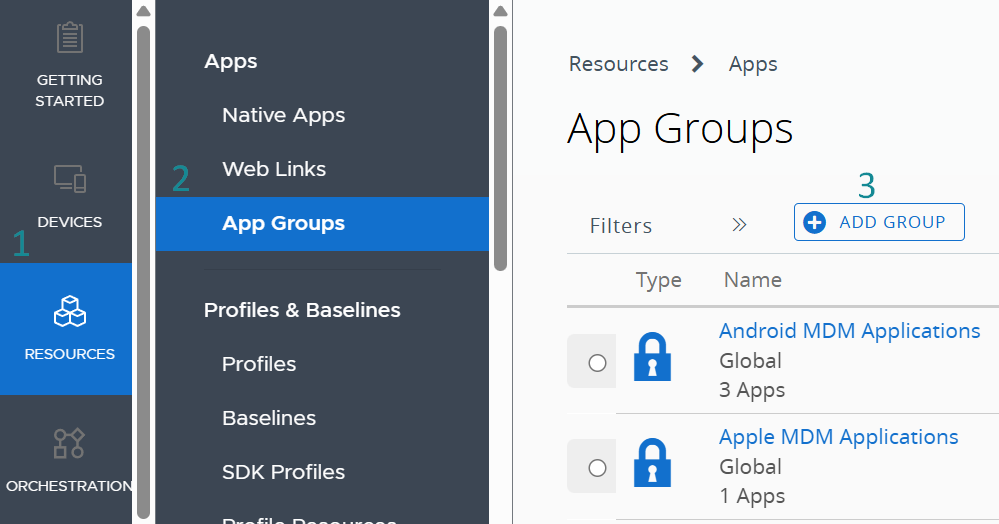
- In WS1 UEM admin console, navigate to Resources > Apps > App Groups, and select Add Group.
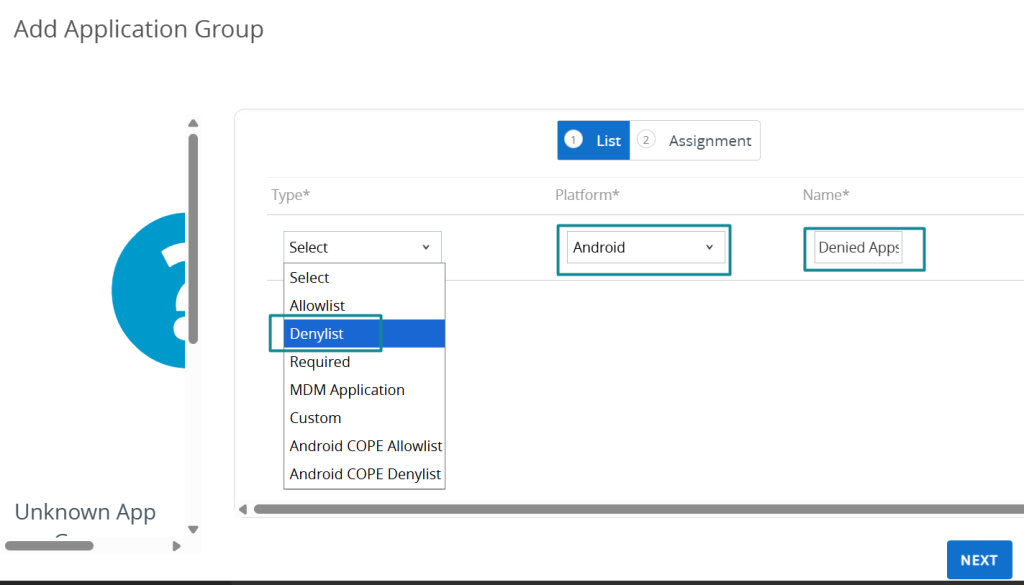
On the Add Application Group page, select “Denylist” under Type and Android under Platform. In the Name field, enter a descriptive name for the denied list, such as Denied Apps.
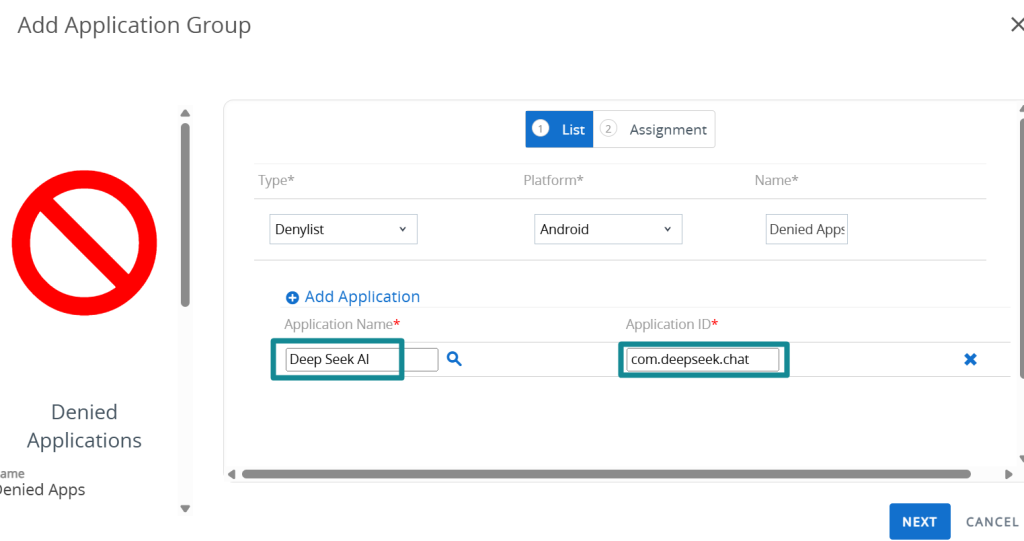
Click Add Application > under Application Name, Deep Seek AI > click the magnifying glass to trigger a dynamic search > WS1 UEM displays the list of apps that contain Deep Seek in the name > select the corresponding DeepSeek application validated from the previous step > under Application ID field, “com.deepseek.chat” is input automatically, and then select Next.
If additional DeepSeek apps or other apps (e.g., social media apps) must also be restricted, repeat the same process by identifying their application package IDs and adding them to the denied list.
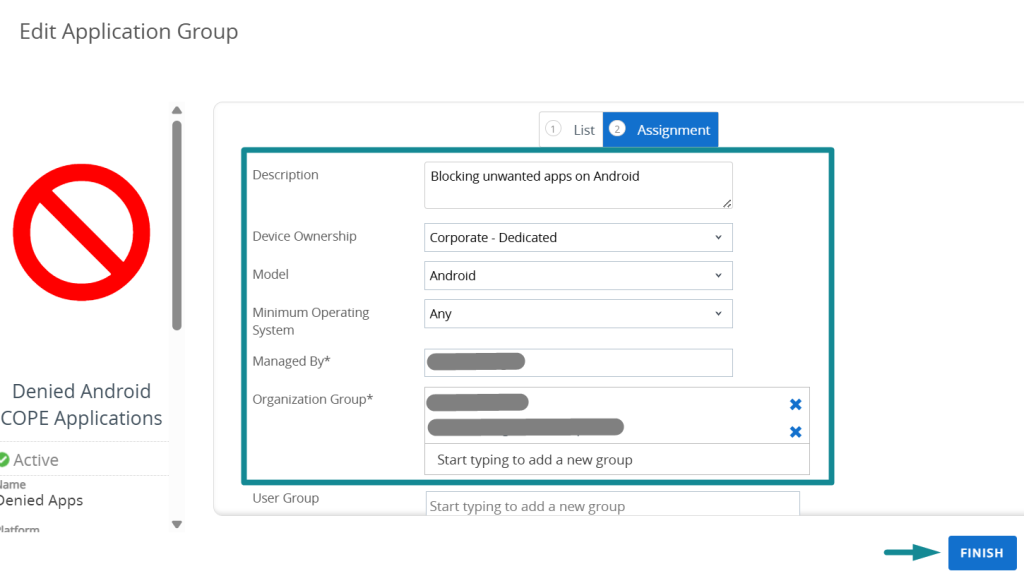
On the Assignment sub-page, provide a descriptive entry in the Description field. Select Corporate-Dedicated for Device Ownership and Android for model. Under Organization Group, specify all the Organization Groups in which Android COPE devices are enrolled in WS1 UEM > then select Finish.
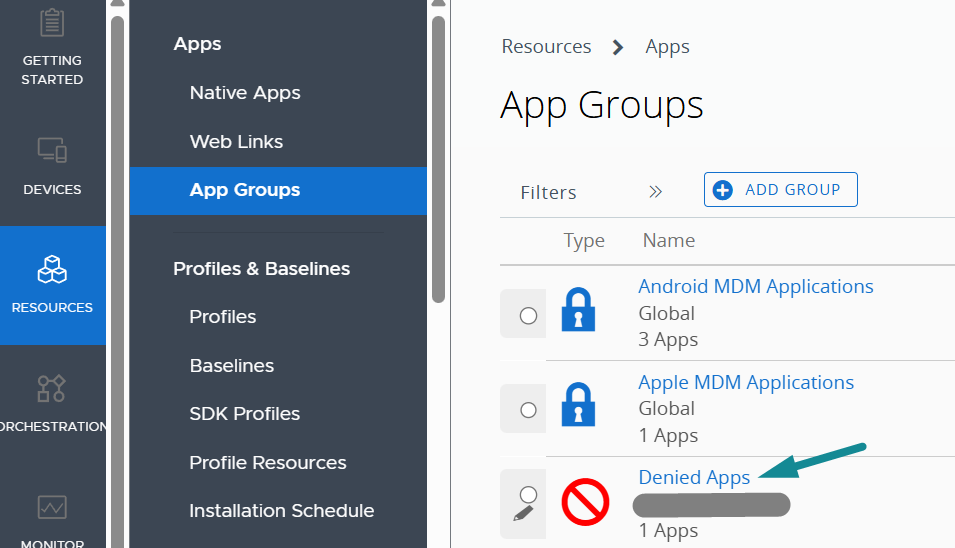
Before continuing, confirm that the newly created Denied List application group is listed under App Groups in the WS1 UEM admin console.
Create and Deploy the Application Control Profile
With the Android Denylist App Group now created and validated, the next step is to create and deploy an Application Control profile that references this denied list on managed Android devices.
- In the WS1 UEM console, navigate to Resources > Profiles & Baselines > Profiles, then Add > Add Profile.
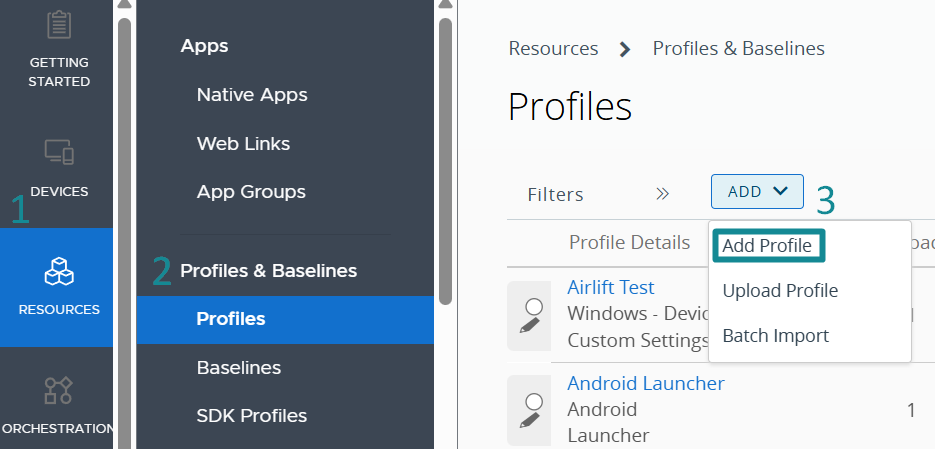
- Select Android > leave Management Type as Custom DPC, and then click Next.
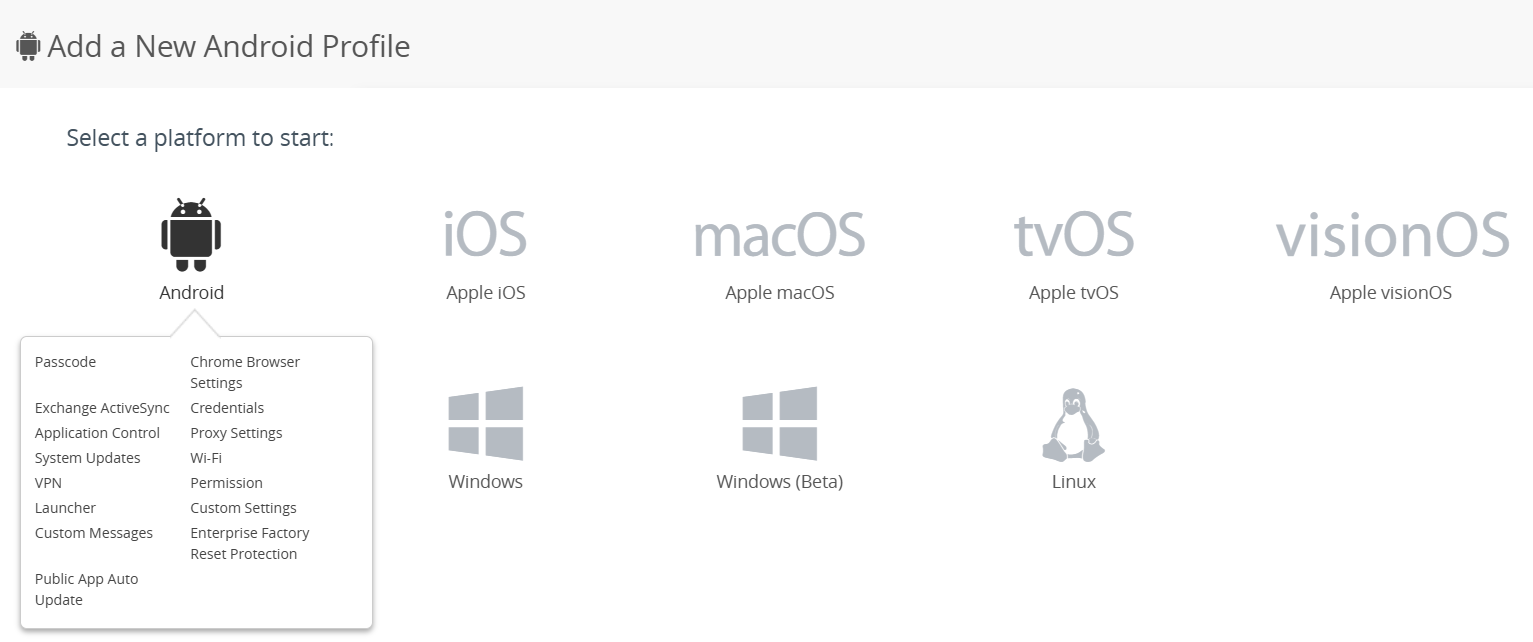
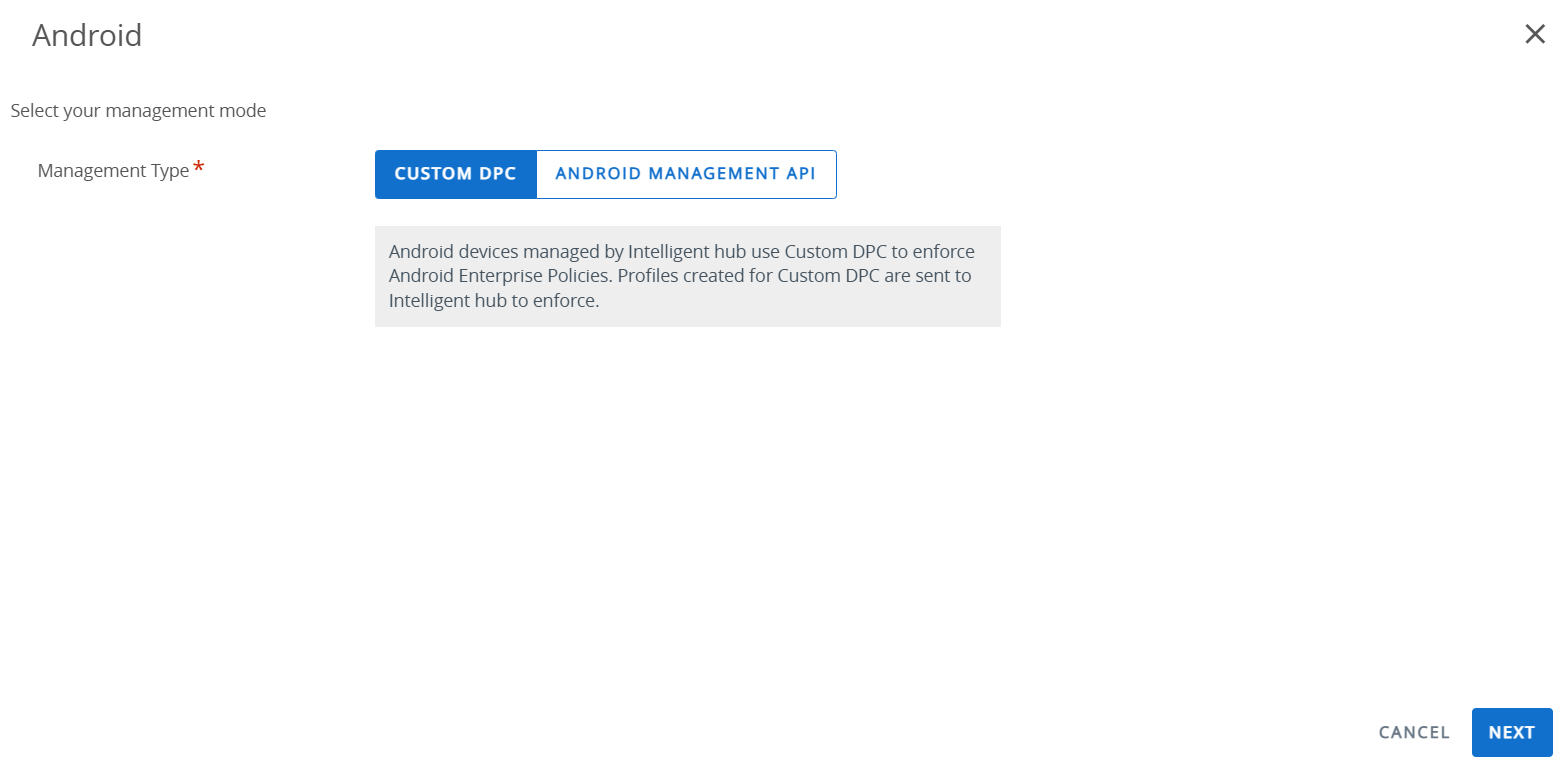
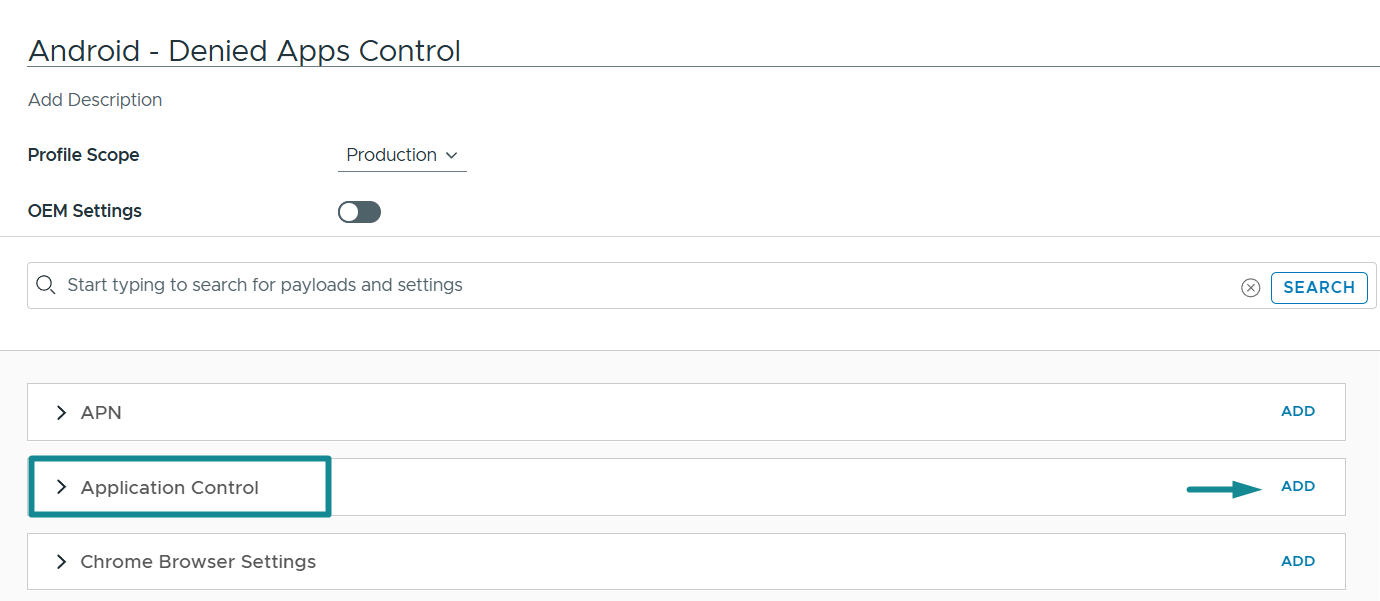
- On the profile creation page, enter a descriptive profile name such as Android – Denied Apps Control. From the list of available settings, locate Application Control and click Add.
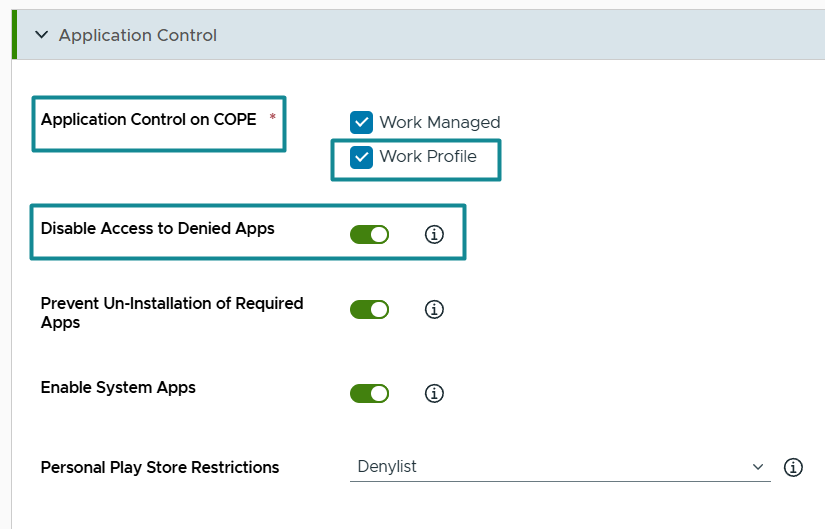
The following Application Control settings are configurations relevant to this blog. Together, they enable the profile to reference the Android Denied List and enforce the restriction within the Work Container on the COPE Android device. In this example, the intended outcome is to prevent access to the DeepSeek AI app once it has been added to the denied list application group.
| Setting | Configuration (in this blog) | Detail |
|---|---|---|
| Application Control on COPE | Work Managed and Work Profile selected | When Work Managed is selected, the profile is intended to apply to both the Personal and Work Containers. However, based on the tested Android 11+ COPE behavior in this blog, app control is no longer effective on the Personal Container due to Google privacy protections on newer Android versions. The test device used in this blog is running Android 16, and in this COPE management mode scenario, the Work Managed selection does not produce app control enforcement on the Personal Container. It is therefore retained in the configuration without impact to the tested outcome. When Work Profile is selected, the profile applies to the Work Container on COPE devices. In this blog, this is the setting that drives the effective app blocking behavior for the DeepSeek AI app within the managed workspace. |
| Disable Access to Denied Apps | Enabled | This is the core setting – it blocks access to apps placed in the Application Group denied list. In this blog, that app is DeepSeek AI. Once the profile is deployed, the app becomes inaccessible and disappears from the Work Container on Android COPE devices. |
| Personal Play Store Restrictions | Deniedlist | Intended to control app installation through the Personal Play Store residing on the Personal Container on Android COPE devices by applying an allowlist or denylist to the personal side. However, based on the Android 16 COPE testing in this blog, this setting did not enforce the expected Denylist behavior on the Personal Container. As a result, it should be treated as a legacy or limited-effect setting on newer Android versions rather than as a primary control for blocking apps on the personal side. |
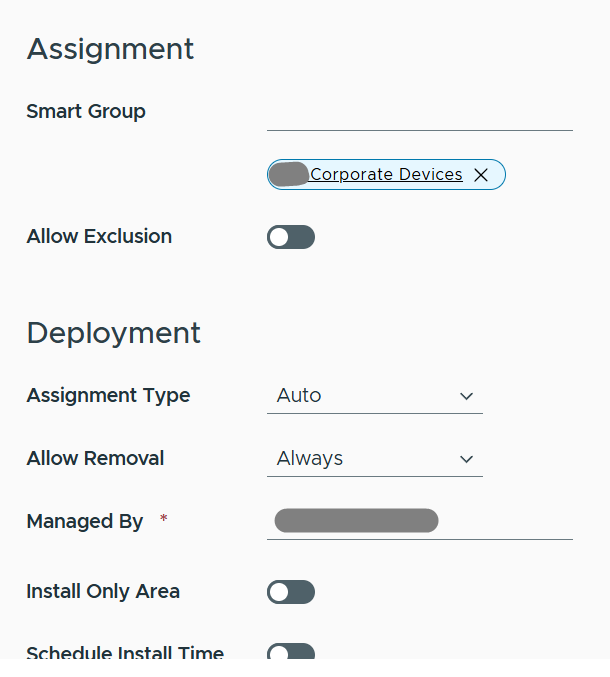
- Click Next to continue to the Assignment page. Under Smart Group, identify and select all WS1 UEM smart groups that contain Android COPE devices within the environment > Save & Publish to deploy the profile.
Validate the Blocked Application Behavior on Android COPE
Once the Application Control profile is deployed to target COPE devices, the next step is to validate the resulting behavior on the endpoint. In this tested scenario, the DeepSeek AI app disappears from the Work Container and is disabled in the app list under the Work context.
- In WS1 UEM, locate the target COPE device and in the Profiles tab, ensure the Application Control profile is landed.
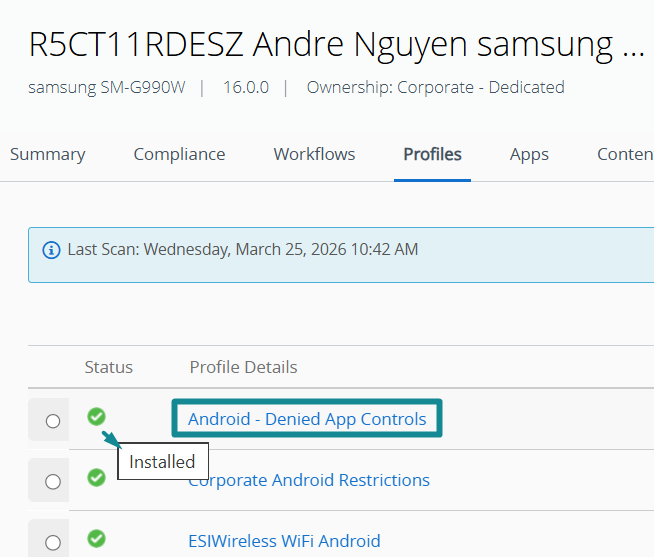
- On the Android COPE endpoint, validate that the DeepSeek AI app has disappeared from the Work Container. Next, open system settings by swiping down and selecting the gear icon. Navigate to Apps, select Work at the bottom of the screen, and then locate and open DeepSeek. Confirm that the app is fully disabled and that the Permissions section shows “No permissions allowed”.
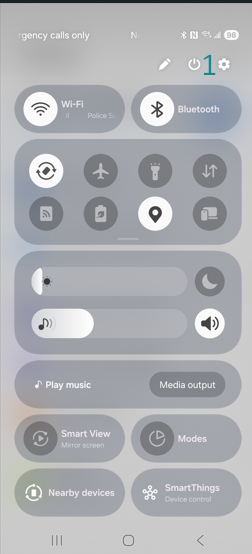
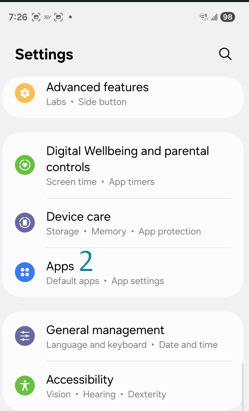
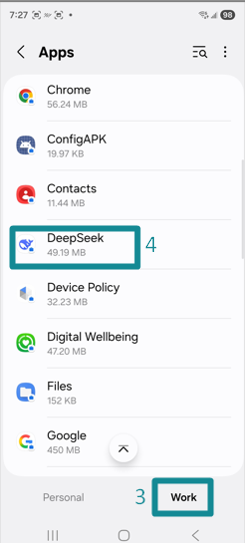
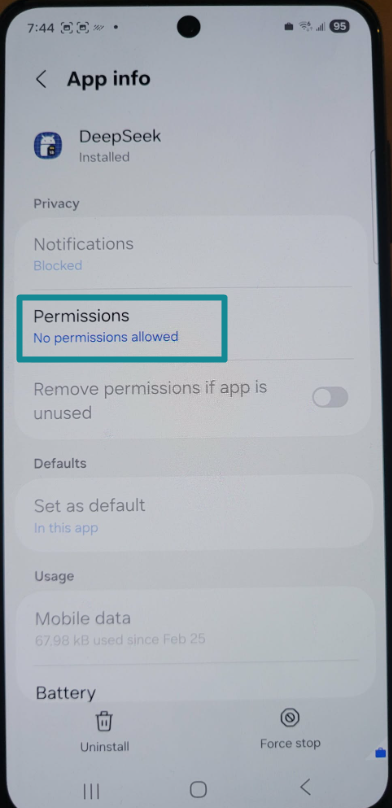
This confirms that the DeepSeek app can no longer function within the Android system of the Work Container and cannot be re-enabled by the end-user. Because the app is disabled, app removal is not required for the blocking outcome to be effective. If necessary, the only remaining action available to the user is to select Uninstall, which removes the app from the Work Container.
The end-user may still be able to locate the DeepSeek AI app in the Managed Google Play Store under an injected personal Google account; however, the only remaining available action is Uninstall. If the app had not been installed previously and the end-user is able to install it, the DeepSeek AI app is disabled immediately and cannot function within the Work Container.
- Next, review the Personal Container on the same Android COPE device to determine whether the deployed Application Control profile also blocks the DeepSeek AI app on the Personal.
Container. Based upon the configuration reviewed earlier, the following two settings were enabled:
- Application Control on COPE – Work Managed.
This setting suggests that application control is intended to apply to both the Personal Container and the Work Container. Based upon that interpretation, the expected behavior would be for the DeepSeek AI app to also be disabled and removed from the Personal Container. - Personal Google Play Store Restrictions – Denylist.
This setting suggests that the DeepSeek AI app should be blocked from installation from the personal Google Play Store.
However, the validation results do not reflect that expected behavior. The DeepSeek AI app remains available within the Personal Container and can still be located in the personal Google Play Store to be installed, despite the Application Control profile being deployed to the Android COPE device.
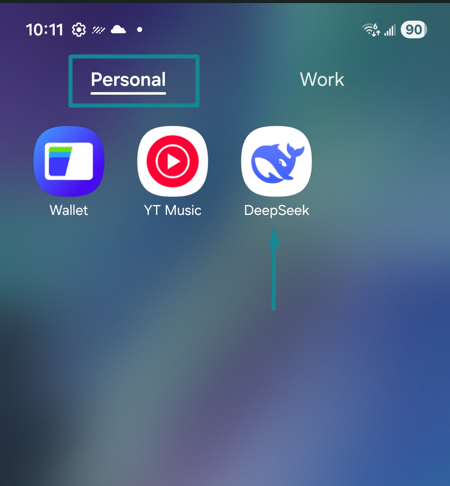
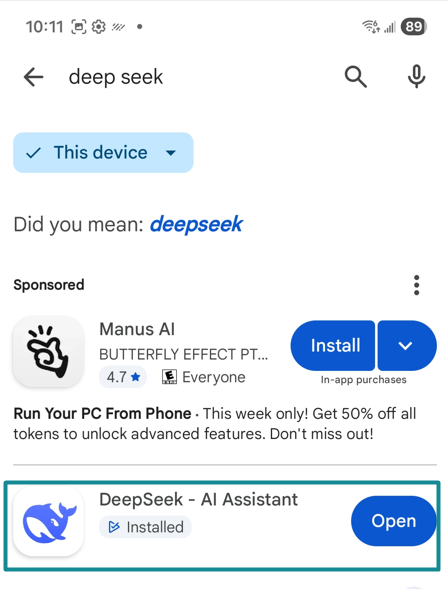
Key takeaway: On Android 11 and later COPE devices, the “Personal Play Store Restrictions – Denylist” setting did not enforce the expected blocking behavior in the Personal Container during testing and should not be treated as a primary control for personal-side app blocking on newer Android versions.
Although the DeepSeek AI app still exists within the Personal Container on the COPE device, the Work and Personal data separation settings in the Android Restrictions profile remain important. These settings help ensure that corporate data in the Work Container cannot be exposed to apps residing in the Personal Container, including DeepSeek AI.
- An optional hardening step may also be applied afterward by re-configuring and re-deploying the Android Restrictions profile to prevent personal Google account injection into the Managed Google Play Store, thereby reducing the likelihood of similar unwanted apps being introduced into the managed workspace going forward.
Final Thoughts
This blog demonstrates a clear, practical outcome for Android COPE: WS1 UEM can successfully block an unwanted app within the managed Work Container by using an Android Denylist App Group in conjunction with an Application Control profile. In the tested DeepSeek AI scenario, the app disappears from the Work Container, is disabled within the Android system under the work context and can no longer be used in the managed workspace. At the same time, the validation also confirms an important platform boundary on Android 11 and later: the same control does not reliably enforce blocking in the Personal Container, where Google privacy protections continue to limit how directly app control can be applied. For that reason, Android management mode selection remains a key design decision for app governance, and on COPE devices, Work/Personal data separation and Managed Google Play controls still matter just as much as the Denylist itself.
For organizations looking to strengthen app governance more broadly, the same conversation can extend beyond COPE to other Android management modes such as Work Profile and Fully Managed, wherein the control boundary and user experience differ. Similar governance considerations also apply to managed iOS devices, for which organizations may need to restrict unwanted apps, strengthen app policy, and better align mobile endpoint controls with business risk and compliance requirements.
Ferroque Systems helps organizations strengthen endpoint governance across Android, iOS, and modern endpoint management platforms. Ferroque Systems would be happy to assist with planning, design, validation, and/or implementation of application governance controls, whether the requirement is focused on Android COPE, broader mobile endpoint management, or integration with Mobile Threat Defense and identity platforms.