Managing the desktop experience on corporate devices is an important part of maintaining consistency across your environment. On macOS, however, enforcing a standardized wallpaper can be less straightforward than on other platforms, especially when you want the image to remain in place and prevent users from changing it.
Microsoft Intune gives administrators a way to manage this through macOS policy settings, and when using a script-assisted deployment, it can help ensure the wallpaper file is placed in a consistent local path before the setting is applied. By combining these methods, organizations can create a more uniform desktop experience across managed Macs while supporting branding, security messaging, or other business requirements.
In this guide, we will walk through a practical approach to deploying a corporate wallpaper on macOS devices using Intune. You will learn how to prepare and host the image, download it to devices, configure the wallpaper setting through Intune Settings Catalog, and restrict users from modifying it after deployment.
Common Use Cases
Corporate Branding
If you want to maintain a consistent corporate identity across your managed Macs, enforcing a standard desktop wallpaper can help. Branded wallpaper gives your devices a uniform appearance and reinforces your organization’s visual identity, especially if your users work in customer-facing roles, shared office spaces, or distributed environments. It also makes company-owned devices easier to recognize at a glance.
Security Awareness Messaging
You can also use desktop wallpaper as a straightforward way to keep important security information visible to your users. For example, you might include instructions for reporting phishing emails, contact details for your security team, or reminders about safe data handling. Because the desktop is seen throughout the day, this gives you a persistent communication channel that does not rely on users reading emails or announcements.
Legal and Compliance Notices
If your environment requires legal disclaimers, confidentiality statements, or regulatory notices to remain visible on corporate devices, a managed wallpaper can support that requirement. By setting and locking the wallpaper, you can help ensure that required messaging stays in place and cannot be removed or replaced by end users. This can be especially useful if you need to support internal policy enforcement or audit readiness.
Standardization Across Managed Devices
If your goal is to create a more consistent endpoint experience, enforcing wallpaper can be part of a broader standardization strategy. Keeping desktops visually aligned reduces variation across devices and helps you maintain a more predictable environment. That consistency can make it easier for you to support users, document configurations, and preserve a clean baseline across your macOS fleet.
Shared or Kiosk-Style Device Scenarios
If you manage shared Macs or devices used in communal areas, a locked wallpaper can help identify the device’s role or location. You might use specific wallpaper to show that a Mac is assigned to a conference room, reception area, training space, or other shared function. In these scenarios, preventing personalization helps you preserve the intended purpose of the device and maintain a professional presentation.
IT Support and Service Desk Identification
You may also want to use the wallpaper to make support information easy for users to find. Including a help desk email address, service portal, or internal support contact on the desktop can give users a quick reference point when they need assistance. This minor change can improve visibility for support resources and reduce friction when users need to report an issue.
Executive or Event-Based Communications
If you need to support a temporary campaign or internal initiative, enforcing wallpaper can be an effective way to deliver that message across your device fleet. You might do this during Cybersecurity Awareness Month, a company kickoff, a merger, or another internal event. In those cases, wallpaper gives you a straightforward way to roll out consistent messaging without relying on users to make changes themselves.
Preventing Inappropriate or Unapproved Customization
If you want to limit unnecessary personalization on company-owned devices, enforcing wallpaper can help you keep the desktop experience professional and consistent. While most customization is harmless, you may prefer to ensure that managed Macs reflect workplace standards rather than individual preferences. Locking the wallpaper gives you more control over how corporate devices appear and helps you maintain a more uniform user environment.
The Challenge with macOS
Managing wallpaper on macOS can be more challenging than on other platforms because the process is less straightforward in Microsoft Intune. Rather than simply pointing to a policy in an online image and enforcing it, you typically need to make sure the wallpaper file already exists locally on the Mac before the setting can be applied reliably. In practice, this means you often need to use a script to download the image to the device first, store it in a consistent location, and then configure the wallpaper setting to reference that local file. This extra dependency on scripting and file placement adds complexity to both deployment and ongoing management, especially if you also want to prevent users from changing the wallpaper afterward.
Prerequisites
Before you begin, make sure you have the following in place:
- macOS devices enrolled in Microsoft Intune.
- Devices enrolled via Automated Device Enrollment (ADE) (recommended) or Company Portal enrollment.
- Test with your enrollment type and OS version – some Apple MDM settings vary by platform/enrollment support.
- Intune admin permissions.
- A publicly accessible wallpaper image (HTTPS URL).
How Wallpaper Management Works on macOS
This process combines script-based deployment with policy-based enforcement in Intune. Because macOS typically requires the wallpaper image to exist locally on the device before it can be applied reliably, the first step is to use an Intune shell script to download the image to a consistent location on each Mac. Once the file is in place, we can use a macOS configuration profile to point the desktop wallpaper setting to that local file path. To complete the solution, we then apply additional managed settings to prevent users from changing the wallpaper themselves. In this blog, we will walk through each stage of that process, including preparing the image, deploying the download script, creating the configuration profile, assigning it to devices, and validating that the wallpaper is both applied successfully and locked down for end users.
Preparing the Wallpaper Image
Before you deploy the wallpaper through Intune, you need to standardize the image and the delivery method that will place it on the device. You should start by selecting an image format that macOS can render without issue, such as JPG or PNG. The file should be sized appropriately for the displays in your environment, typically 1920×1080 or 4k. Large image files increase download time, consume more storage, and can slow down deployment during initial provisioning or policy refresh. You should also host the image in a location that is stable, reachable, and suitable for scripted retrieval. In practice, this means using a URL that devices can access without interactive authentication, because the download process will run in the background through an Intune-delivered shell script. The hosting endpoint should support consistent availability and should not require frequent URL changes, since any change to the source path may require you to update the script or redeploy the configuration. Using a controlled hosting location also gives you a cleaner way to manage future image updates and versioning. An Azure Blob, CDN, or your own webhosting server can serve this function.
Example: https://contoso.com/wallpapers/corporate-mac.jpg
Downloading the Wallpaper File to Devices
Before you can configure the wallpaper on macOS, the image file first needs to be copied to each device. To manage this, you can use an Intune script to download the image from a hosted location and save it to a consistent directory on every managed device.
Step 1: Create the Script
With the wallpaper image hosted and the local destination path decided, the next step is to create the shell script that will download the file to each Mac. In this example, we use curl to download the image from an Azure Blob Storage URL and save it to /Users/Shared/, a convenient shared location accessible consistently across users on the device. It also writes output to a local log file so you can review whether the download completed successfully during testing or troubleshooting.
The script begins by defining the source URL, destination directory, destination filename, and log path. It then checks whether the target directory already exists and creates it if needed. The command “curl -L -o $wallpaperdir/$wallpaperfile $wallpaperurl” is the most important part of the script, as this is the command that downloads your wallpaper file to the chosen directory. You will need to write the script using a text or code editor and save it as a .sh file to upload to Intune.
#!/bin/bash

# Define variables
wallpaperurl="https://Wallpaperexample.com/wallpaper.jpg"
wallpaperdir="/Users/Shared"
wallpaperfile="wallpaper.jpg"
log="/var/log/downloaddesktopwallpaper.log"

# start logging
exec 1>>"$log" 2>&1

echo "# $(date) | Starting download of Desktop Wallpaper"

# Check if Wallpaper directory exists and create it if it is missing
if [ -d "$wallpaperdir" ]; then
    echo "$(date) | Wallpaper dir [$wallpaperdir] already exists"
else
    echo "$(date) | Creating [$wallpaperdir]"
    mkdir -p "$wallpaperdir" || {
        echo "$(date) | Failed to create directory [$wallpaperdir]"
        exit 1
    }
fi

# Attempt to download the image file
echo "$(date) | Downloading Wallpaper from [$wallpaperurl] to [$wallpaperdir/$wallpaperfile]"
curl -fL -o "$wallpaperdir/$wallpaperfile" "$wallpaperurl"
if [ "$?" = "0" ]; then
   echo "$(date) | Wallpaper [$wallpaperurl] downloaded to [$wallpaperdir/$wallpaperfile]"
   exit 0
else
   echo "$(date) | Failed to download wallpaper image from [$wallpaperurl]"
   exit 1
fi
Step 2: Configure the Script in Intune
Once the script is ready, the next step is to upload it to Microsoft Intune so it can be deployed to your managed Macs.
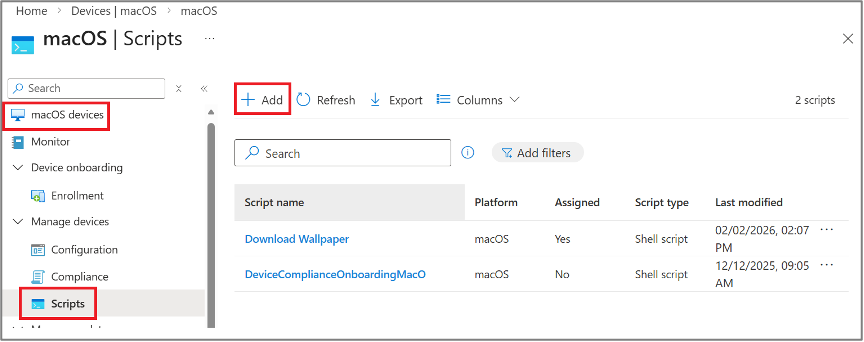
- In the Intune portal, go to Devices > By platform > macOS > Manage devices > Scripts > Add.
- Choose a name and description for the Script.
- Upload your script as a .sh file and make sure you have your variables set correctly.
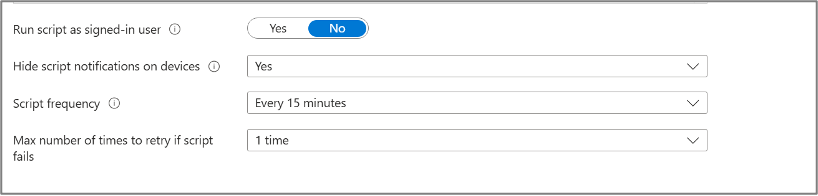
- Set the script settings. Choose no for “run script as signed-in user” so that it runs as root, and yes to “Hide script notification on devices.” The frequency and retry attempts will depend on your organization.
- Set your scope tags
- Assign to your group of test devices.
- Review and Add the script. It will be added to Intune and applied to the group of test devices
Creating the macOS Configuration Profile in Intune
Once the wallpaper file has been downloaded to each Mac, the next step is to create the Intune configuration profile that tells macOS which local image to use. At one point, a custom profile was required, but you can now use the settings catalog.
- In the Intune portal, go to Devices > Manage Devices> Configuration > Create > New policy
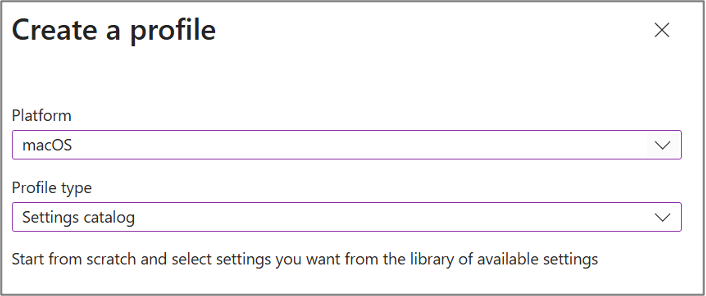
- Choose macOS and Settings Catalog.
- Choose a name and description.
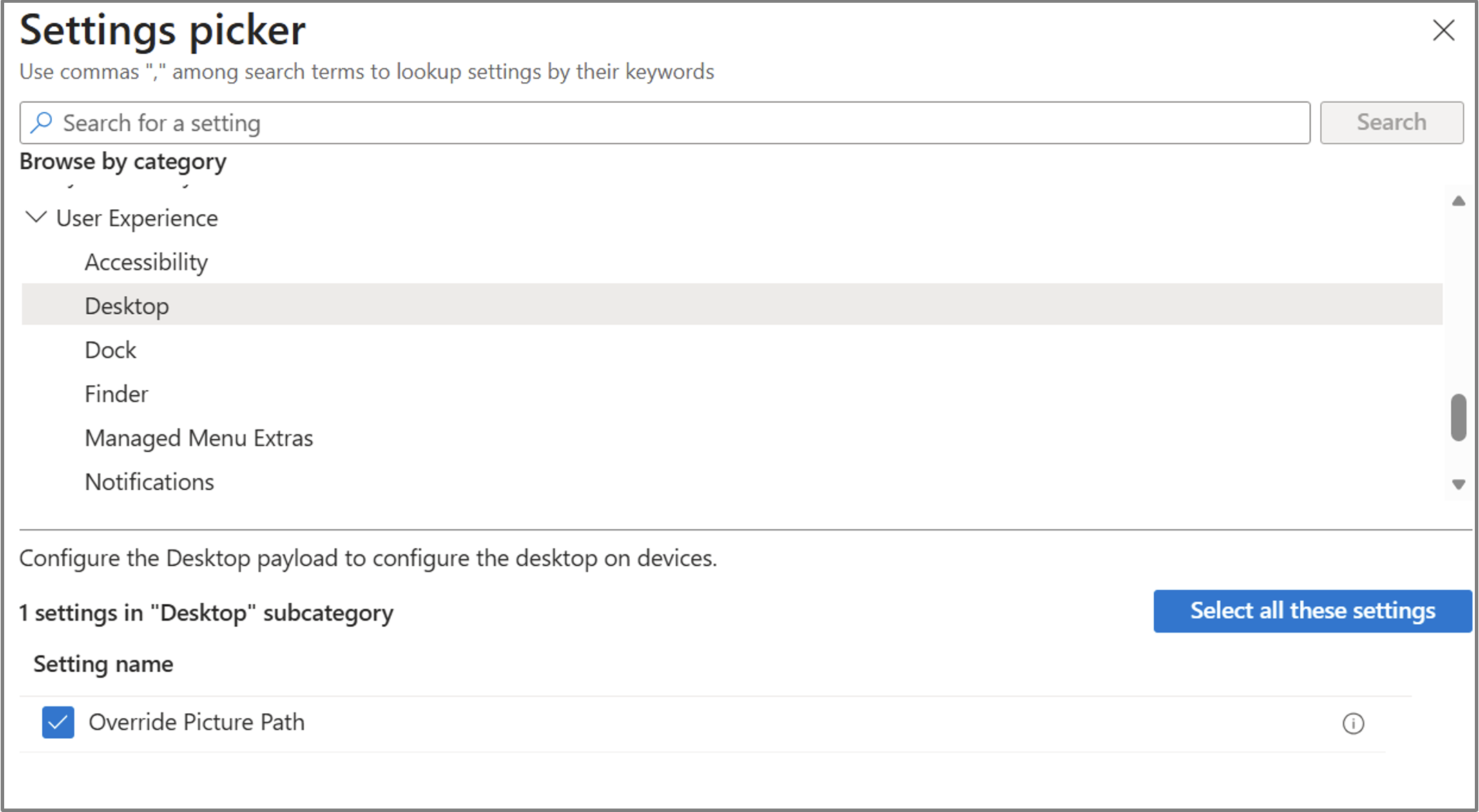
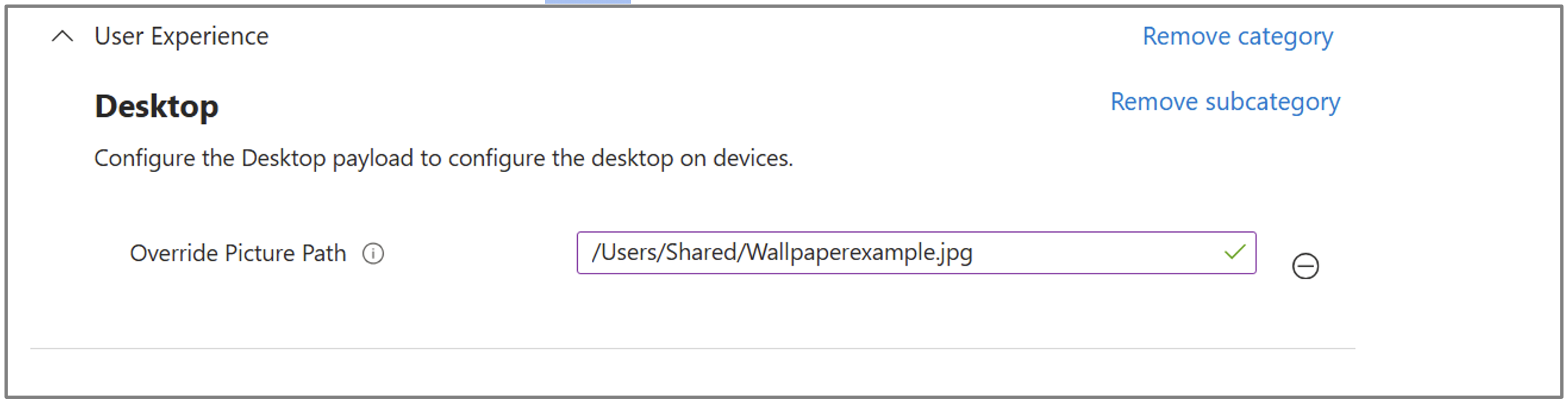
- Click on Add settings, and in the settings picker, go to User Experience > Desktop > Check Override Picture path.
- Close the settings picker and fill in the file path used in your script as below.
- Set your scope tags
- Assign to your group of test devices.
- Review and Save.
Preventing Users From Changing the Wallpaper
Setting the wallpaper is only half of the solution. If you also want to stop users from changing it afterward, the wallpaper needs to be enforced through a managed macOS profile rather than treated as a normal user preference. Since we already have a configuration profile that controls the wallpaper, we can just add the wallpaper modification restriction to the existing configuration profile. While you can create a separate payload for the wallpaper restriction or add it to another configuration profile, this will ensure that all the wallpaper configurations are in the same place.
- In the Intune portal, go to Devices > Manage Devices> Configuration > Find your wallpaper policy.
- Scroll down to Configuration settings and Edit.
- Click on Add settings, and in the settings picker, go to User Restrictions > Allow Wallpaper Modification

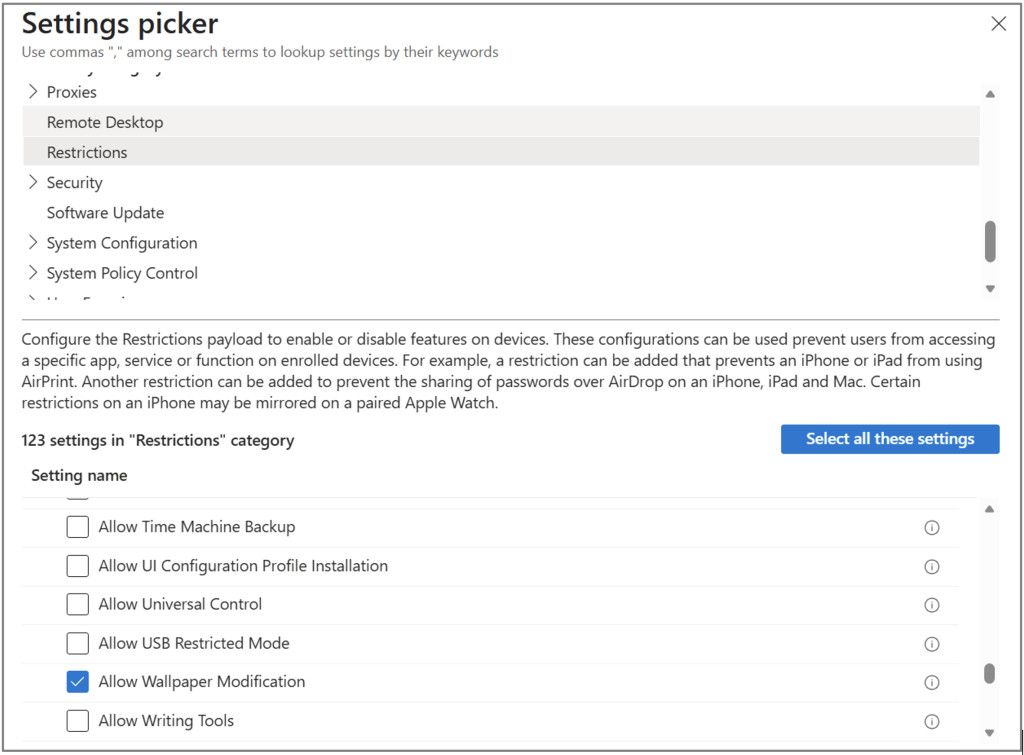
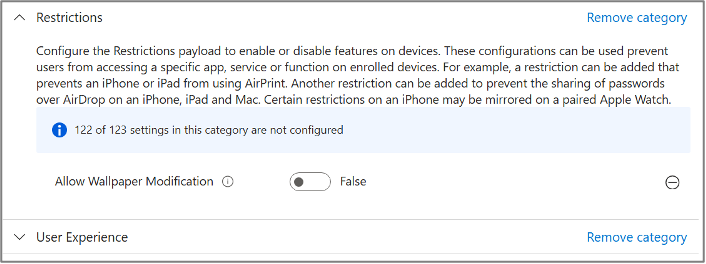
- Close the settings picker and set “Allow Wallpaper Modification” to false.
- Set your scope tags.
- Assign to your group of test devices.
- Review and Save.
Validation
After the assignment, confirm the following items on the test Mac:
- The image exists on the local path by navigating to the folder using Finder on a test device.
- The settings catalog profile shows as succeeded on the device.
- The user can no longer modify the wallpaper, and “Allow Wallpaper Modification is disabled.
- Remember: the shell script run status in Intune reflects the first run only, so local logging is still useful during testing.
Troubleshooting
Even when the deployment steps are configured correctly, wallpaper management on macOS can still be sensitive to timing, file location, permissions, and profile configuration. Because this solution depends on both a script and a configuration profile working together, it is important to validate each part separately during testing. If the wallpaper does not apply or users can still change it, the issue is usually related to the image download, the local file path, the profile payload, or the order in which the settings were applied.
The Wallpaper Does Not Download to The Device
If the wallpaper file never reaches the Mac, the rest of the deployment will obviously fail. Start by reviewing the script status in Intune and checking the local log(/var/log/downloaddesktopwallpaper.log) file to confirm whether the script ran. You should also verify that the image URL is accessible and that the device has network connectivity. Make sure that the wallpaper URL is accessible from the device without requiring any additional authentication. Note that status reporting in Intune will only reflect the first run of the script, even if the script is rerun later on a schedule.
The Wallpaper File Downloads, But The Wallpaper Does Not Change
If the file exists locally but the desktop background does not update, the next thing to check is the file path referenced in the configuration profile. The path in the profile must exactly match the path where the script placed the image. Even a small difference in filename, extension, or folder location can prevent the wallpaper from being applied.
The Script Reports Success, But The Downloaded File is Not a Valid Image
This can happen if the source URL returns an error page, redirect page, or authentication prompt instead of the actual image file. In those cases, the script may save a file successfully, but the file is not a usable wallpaper. To troubleshoot this, confirm that the download source is a direct image URL and validate the downloaded file on a test device to make sure it is a JPG or PNG and not HTML content.
Final Notes
Managing desktop wallpaper on macOS with Microsoft Intune requires a slightly more technical approach than on other platforms, because many admins choose to place the image on the device first so the configuration profile can reference a known local path consistently. By combining an Intune shell script with a macOS configuration profile, you can deliver the wallpaper to a consistent local path, configure macOS to use that file, and enforce the setting so users cannot change it.
Although the process involves both scripting and profile-based management, it gives you a reliable way to standardize the desktop experience across managed Macs. Whether your goal is branding, security messaging, compliance, or device consistency, this approach allows you to control both the wallpaper itself and the user’s ability to modify it. With proper testing, clear file paths, and careful policy design, you can build a deployment that is both repeatable and easy to maintain.
If your organization is looking to strengthen macOS management with Microsoft Intune, Ferroque Systems can help design and implement the right approach for your environment, including scripting strategy, configuration profile design, policy deployment, and broader endpoint management alignment on macOS platforms.