As organizations continue to adopt cloud-based services and modernize Windows management, endpoint security cannot be treated as a separate track from identity and access management. Many environments already use Microsoft Intune to deploy and manage Windows security configuration and Microsoft Defender for Endpoint (MDE) to detect and respond to endpoint threats; however, if these solutions operate in silos, risk becomes noise instead of an enforcement decision.
Intune and Defender are better together because they create a tightly integrated, closed-loop system: devices are onboarded to MDE via Intune, MDE produces device risk signals, Intune evaluates that risk through device compliance policies, and Microsoft Entra ID Conditional Access enforces access by requiring the device to be marked compliant. This turns endpoint security from “settings, hope, and operating in silos” into a Zero Trust access model in which device risk signals drive compliance, and compliance drives access to protected resources behind Entra ID.
Objectives
The objective of this blog is to implement a pilot Zero Trust access model for Windows devices by integrating Intune, MDE, and Entra ID Conditional Access, ensuring that only devices that meet Intune compliance requirements and remain within an acceptable risk level can access protected corporate resources. MDE provides the device risk signal, Intune evaluates that signal via device compliance policies, and Conditional Access enforces access by requiring the device to be marked compliant. Organizations gain an enforcement model in which device risk drives compliance, and compliance drives access.
Note (assumption): this blog assumes applications are protected by Microsoft Entra ID Conditional Access policies. When Conditional Access is in place, device compliance can be used as an enforcement decision for access to corporate resources.
Architecture Overview and Prerequisites
Before connecting Intune compliance and Conditional Access to MDE risk, it is important to level-set what MDE is and what it contributes to this Zero Trust model.
What is Microsoft Defender for Endpoint?
MDE is Microsoft’s enterprise endpoint security platform designed to help organizations prevent, detect, investigate, and respond to threats on endpoints, especially Windows devices. In practical terms, Intune can deploy and manage Windows security configuration, and MDE is the platform that detects threat activity and produces security signals that indicate when a Windows device is exhibiting symptoms of risk.
MDE is accessed via the Microsoft Defender portal (security.microsoft.com) and is part of the broader Microsoft Defender XDR experience. This is where security teams typically manage alerts and incidents, perform advanced hunting, and take response actions during endpoint investigations.
At a high level, MDE consists of several major capability areas that work together to protect endpoints and generate security insights.
| MDE Capability Area | Description | Why It Matters for Zero Trust |
|---|---|---|
| Device discovery | Improves visibility by identifying endpoints in the environment and building an inventory view of the device estate. | Establishes endpoint visibility and baseline context for security monitoring. |
| Threat and vulnerability management (TVM) | Provides software vulnerabilities and security misconfigurations and helps prioritize remediation based upon exposure and risk. | Reduces exposure that can contribute to risk signals and overall security posture. |
| Attack surface reduction (ASR) | Focuses on preventative controls that reduce common attack techniques such as malicious scripts, macro abuse, and credential theft paths. | Helps prevent threats from succeeding and reduces the likelihood of devices becoming high risk. |
| Next generation protection (NGP) | Represents Microsoft’s modern antivirus and protection stack, providing real time protection and cloud delivered protection capabilities. | Strengthens baseline endpoint protection and contributes to endpoint security signals. |
| Endpoint detection and response (EDR) | Acts as the detection and investigation layer which collects endpoint signals, identifies suspicious activity, and supports investigations through telemetry and correlation. | Provides the detection and telemetry foundation that informs device risk. |
| Automated investigation and remediation (AIR) | Automates investigation workflows and takes remediation actions based upon investigation results and policy. | Speeds response and reduces the time a device remains in an at-risk state. |
| Microsoft Threat Experts | Provides expert driven insights and additional threat intelligence support for deeper investigation. | Supports mature security operations for organizations that need advanced expertise. |
These capability areas explain why MDE is often owned by the security team and not by the Intune administrators, and why the MDE risk signal is critical to a Zero Trust model, since it becomes an input into Intune compliance evaluation and an enforcement condition via Entra ID Conditional Access.
Scope Note:
This blog is not intended to be a full MDE implementation or hardening guide. MDE is a broad security platform typically owned and configured by security teams. The focus of this blog is the cross-domain integration, demonstrating how an Intune administrator can collaborate with security and identity teams to onboard Windows devices to MDE, evaluate MDE risk through Intune compliance, and enforce access using Entra ID Conditional Access.
What does “risk” mean in this blog?
In this blog, the key MDE outcome is Windows device risk. Device risk is a security signal that can be consumed by Intune and translated into a device compliance decision. The focus of this blog is not to cover every MDE capability; instead, the focus is to demonstrate how MDE evaluates endpoint signals and produces device risk, upon which the closed-loopmodel depends.
MDE surfaces a device risk assessment in the Defender portal, and Intune can consume that signal through the compliance setting machine risk score. Risk is evaluated based on a combination of factors, including the type and severity of active alerts on the device. In practice, risk is expressed using levels such as High, Medium, and Low, and devices without an active risk condition may appear as No known risk in the Defender portal.
| MDE Device Risk Level | Description | Typical Admin Action |
|---|---|---|
| High | Device is considered high risk based upon MDE signals and active alert severity. | Prioritize investigation and remediation. Expect Intune compliance to mark the device non-compliant if the policy requires low or no risk. |
| Medium | Device shows elevated risk signals that should be investigated. | Investigate and remediate based upon organizational thresholds and policy. |
| Low | Device shows limited risk signals that may still warrant review. | Review as needed. Often acceptable, depending upon the compliance threshold design. |
| Informational | MDE has recorded security signals, but they are generally informational in nature. | Monitor and assess if required. Often not treated as a blocking condition. |
| No known risk | MDE currently has no active risk condition associated with the device based upon available signals. | Normal operating state. Common target state for “compliant” enforcement models. |
In the configuration sections of this blog, Intune administrators will use these MDE risk levels to define Intune compliance thresholds for Windows devices and apply Microsoft Entra ID Conditional Access to enforce access by requiring the device to be marked compliant.
For other platforms such as iOS and Android, MDE is typically deployed as a mobile security solution and is often discussed in the context of mobile threat defense. This is outside the scope of this blog; for more information, refer to MDE integration for mobile devices with Intune here.
Onboarding options (and why Intune is the clean path for Windows laptops)
MDE supports multiple onboarding approaches depending upon the platform and management model. For Windows devices that are already managed by Intune, onboarding via Intune is typically the most streamlined approach because it fits naturally into the endpoint onboarding and management workflow. Intune administrators assign onboarding configuration to a device group, validate onboarding in the Defender portal, and scale up using the same deployment workflows already used for Windows management.
Licensing at a high level
MDE is available in multiple licensing options, commonly referenced as Plan 1 and Plan 2, and it is also included in certain Microsoft 365 suites, depending on the licensing model. In this blog, licensing is treated as a prerequisite check, sufficient to enable onboarding and risk signal integration, without going deep into plan-by-plan feature matrices. For more information, refer to the Microsoft Defender for Endpoint licensing documentation.
Architecture Overview
The following diagram illustrates how Intune, MDE, and Entra ID work together as a closed-loop system, connecting device configuration, risk evaluation, and access enforcement.
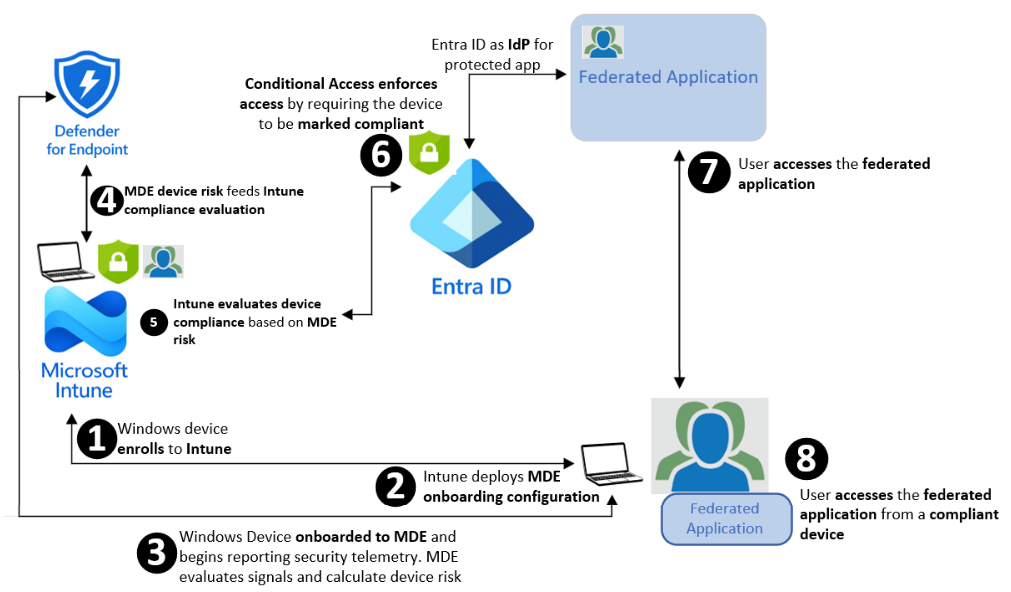
- The Windows device enrolls in Intune, establishing Intune as the management and compliance authority for the device.
- Intune deploys the MDE onboarding configuration to the managed Windows device.
- The Windows device is onboarded to MDE. The device begins reporting security telemetry. MDE evaluates the device and calculates a device risk level based on detected threats and security signals.
- MDE shares device risk with Intune so that Intune can use MDE risk as an input to device compliance evaluation.
- Intune evaluates device compliance based on MDE risk, including acceptable MDE risk levels (i.e., Medium or Low). Devices that exceed the defined threshold are marked non-compliant.
- Entra ID Conditional Access policies enforce access to a targeted federated application based on Intune compliance posture. If the Conditional Access policy requires the device to be marked compliant to grant access, access is allowed only for compliant devices and is blocked for non-compliant devices, including high-risk devices.
- User accesses the federated application from a compliant managed device. If the device is non-compliant, access is blocked until the device returns to a compliant state.
The orange paths highlight the integration and enforcement components covered in this blog, focusing on how Defender risk is onboarded, evaluated by Intune, and enforced via Entra ID Conditional Access.
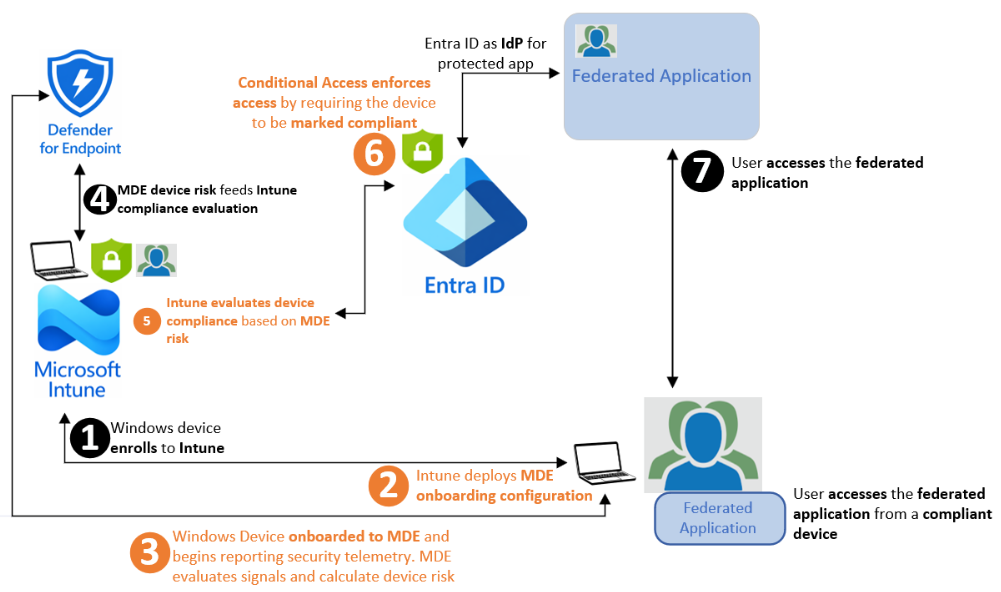
This blog guides administrators in implementing the orange-highlighted integration and enforcement paths in the closed-loop model between Intune, MDE, and Entra ID Conditional Access. The end goal is to operationalize Zero Trust access by onboarding Windows devices to MDE via Intune, consuming MDE device risk signals in Intune compliance evaluation, and enforcing access using Conditional Access.
Since the enforcement outcome depends upon MDE risk signals, this implementation requires collaboration with the security team to ensure MDE is configured to assess and report device risk appropriately. This blog will not deep-dive into Defender hardening nor all Defender feature areas; instead, it focuses on the cross-domain integration steps and the Intune compliance configuration required to translate Defender risk into an enforceable access decision. Without MDE risk being available to Intune compliance evaluation, the remainder of the closed-loop model cannot function.
Configure Intune and MDE integration and onboard Windows devices (Paths #2 and #3):
MDE administrators must ensure MDE is prepared for onboarding and use Intune to deploy the onboarding configuration to Windows devices. The purpose of this preparation is to ensure Defender is ready to receive onboarded endpoints and generate consistent device risk signals that can later be consumed by Intune compliance policies.
Once Defender is ready, Intune provides a streamlined approach to onboarding Windows devices by deploying the MDE onboarding configuration via a managed policy workflow. This reduces operational overhead, supports phased deployment using pilot device groups, and keeps onboarding aligned with the same management plane used for Windows configuration and compliance. After deployment, Intune administrators validate that devices are successfully onboarded and reporting security telemetry to Defender, which enables Defender to evaluate signals and calculate device risk.
Configure Intune compliance and Entra ID Conditional Access enforcement (Paths #5 and #6):
Intune administrators must configure Windows device compliance policies to evaluate devices based on acceptable MDE risk levels and mark devices compliant or non-compliant accordingly. Once the compliance evaluation is in place, Entra ID administrators must configure Conditional Access policies to enforce access by requiring devices to be marked compliant before accessing protected corporate resources.
To avoid production disruption, Conditional Access policies should be implemented in a phased approach, beginning with a test user group and a target test application, to validate the end-to-end behavior before expanding enforcement to additional users and applications. Break-glass accounts should be excluded, and “All cloud apps” should not be targeted until validation is complete.
Prerequisites
This section lists the environment readiness, integrations, and administrative access required to implement the orange-highlighted paths, including Intune-managed Windows devices, MDE onboarding and risk signals, Intune compliance evaluation, and Entra ID Conditional Access enforcement.
Architectural prerequisites
- Corporate Windows devices are already being managed by Intune using a supported enrollment method.
- Windows devices are Entra ID joined (or hybrid joined), so device identity and compliance state can be evaluated for Conditional Access decisions.
- Microsoft Defender for Endpoint licensing is available for the tenant, and the MDE workload is activated and available in the Defender XDR portal. Otherwise, the steps to activate the MDE workload within the Defender portal are here.
- User accounts exist in Entra ID and are used for Windows enrollment, sign-in, and Conditional Access evaluation.
- The organization has adopted Entra ID as the primary Identity Provider (IdP), federating corporate applications within it.
- An Entra ID Conditional Access policy strategy exists for the organization, and Conditional Access is used to protect access to corporate resources, including multi-factor authentication (MFA), to enhance security. This blog will use the grant control “Require device to be marked as compliant” as the enforcement decision to protect a corporate application.
Administrative access prerequisites
- Administrative access to the Intune admin center with permissions to configure endpoint security integration settings and deploy MDE onboarding via Intune. For example, this can be accomplished by the Intune administrator role or by an appropriate Intune RBAC role with endpoint security management permissions.
- Read access (i.e., Security Reader RBAC role) to the Microsoft Defender portal to validate device onboarding status and review device risk levels. If read access is not available, administrators should collaborate with the security team to perform validation in the Defender portal.
- Administrative access in the Entra ID admin center with permissions to create or manage Conditional Access policies used for enforcement. If these permissions are not available, administrators should collaborate with the Entra ID team to configure Conditional Access policies required for enforcement.
Pilot and validation prerequisites
- A selected pilot user or multiple pilot users. For the blog, the selected pilot user is anguyen@ferroquesystems.com, Entra ID user.
- A pilot Entra ID user group containing pilot user(s). For this blog, the pilot Entra ID user group will be constructed and will contain anguyen@ferroquesystems.com as a member.
- At least one Windows test device is enrolled in Intune and signed in with a pilot user account to validate the end-to-end flow.
- A pilot device group representing corporate Windows devices enrolled under the pilot user(s) for initial MDE onboarding and compliance validation. For this blog, the pilot device group will be constructed in Intune and contain the Windows devices enrolled under anguyen@ferroquesystems.com
- The pilot Windows device must be able to reach MDE service URLs over HTTPS, either directly or via WinHTTP proxy, with Defender URLs excluded from SSL inspection. For information on this prerequisite, please check here.
- A target test application protected by Conditional Access.
Integration Summary
In the Configuration section, the blog will dive into the specifics of each integration step. Since the work spans multiple admin centers, the Configuration section is organized into integration workflows to keep the implementation organized and validation straightforward. This Integration Summary section explains how the closed-loop model is implemented across Intune, MDE, and Entra ID. The goal is to translate MDE device risk into an enforceable access decision by using Intune compliance policy as the control point and Conditional Access policies as the enforcement mechanism. The workflows are implemented in five steps, moving from tenant readiness to device onboarding, risk-based compliance evaluation, access enforcement, and validation.
The sequence of integrations and the high-level expected outcomes achieved along the way are described below.
- Pilot Preparation
- Description: Pilot Preparation creates a pilot user group in Entra ID and a pilot device group in Intune to scope Conditional Access enforcement and MDE onboarding to a controlled population, enabling end-to-end validation before expanding to production.
- Expected outcome: both pilot groups exist and contain the intended pilot user and pilot Windows device, establishing readiness for scoped onboarding, compliance evaluation, and Conditional Access enforcement.
- Enable MDE/Intune Connection
- Description: This workflow establishes the MDE – Intune connection so Intune can consume MDE device risk for Windows compliance evaluation. It enables the Microsoft Intune connection in the Defender portal and confirms Windows device connectivity for compliance signal use in the Intune admin center.
- Expected outcome: The MDE – Intune connection is enabled in the Defender portal, and the Intune admin center shows the MDE connector as enabled with a recent synchronization time. In addition, the Windows integration setting is enabled under Endpoint security > Microsoft Defender for Endpoint > Compliance policy evaluation, which allows Intune to consume MDE device risk during Windows compliance evaluation.
- Onboard Windows Devices to MDE Using Intune
- Description: This workflow onboards the pilot Windows device to MDE using an Intune Endpoint detection and response policy assigned to the pilot device group and configured with Auto from connector. Onboarding is validated in the Defender portal by confirming the device appears in inventory and is actively reporting with a visible risk level, enabling the next step of risk-based compliance evaluation in Intune.
- Expected outcome: The pilot Windows device is onboarded to MDE, appears in the Defender portal as active and reporting, and produces device risk signals that can be consumed by Intune for compliance evaluation.
- Configure Intune Device Compliance Evaluation Using MDE Risk Signals
- Description: This workflow creates a Windows compliance policy in Intune for the pilot scope that evaluates devices based on MDE machine risk score, using Medium or below as the compliant threshold. Validation is completed by confirming the pilot device compliance state in Intune and correlating it with the device risk level in the Defender portal, establishing the compliance signal required for Conditional Access enforcement.
- Expected outcome: The pilot Windows device is evaluated using the configured MDE risk threshold (Medium or below) and is marked compliant or noncompliant accordingly, establishing the compliance posture required for Conditional Access enforcement.
- Configure Entra ID Conditional Access to Require Windows Compliant Devices
- Description: This workflow configures Entra ID Conditional Access for the pilot user group to protect a selected application for Windows sign-ins by requiring the device to be marked compliant. The policy is validated in Report-only mode using sign-in logs, then switched to On to enforce access, granting access for compliant devices and blocking non-compliant devices until they return to a compliant state.
- Expected outcome: Conditional Access is validated in Report-only mode and then enforced for the pilot group, allowing access only from Intune-compliant Windows devices.
Configuration
The first step is to prepare a pilot user group in Entra ID and a pilot device group in Intune. The Entra ID user group will contain the pilot user account(s), and the Intune device group will contain the Windows device(s) enrolled under that pilot user. As a prerequisite, the pilot account “anguyen” already exists in Entra ID and Intune and represents a standard organizational user. In addition, “anguyen” is already entitled to access the selected federated application, which will serve as the target resource protected by Entra ID Conditional Access in ensuring steps using the grant control “Require device to be marked as compliant.”
Pilot Preparation
The pilot implementation is scoped using dedicated pilot groups, so enforcement is controlled, repeatable, and easy to expand. Entra ID Conditional Access supports assigning policies to users and groups. Administrators must create an Entra ID group representing pilot users. In this blog, enforcement is intentionally scoped to the Entra ID user group “Pilot – Windows Zero Trust Users”, which contains a selected pilot user, rather than targeting an individual account directly. This keeps the design clean and scalable, allowing enforcement to expand incrementally by adding additional members to the pilot group once validation is complete.
In parallel, the Intune device group “Pilot – Windows Zero Trust Devices” is created and used to scope MDE onboarding to the Windows devices enrolled under the pilot user before expanding to production. This ensures onboarding, compliance evaluation, and Conditional Access enforcement are validated end-to-end within a controlled scope.
Implementation notes: this blog is to construct and use the “Pilot – Windows Zero Trust Users” Entra ID group for Conditional Access and compliance scoping, and “Pilot – Windows Zero Trust Devices” Intune device group for MDE onboarding deployment. If the Intune Administrator role does not have permissions to create Entra ID groups, administrators should collaborate with the Entra ID team to perform the group creation.
Expected outcome: both pilot groups exist and contain the intended pilot user and pilot Windows device, respectively, establishing readiness for scoped onboarding, compliance evaluation, and Conditional Access enforcement.
The following outlines the steps to prepare the pilot deployment.
Create the “Pilot – Windows Zero Trust Users” group in Entra ID:
- Log in to Entra admin center > under Entra ID, click Groups > New Group.
In the New Group creation window, under Group Name, specify “Pilot – Windows Zero Trust Users” or a desired friendly name. Ensure the Group Type: Security as default. Fill in the Group Description field if required.
Under Membership type, select Assigned.
Under Members, click No members selected to initiate adding a new member process > locate and add the respective pilot user. In this blog, the pilot user “anguyen” is selected as a member of this group > Create.
- Validate the group and its membership.
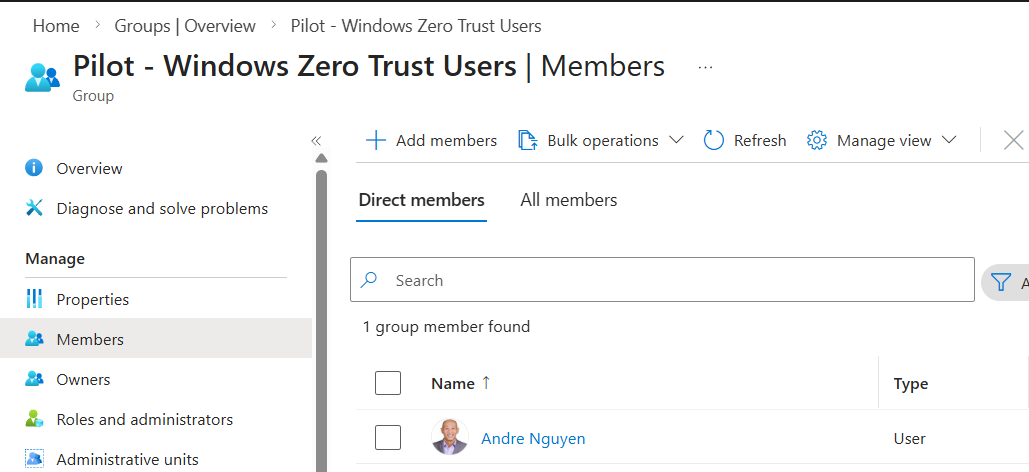
Create the “Pilot – Windows Zero Trust Devices” device group in Intune:
- Log in to Intune admin center, click Groups > New Group.
In the New Group creation window, under Group Name, specify a friendly name (i.e., Pilot – Windows Zero Trust Devices). Ensure the Group Type: Security as default. Fill in Group Description field if required.
Under Membership type, select Assigned.
Under Members, click No members selected to initiate adding a new member process > locate and add the enrolled Windows device under the respective pilot user. In this blog, the Windows device enrolled under “anguyen” is selected as the member > Create.
- Validate the group and its membership.
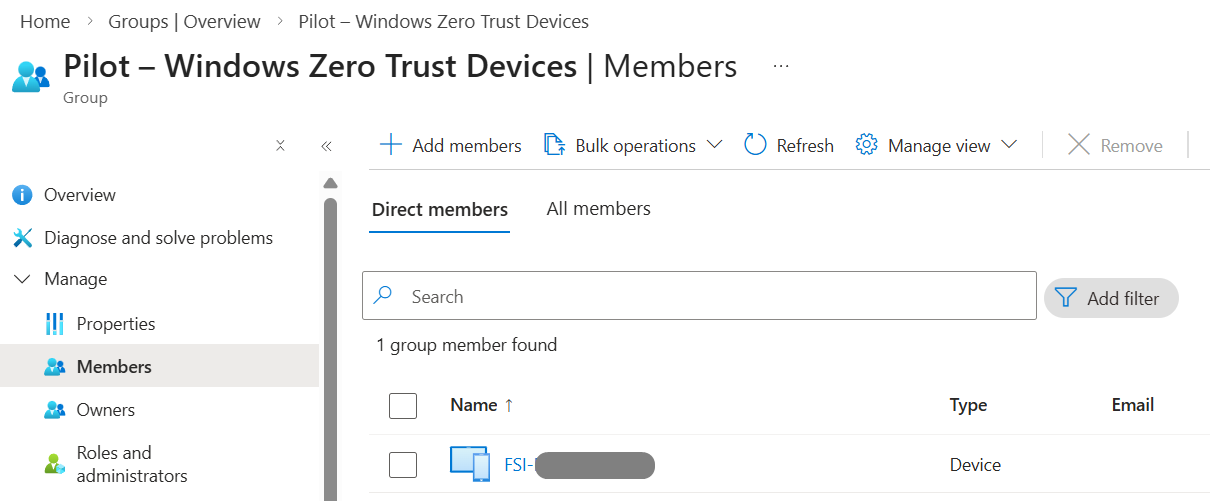
Enable MDE – Intune connection (with Defender initial preparation)
This step establishes the tenant-level communication between MDE and Intune so the rest of the closed-loop model can exist. Think of it as flipping the environment from “two separate products” into a “cohesive endpoint security solution,” wherein MDE produces device risk, and Intune consumes that risk for compliance decisions.
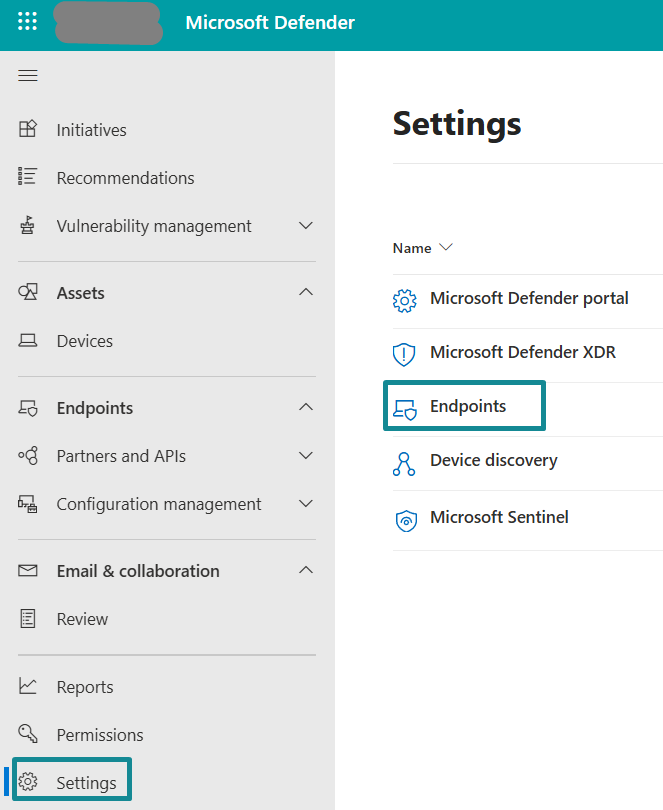
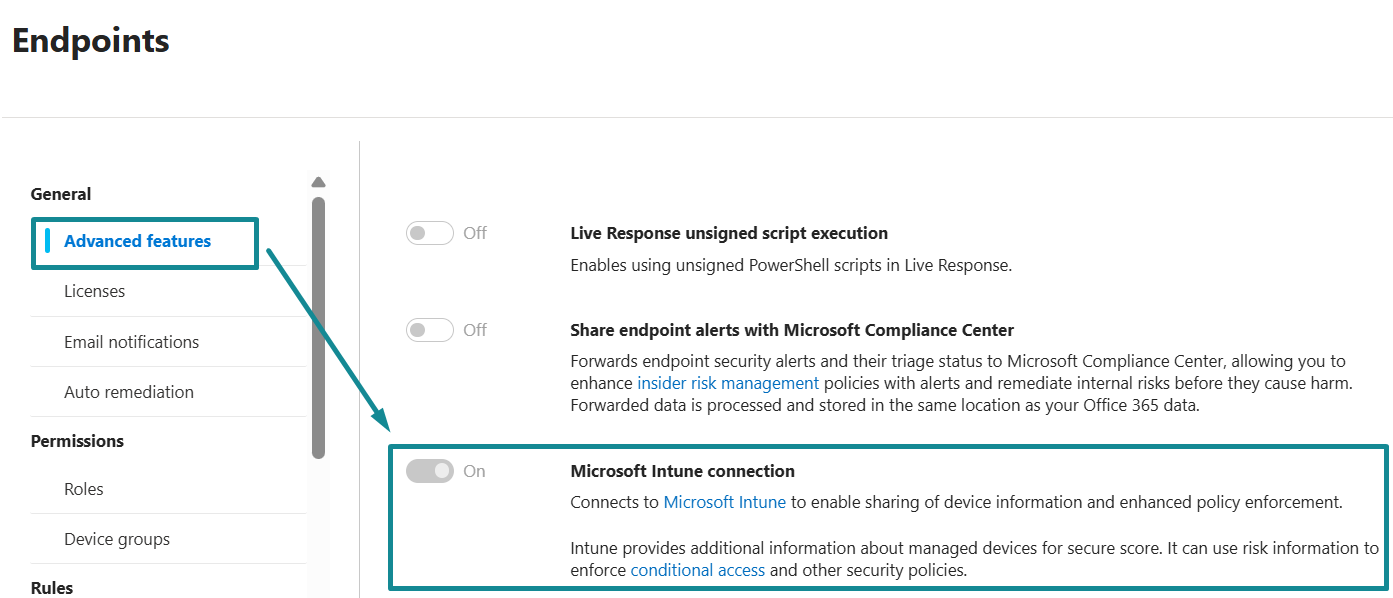
On the Defender portal, administrators enable Intune connection under Settings > Endpoints > Advanced Features to enable MDE – Intune communication. This is an important setting that creates the service-to-service relationship and allows signals to exchange between the two platforms. The remaining configuration under Settings > Endpoints within the Defender portal (i.e., notifications, automation, indicators, device groups, suppression rules, etc.) is important for overall endpoint security operations and maturity, but it is not the core dependency for this blog. If the Defender tenant is already operational, most of these settings will already be governed by the security team’s standards; if the tenant is new, the table under this sub-section provides a practical baseline to validate readiness.
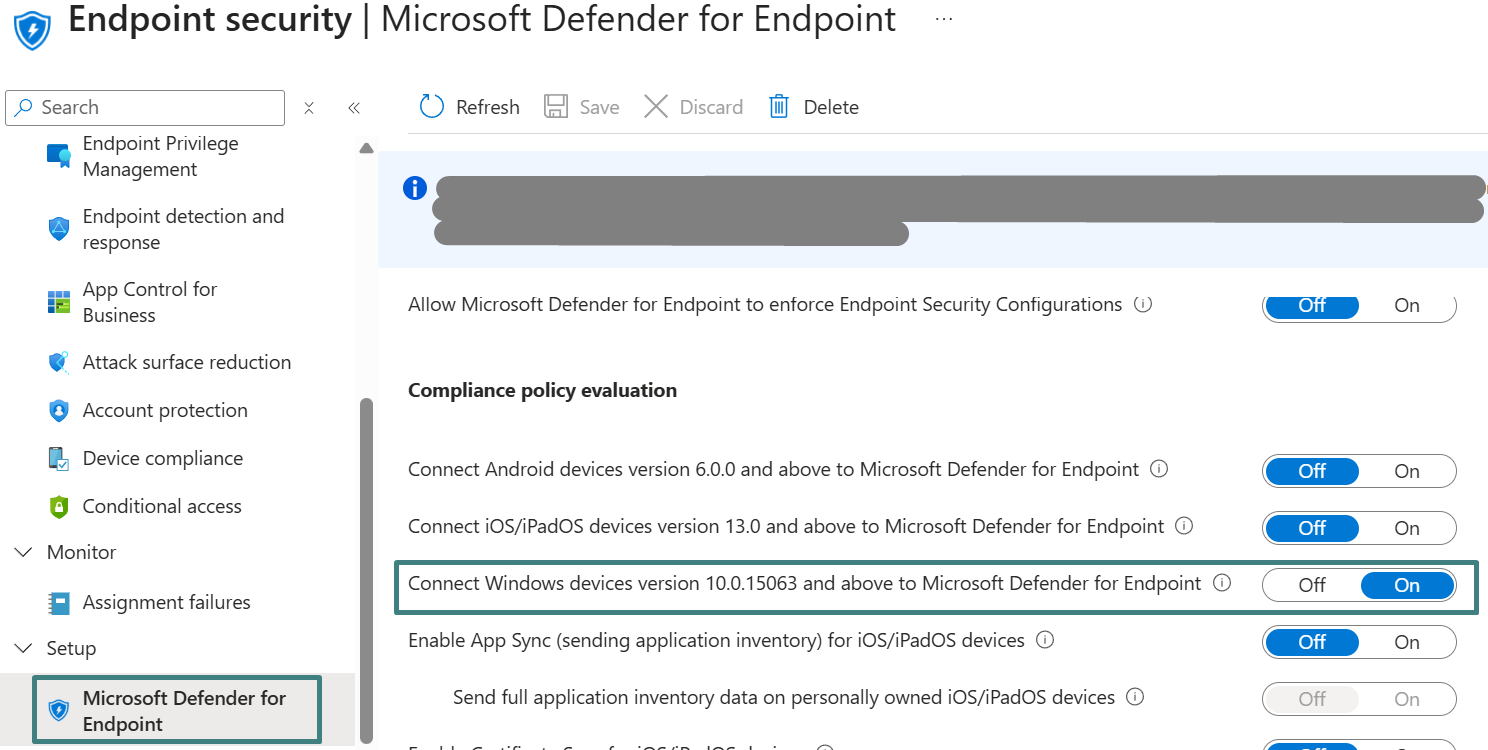
On the Intune admin center, Intune administrators then validate the connector status under Endpoint security > Setup > Microsoft Defender for Endpoint, then enable the Windows-specific integration needed for compliance evaluation under the settings Compliance policy evaluation > Connect Windows devices version 10.0.15063 and above to Microsoft Defender for Endpoint, so Intune can evaluate Windows compliance using the MDE device risk signal. Mobile-related options (Android/iOS compliance and app protection evaluation) remain out of scope for this Windows pilot.
This workflow naturally crosses team functions and typically requires collaboration, as security teams often own MDE configuration and endpoint teams often own Intune configuration. If an Intune administrator does not have Defender admin rights, the important action in the Defender portal is simply to enable the Intune connection and confirm it remains turned on (enabled). Intune administrators should work with the security team as needed to complete and validate this step.
Expected outcome: the MDE/Intune connection is enabled in the Defender portal, and the Intune admin center shows the MDE connector as enabled with a recent synchronization time. In addition, the Windows integration setting is enabled under Endpoint security > Microsoft Defender for Endpoint > Compliance policy evaluation, which allows Intune to consume MDE device risk during Windows compliance evaluation.
The following outlines the steps to enable the MDE/Intune integration.
Enable MDE – Intune Connection in Microsoft Defender Portal (with MDE Tenant Initial Preparation):
- Log in to Microsoft Defender portal (security.microsoft.com) with at least Microsoft Defender Administrator role or collaborate with security team (with full admin role, i.e., Security Administrator) to perform the configuration below.
Click Settings > Endpoints.
Under General > Advanced Features > locate Microsoft Intune connection > enable the connection.
- Optional (MDE tenant initial/baseline preparation) – If this is a new or minimally configured MDE tenant, collaborate with the security team to complete baseline configuration under Settings > Endpoints using the table below. If these settings are already established, please skip this step and proceed to step 3 below.
| Configuration Category | Features | Descriptions | Recommendation (for this blog) |
|---|---|---|---|
| General | Advanced Features | “Advanced features” is where MDE exposes tenant level capabilities that enable deeper protection behavior and integrations with other Microsoft services. For this blog, the most relevant setting is Microsoft Intune connection, which enables sharing signals between MDE and Intune so device risk can be evaluated through Intune compliance and then enforced using Entra ID Conditional Access. | Required: Enable the Microsoft Intune connection setting. The MDE – Intune connection is the most important part of the pilot use case demonstrated in this blog, since it is a prerequisite for the purpose of Windows device risk-driven compliance and to later be tied with the enforcement workflow using Entra ID. Enabling this setting allows MDE and Intune to exchange information within the two solutions. Enabling other advanced features should follow security team standards and can be left unchanged for the pilot unless they are explicitly required by organizational security policy. The pilot scope only requires that MDE generates device risk and that Intune can consume it for compliance evaluation. |
| Licenses | Shows MDE licensing state, consumption, and enables feature availability depending upon tenant entitlements. | Prerequisite check: Confirm licensing exists. No deep licensing breakdown in this blog. | |
| Email notifications | MDE notification routing for device risk severities alerts and admin events. | Optional. typically owned by security team. Not required for the closed-loop workflow. | |
| Auto remediation | Part of Automated Investigation and Remediation (AIR). It allows MDE to automatically investigate suspicious activity and take remediation actions based upon configured levels and scope. In practice, it can help contain threats and reverse common persistence artifacts such as malicious files and selected system changes, reducing manual effort during incident response. | Optional for the closed-loop integration in this blog but strongly recommended as a security team posture setting. During pilot, administrators should confirm whether AIR is enabled in the tenant and the remediation level that is applied to the pilot device scope. Enabling auto remediation can improve operational outcomes by helping high risk devices recover more quickly, which accelerates the return to Intune compliance and restores access via Conditional Access. | |
| Permissions | Roles | Controls MDE portal permissions and access to MDE data and actions. | At minimum, Intune administrators need readaccess (Security Reader) to validate onboarding status and device risk. Security team retains admin control. |
| Device groups | Provides a way to logically segment devices for administration, visibility, and scoped security configuration. Device groups also support Defender RBAC by restricting which administrators can see or manage specific subsets of endpoints. In addition, some MDE features can be scoped by device group, including automation settings, indicators, and other endpoint controls, making device groups a foundational construct for operating MDE at scale. | For the pilot, a dedicated MDE device group is optional but recommended since it improves validation and keeps operations controlled. If the security team already uses MDE device groups, the pilot Windows device should be placed into the appropriate workstation group, so visibility and automation for device risk scope are clear. If device groups are not yet established, the security team can defer full segmentation but should still confirm where the pilot device lands (for example, ungrouped devices) and whether automation scope is affected. For production, device groups should be implemented to support least privilege access, scoped policy application, and clearer security audit and visibility. | |
| Rules | Alert suppression | Suppression rules to reduce noise from known-benign alerts. | Optional. Security team owned. Not required for integration. |
| Indicators | Custom indicators (files, IPs, URLs) are used for allow and block decisions. | Optional. Security team owned. Not required for integration. | |
| Custom Data Collection | Controls additional data and telemetry collection. | Optional. Security team owned. Not required for integration. | |
| Isolation exclusion rules | Defines exclusions for device isolation scenarios. | Optional. Security team owned. Not required for integration. | |
| Process Memory Indicators | Advanced indicator logic related to memory patterns. | Optional. Security team owned. Not required for integration. | |
| Web content filtering | Web category filtering controls. | Optional. Security team owned. Not required for integration. | |
| Automation uploads | Automation content handling. | Optional. Security team owned. Not required for integration. | |
| Automation folder exclusion | Exclusions for automation content paths. | Optional. Security team owned. Not required for integration. | |
| Asset rule management | Rules related to asset inventory and classification. | Optional. Security team owned. Not required for integration. | |
| Configuration management | Enforcement scope | Defines where specific MDE-managed enforcement applies in the environment. | Optional for this blog unless security team is using MDE security settings management. Keep aligned with security team intent. |
| Intune Permissions | Regards who can configure and manage endpoint security settings inside Intune admin center when security teams want to operate device security controls without having a full Intune administrator role. By adding Entra ID group(s) to this setting, the MDE admins/security team will have Endpoint Security role and permission in Intune. | Optional for this blog.. Configure Intune permissions only if the security team requires delegated access to manage endpoint security settings in Intune without a full Intune administrator role. If not required, leave this setting unchanged during pilot. | |
| Device Management | Onboarding | Onboarding methods and setup for bringing endpoints into MDE. | This setting is used to confirm tenant onboarding readiness and to obtain the Windows onboarding package that Intune will use to deploy to the Windows endpoint in the ensuing sub-section “Onboard Windows device to MDE”. For the pilot, the onboarding approach is Intune driven deployment to the Pilot – Windows Zero Trust Devices group constructed within Intune admin center (as outlined in the “Pilot preparation” section above). This is where administrators can download the Windows onboarding package and then upload it into Intune as the onboarding configuration profile, assign it to the pilot device group, and validate that the pilot device transitions to an onboarded state in the Defender portal. Other onboarding methods shown in this section can remain unchanged, since the blog focuses only on Windows onboarding via Intune. |
| Deployment Packages | Packages for onboarding via alternate methods when devices are not onboarded via Intune. | Optional. This setting area known as “other onboarding methods exist”; however, this blog keeps Windows onboarding via Intune-first as leading practice. | |
| Offboarding | Removes device from MDE management and telemetry. | Optional. Not required for pilot flow. Mentioned only for lifecycle awareness. | |
| Network assessments | Assessment jobs | Network visibility and assessment workflows. | Optional. Security team owned. Not required for integration. |
- Validate the successful connection between MDE and Intune by logging in to Intune admin center > Endpoint Security > Setup > Microsoft Defender for Endpoint.
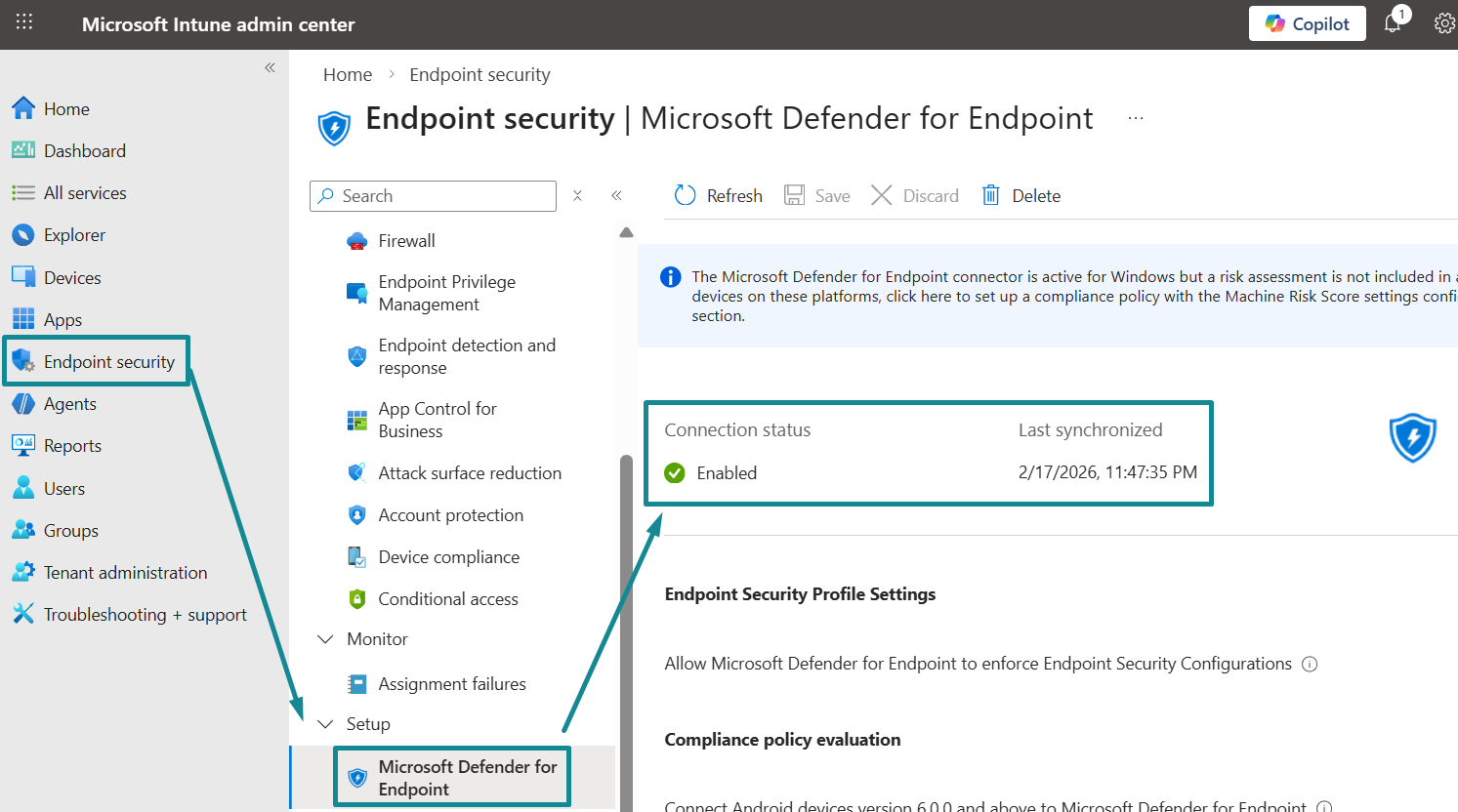
The Connection status on this page confirms the MDE – Intune connection is established, and the Last synchronized timestamp shows the most recent successful sync.
Configure MDE – Intune connection settings for Windows endpoint in Intune Admin Center:
- Next, still inside the Intune admin center > Endpoint Security > Setup > Microsoft Defender for Endpoint, enable the ability of Intune to consume MDE device risk for Windows endpoints for use as an input during device compliance evaluation.
Under Compliance policy evaluation >Toggle On for the setting Connect Windows devices version 10.0.15063 and above to Microsoft Defender for Endpoint.
Under Shared settings, set 7 for Number of days until partner is unresponsive. This setting is a partner health monitoring threshold used to detect stale or broken synchronization between Intune and MDE, not a compliance control used to mark devices compliant or noncompliant. A 7-day value aligns with a practical pilot validation window while still providing a clear operational signal if synchronization stops. This value is typically owned by security and operations teams and should align with the organization’s monitoring and response expectations.
(Optional for visibility) Further relevant MDE connection settings within Intune for endpoint security are explained in the configuration table below:
| Intune – MDE Configuration | Configuration Settings | Descriptions | Recommendation (for this blog) |
|---|---|---|---|
| Endpoint Security Profile Settings | Allow Microsoft Defender for Endpoint to enforce endpoint security configuration | Controls whether MDE can act as a configuration authority for endpoint security settings after onboarding. This capability is primarily intended for devices that are not managed by Intune, wherein security configuration must still be enforced and maintained through MDE. | Not required for the blog. The pilot scope uses Intune-managed Windows devices, so Intune remains the authority for Windows endpoint security configuration. Keep this setting “Off” unless the organization or security team is intentionally using MDE to manage security configuration for non-Intune managed endpoints after onboarding. |
| Compliance policy evaluation | Connect Android devices version 6.0.0 and above to Microsoft Defender for Endpoint | Enables Intune compliance policy evaluation to consume MDE risk signals for Android devices as part of the Mobile Threat Defense flow. | Out of scope for this blog. Keep this setting “Off” for the Windows pilot. Enable only if the organization is implementing MTD for Android and intends to use Android device risk in Intune compliance and Conditional Access. |
| Connect iOS/iPadOS devices version 13.0 and above to Microsoft Defender for Endpoint | Enables Intune compliance evaluation to consume MDE risk signals for iOS/iPadOS devices as part of the Mobile Threat Defense integration flow. | Out of scope for this blog. Keep this setting “Off” for the Windows pilot. Enable only if the organization is implementing MTD for iOS/iPadOS and intends to use iOS/iPadOS device risk in Intune compliance and Conditional Access. | |
| Enable App Sync (sending application inventory) for iOS/iPadOS devices | Allows Intune to share installed application inventory on managed iOS/iPadOS endpoints to MDE to support mobile security visibility and related MDE configuration scenarios. | Out of scope for this blog. Keep this setting “Off” for the Windows pilot. Enable only if the organization is implementing iOS/iPadOS mobile security workflows where application inventory visibility in MDE is required. | |
| Send full application inventory data on personally owned iOS/iPadOS devices | Sub-setting of iOS/iPadOS App Sync. Controls whether full app inventory is shared for managed personally owned iOS/iPad devices when App Sync is enabled. | Out of scope for this blog. Keep this setting “Off” for the Windows pilot. This setting is only applicable if iOS/iPadOS App Sync is enabled and should be aligned with organizational privacy and BYOD policy decisions. | |
| Enable Certificate Sync for iOS/iPadOS devices | Enables sharing of iOS/iPadOS certificate related information between Intune and MDE to support mobile security and device risk signal correlation for certificate deployment scenarios. | Out of scope for this blog. Keep this setting “Off” for the Windows pilot. Enable only if the organization is implementing iOS/iPadOS mobile security workflows where certificate visibility in MDE is required. | |
| Send full certificate inventory data on personally owned iOS/iPadOS devices | Sub-setting of iOS/iPadOS Certificate Sync. Controls whether full certificate inventory is shared for personally owned devices when Certificate Sync is enabled. | Out of scope for this blog. Keep this setting “Off” for the Windows pilot. This setting only applies if iOS/iPadOS Certificate Sync is enabled and should align with organizational BYOD and privacy requirements. | |
| Block unsupported OS versions | Prevents access from devices running OS versions that are no longer supported by Microsoft, reducing exposure to unpatched and high-risk endpoints. This control is evaluated during Conditional Access enforcement. | Optional. This setting facilitates a strong security baseline and can be enabled if it aligns with the organization’s Conditional Access strategy. For the pilot, it can remain “Off” to keep validation focused on the primary enforcement chain wherein MDE risk drives Intune compliance and Intune compliance drives access. | |
| App protection policy evaluation | Connect Android devices to Microsoft Defender for Endpoint | Enables Intune App Protection policies to consume MDE mobile threat signals for Android devices, allowing app-level access controls based upon mobile device risk posture. | Out of scope for this blog. Leave “Off” for the Windows pilot. Enable only if the organization is implementing mobile app protection with MDE signals for Android devices. |
| Connect iOS/iPadOS devices to Microsoft Defender for Endpoint | Enables Intune App Protection policies to consume MDE mobile threat signals for iOS/iPadOS devices, allowing app-level access controls based upon mobile device risk posture. | Out of scope for this blog. Keep this setting “Off” for the Windows pilot. Enable only if the organization is implementing mobile app protection with MDE signals for iOS/iPadOS devices. |
- Since this blog’s endpoint platform scope is Windows endpoints, validate these highlighted settings are enabled and Intune can consume MDE risk signals for Windows compliance decisions.
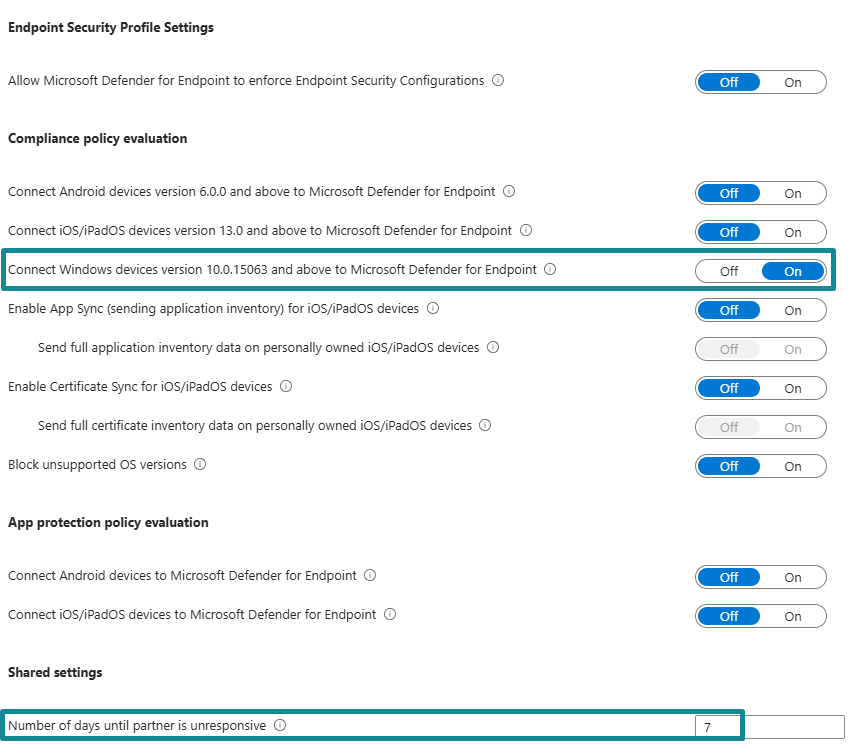
Once these settings are in place, the environment is ready to proceed with Windows onboarding through Intune.
Onboard Windows devices to Defender for Endpoint using Intune
This integration onboards Windows devices to MDE using an Intune endpoint detection and response policy assigned to the pilot device group. The onboarding profile is configured to use Auto from connector, which pulls the onboarding package from the established MDE/Intune connection rather than relying upon manual package deployment. After policy assignment, onboarding is validated in the Defender portal by confirming the pilot device appears in device inventory and is actively reporting, including a visible risk level. These validations confirm the closed loop can proceed, since Intune compliance evaluation depends upon MDE device risk signals.
Expected outcome: the pilot Windows device is onboarded to MDE, appears in the Defender portal as active and reporting, and produces device risk signals that can be consumed by Intune for compliance evaluation.
The following outlines the steps to onboard Windows devices to MDE using Intune.
Create and assign MDE onboarding profile to Pilot device group
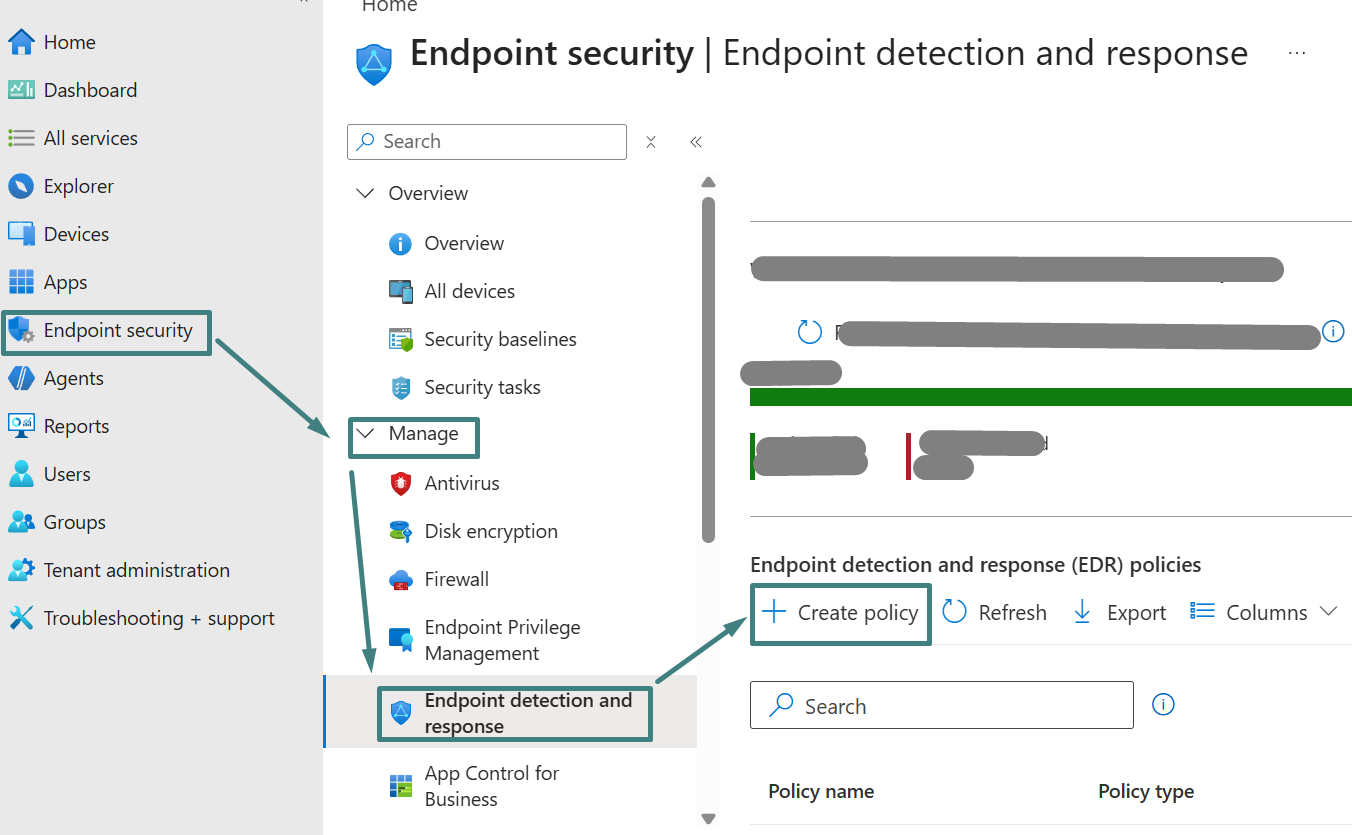
- In Intune admin center, select Endpoint security on the left navigation > under Manage, select Endpoint detection and response > under Endpoint detection and response (EDR) policies, select Create policy.
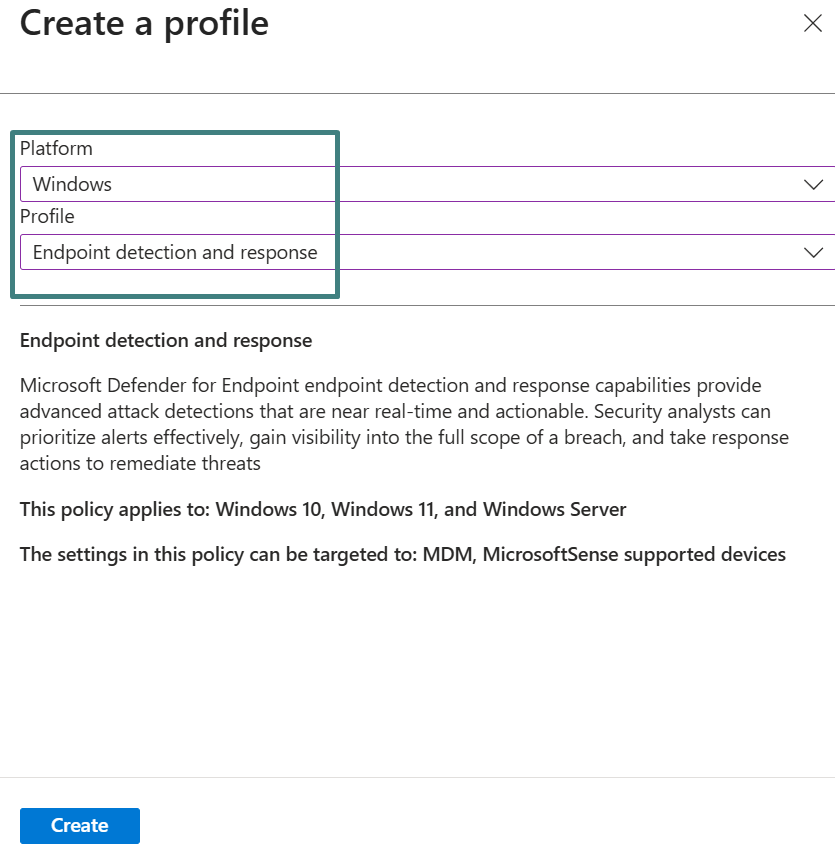
On the Create a profile screen, select Platform: Windows and Profile: Endpoint detection and response > then select Create.
On the Basic tab, specify a friendly policy name (i.e., Pilot – Windows MDE Onboarding) and provide a description if required > then select Next.
On the Configuration settings tab, select Microsoft Defender for Endpoint client configuration package type to Auto from connector. This allows Intune to automatically retrieve the onboarding package (as a blob) from the MDE – Intune connection established earlier.
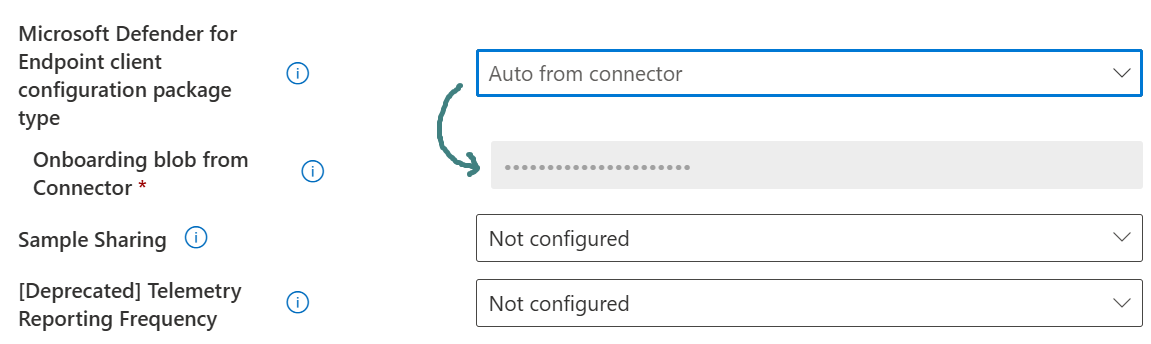
(Optional) Sample Sharing controls whether MDE samples can be shared with Microsoft. Administrators can leave the default setting or adjust based on organizational privacy requirements. In this blog, Sample Sharing is left as Not configured.
Select Next to reach Assignment > then Assign the policy to the Intune device group created in Pilot preparation section above (i.e., Pilot – Windows Zero Trust Devices) > select Next > then Review + create > Save the policy.
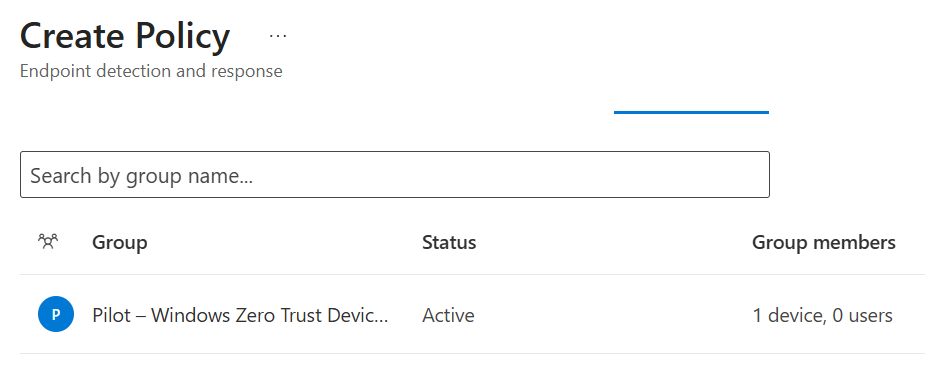
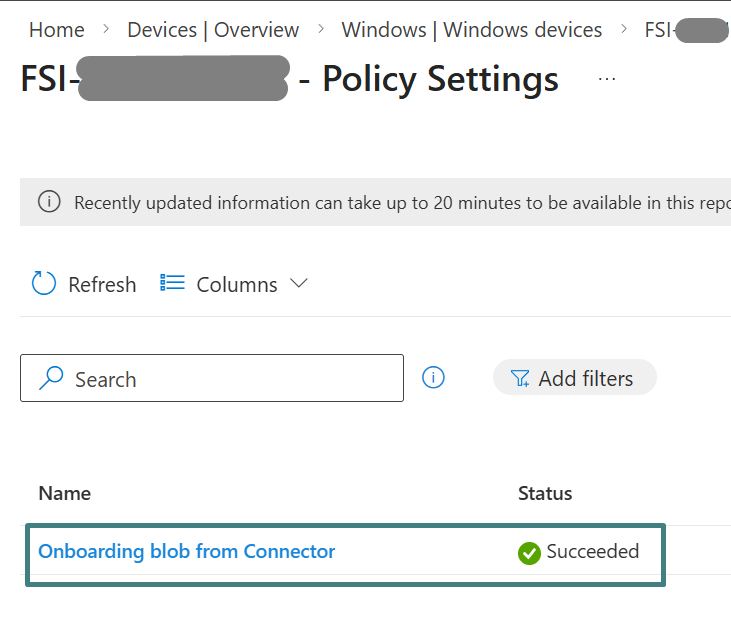
- Validate the MDE onboarding policy has successfully deployed by locating the device on Intune admin center > under Monitor, click Device configuration > under Policy, locate and click the created policy from step 1 > verify Status is succeeded for Onboarding blob from Connector.
Validate that the Windows device is onboarded and reporting security telemetry to MDE
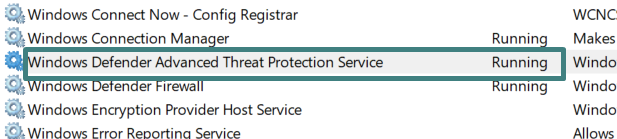
- Onboarding can take some time. Once onboarded, the endpoint should have the Windows Defender Advanced Threat Protection service running, commonly referenced as the Sense service.
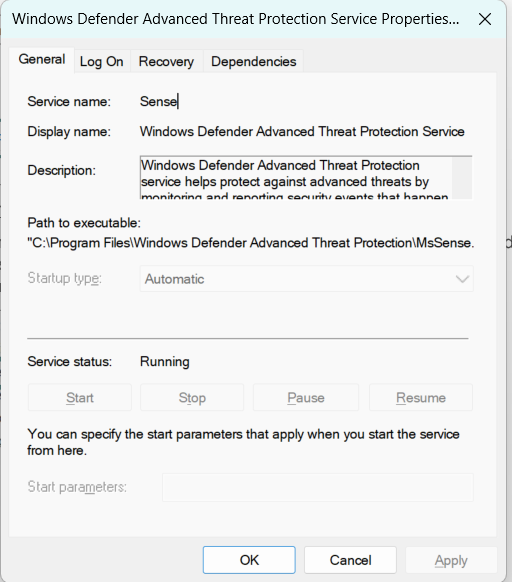
If the Sense service cannot be started on the device, it is recommended to leverage Intune to diagnose the issue. For troubleshooting guidance, refer to Troubleshoot MDE onboarding issues using Microsoft Intune.
The Sense Event Viewer logs reside in Applications and Services Logs > Microsoft > Windows > Sense and contain detailed information that can aid troubleshooting. A complete list of relevant onboarding Event IDs is available in View agent onboarding errors in the device event log.
The Registry path –
Computer\HKEY_LOCAL_MACHINE\SOFTWARE\Policies\Microsoft\Windows Advanced Threat Protection contains the onboarding information and additional settings that can provide useful information for onboarding issues.
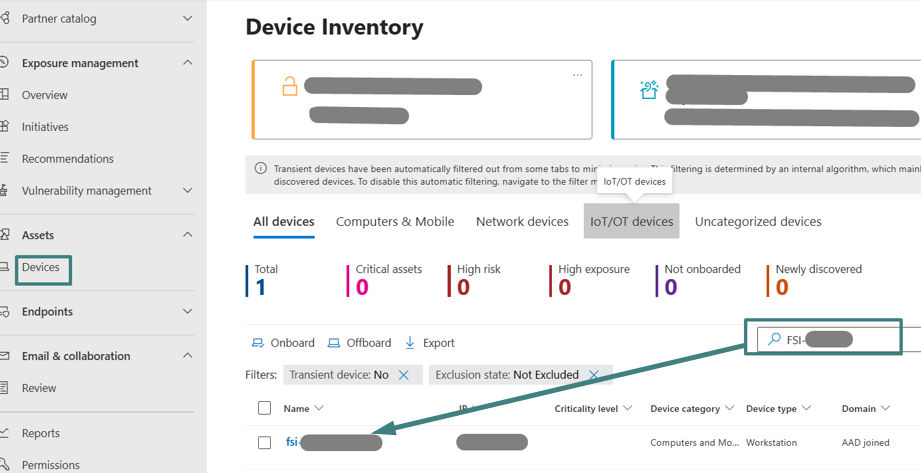
- Log into Defender Portal with appropriate permission (or collaborate with the security team) to view Assets > Devices tab > under Device Inventory page, locate the onboarded pilot Windows device. The device should appear in the inventory once onboarding is successful.
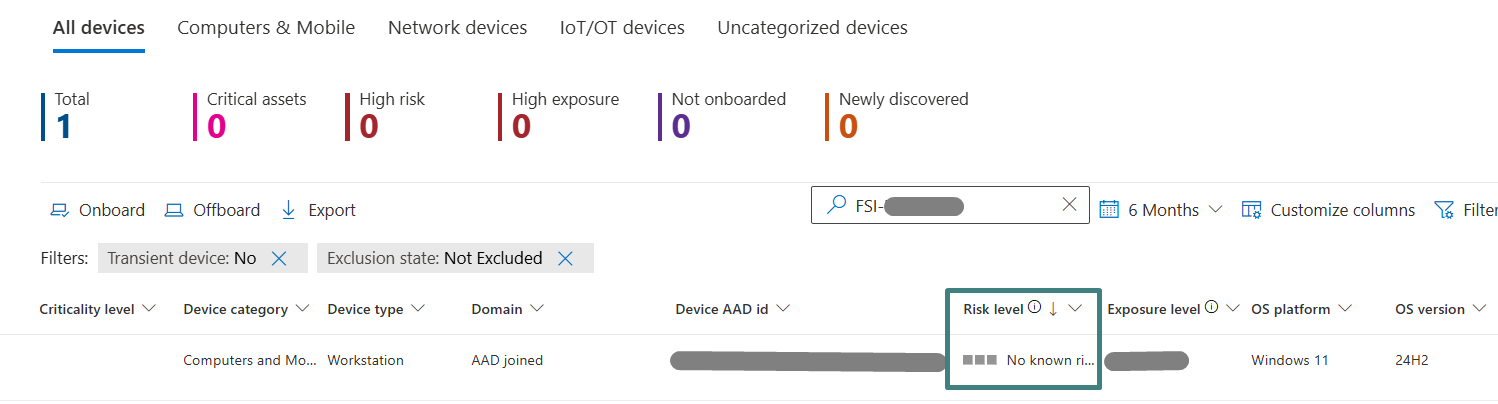
Validate that the device is actively reporting by reviewing telemetry-related fields such as device risk level in the device inventory view. In this blog, the pilot device shows “No known risk” as evaluated by MDE.
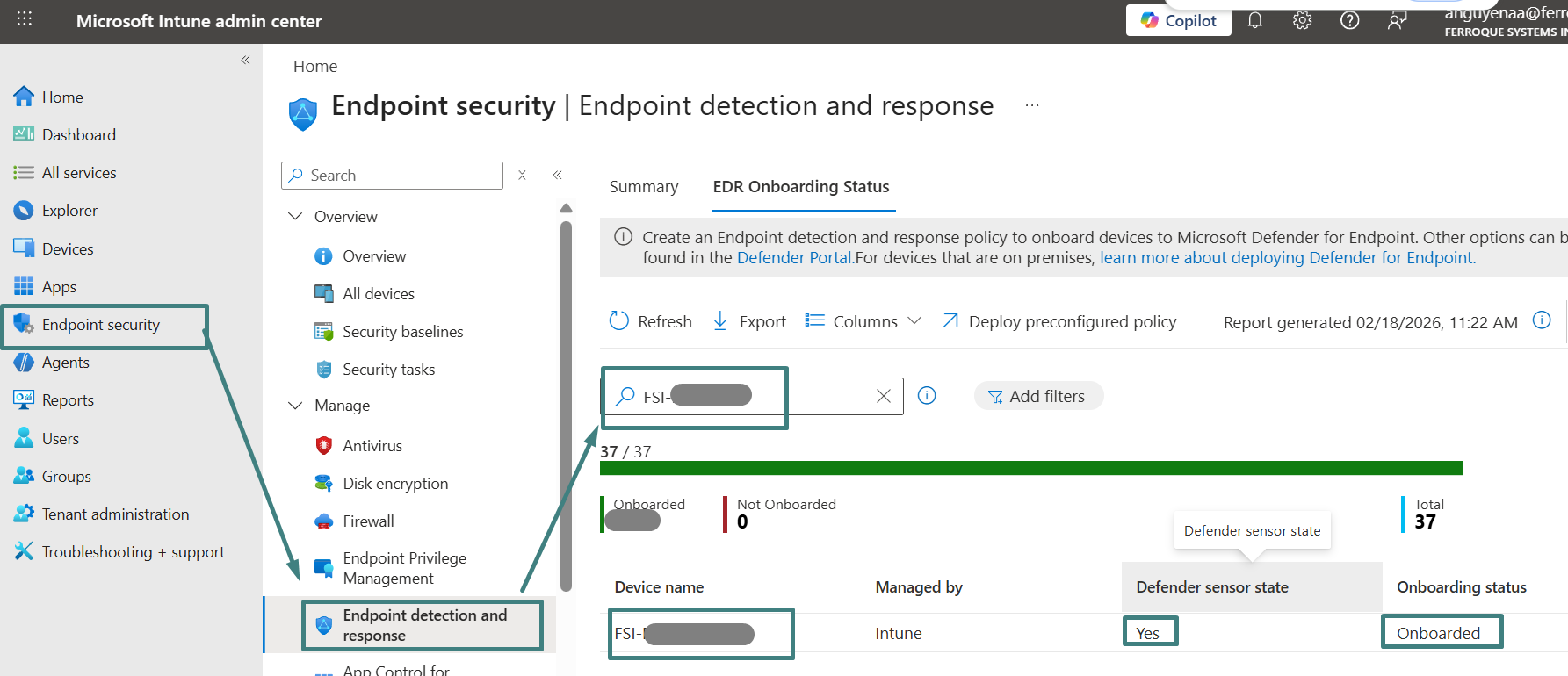
As an additional validation path for Intune administrators, onboarding status can also be reviewed in Intune under Endpoint detection and response onboarding status views.
With onboarding complete and MDE risk visible, the next sub-section configures Intune device compliance to evaluate the device based on MDE risk signals.
Configure Intune device compliance using MDE device risk signals
This workflow configures Intune device compliance policies to evaluate Windows devices based on acceptable MDE device risk levels. The purpose is to translate MDE risk into a compliance decision so the device can be marked compliant or non-compliant in Intune. This compliance state becomes the enforcement signal used later by Entra ID Conditional Access.
In the Intune admin center, a Windows compliance policy is created for the pilot scope and is configured to require the device to be at or under the MDE machine risk score of Medium. Devices that exceed this threshold are marked non-compliant, which prepares the compliance signal required for access enforcement. The compliance policy is assigned to the pilot scope so the compliance decision aligns with the same users and devices that will be evaluated during Conditional Access enforcement.
After assignment, validation is performed by confirming the pilot device compliance state in Intune and correlating it with the device risk level shown in the Defender portal. This confirms the core translation step of the closed-loop model is functioning, in which MDE risk drives Intune compliance.
Implementation notes: Medium MDE device risk is a practical pilot threshold because it balances security and adoption. It demonstrates the end-to-end enforcement workflow without creating unnecessary disruption during initial testing. A Medium threshold still blocks clearly at-risk devices while reducing the chance of false positives or early friction that would occur if the pilot started with a stricter threshold, such as Low or No known risk only. After validation, organizations can tighten the threshold as operational confidence increases and as the security team aligns risk tolerance with business requirements.
Expected outcome: the pilot Windows device is evaluated using the configured MDE risk threshold (Medium or below) and is marked compliant or non-compliant accordingly, establishing the compliance posture required for Conditional Access enforcement.
The following outlines the steps to configure Intune compliance using MDE risk signals.
- In Intune admin center, select Devices on the navigation pane > under Manage devices, select Compliance > under Policies, click Create policy.
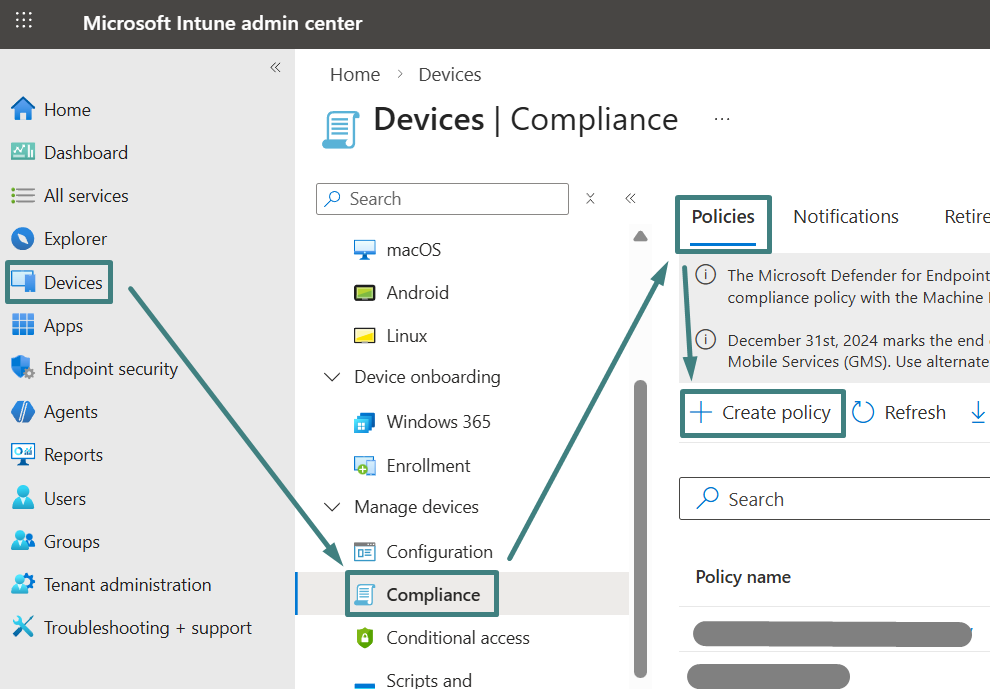
On the Create a policy screen, select Platform: Windows 10 and later and Profile type: Windows 10/11 compliance policy > select Create.
On the Basic tab, specify a friendly compliance policy name (i.e. Pilot – Windows MDE device risk) and provide a description if required > select Next.
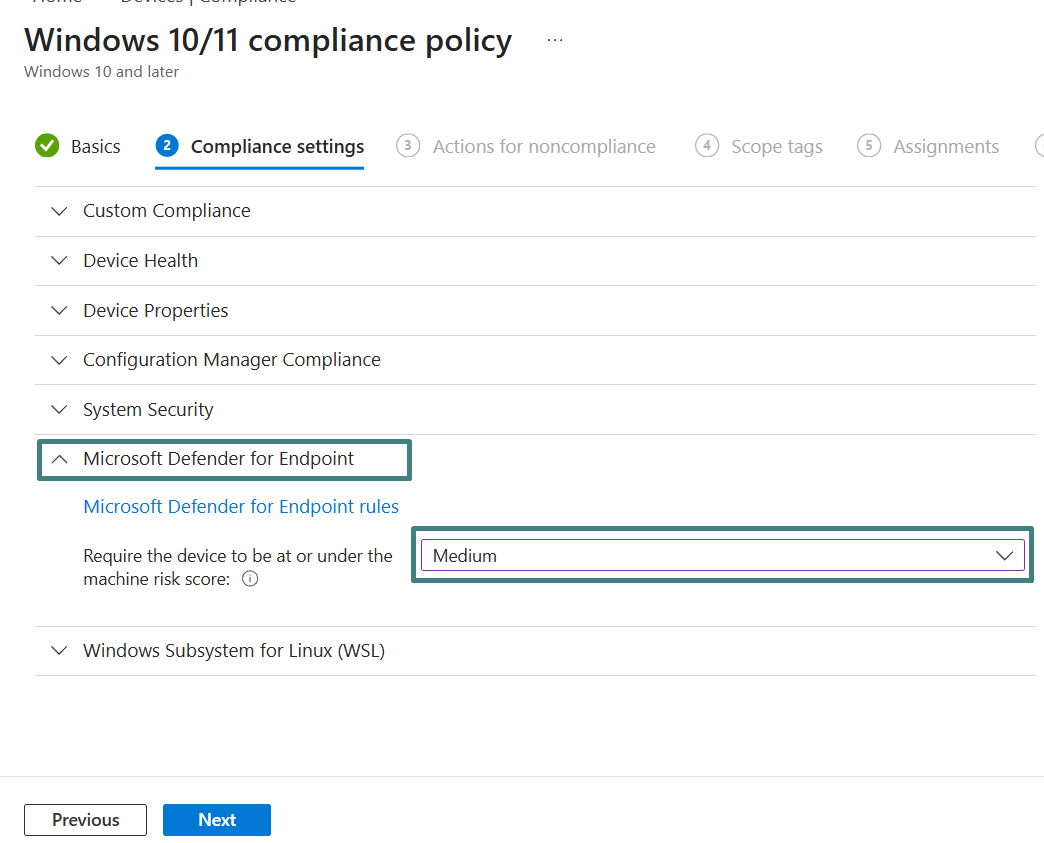
On the Compliance settings tab, expand Microsoft Defender for Endpoint. Under the Microsoft Defender for Endpoint rules, configure Require the device to be at or under the machine risk score: Medium > select Next.
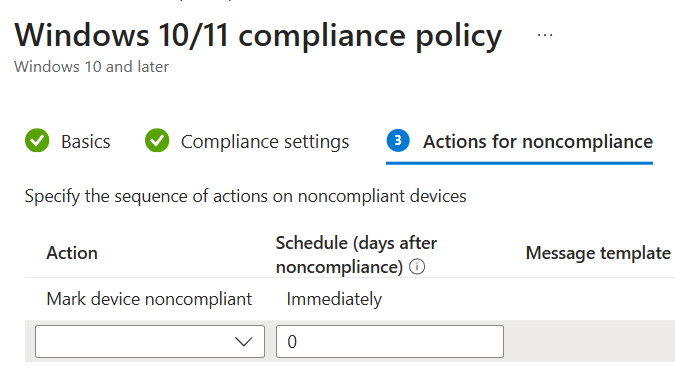
Under Actions, keep the default action Mark device noncompliant with the schedule set to Immediately. Additional actions, such as email notifications, can be added based on organizational requirements. Select Next.
On the Assignment tab > assign the compliance policy to the pilot scope. In this blog, the policy is assigned to Pilot – Windows Zero Trust Devices. Select Next, then Review + create, then save the policy.
- Validate the pilot device receives the compliance policy and that its compliance posture is evaluated in Intune.
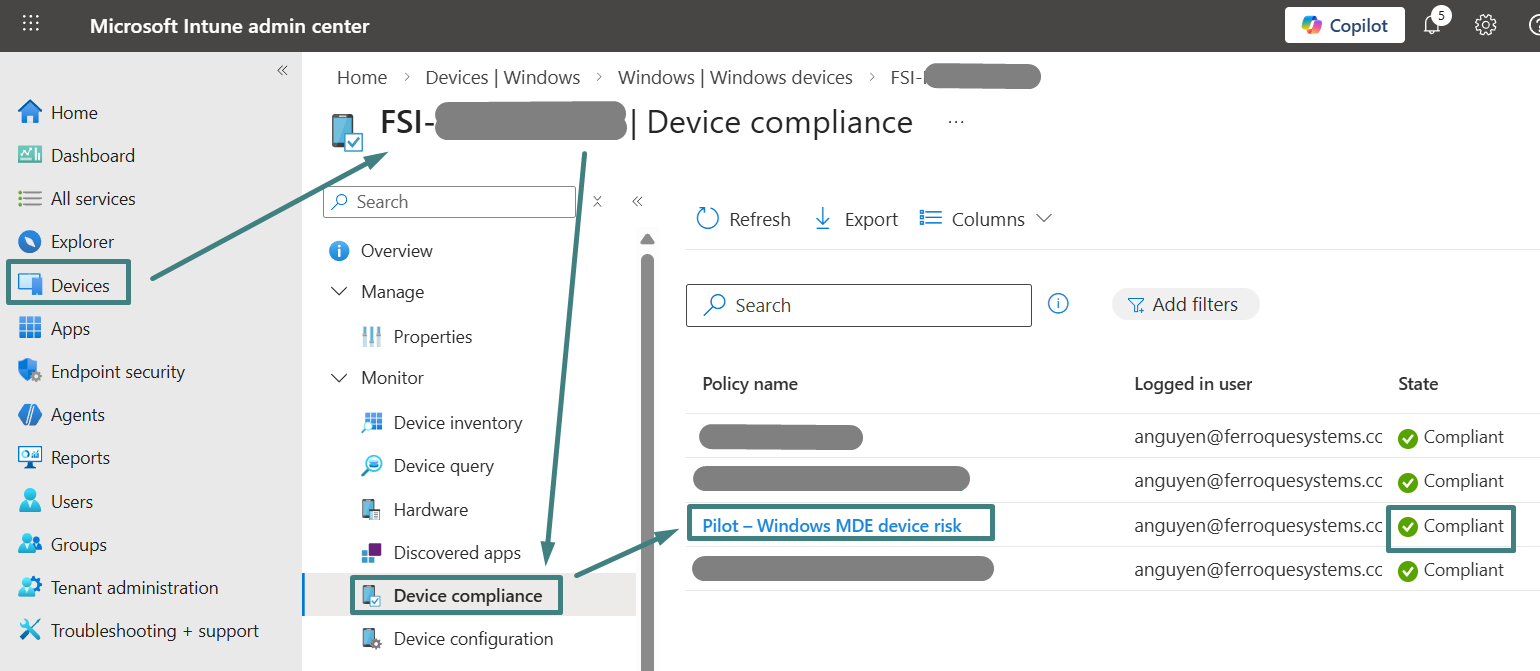
As validated in the previous sub-section, the pilot Windows device in the MDE portal indicates No known risk. The Intune compliance policy is configured to mark a device non-compliant if the machine risk score exceeds the Medium threshold. Since “No known risk” is below Medium, the pilot device is evaluated as compliant in Intune.
With Intune compliance now evaluating the pilot device based upon MDE risk, the next sub-section configures Entra ID Conditional Access to enforce access to a selected protected resource by requiring the device to be marked compliant.
Configure Entra ID Conditional Access to require compliant Windows devices
This workflow configures Entra ID Conditional Access to enforce access by requiring the device to be marked compliant. The policy is scoped to the pilot user group, targets a selected application, and is limited to Windows sign-ins using the device platform condition. Under Grant controls, “Require device to be marked as compliant” is enabled, so the sign-in decision depends upon Intune compliance evaluation.
The policy is first validated in Report-only mode using Entra ID sign-in logs, then switched to On to enforce access for the pilot scope. Compliant devices are granted access, and non-compliant devices are blocked until they return to a compliant state.
Expected outcome: Conditional Access is validated in Report-only mode and then enforced for the pilot group, allowing access only from Intune compliant Windows devices.
The following outlines the steps to configure Entra ID CA to require compliant Windows devices.
Create, assign, and validate the Entra ID Conditional Access policy to require Intune compliance to Pilot user group in Report-only mode
- Log in to the Microsoft Entra admin center with an account that has permissions to create and manage Conditional Access policies. If these permissions are not available, collaborate with the Entra ID team to perform the configuration below.
Select Conditional Access on the left navigation > Create new policy.
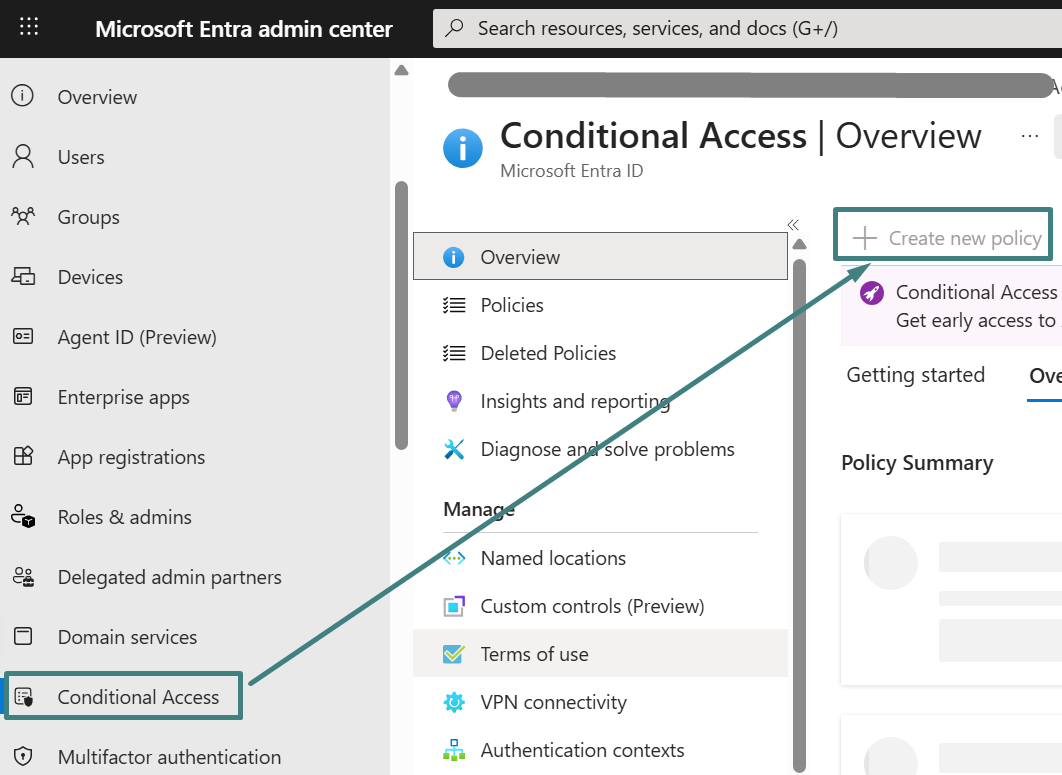
On the new Conditional Access policy window, specify a friendly policy name under Name (i.e., “Test – MDE Intune Compliance”).
Under Assignments, select Specify users included. Under Include, choose Select users and groups > select Users and groups > assign the policy to the pilot user group created in the Pilot Preparation section above (i.e., Pilot – Windows Zero Trust Users group in this blog).
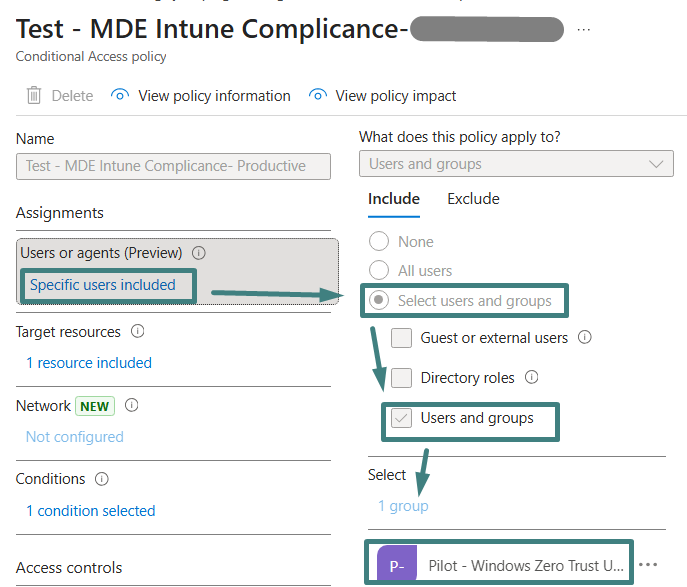
Under Target resources, select No target resources > under Clouds Apps, select Apps, then locate and select the protected application used for testing access.
Under Conditions, select 0 conditions selected > under Device platforms, select Not configured and set Windows platform > Done. This ensures the policy evaluates only for Windows sign-ins.
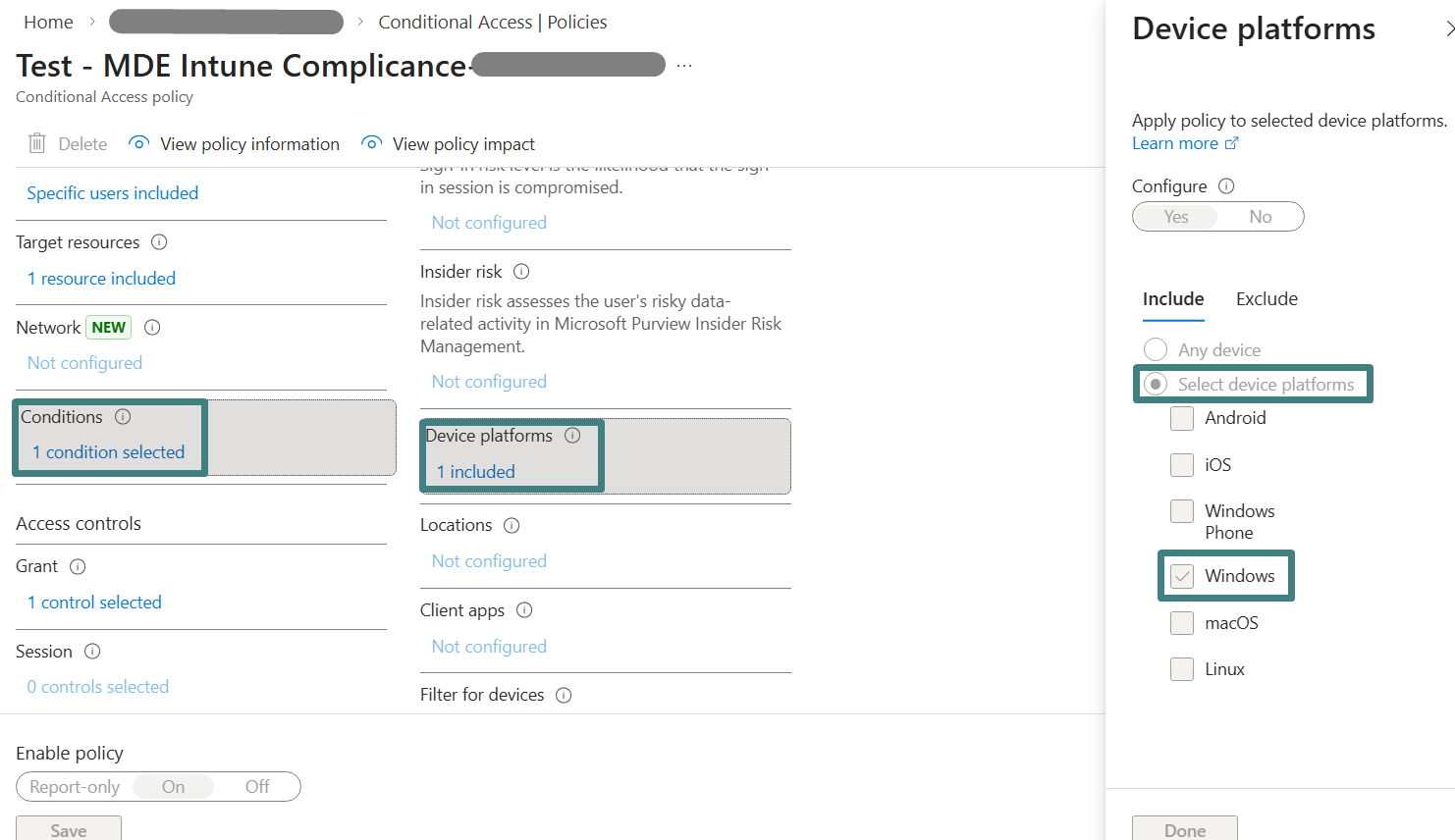
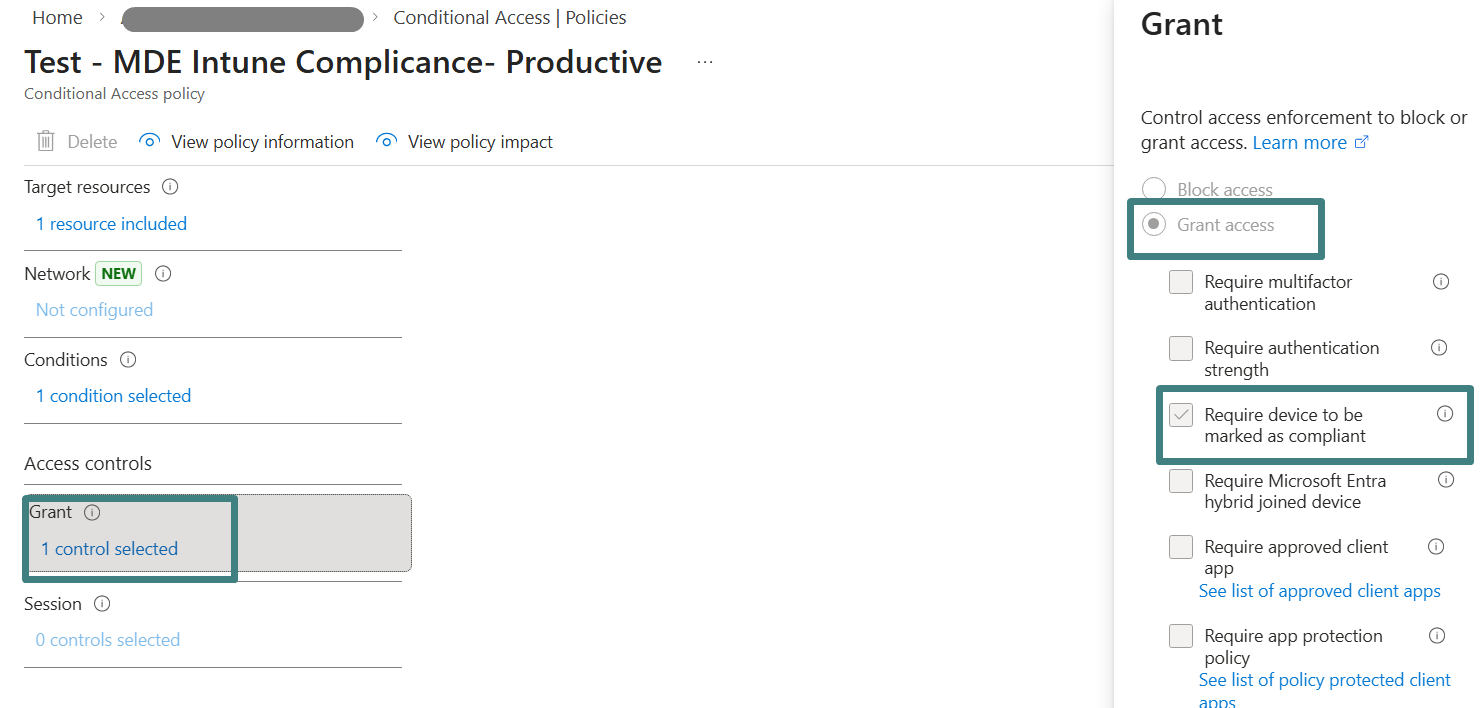
Under Access Control, select Grant. Select Grant Access, then enable Require device to be marked as compliant. This grant control is the enforcement hinge of the pilot, because it forces the sign-in decision to depend on the Intune compliance state that is driven by MDE device risk.
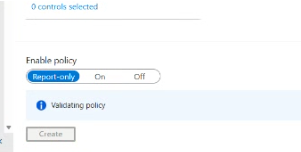
Under Enable policy, set the policy to Report-only for now > Create. Report-only mode is used to validate evaluation results in sign-in logs before switching the policy to On for enforcement after pilot validation is complete.
- To validate Conditional Access evaluation decisions in Report-only mode, sign into the protected application from the pilot Windows device using the pilot user account. Complete authentication at the Entra ID sign-in prompt so Entra ID generates a sign-in event. Administrators should note the approximate time of the sign-in for correlation.
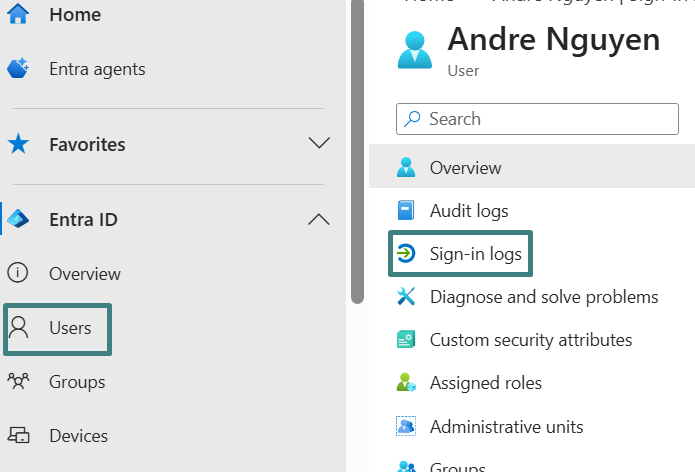
Log in to Entra admin center, select Users on the left navigation,> Locate and select the pilot user > select Sign-in logs.
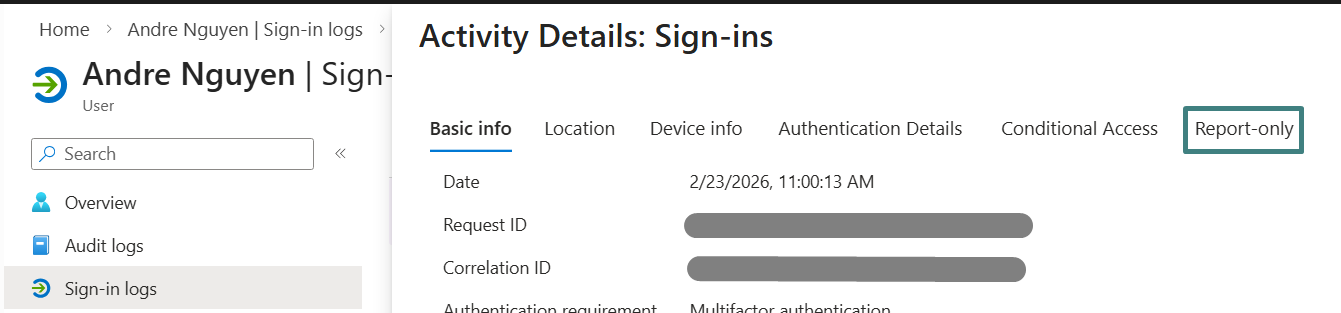
On the Activity Details: Sign-ins page, locate and open the sign-in event that matches the recorded timestamp > select Report-only tab to review Conditional Access evaluation results.
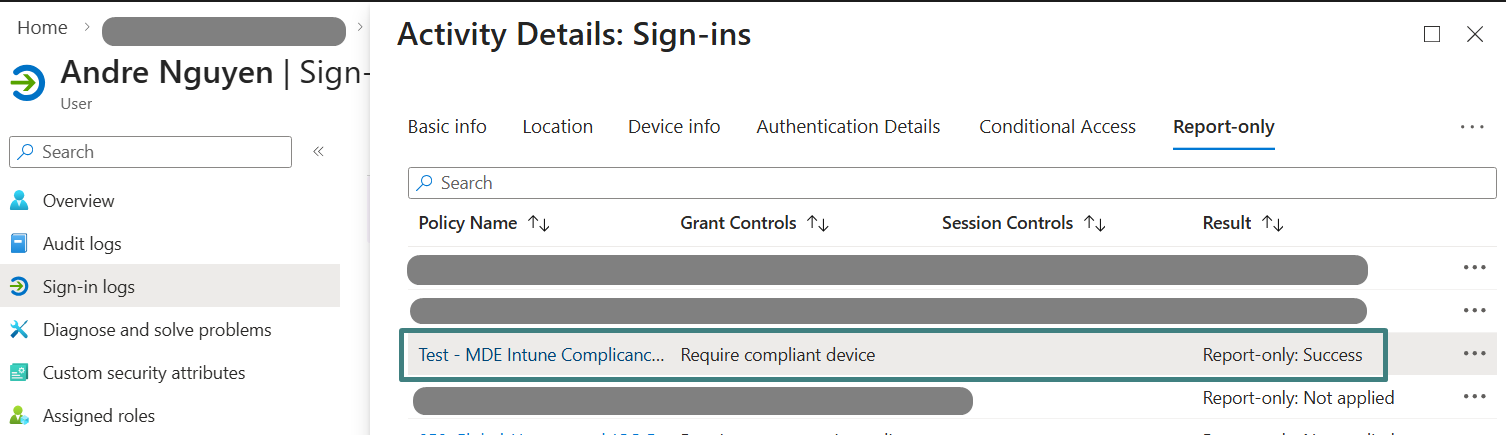
On the Report-only view page, locate the policy “Test – MDE Intune Compliance Policy”. A Report-only: Success result indicates the policy evaluated successfully for the session and that the Conditional Access configuration parameters are aligned with the pilot enforcement design.
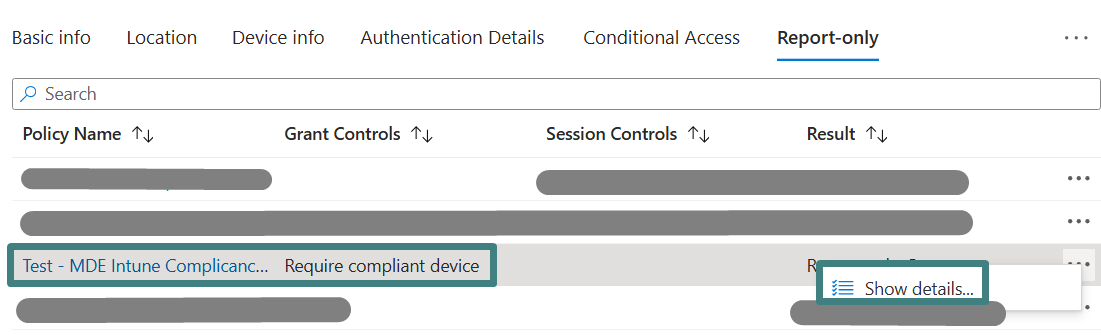
If deeper troubleshooting is required, select the three dots on the far right of the policy row, then select Show details to review evaluation decisions for the configured conditions and grant controls.
Enforce the Conditional Access policy for the pilot group and revalidate
Within Entra admin center, select Conditional Access > Policies > locate and select the policy “Test – MDE Intune Compliance Policy”. Under Enable policy, change the policy stated from Report-only to On > Save. Changing the policy state from Report-only to On is the enforcement toggle, moving the policy from evaluation and monitoring into active access control.
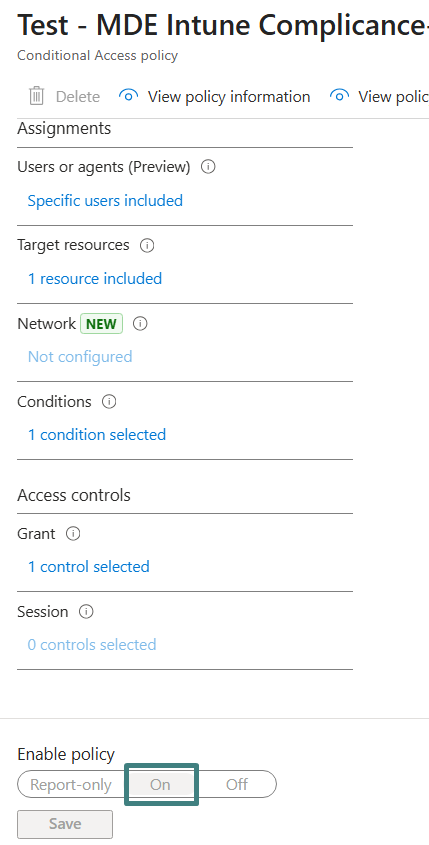
To validate enforcement, sign in to the protected application again from the pilot Windows device using the pilot user account. After the sign-in attempt, return to Entra admin center > Users > locate and select the pilot user > Sign-in logs, open the most recent sign-in event, and review the Conditional Access results.
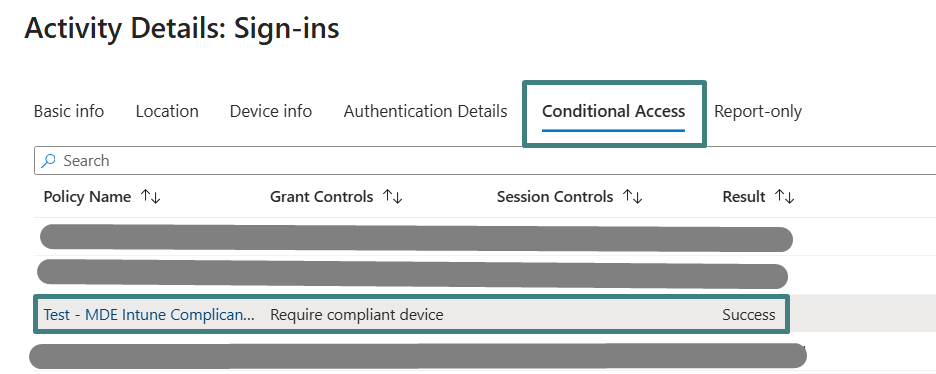
A successful enforcement validation will show the policy applied and access granted when the device is marked compliant. If the device is not compliant, the sign-in result should indicate access was blocked by Conditional Access, and the user will see the access restriction message on the Windows device shown below until the device returns to a compliant state.

In Conclusion
This pilot demonstrates why Intune, MDE, and Entra ID are better together, with MDE risk driving Intune compliance and Intune compliance driving Conditional Access enforcement. For production rollout, administrators should expand the scope in phases by growing the pilot user and device populations, aligning ownership and remediation workflows across security and endpoint teams, and validating how device risk is investigated and remediated through MDE and Intune. Decisions to tighten risk thresholds and enable broad enforcement should be made in the context of the organization’s overall risk management strategy, including risk appetite, risk tolerance, and defined mitigation approaches. Because enforcement depends on compliance state, organizations should define a clear remediation operating model across security, endpoint, and identity teams before scaling enforcement.
Ferroque Systems helps organizations operationalize Zero Trust on Windows with Intune, MDE, and Entra ID. Ferroque Systems would be happy to speak to assist with planning, design, and deployment of a pilot or production rollout.