For organizations that run both Windows and macOS, one difference has consistently stood out: the login experience. On Windows, users sign in directly with their Microsoft Entra ID. Their identity, credentials, and access policies are enforced at the operating system level from the very first login. On macOS, however, the experience has traditionally revolved around local accounts, with cloud identity layered on late, if at all.
The Gap Between Windows Entra ID Login and macOS Local Accounts
Windows devices joined to Entra ID authenticate users natively against the cloud directory. The user’s Entra ID is their OS identity. Account creation, authentication, password changes, MFA enforcement, and Conditional Access all align naturally because there is no abstraction layer in between.
MacOS, by contrast, has historically required:
- A local user account created on the device.
- A local password managed by macOS.
- Optional identity integration after login via Kerberos, browser sign-in, or third-party agents.
Even when Entra ID was introduced into the flow, it typically happened post-login, meaning the OS itself had no awareness of the cloud identity beyond what administrators tried to stitch together.
What Platform SSO Changes
Platform SSO fundamentally changes this model. Instead of treating Entra ID as something macOS apps use after login, Platform SSO allows the operating system to bind the local account directly to the cloud identity. With Platform SSO:
- Local accounts can be automatically created based on Entra ID.
- Passwords can be kept in sync with Entra ID.
- Authentication tokens are shared across the OS, browsers, and Microsoft apps.
The macOS login experience becomes identity-aware in a way it never was before. This does not turn macOS into Windows, but it does narrow the gap dramatically. Platform SSO is the first Apple-supported approach that aligns macOS login with modern cloud identity principles, without relying on scripts or third-party credential providers. For organizations aiming for a consistent, Entra ID-centric user experience across platforms, Platform SSO helps immensely.
What is Platform SSO on macOS?
Apple Platform SSO is a macOS capability that allows the operating system to integrate more deeply with a cloud identity provider, rather than relying solely on traditional local account authentication followed by app-level sign-in. Introduced to modernize identity on macOS, Platform SSO enables a tighter binding between a user’s local account and their enterprise identity.
When integrated with Microsoft Entra ID, Platform SSO uses a Microsoft-provided SSO extension, deployed and configured through Microsoft Intune, to establish Entra ID as the authoritative identity source for the device. During enrollment or first sign-in, the user authenticates with Entra ID, and macOS uses that identity to automatically create or associate a local account.
Once in place, Platform SSO enables:
- Automatic local account creation tied to Entra ID.
- Password synchronization between Entra ID and the macOS local account.
- Reuse of Entra ID authentication tokens across macOS, browsers, and Microsoft applications.
- Reduced sign-in prompts and improved credential consistency.
Importantly, Platform SSO operates within Apple’s security model. The macOS login process still relies on a local account and password, but that account is now identity-bound and lifecycle-managed through Entra ID rather than treated as a standalone credential.
The result is a macOS experience that remains natively Apple, while aligning far more closely with Entra ID-based identity, access, and compliance controls, bringing macOS closer than ever to the Windows login and SSO experience without replacing the operating system’s authentication framework.
Automatic User Provisioning
User provisioning with Apple Platform SSO shifts macOS from a manually created local account model to an identity-driven model based on Microsoft Entra ID. Instead of creating a local user first and connecting it to cloud identity later, the Entra ID Identity becomes the starting point.
Device Enrollment and Policy Delivery
The process begins when a Mac is enrolled into Microsoft Intune, through Automated Device Enrollment (ADE), or User-initiated enrollment. In this blog, we will be using ADE enrollment, as it provides a full identity-driven experience for the users from the first login. Once enrolled, Intune delivers the Microsoft Enterprise SSO extension via the Company Portal and the Platform SSO configuration profile. These components prepare macOS to use Entra ID as the identity source during user sign-in.
At first sign-in, the user authenticates using their Microsoft Entra ID. This authentication establishes the user’s Entra ID identity on the device and issues the required authentication tokens.
Using the Platform SSO configuration, macOS then creates a new local account, or if the username already exists as a local account, maps the Entra ID identity to the existing local account. The new local account is generated using attributes from Entra ID, such as Username, Full name, and Account type (standard or administrator). This step eliminates the need for scripts or manual account creation during provisioning.
Although the identity is cloud-backed, macOS still requires a local password. With Platform SSO, the Entra ID password is used to set the local account password, password changes in Entra ID are synchronized back to the Mac, and password drift between cloud and local accounts is minimized.
Note: For users who normally authenticate to Entra ID without a password, the password may be rarely used, but it still must be used for macOS login and disk unlock.
After provisioning is complete, the user signs in to macOS using their local account and Platform SSO provides silent authentication to Microsoft 365 apps, browser access to M365, and other Entra-ID integrated services.
Architecture Overview
Apple Platform SSO integrates macOS with Microsoft Entra ID by combining native Apple identity frameworks with Microsoft’s cloud authentication services, all coordinated through Microsoft Intune.
Components involved:
- macOS (13.0 and newer).
- Microsoft Entra ID.
- Microsoft Intune.
- Company Portal (5.2404.0 and newer).
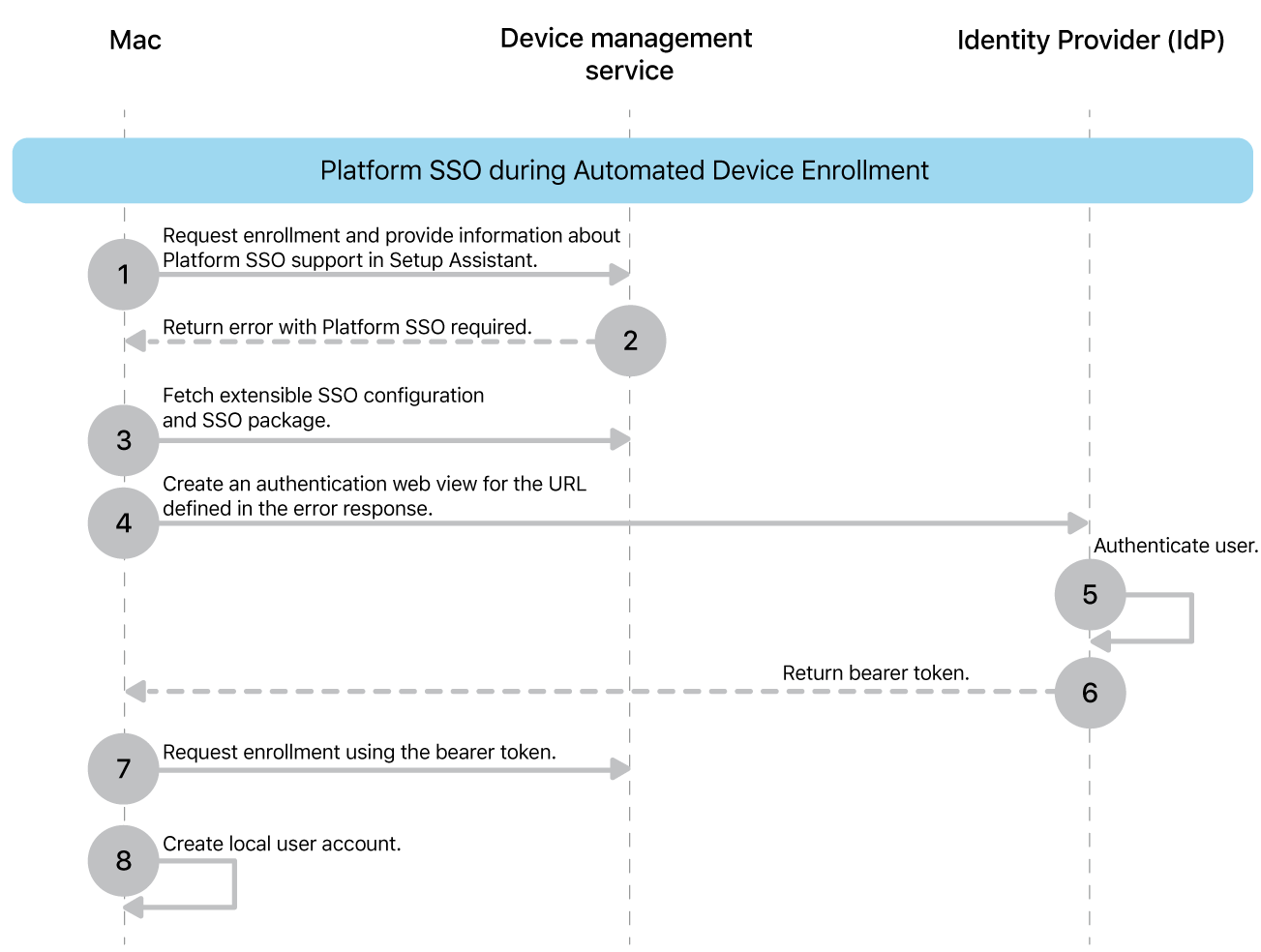
Authentication and Provisioning Flow with Intune
- Device Enrollment
The Mac is enrolled into Intune (ADE or user-initiated), establishing management trust and allowing profiles to be delivered. - Platform SSO Configuration
Intune deploys the Platform SSO profile, registering the Microsoft Enterprise SSO extension with macOS and defining account creation and sign-in behavior. - User Authentication to Entra ID
The user authenticates with Entra ID using standard Microsoft sign-in flows, including MFA and Conditional Access. - Token Issuance and Storage
Entra ID issues authentication tokens that are securely stored and managed by the SSO extension. - Local Account Creation or Association
macOS creates or maps a local user account based on Entra ID attributes, establishing a persistent OS identity tied to the cloud user. - Ongoing SSO and Token Refresh
Tokens are reused transparently across supported apps and browsers, reducing repeated sign-in prompts.
More information about the platform SSO can be found on the Apple website here.
Prerequisites and Planning Considerations
Supported macOS Versions and Hardware
Platform SSO is supported only on modern versions of macOS and supported Apple hardware. Mac computers with Apple silicon or an Intel-based Mac with Touch ID are needed. Platform SSO requires macOS Ventura (13) or later, and in our example, we will be using macOS 14+. While macOS 13 Ventura is supported, Microsoft strongly recommends using macOS 14 Sonoma or higher for the best experience. Because Platform SSO relies on Secure Enclave-backed capabilities and modern system extensions, organizations should ensure devices are fully updated and not running deprecated or unsupported macOS builds. Biometrics can also be used with Platform SSO if supported by your devices.
Further information on the prerequisites from Apple can be found here, and from Microsoft here.
Intune Enrollment Method (ADE vs User-Initiated)
The two options for enrollment are Automated Device Enrollment(ADE) and User-Initiated Enrollment. ADE is the recommended enrollment method and the one we will be using in the example. This ensures that the device will be enrolled into Intune right away, allows a managed administrator account to be created automatically and ensures a consistent login experience.
User-initiated enrollment, where the user manually enrolls the Mac into Intune using the Company Portal, is supported with Platform SSO but introduces additional considerations. In this model, the user signs in to macOS and creates a local account before the device is under management, so Platform SSO is applied after the fact rather than at first login. As a result, Entra ID must be mapped to an existing local account. While this approach can work well for BYOD scenarios, it is then used more for SSO than for login behavior.
Authentication Method
When configuring Platform SSO in Intune, you must choose the authentication from the options of Password, UserSecureEnclaveKey, or SmartCard
Password authentication uses the user’s Entra ID password to establish and synchronize the local account credentials, making it the simplest option. UserSecureEnclaveKey leverages a key pair protected by the Secure Enclave to authenticate the user to Entra ID without transmitting a password, enabling a password-minimized experience while still maintaining a local password for macOS login. SmartCard authentication uses a physical or virtual smart card for Entra ID authentication, typically in highly regulated environments, while still requiring a local macOS account and SecureToken for OS access. In all cases, the chosen method affects how the cloud identity is verified, but none replaces the requirement for a local password at the macOS login screen. Platform SSO operates alongside, not instead of macOS authentication.
While Microsoft recommends UserSecureEnclaveKey(phishing-resistant) as the preferred authentication method for Platform SSO for production environments, in this example, we will use password-based authentication as it is the simplest to pilot. Once Platform SSO is stable, you can transition to UserSecureEnclaveKey.
You can find more information on authentication options and Microsoft recommendations here.
Assignment Group
Platform SSO and the Microsoft Enterprise SSO extension should be assigned to device-based groups, not user-based groups, to ensure the configuration is applied before or at first sign-in. Targeting devices ensures that required profiles are present regardless of which user signs in and avoids timing issues that can occur when user-based assignments are evaluated too late in the login process. A straightforward way to ensure you only assign Platform SSO to ADE-enrolled devices is to use a dynamic group with the property enrollmentProfileName is to target devices with the ADE enrollment profile itself. A dynamic membership rule, such as the following, will assign to devices that have a specific ADE Enrollment Profile only:
(device.enrollmentProfileName -eq "NAMEOFDEPPROFILE")
To find your list of ADE profiles, go to Devices > Enrollment > Apple > Enrollment Program Tokens > Token > Profiles.
Account Type
Before configuring Platform SSO, we must also decide whether newly created local accounts should be standard users or local administrators. Standard accounts are recommended for most users, as they align with least-privilege principles and reduce the risk of unauthorized system changes, while still allowing users to perform day-to-day tasks. Platform SSO makes it easy to standardize this decision by enforcing account type consistently during provisioning, eliminating the drift that often occurs when local accounts are created manually or through scripts.
Configuring Platform SSO in Microsoft Intune
Configuring Apple Platform SSO in Microsoft Intune involves deploying the Microsoft Enterprise SSO extension and defining how macOS should create and manage user accounts based on Microsoft Entra ID.
Note: If you are using a Configuration Profile and/or a Compliance Policy to enforce password requirements on macOS devices, make sure that the policies are the same as your Entra Password requirements. If your Entra password requirements are lower than the macOS requirements enforced by the profile/policy, then you can have a password that meets Entra requirements, but not the macOS requirements. This will cause the login to fail completely. Either do not enforce password requirements on macOS devices when using Platform SSO with password sync, or make sure the policies exactly align.
Creating The Platform SSO Configuration Profile
- Sign into the Microsoft Intune Admin Center.
- Select Devices > Manage devices > Configuration > Create > New policy.
- Choose macOS and Settings Catalog for the properties and create.
- In the Basics section, enter the Name and Description, and select Next.
- In Configuration Settings, select Add Settings and under Authentication, select Extensible Single Sign On (SSO).
- In the list, select the following settings:
- Extension Identifier.
- Expand Platform SSO:
- Select Authentication Method (Select for macOS 14+).
- Select Enable Create User at Login.
- Select FileVault Policy (Select for macOS 15+).
- Select New User Authorization Mode.
- Select Non Platform SSO Accounts.
- Select Token To User Mapping.
- Select Use Shared Device Keys.
- Select User Authorization Mode.
- Registration Token.Screen Locked Behavior.Team Identifier.Type.
- URLs.
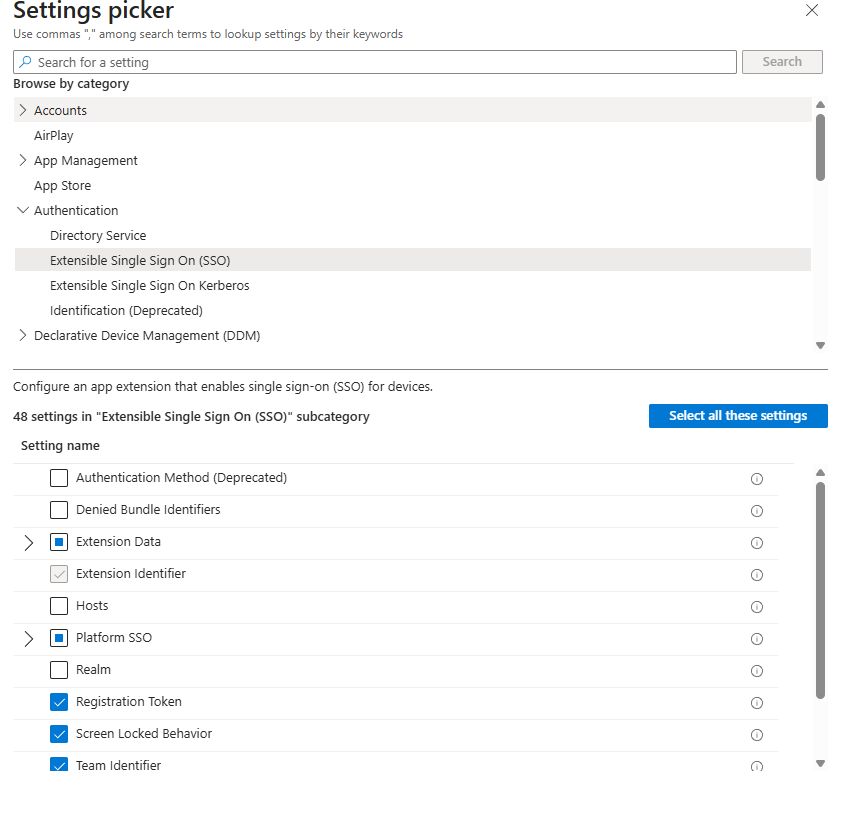
- In the Settings Picker under Login, select Login Window Behavior and select the following settings:
- Login Window Text.
- Show Full Name.
- Hide Local User.
- Hide Admin Users.
- Close the Settings picker and configure the following parameters for selected settings.
| Setting | Configuration Value | Description |
|---|---|---|
| Extension Identifier | com.microsoft.CompanyPortalMac.ssoextension | This ID is the SSO app extension that the profile needs for SSO to work. |
| Authentication Method | Password | Select the Platform SSO authentication method. We are using a simple password authentication method for this example. |
| FileVault Policy | AttemptAuthentication | This setting allows the device to verify the Microsoft Entra ID password with Microsoft Entra at the FileVault unlock screen when a Mac device is turned on. |
| Use Shared Device Keys | Enabled | When enabled, Platform SSO uses the same signing and encryption keys for all users on the same device and is important for the creation of new local user accounts. |
| Registration token | {{DEVICEREGISTRATION}} | You must include the curly braces. |
| Screen Locked Behavior | Do Not Handle | When set to Do Not Handle, the request continues without SSO. |
| Token To User Mapping > Account Name | preferred_username | This token specifies that the Microsoft Entra preferred_username attribute value is used for the macOS account’s Account Name value. |
| Token To User Mapping > Full Name | name | This token specifies that the Microsoft Entra name claim is used for the macOS account’s Full Name value. |
| Team Identifier | UBF8T346G9 | This identifier is the team identifier of the Enterprise SSO plug-in app extension. |
| Type | Redirect | This specifies the type of SSO |
| URLs | https://login.microsoftonline.com https://login.microsoft.com https://sts.windows.net | These URL prefixes are the identity providers that do SSO app extensions. The URLs are required for redirect payloads and are ignored for credential payloads. |
| Enable Create User At Login | Enabled | Enables creating new users at the login window with Passwords, based on Entra-ID credentials. |
| New User Authorization Mode | Standard | This setting affects the permissions for accounts created at login by Platform SSO. It is only used when the account is created. |
| Non Platform SSO Accounts | Name of the Local Administrator Account | This is used to ensure that the local admin account does get promoted to use Entra credentials or SSO. If you have other non-Entra accounts local accounts, you can add them here as well. |
| User Authorization Mode | Standard | This setting affects the permissions after authentication by Platform SSO. It is applied each time user authenticates. This will make all local accounts that are created with Platform SSO standard accounts. This can be change to Administrator if you want to give your users Administrator permissions. |
| Login Window Text | Enter your work email to login. | The text to display in the Login Window. This can only be a few lines of text, with no control over the font. |
| Show Full Name | True | If true, shows the name and password dialog; if false, displays a list of users. This is used to make a Windows-like login screen, without showing a list of other user accounts. |
| Hide Local User | True | If true, shows only network and system users when showing a user list. |
| Hide Admin Users | True | If true, hides administrator users when showing a user list. |
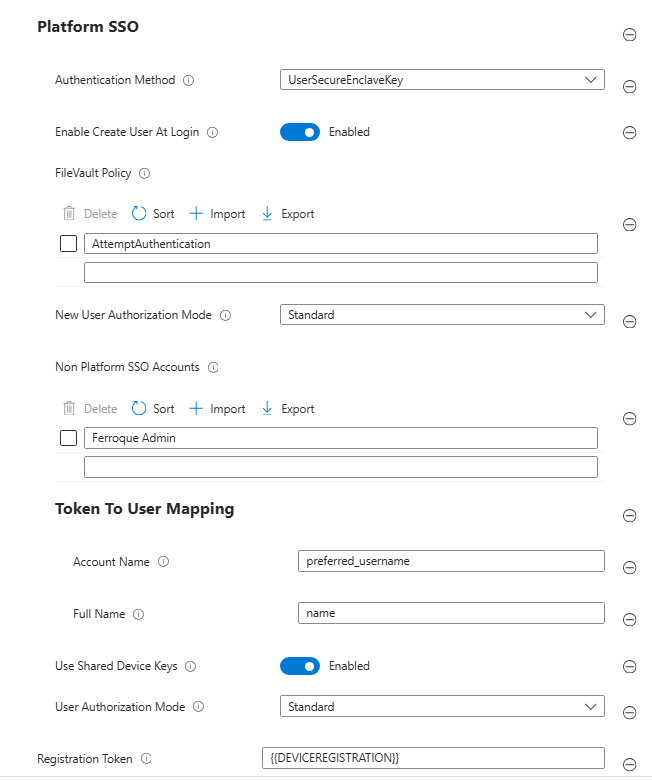
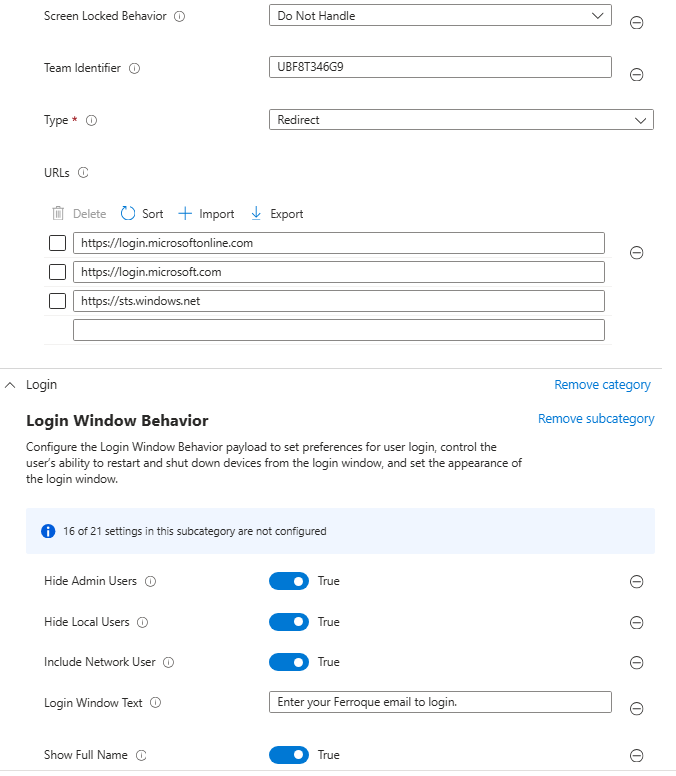
- Select Next.
- Select the desired scope tags and then select Next.
- In Assignments, select the group created earlier.
End-User Experience
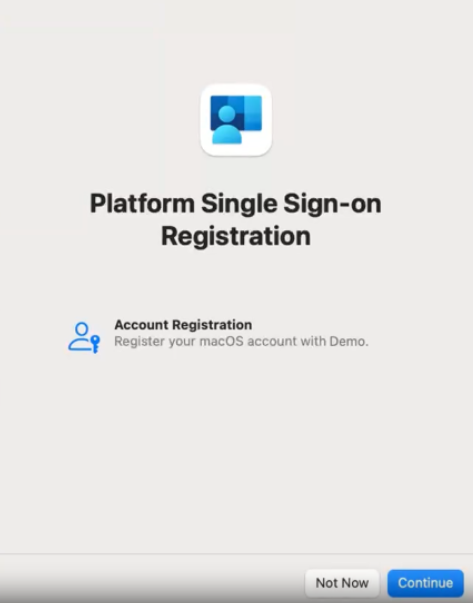
When the user powers on a new Mac enrolled through Automated Device Enrollment, they are guided through Apple’s Setup Assistant(as specified by the ADE device profile in Intune) and are prompted to sign in with their Microsoft Entra ID. After successful authentication (including any required multi-factor authentication) the device enrolls into Intune and applies management profiles in the background. If you set up the ADE profile to create a local user account, the user can then sign into that account and complete the platform SSO registration as shown below.
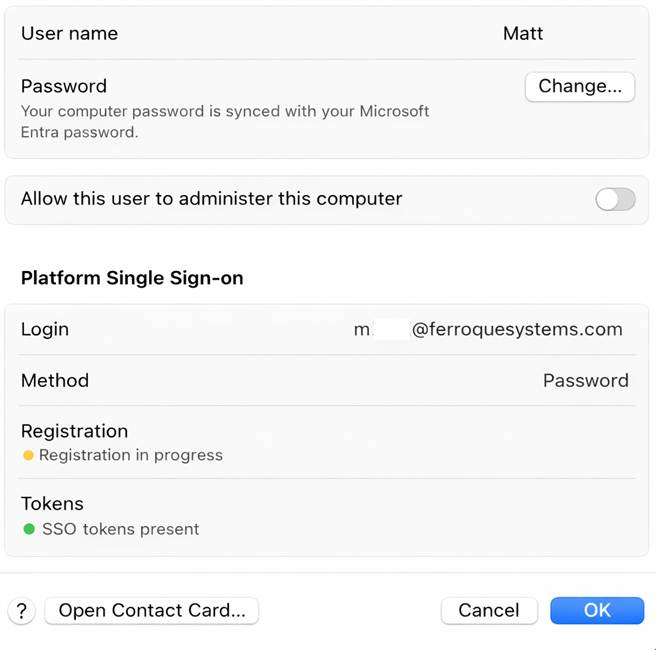
Once completed, you will be able to see the PlatformSSO progress in the System Settings under Users & Groups. The most important part of the user creation process is the presence of the Platform SSO Token.
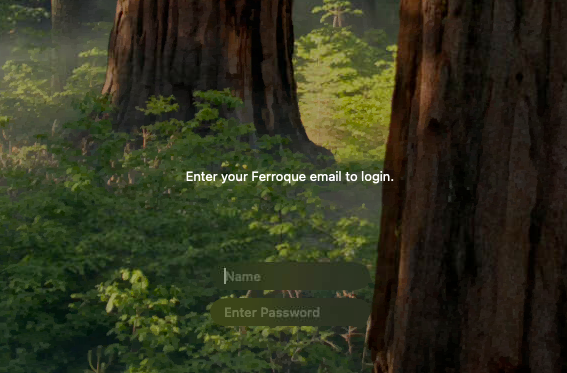
When the user enters their Entra ID credentials, a local macOS account is then automatically created and bound to the user’s Entra ID, eliminating the need for the user to choose separate local credentials. Once the user reaches the desktop, they are already signed in to Microsoft applications and supported browsers without additional prompts, and future password changes are managed through Entra ID and synchronized to the device.
Troubleshooting and Logs
When troubleshooting Platform SSO on macOS, effective diagnosis requires correlating logs across Intune, Microsoft Entra ID, and the macOS client itself.
Troubleshooting
Before checking the logs, double-check that you have all the basics covered. Make sure that you have the platform SSO profile configured correctly and assigned to the correct test devices. Also, ensure that the Company Portal app is assigned and installed on the test devices.
macOS Logs
The macOS device itself has some useful logs for SSO and login failures. The most useful one is the AppSSO log that you can access with the following terminal command to save the logs to your documents folder:
sudo log show --predicate 'subsystem == "com.apple.AppSSO"' > ~/Documents/SSOLogs.txt
These logs will have records of user login and local account creation. Some common errors I have seen are below:
| Error | Issue |
|---|---|
| Error Domain=com.apple.PlatformSSO Code=-1001 “User not found.” | This just indicates the user account is not yet present on the device and usually precedes local account creation. |
| Error Domain=com.apple.PlatformSSO Code=-1009 “Login request failed.” | This usually indicates a failure of Entra ID authentication and could mean the user is entering the password incorrectly, that there is a password configuration/compliance policy applied to the device and the EntraID password doesn’t meet the password requirements, or the user requires MFA for all logins. |
| Error Domain=com.apple.PlatformSSO Code=-1001 “login request failed.” | Same as above. |
| loginResult = POLoginResultCredentialFailure (4), error = Error Domain=com.apple.PlatformSSO Code=-1001 “Password login failed” UserInfo={NSLocalizedDescription=Password login failed} | Same as above. |
Entra ID Sign-In Logs
Microsoft Entra ID sign-in logs are critical for validating user authentication, MFA enforcement, Conditional Access evaluation, and token issuance, and can quickly identify policy blocks or authentication failures.
The sign-in logs can be found in the Entra portal either by going to Users > Sign-in Logs, or Users > Search for a user > Sign-in logs. If you are testing for a specific user issue, Users > Search for a user > Sign-in logs are preferred.
Final Thoughts: Is Platform SSO the “Windows-Level” Experience macOS Needed?
Apple Platform SSO, when deployed with Microsoft Intune and Microsoft Entra ID, represents the most significant step forward in bringing macOS identity closer to the Windows experience. While it does not replace the macOS login mechanism or enable true passwordless OS authentication, it fundamentally changes how identity is established, managed, and maintained on the device. Local accounts are no longer isolated from cloud identity, password drift is dramatically reduced, and Microsoft application sign-in becomes seamless from the first session onward.
Platform SSO does not turn macOS into Windows, and it is not meant to. The macOS devices do not join Entra ID like Windows devices, and while the local accounts’ passwords are bound to Entra ID, they are still macOS local accounts. Instead, it aligns macOS with modern, Entra ID centric identity architecture in a way that is native, supported, and sustainable. For organizations standardizing cloud identity and Zero Trust principles, it closes a long-standing gap and makes macOS a first-class citizen in the Microsoft ecosystem without compromising Apple’s security model.
Deployed thoughtfully, Platform SSO delivers what many organizations have been trying to script, bolt on, or approximate for years: a consistent, identity-driven login experience across platforms.
If you’re evaluating how Microsoft Entra ID and Platform SSO fit into your endpoint strategy, it’s worth validating how identity, device state, and user experience come together in your environment. We’re happy to walk through your current design with you and advise on any necessary adjustments. Schedule your call today.