
Citrix Profile Management (CPM) is a critical component of Citrix Virtual Apps and Desktops/CVAD (for on-premises solutions) and Citrix Desktops as a Service/DaaS (for cloud-hosted solutions) that enables users to maintain a consistent profile and personalized settings across multiple sessions and devices. Proper configuration of CPM policies and network-based profile storage helps improve user experience, reduce logon times, and simplify profile administration.
This blog provides an overview of CPM architecture, including profile synchronization, profile store locations, and the role of network shares in storing user profile data. It explains key CPM policies, recommended folder structures, and required permissions for profile shares.
You’ll also learn leading practices for configuring and securing profile shares, improving profile performance, troubleshooting common issues, and designing a scalable profile management solution for enterprise Citrix environments.
Introduction to Citrix Profile Management
CPM, also known as Citrix User Profile Management (UPM), is a profile management solution that manages and preserves user settings and personalization across Citrix sessions. It enables users to maintain a consistent experience regardless of the device, server, or Citrix Virtual Desktop (Citrix VDA) to which their session is connected.
In traditional Windows environments, user profiles are stored locally on individual machines, which can lead to inconsistent user experiences and increased administrative overhead in multi-user environments. CPM addresses these challenges by storing user profile data centrally on a network share and synchronizing profile changes during logon and logoff events.
By efficiently managing profile data, CPM helps reduce profile corruption, improve logon performance, and simplify profile administration. It also provides advanced features such as profile streaming, folder redirection integration, exclusion and inclusion policies, and profile optimization settings to enhance user experience in large-scale Citrix deployments.
Organizations commonly implement CPM to ensure profile consistency, support roaming users, and to maintain a scalable and reliable profile infrastructure across their virtual desktop and application environments.
How Citrix Profile Management Works
In a CVAD/DaaS environment, users often connect to different Citrix session host servers (VDA) or virtual desktops during their daily activities. To ensure a consistent user experience across sessions, user profile elements such as user settings, preferences, and application configurations must be preserved and made available regardless of the machine to which the user connects.
CPM provides a centralized solution for managing user profiles by storing profile data on a network share and synchronizing changes between user sessions and the profile store. This approach helps reduce profile-related issues, improves logon performance, and ensures users receive a consistent session experience.
The following sections demonstrate how to configure CPM, including creating the profile store, configuring network shares, defining required permissions, and configuring the Citrix policies used to manage user profiles.
Citrix Profile Management Configuration
The configuration process includes the following steps:
- Creating and configuring the profile store network share
- Assigning the required NTFS and share permissions
- Enabling Citrix Profile Management policies
- Configuring the profile path and profile synchronization settings
- Validating profile creation and synchronization
- Reviewing profile management behavior from a user session
The following sections review each of these steps in more detail.
Create the Citrix Profile Store Network Share
Create the folder
- Logon to the network file server.
- Create a folder to host user profiles; for example: D:\CitrixProfiles
Configure Share Permissions
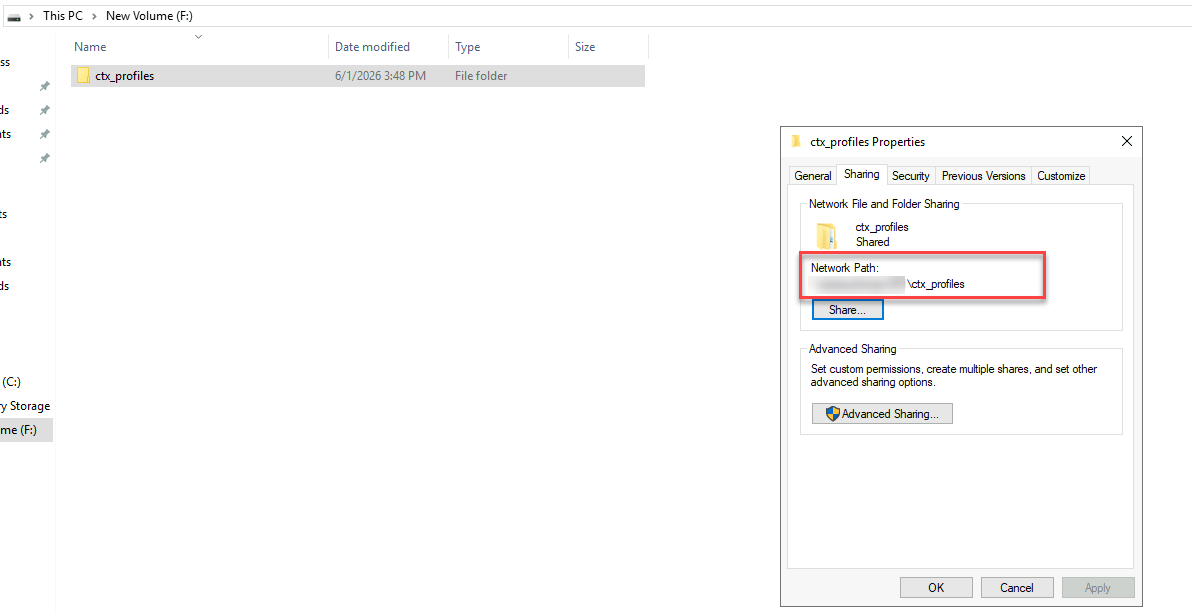
- Right-click the folder and select Properties.
- Select the Sharing tab.
- Click Advanced Sharing.
- Check Share this folder.
- Assign a share name such as: CitrixProfiles
- Click Permissions and configure folder and share permissions.
Network Share:
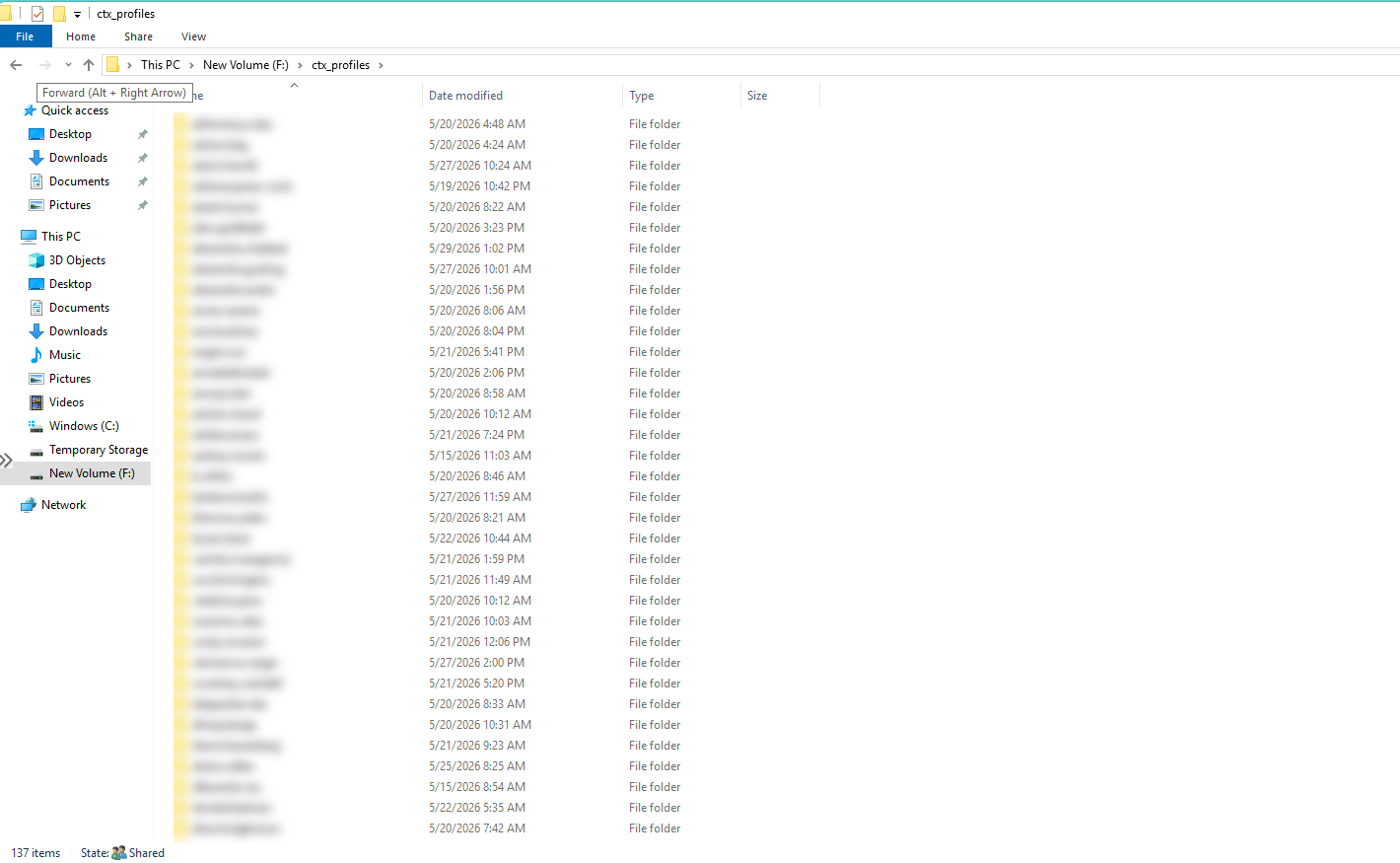
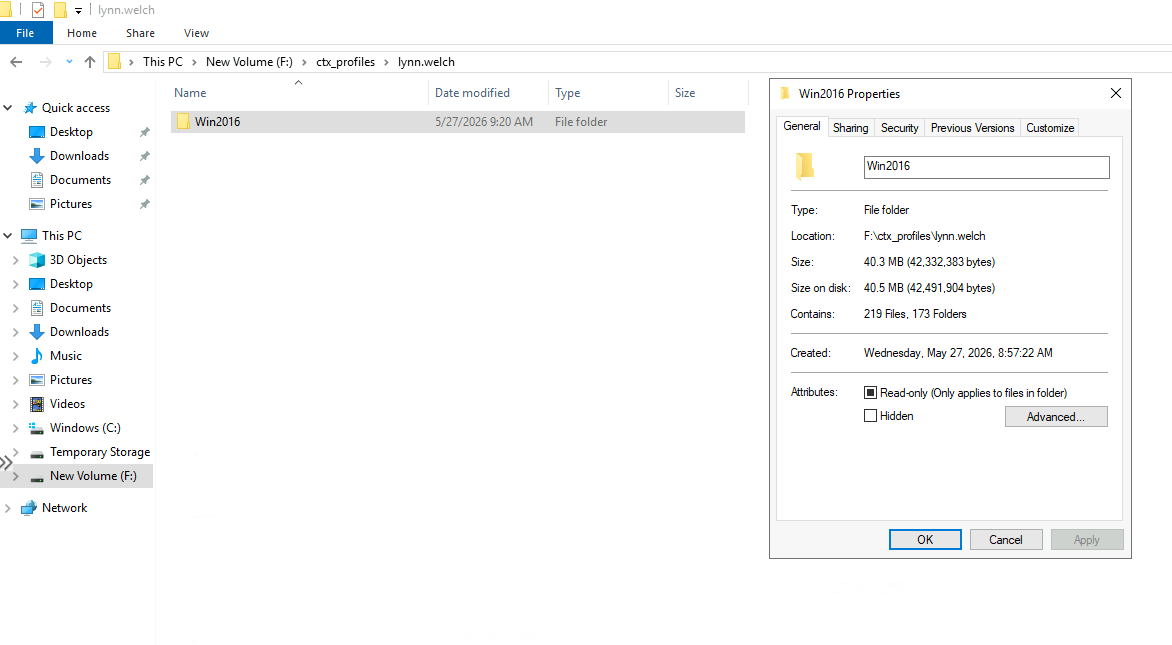
User profile folder created in the network share after logon:
Required Share and NTFS permissions
Proper network folder share and NTFS permissions are required to ensure CPM can create, access, and update user profiles that reside on the network share.
Share Permissions
Configure the profile share with the following permissions:
- Authenticated Users – Full Control
- Administrators – Full Control
- SYSTEM – Full Control
NTFS Permissions
Configure the profile store folder with the following permissions:
- Administrators – Full Control
- SYSTEM – Full Control
- Creator Owner – Full Control (Subfolders and Files Only)
- Authenticated Users – Create Folder/Append Data, List Folder, Read Permissions.
These permissions allow users to create and manage their own profile folders while preventing access to other users’ profile data.
Share permissions for Citrix Profile Store:
NTFS Permissions for Citrix Profile Store

Enable Citrix Profile Management via Citrix DaaS Policies
This section reviews how to enable CPM via Citrix DaaS policies.
- Sign in to Citrix Cloud console.
- Navigate to DaaS > Manage > Policies.
- Click Create Policy or edit an existing policy.
- Select Profile Management settings (category), and configure the following:
- Enable Profile Management = Enabled
- Path to user store = \\FileServer\CitrixProfiles\#SAMAccountName#
- Configure other settings if/as necessary, such as:
- Active write back
- Folder exclusions
- Profile streaming
- Log settings
- Assign the policy to the appropriate delivery group, users, or machines.
- Click Save and allow the policy to replicate to the Citrix VDAs.
Citrix DaaS Policies:
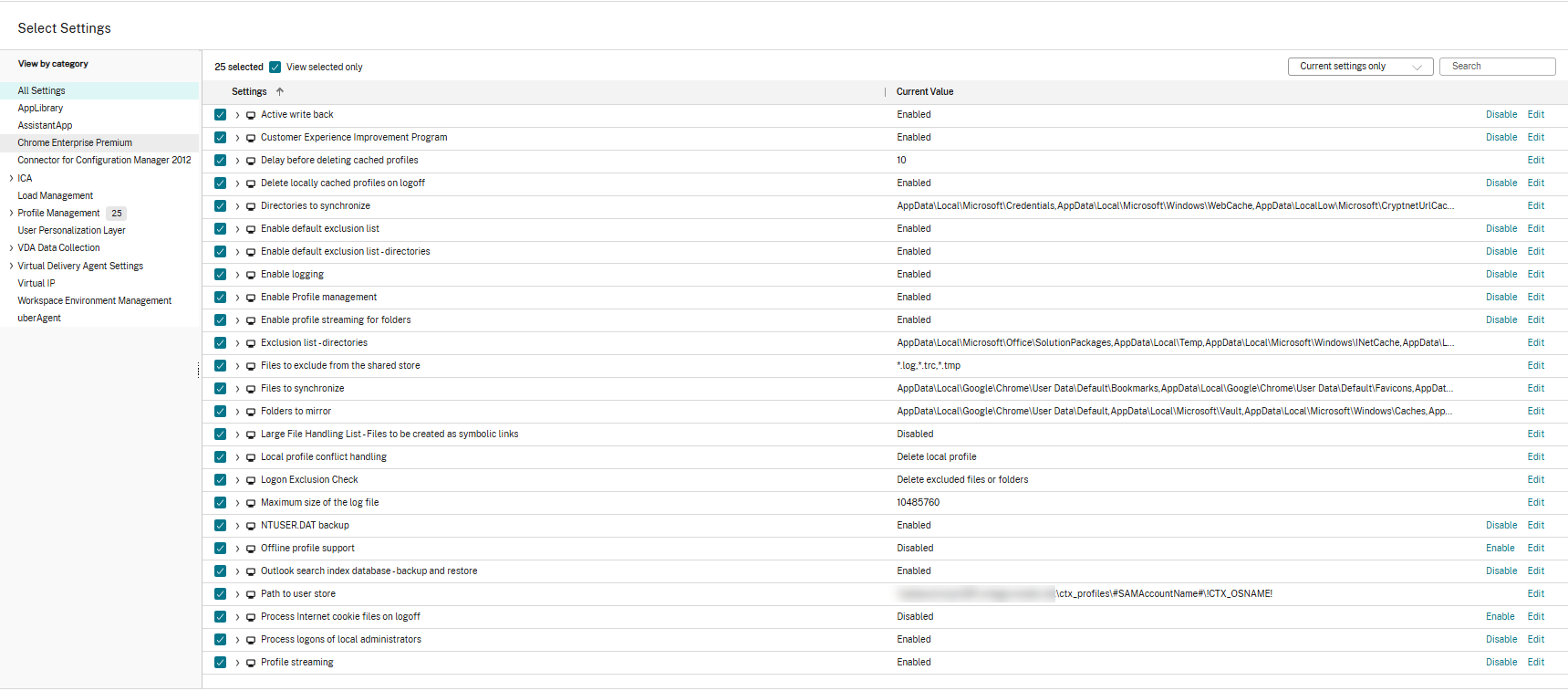
Profile Path policy configuration:
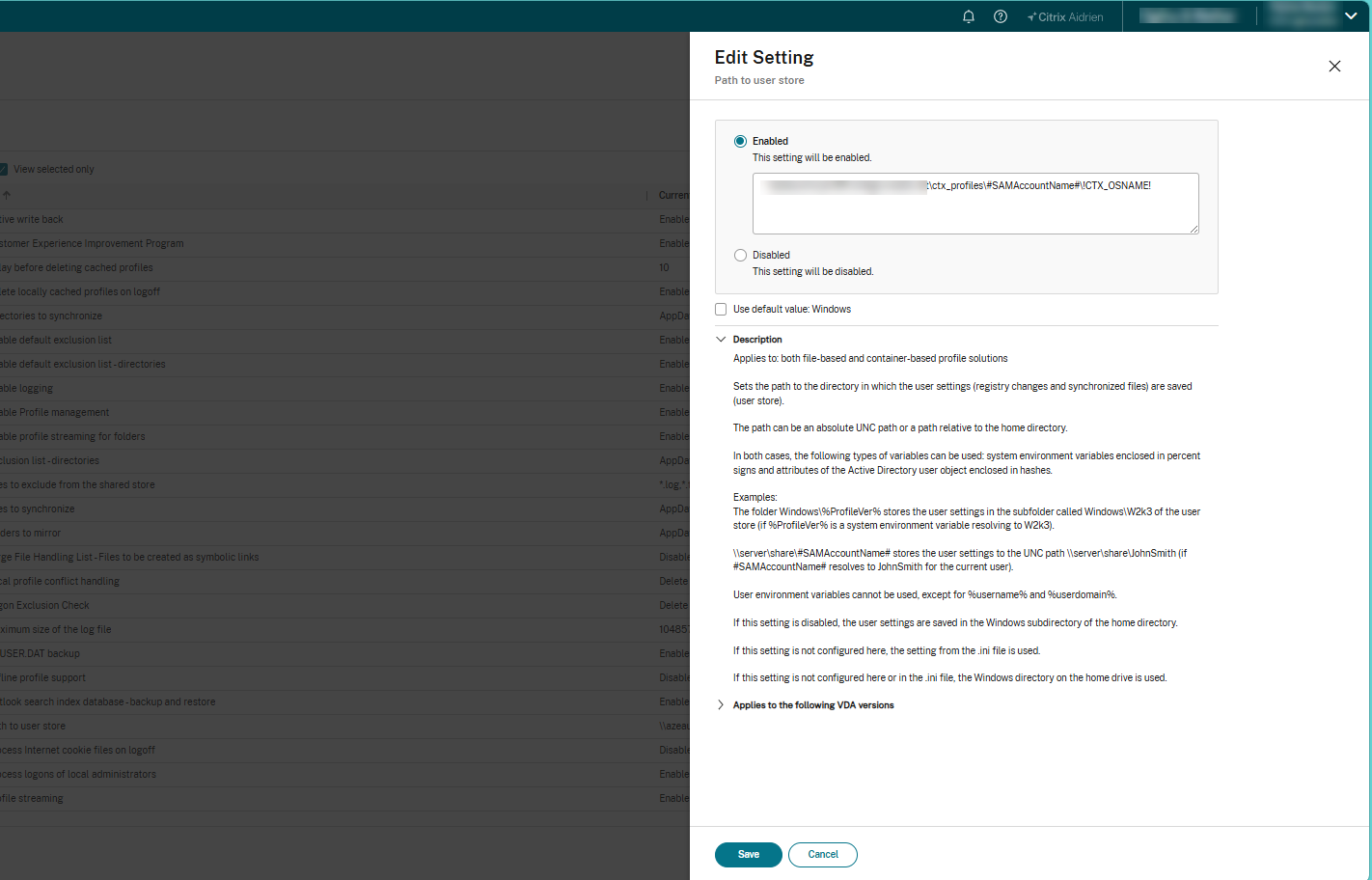
To verify the policy has applied, open a desktop console on a Citrix VDA, and run gpupdate /force to verify that the profile is created in the configured user store location.
The following CPM policy settings are commonly configured to ensure efficient profile handling and an optimal user experience:
- Enable Profile Management – Activates CPM for user sessions.
- Path to User Store – Specifies the network location where user profiles are stored.
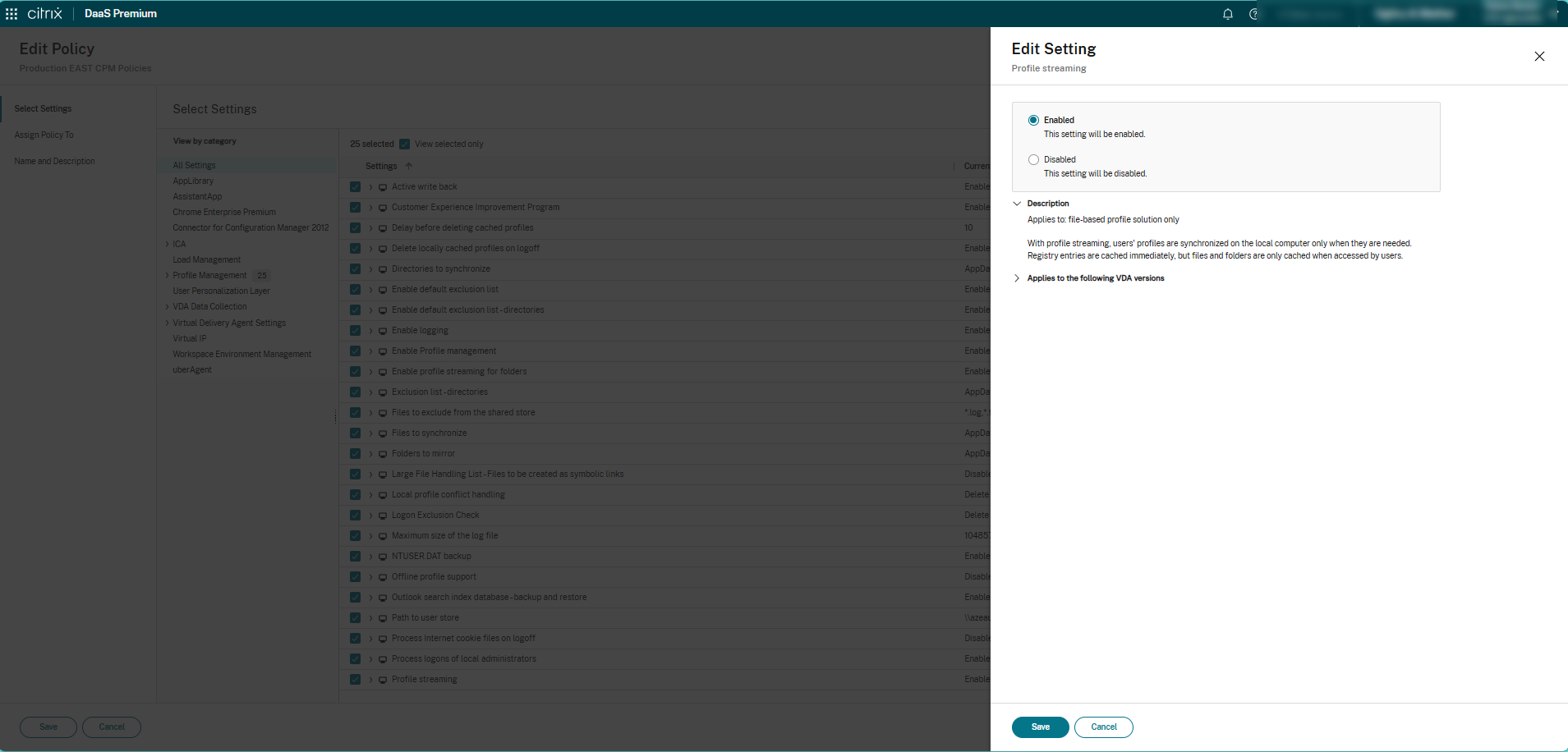
- Profile Streaming – Loads essential profile data at logon and retrieves additional data on demand, reducing logon times.
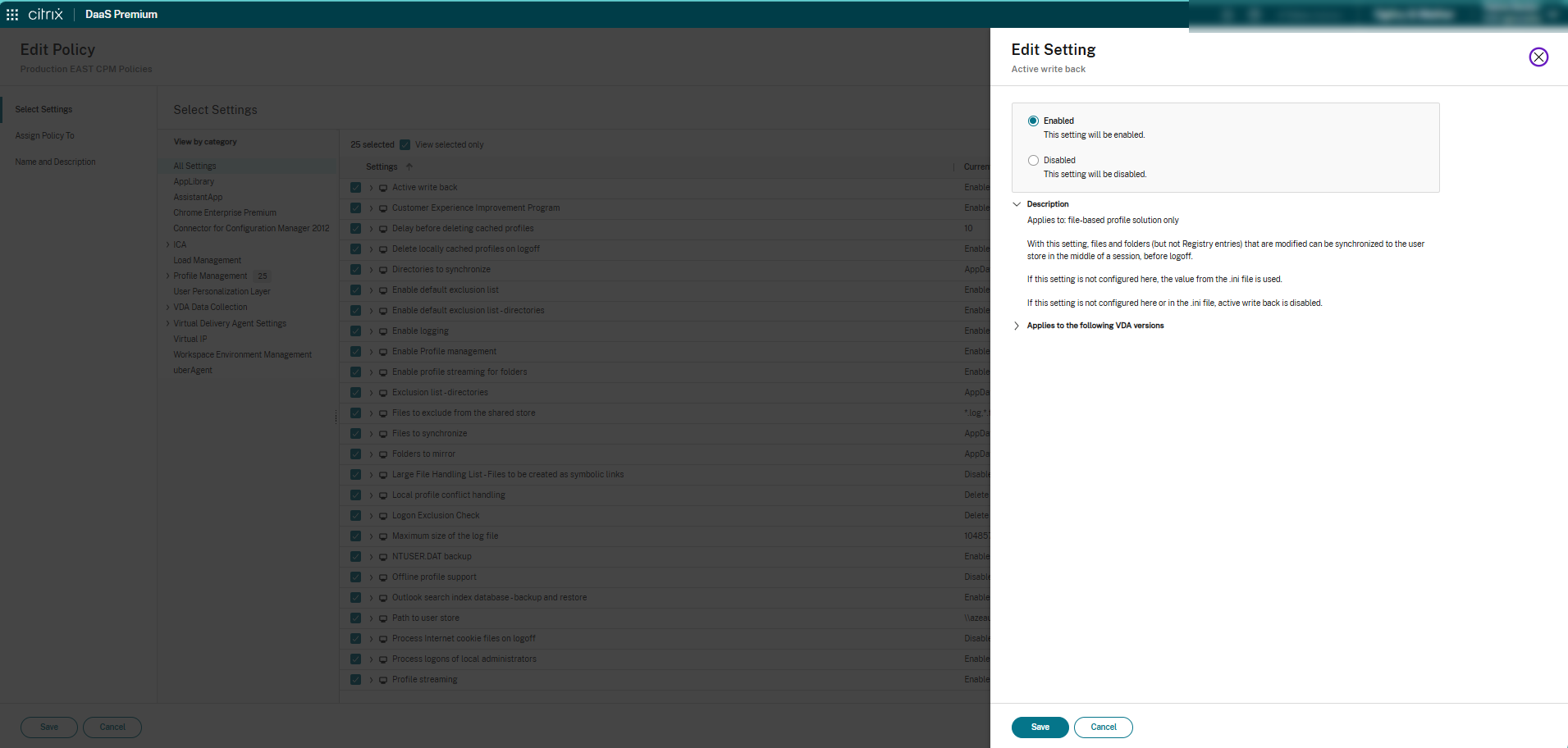
- Active Write Back – Synchronizes profile changes to the profile store during an active session.
- Excluded Folders – Prevents unnecessary folders and files from being included in the user profile.
- Included Folders – Specifies folders that must always be synchronized.
- Delete Locally Cached Profiles on Logoff – Removes local profile copies from the Citrix VDA after logoff to conserve disk space.
- Profile Management Logging – Enables logging for monitoring and troubleshooting profile-related issues.
- Replicate User Stores – Maintains synchronized copies of user profiles across multiple profile store locations to improve resiliency and availability, such that if the primary profile store becomes unavailable, CPM can use a replicated copy to help users logon successfully, thus reducing the risk of profile access issues caused by storage or network failures.
These policies help optimize profile performance, reduce profile size, and maintain a consistent user experience across Citrix sessions.
Profile Streaming and Synchronization
CPM uses profile streaming and synchronization to improve logon performance and ensure user profile data remains up to date.
Profile streaming reduces logon times by loading only essential profile components during user logon. Additional profile data is retrieved from the profile store as needed during the session, providing a faster session logon time and more responsive user experience.
Profile synchronization ensures that changes made during a user session (such as application settings, desktop preferences, and user data) are written back to the profile store. Note that if Active Write Back is configured, profile synchronization will occur periodically while the session remains active (rather than only upon session logoff). This allows users to maintain a consistent experience across multiple Citrix servers and sessions.
When combined, profile streaming and synchronization help optimize profile performance, reduce network traffic during logon, and ensure user settings are preserved and persistent across the Citrix environment.
Profile Streaming policy configuration
Active Write Back and Synchronization settings
Validating Profile Creation and Synchronization
After CPM has been configured, it is important to verify that user profiles are being created correctly and synchronized between the Virtual Delivery Agent (VDA) and the profile store. Proper validation ensures users receive a consistent experience across sessions and profile data is successfully preserved. The validation steps are outlined below.
Launch a User Session
- Logon to a Citrix VDI or published application using a test user account.
- Allow the session to complete the initial profile creation process.
Verify Profile Creation in the Profile Store
- Navigate to the configured profile store on the network share.
- Confirm that a profile folder (or VHD/VHDX container if using profile containers) has been created for the user.
- Verify the folder structure matches the configured profile path.
- Example: “\\FileServer\Profiles\username.domain\” or “\\FileServer\Profiles\username.domain\ProfileContainer.vhdx”
Validate Folder Permissions
Confirm that:
- The user has Full Control permissions on their profile folder.
- Administrators retain the required administrative permissions.
- No permission inheritance issues exist that could prevent profile updates.
Review Citrix Profile Management Logs
- Review CPM logs on the VDA to confirm successful profile processing.
- Default log location: “C:\Windows\System32\LogFiles\UserProfileManager\”
- Verify that the logs indicate:
- Profile loaded successfully.
- Profile synchronized successfully.
- No access denied nor file locking errors.
- No profile corruption warnings.
Logoff Validation
- Logoff the Citrix session and verify that:
- Profile changes are successfully written back to the profile store.
- Logoff completes without profile-related errors.
- Updated files appear in the profile store.
Reconnect or Start a New Session
- Logon to another Citrix VDA (i.e. ensure the Citrix session is hosted on a different VDA than the previous session) and verify that:
- User settings persist.
- Desktop personalization is retained.
- Application settings remain available.
- Documents and profile changes are restored successfully.
Reviewing CPM Behavior from a User Session
After validating profile creation, monitor the overall user experience to ensure Citrix Profile Management behaves as expected throughout the user’s session.
Profile Load Verification
During session logon, confirm that:
- The profile loads without delay.
- No temporary profile is created.
- User-specific settings are applied correctly.
- Logon duration is within acceptable limits.
Items to verify include:
- Desktop wallpaper
- Taskbar layout
- Start Menu customization
- Browser favorites
- Application preferences
- Printer mappings (if applicable)
Profile Synchronization During Logoff
Modify several user settings during the session, such as:
- Create a file on the Desktop.
- Save a file in Documents.
- Change an application setting.
- Modify browser favorites.
Logoff the session and confirm these changes are written back to the profile store.
Session Persistence Validation
Start a new Citrix session on a different VDA (for non-persistent environments) and verify that:
- Previously saved files are available.
- Desktop settings are retained.
- Application configurations remain intact.
- User preferences persist across sessions.
CPM Profile Types and Use Cases
This section reviews the different CPM profile types, typical use cases for each profile type, and general recommendations.
File-Based Profiles
In a file-based profile, user profile data is stored as individual files and folders on a network share. During logon and logoff, CPM synchronizes profile changes between the VDA and the profile store. File-based profiles are most appropriate for the following use cases:
- Small to medium Citrix environments.
- Persistent desktops.
- Environments with relatively small user profiles.
- Organizations requiring simple deployment and management.
Container-Based Profiles (VHD/VHDX)
In a container-based profile, the user’s profile is stored within a VHD or VHDX file that is mounted during logon, providing faster access to profile data and reducing synchronization overhead. Container-based profiles are most appropriate for the following use cases:
- Non-persistent VDI environments.
- Citrix DaaS and Microsoft Azure Virtual Desktop (AVD).
- Microsoft 365 and Outlook-heavy workloads.
- Users with large profiles or Outlook OST files.
- Large enterprise deployments requiring improved logon performance.
General Recommendations
For modern Citrix DaaS and non-persistent environments, container-based profiles (VHD/VHDX) are generally recommended due to their improved performance and scalability. File-based profiles remain a suitable option for smaller or less complex environments with modest profile sizes.
Practical Tips and Recommendations
To ensure optimal performance and a seamless user experience, consider the following CPM leading practices:
- Keep profile sizes small by excluding temporary files, cache folders, and unnecessary application data.
- Enable profile streaming to reduce logon times by loading profile data on demand.
- Use Folder Redirection for large user folders such as Documents, Downloads, Desktop, and Pictures.
- Configure exclusions for browser caches, temporary internet files, and other non-essential data.
- Regularly monitor profile growth and identify users with unusually large profiles.
- Store profiles on a highly available file share with sufficient storage and backup protection.
- Enable Active Write Back where appropriate to reduce the risk of data loss during unexpected session disconnects.
- Delete locally cached profiles on logoff to conserve disk space on Citrix VDA servers.
- Implement consistent profile policies across all Citrix delivery groups to ensure a uniform user experience.
- Enable Profile Management logging to simplify troubleshooting and identify synchronization issues.
- Store profiles on a highly available file share with adequate storage capacity, backup protection, and monitoring to ensure profile availability.
- Configure Replicate User Stores when high availability or disaster recovery requirements exist. Replicated profile stores provide redundancy and help maintain user access if a primary profile repository becomes unavailable.
- Optimize Microsoft Outlook and Office data by excluding unnecessary cache files and considering additional profile optimization techniques for Microsoft 365 workloads.
- Review application compatibility before applying folder exclusions or redirection policies to ensure applications continue to function as expected.
- Minimize logon processing overhead by configuring only the required Profile Management features and avoiding unnecessary synchronization settings.
- Use Group Policy or Citrix Policies consistently and avoid conflicting configurations that can make troubleshooting more difficult.
- Test profile changes in a non-production environment before deployment to validate functionality and identify any unexpected user-impacting issues.
- Regularly review Profile Management health and logs to proactively identify synchronization failures, profile corruption, or storage-related issues before they affect users.
Following these recommendations helps improve logon performance, reduce storage consumption, and maintain a stable and scalable Citrix environment.
Getting Citrix Profile Management Right
Citrix Profile Management is a key component for delivering a consistent, reliable user experience across both CVAD and Citrix DaaS environments. By designing an appropriate profile store, configuring the correct permissions, and implementing the right CPM policies, organizations can reduce logon times, improve profile reliability, and simplify ongoing administration.
Features such as profile streaming, Folder Redirection, profile exclusions, and ongoing profile monitoring further improve performance while helping control profile growth and storage consumption. Together, these practices create a profile management strategy that scales with your environment while providing users with a faster, more consistent experience.
A successful Citrix Profile Management deployment starts with good design. Decisions around profile storage, permissions, and CPM policies directly affect performance, reliability, and the long-term health of the environment.
Ferroque Systems has helped organizations of all sizes design, optimize, and support Citrix environments that are secure, resilient, and built for long-term success. If you’re evaluating your current Profile Management configuration or planning a new deployment, our consultants can help you identify opportunities to improve performance, reduce administrative overhead, and build a solution that scales with your business. Connect with us to learn more!