

Windows patching is straightforward in small environments, but at scale, it becomes difficult to manage consistently. Identifying missing updates, coordinating maintenance windows, and ensuring successful installation across systems introduces operational overhead and variability. This blog walks through how ControlUp Automated Scripts can be used to structure and automate the patching process, from identifying pending updates to executing scheduled, policy-driven deployments. The goal is to reduce manual effort, improve consistency, and maintain patch compliance across the environment.
Prerequisites
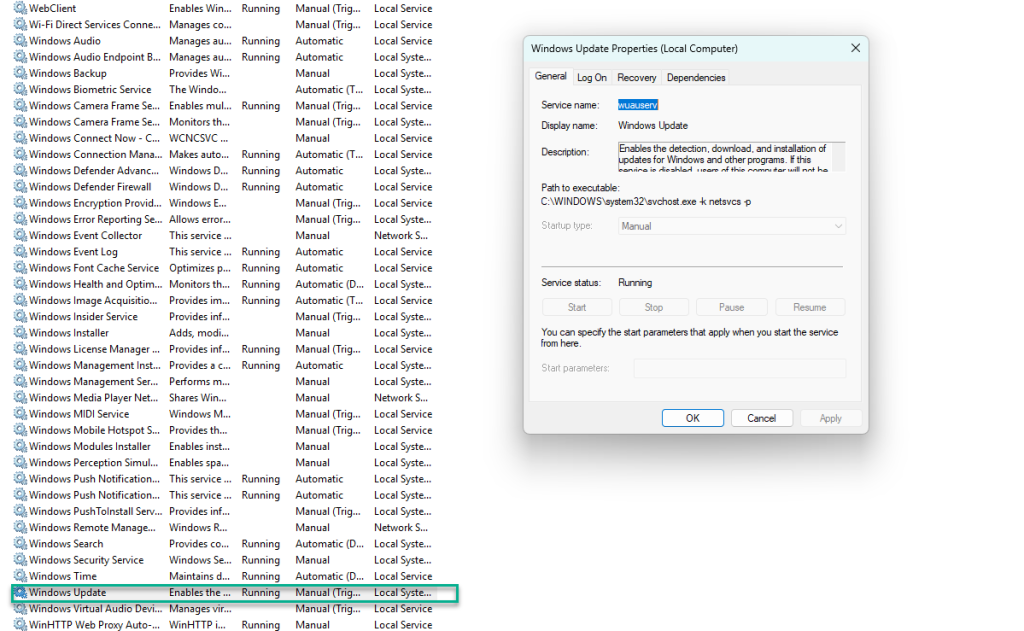
Before performing Windows Updates through ControlUp automation, ensure that the Windows Update service is enabled and running on the target machine(s). The Windows Update service must be configured as follows:
- Startup Type: Set to Automatic (or Manual, if managed by policy)
- Service Status: Running
If the service is disabled or stopped, the update detection and installation scripts may fail to execute successfully.
Automating Windows Updates
This section describes the phases/tasks to perform Windows patching using ControlUp automation.
Identify Pending Windows Updates
The objective of this phase is to identify the machines with pending Windows Updates before initiating installation.
- Open the Controlup Console.
- Launch the ControlUp Real-Time Console.
- Navigate to the relevant organizational folder or device group.
- Select Target Machines
- Identify the machine(s) to be checked.
- May be a machine group or an entire folder (for bulk operations).
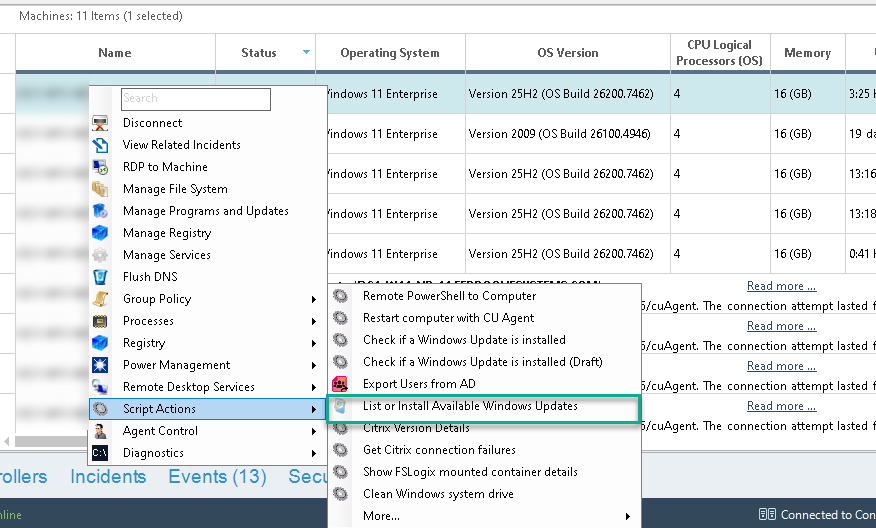
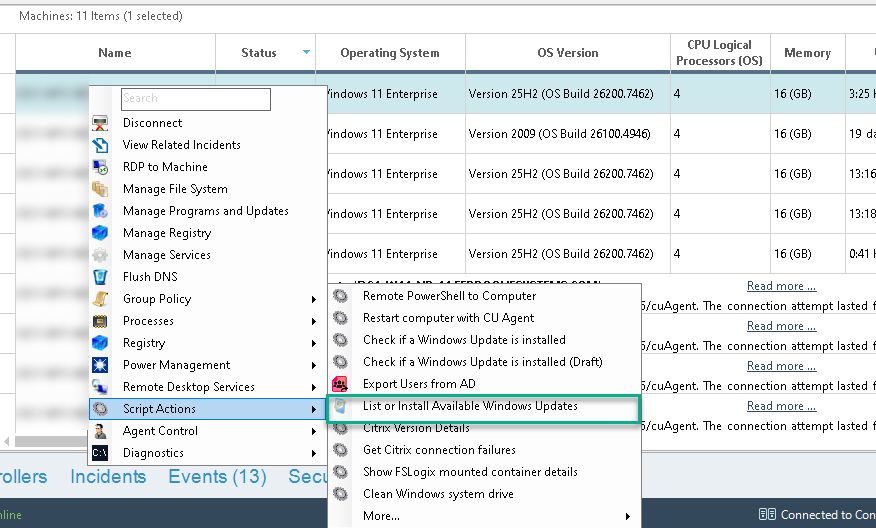
- In the example scenario here, a single machine is selected to identify any pending Windows updates. Right-click the machine that we target to check for updates, and in the pop-up menu, choose “Scripts > List or Install Pending Updates”.
- Select the script to initiate the update scan. The script will query the Windows Update service on the selected machine and return a list of all pending updates, including relevant details such as update title, KB number, and reboot requirements (if applicable).
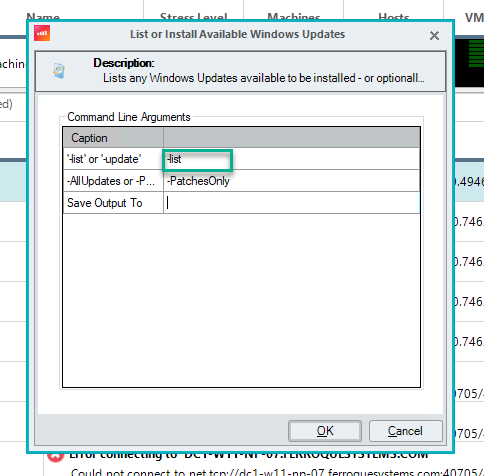
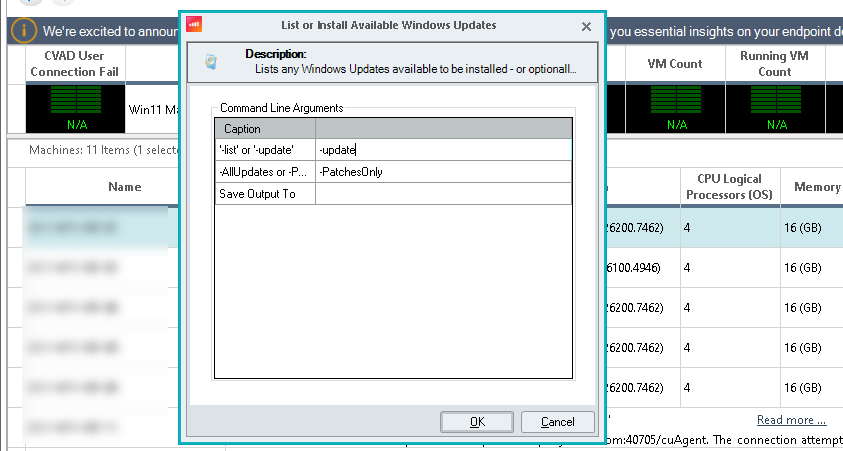
- In the next step, a pop-up window appears prompting for a command parameter; available options are:
- -list – to display pending updates.
- -update – to install pending updates.
At this stage, the objective is to identify any pending Windows updates, thus select the -list parameter.
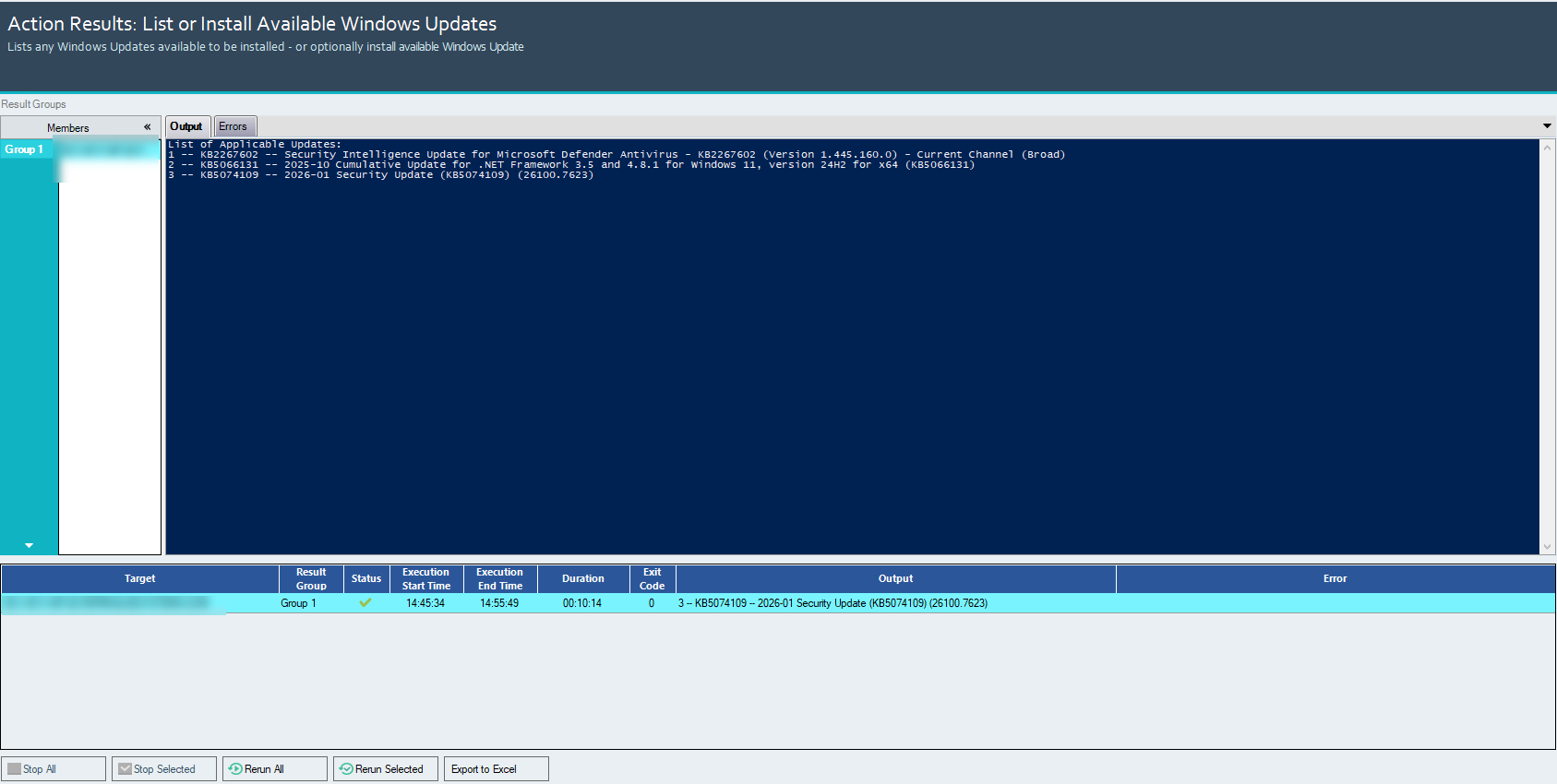
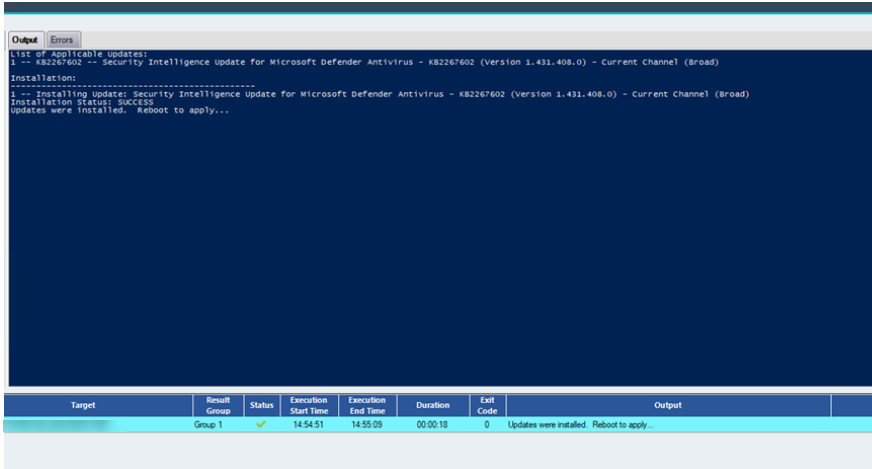
- The PowerShell execution window will display the output, showing the list of applicable pending Windows updates for the selected machine. The results typically include update details such as the update title, KB number, and installation status.
Install Pending Windows Updates
The objective of this phase is to install all approved/pending Windows updates using ControlUp automation.
- In the ControlUp Console, select the target machine(s) identified in Step 1.
- Right-click the selected machine(s), and in the pop-up menu, choose “Scripts > List or Install Pending Updates”.
- At this stage, the objective is to install any pending Windows updates, thus select the -update parameter.
- Once the Windows updates are installed, it will prompt to restart the machine for the changes to apply.
Create a Scheduled Trigger in ControlUp
The objective of this phase is to automate patch detection and installation without the need for manual intervention.
- In the ControlUp Console, navigate to the Triggers page.
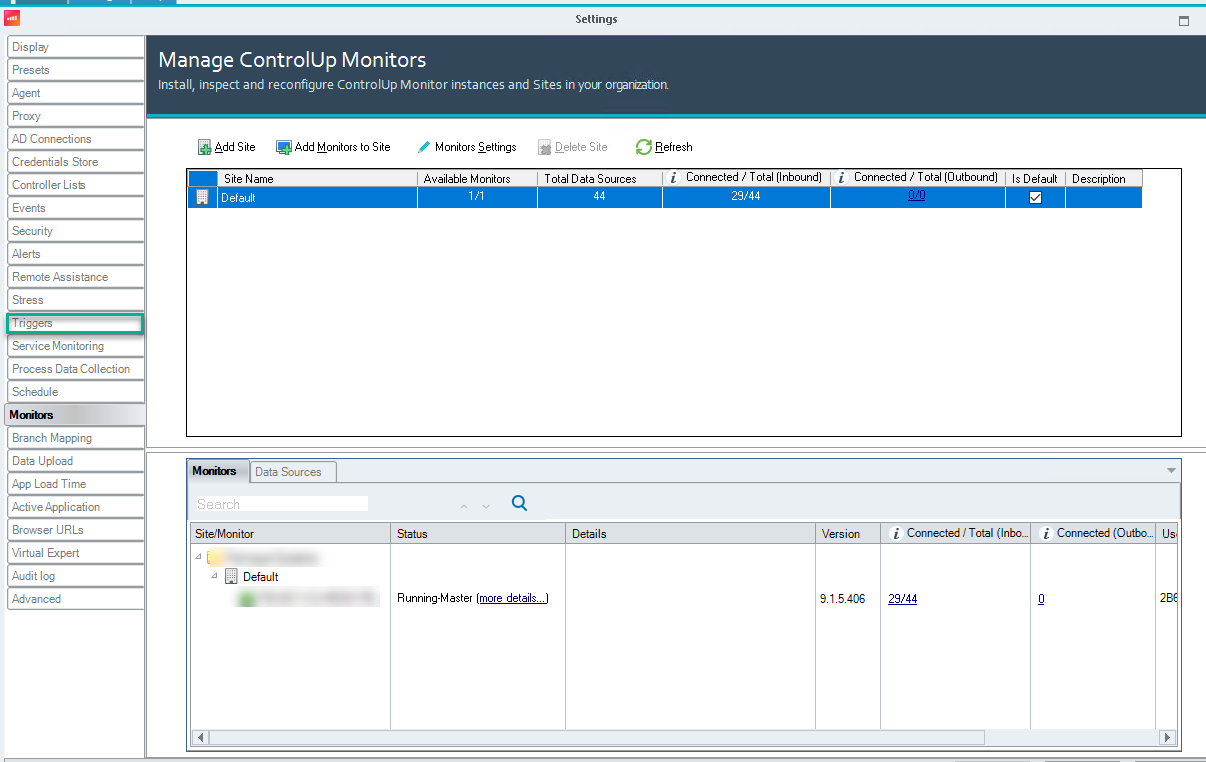
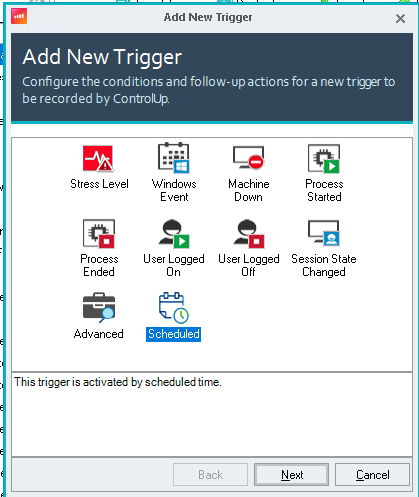
- Click Add Trigger to open the Trigger Types window, and select the Scheduled trigger type.
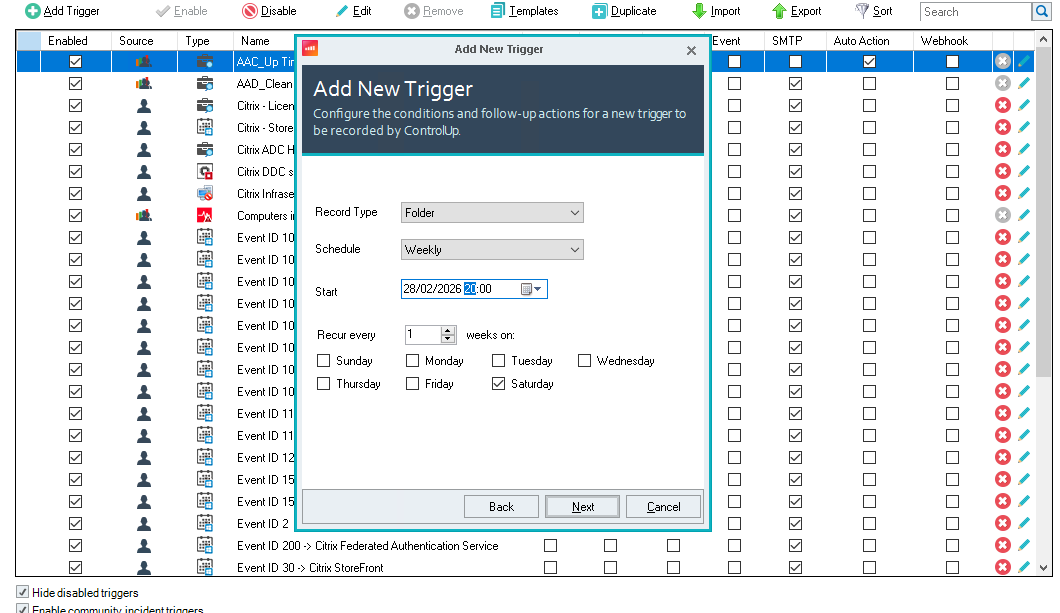
- Set record type to Folder, set the schedule to Weekly or Monthly (typically monthly), and configure it to recur every 1 week on Saturday (i.e., the day of the scheduled change window to install Windows updates).
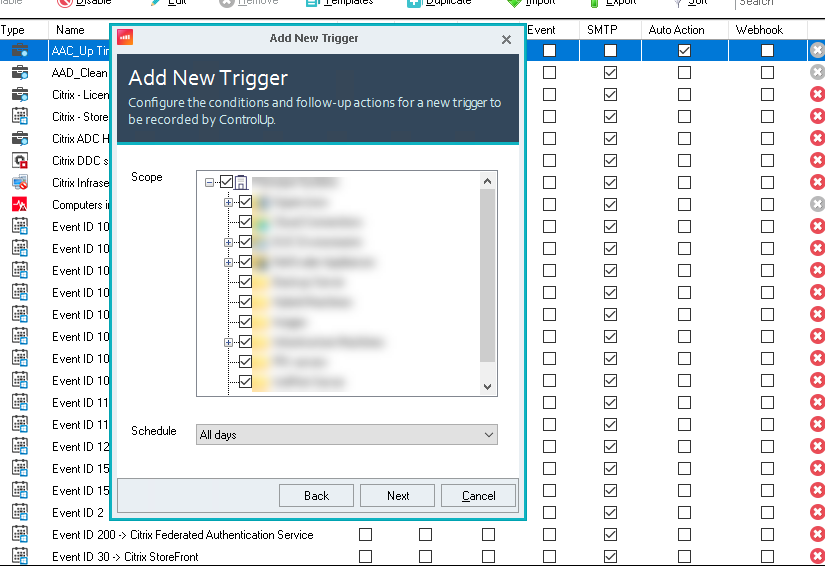
- Choose the folder(s) that contain the target machine(s) upon which to install the Windows updates via script actions.
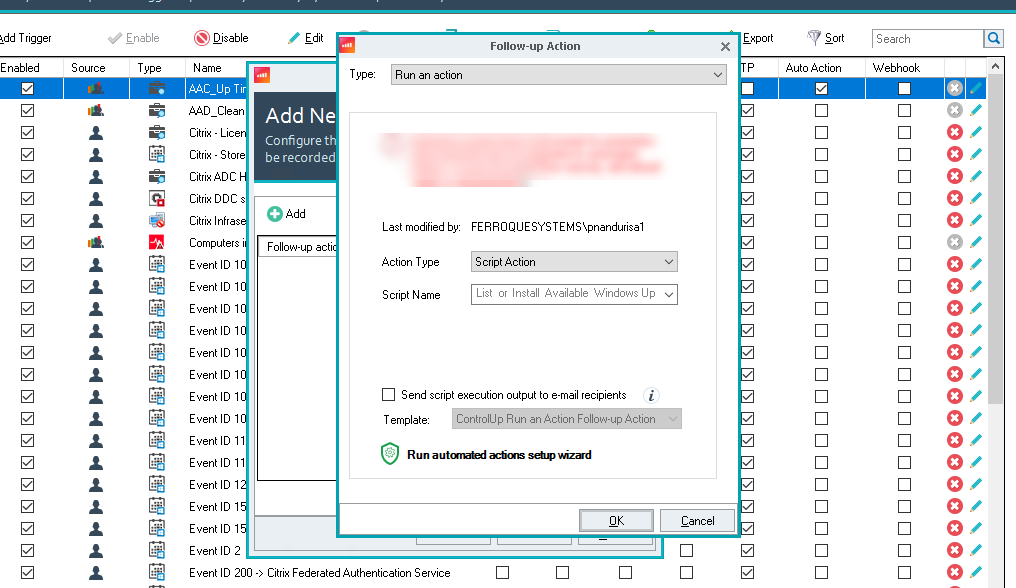
- In the Follow-up actions, set action type to Script Action and choose the script action “List or Install Available Windows Updates”.
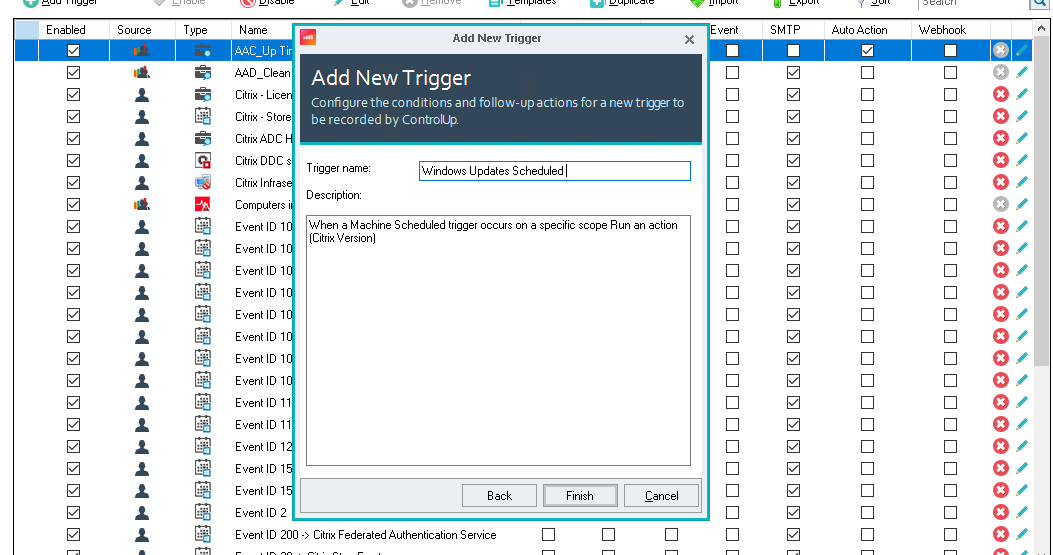
- Specify the name of the Trigger as “Windows Updates Scheduler” (or other descriptive name) and click Finish to complete.
Final Thoughts
Automating Windows patching with ControlUp transforms what is typically a repetitive, manual process into a structured, reliable workflow. By combining scripted actions, scheduling, and trigger-based execution, patch management becomes more predictable and easier to maintain across the environment. This approach not only improves consistency and reduces operational overhead but also helps ensure systems remain aligned with security and compliance requirements.
As environments scale, the ability to standardize and automate patching becomes increasingly important. ControlUp provides a practical way to implement this without introducing unnecessary complexity, while still allowing flexibility in how updates are identified, scheduled, and applied.
If you are evaluating how to improve your Windows patching process or looking to operationalize ControlUp automation more effectively, Ferroque Systems can help. Our team works directly with organizations to design and implement automation strategies that align with real-world operational requirements.


