

In 2025, Citrix introduced support for single sign-on (SSO) with Microsoft Entra ID for Citrix DaaS environments, without relying on Citrix Federated Authentication Service (FAS). As of version 2603, Citrix SSO with Entra ID introduced a technical preview for the customer-managed access tier (StoreFront and NetScaler), while this feature is generally available with the version 2607 LTSR.
Citrix provides configuration guidance in the following articles: Microsoft Entra single sign-on | Citrix DaaS™, and Microsoft Entra single sign-on | Citrix Virtual Apps and Desktops™ 7 2607 LTSR. These articles describe the required configuration for Citrix Workspace, Citrix DaaS, and customer-managed access tiers, and Citrix Virtual Apps and Desktops (CVAD) environments.
In our experience, many enterprise organizations that have moved their Citrix control plane to Citrix Cloud continue to use NetScaler Gateway and StoreFront as their access tier, either on-premises or hosted in a public cloud. This blog focuses on implementing Citrix SSO with Microsoft Entra ID in that hybrid architecture, using NetScaler Gateway and StoreFront with the control plane hosted in Citrix DaaS.
It also highlights the primary configuration areas that must be aligned across Microsoft Entra ID, on-premises Active Directory, NetScaler Gateway, StoreFront, and Citrix delivery groups for the solution to function successfully.
Overview
At the high level, the following image illustrates integration between Citrix DaaS control plane, Citrix on-premises access layer, Microsoft Entra ID, and Active Directory.
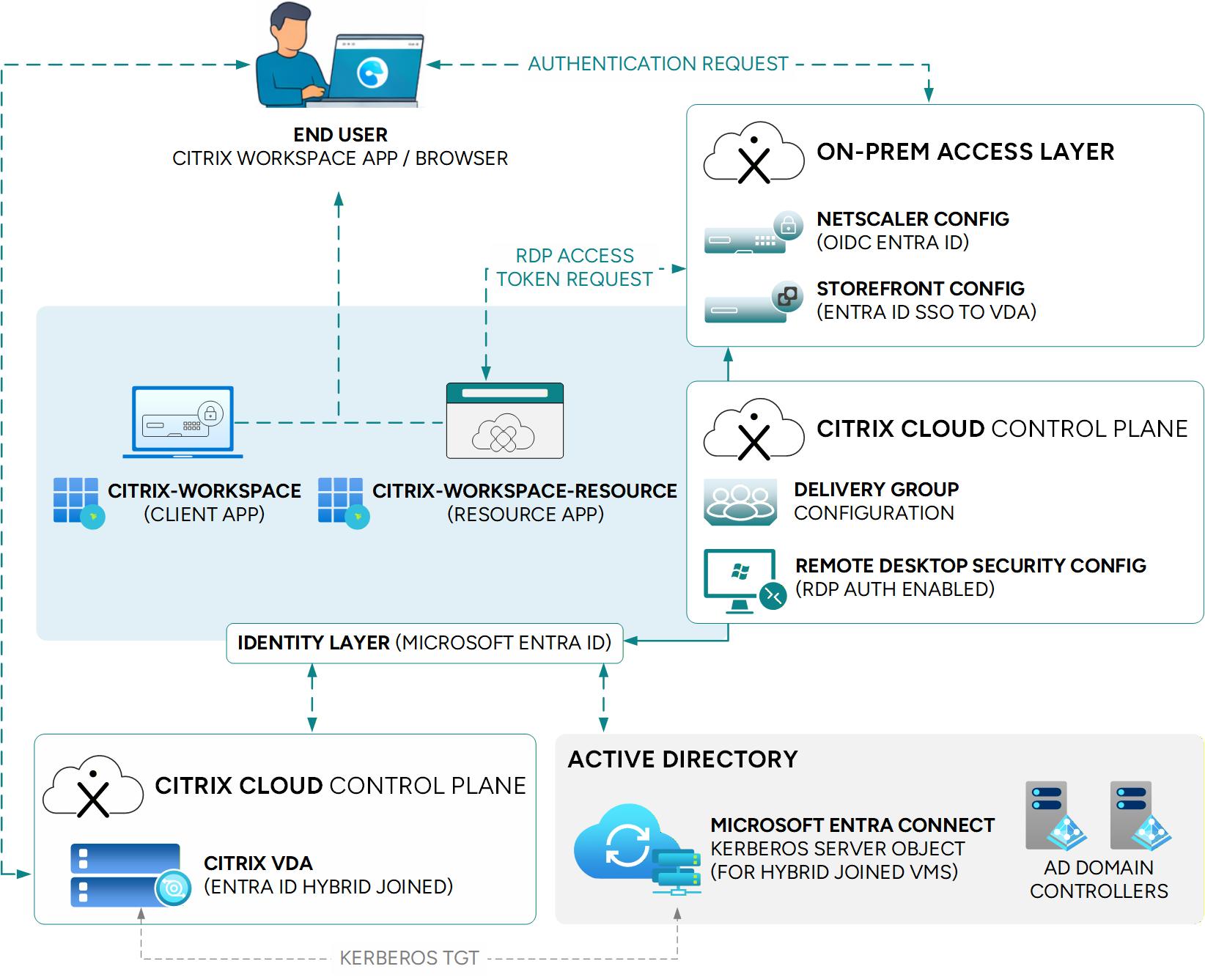
The Citrix authentication, resource enumeration, and session launch process also follows the Microsoft Entra ID authentication sequence used by Remote Desktop Services (RDS), as documented in the RDS AAD Auth Connection Sequence specification.
There are, however, several important differences in how the sequence is implemented within a Citrix environment. Some requests that would normally originate from the RDS client are handled by StoreFront and NetScaler Gateway rather than directly by Citrix Workspace app (CWA). Similarly, certain responses that would normally be generated by the RDS server are handled by the Citrix Broker service instead of the Citrix VDA. Understanding these differences is important when troubleshooting the authentication flow, as the overall sequence spans multiple Citrix components rather than occurring exclusively between the client and the session host.
For this reason, communication between StoreFront, NetScaler Gateway, and Microsoft Entra ID must be permitted and remain unobstructed. Required outbound connectivity, DNS resolution, and access to the necessary Microsoft Entra endpoints must be validated to ensure that authentication, token exchange, resource enumeration, and session launch processes can complete successfully.
System Requirements
Before Citrix SSO with Microsoft Entra ID can be configured, several prerequisites must be met across Microsoft Entra ID, NetScaler Gateway, StoreFront, Citrix DaaS, and the VDA identity model.
Because the architecture described in this blog uses a customer-managed access tier with NetScaler Gateway and StoreFront, while the Citrix control plane is hosted in Citrix DaaS, the implementation requirements must be validated against both the CVAD and Citrix DaaS documentation.
The relevant system requirements are documented in the following Citrix articles:
- Microsoft Entra single sign-on (Preview) | Citrix Virtual Apps and Desktops™ 7 2607 LTSR
- Microsoft Entra single sign-on | Citrix DaaS™
For a hybrid architecture such as that covered in this blog, the prerequisites from both sets of documentation should be reviewed together to ensure that the identity, access tier, control plane, and VDA requirements are fully aligned before beginning the configuration.
Configuration
Configuring Microsoft Entra single sign-on consists of the following steps:
- Azure and Microsoft Entra ID configuration.
- Register the Citrix resource and client applications.
- Enable the Microsoft Entra ID Remote Desktop Services authentication protocol for the Citrix resource application.
- Approve the client application.
- Create a Kerberos server object (Microsoft Entra hybrid-joined environments only).
- Review Microsoft Entra Conditional Access policies.
- Citrix configuration.
- Ensure XML trust is enabled for the site
- Provision session hosts with the required OS version, identity type, and VDA version.
- Configure StoreFront.
- Enable Microsoft Entra single sign-on in the customer site.
- Enable Microsoft Entra single sign-on in the customer delivery groups.
- Configure the NetScaler Gateway.
Microsoft Entra ID Configuration
Follow the link to register the Citrix Resource application: Register Citrix Application.
Register the Citrix applications
- In the Azure Portal, go to Microsoft Entra ID → Enterprise Applications.
- Click New application → Create your own application.
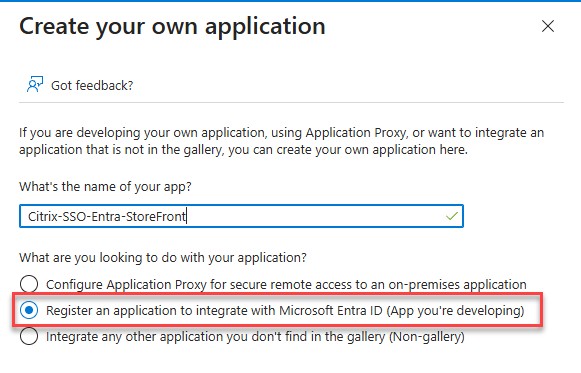
- Name the app, choose Register an application to integrate with Microsoft Entra ID, and click Create.
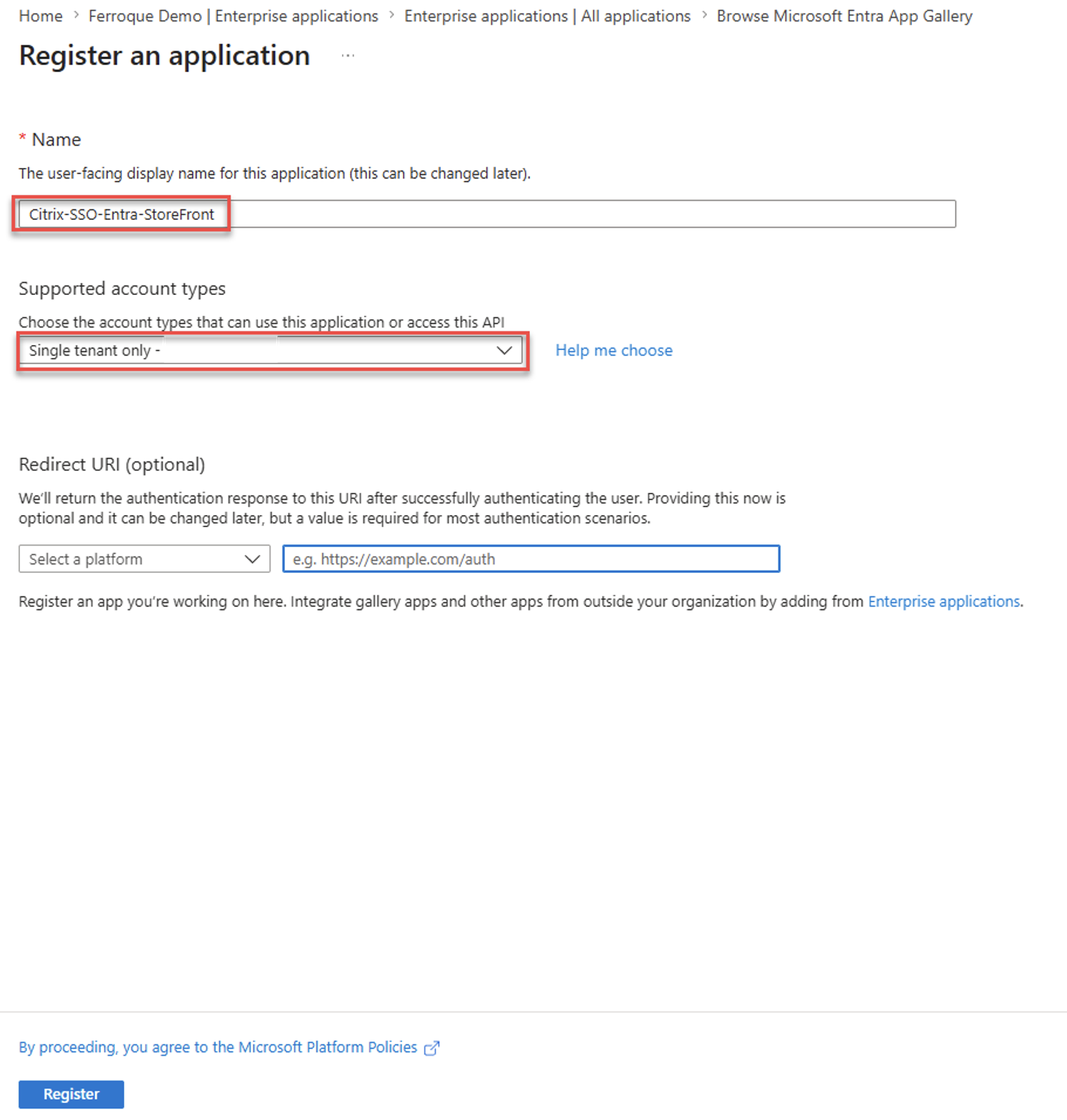
- Under Supported account types, select Single tenant only, and click Register.
- Go to Microsoft Entra ID → App registrations → All applications and open the app that was just created.
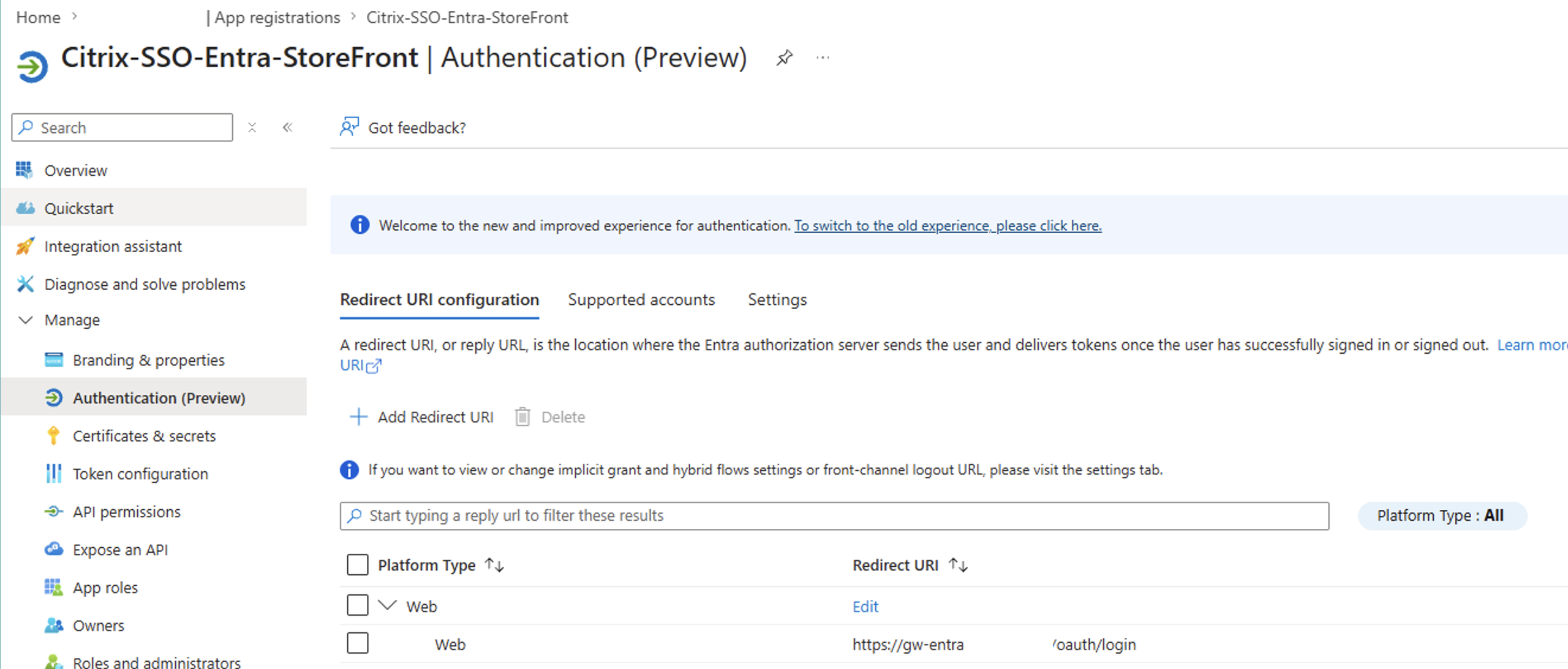
- Go to Manage → Authentication.
- Add three redirect URIs — Web, Single-page application, and Mobile and desktop applications (per the documentation). This example shows Web only:
- Select Add Redirect URI.
- Enter the NetScaler Gateway URL followed by /oauth/login.
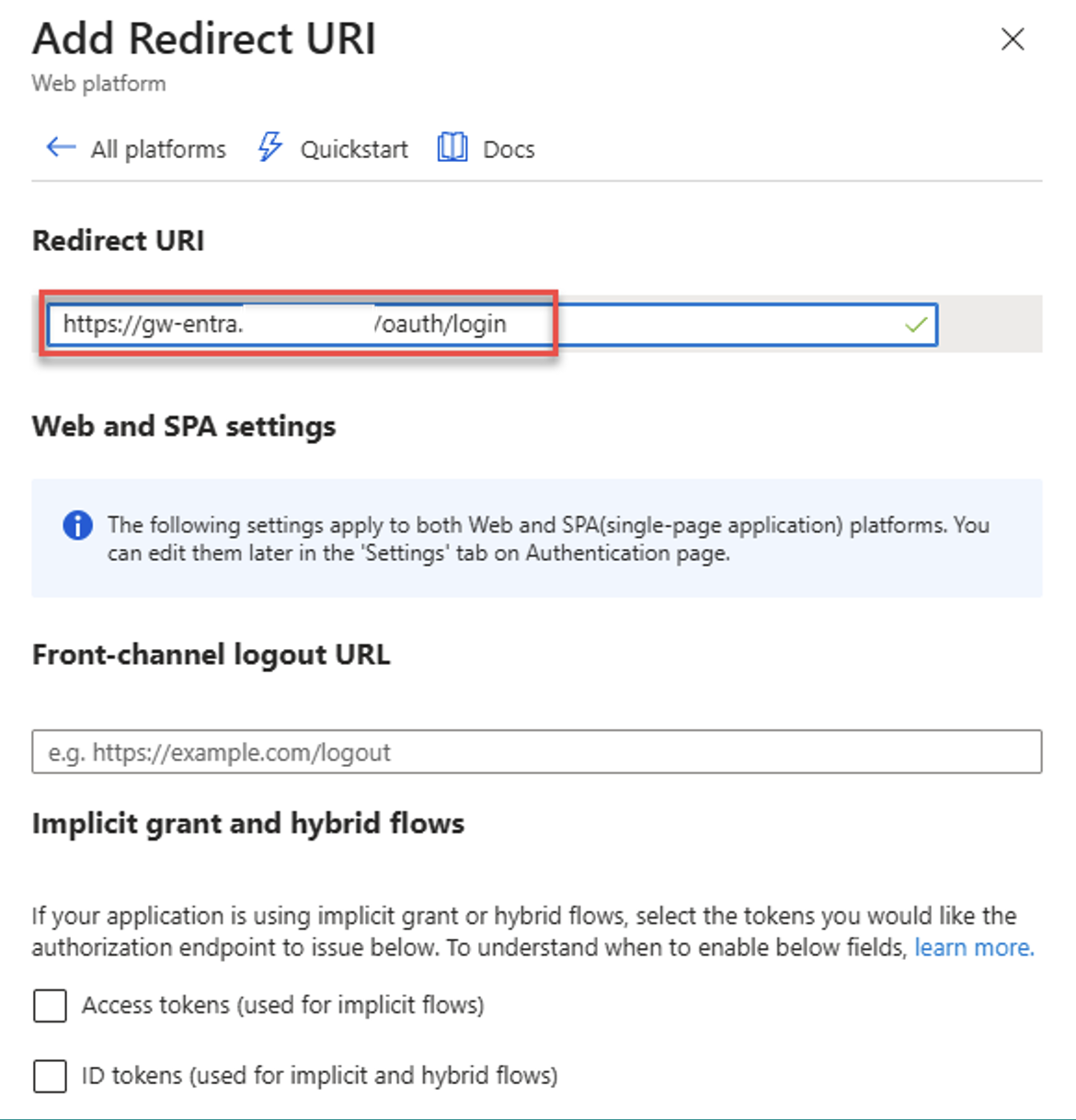
- Validate the redirect URI that was configured.
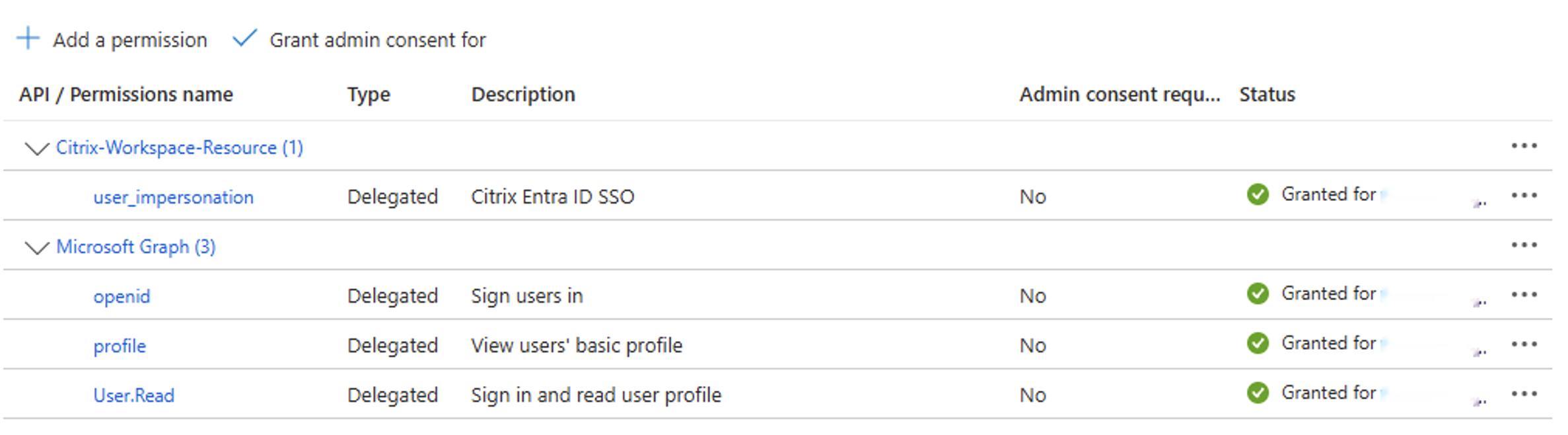
- Go to Manage → API permissions, then Add permission → APIs my organization uses.
- Select the Citrix Resource application (Citrix-Workspace-Resource).
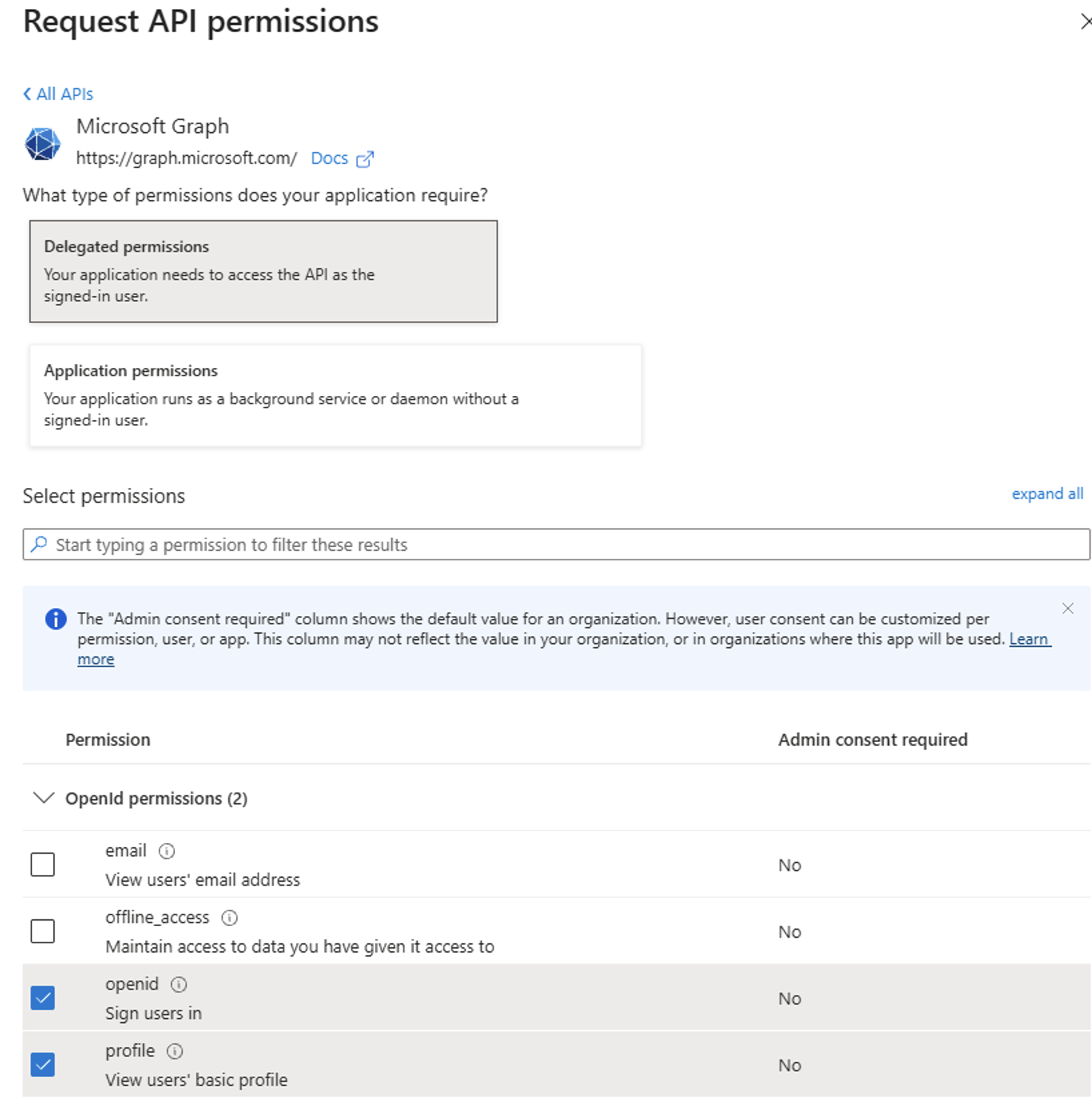
- Check user_impersonation, then click Add permissions.
- Also grant admin consent for Citrix-Workspace-Resource.
- Add Graph permissions for openid, profile, and User.Read.
Grant admin consent for the enterprise application
Once the application has been created and configured, consent must be given to the application permissions. Administrators can consent to the application’s permission within Azure portal:
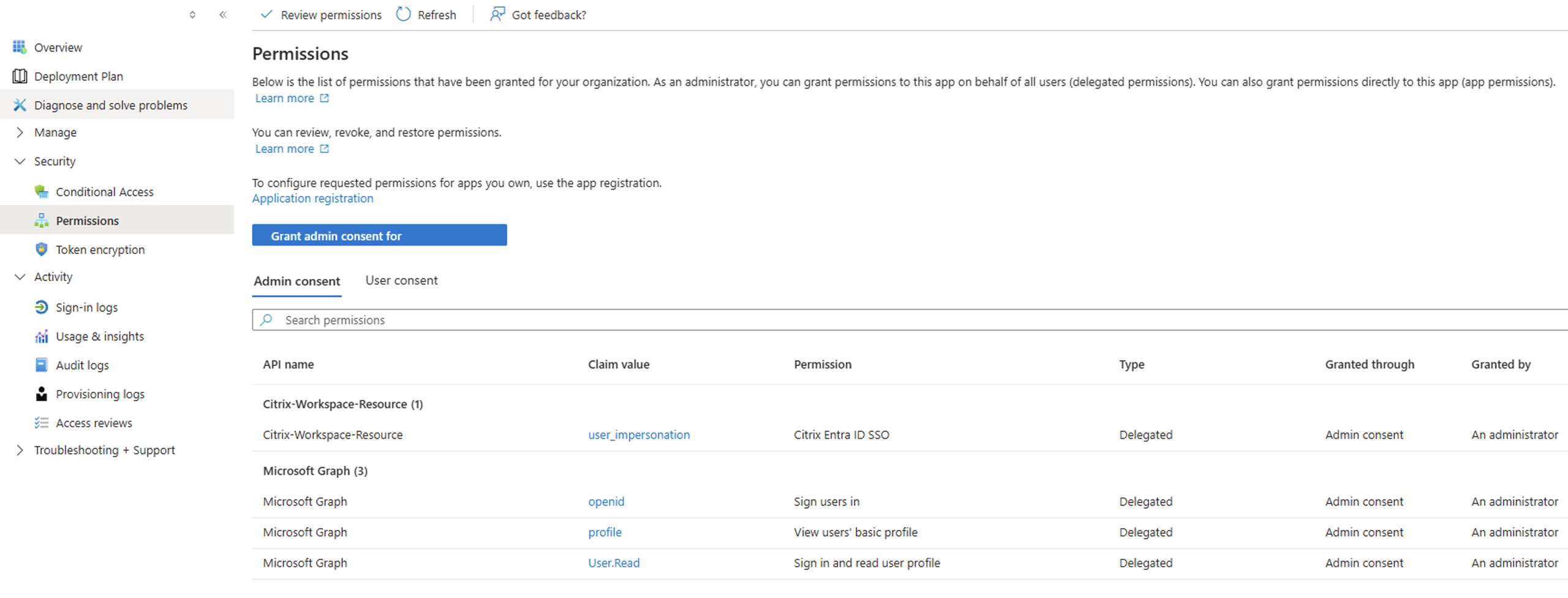
- Go to Microsoft Entra ID → Enterprise Applications and select the Client application (Citrix-SSO-Entra-StoreFront).
- Go to Security → Permissions, then click Grant admin consent for <tenantName> and approve.
- Validate graph permissions
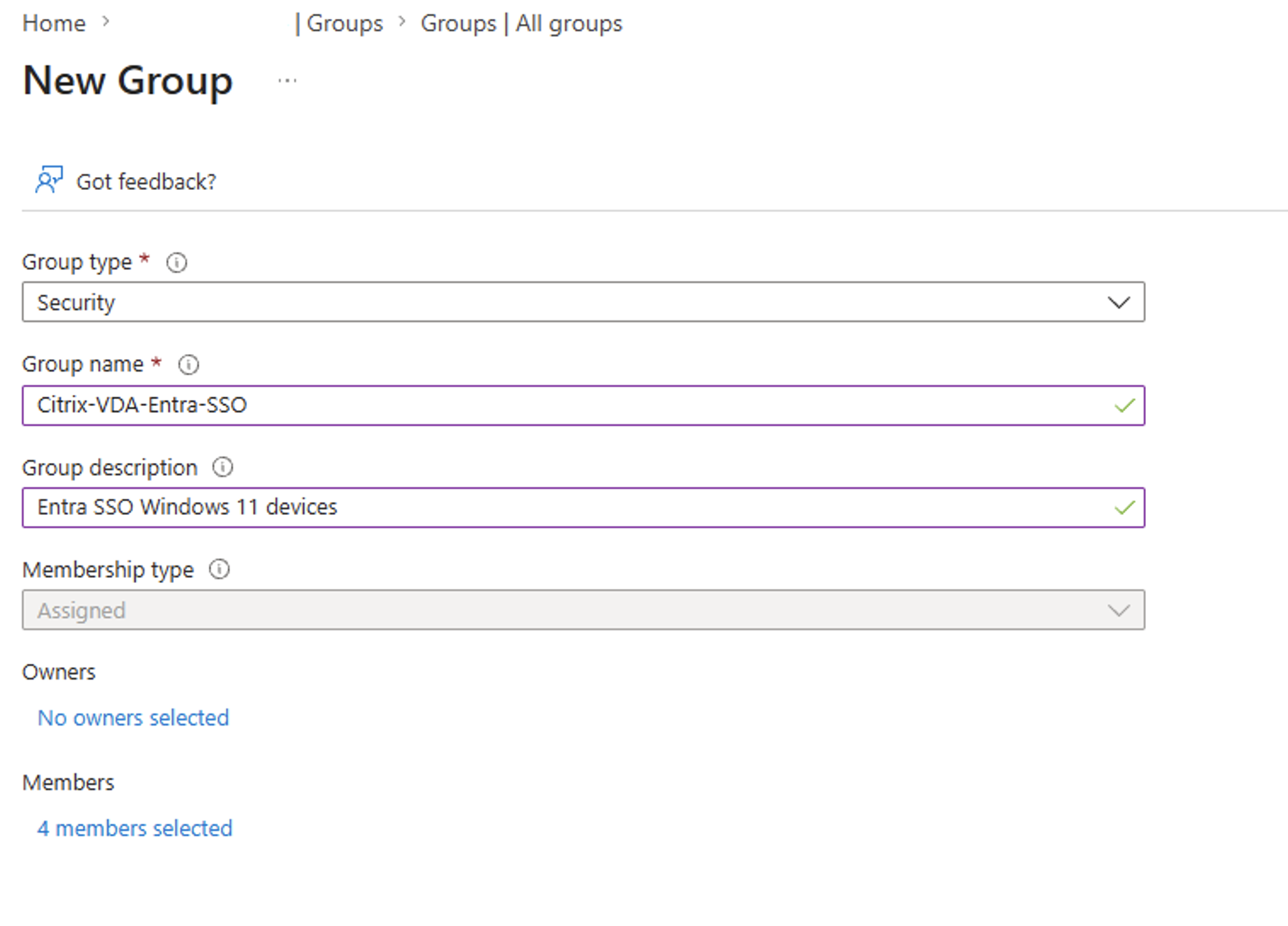
Create a new group with Hybrid-joined Windows 11 VDA
Create a new group to select VDI that will be used for Entra SSO. Alternatively, a dynamic group can be configured.
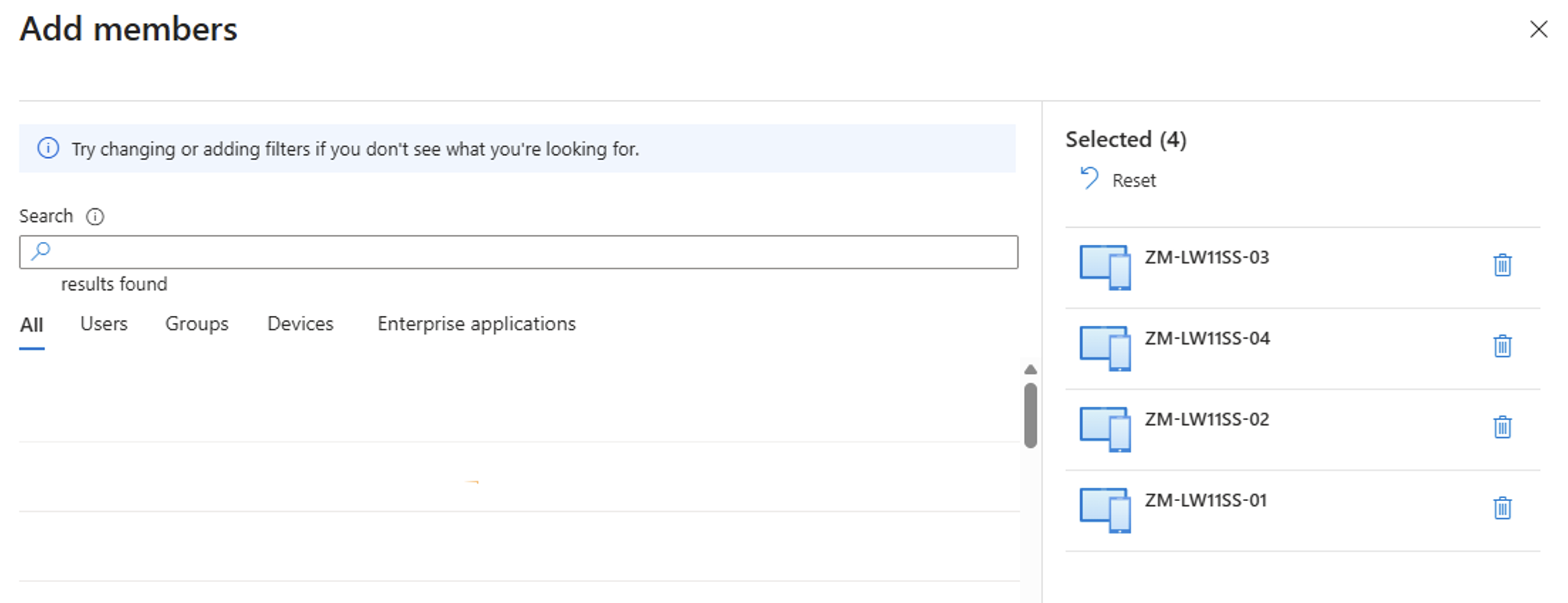
Select the members to add to the newly created group.
Entra ID Remote Desktop Authentication Protocol
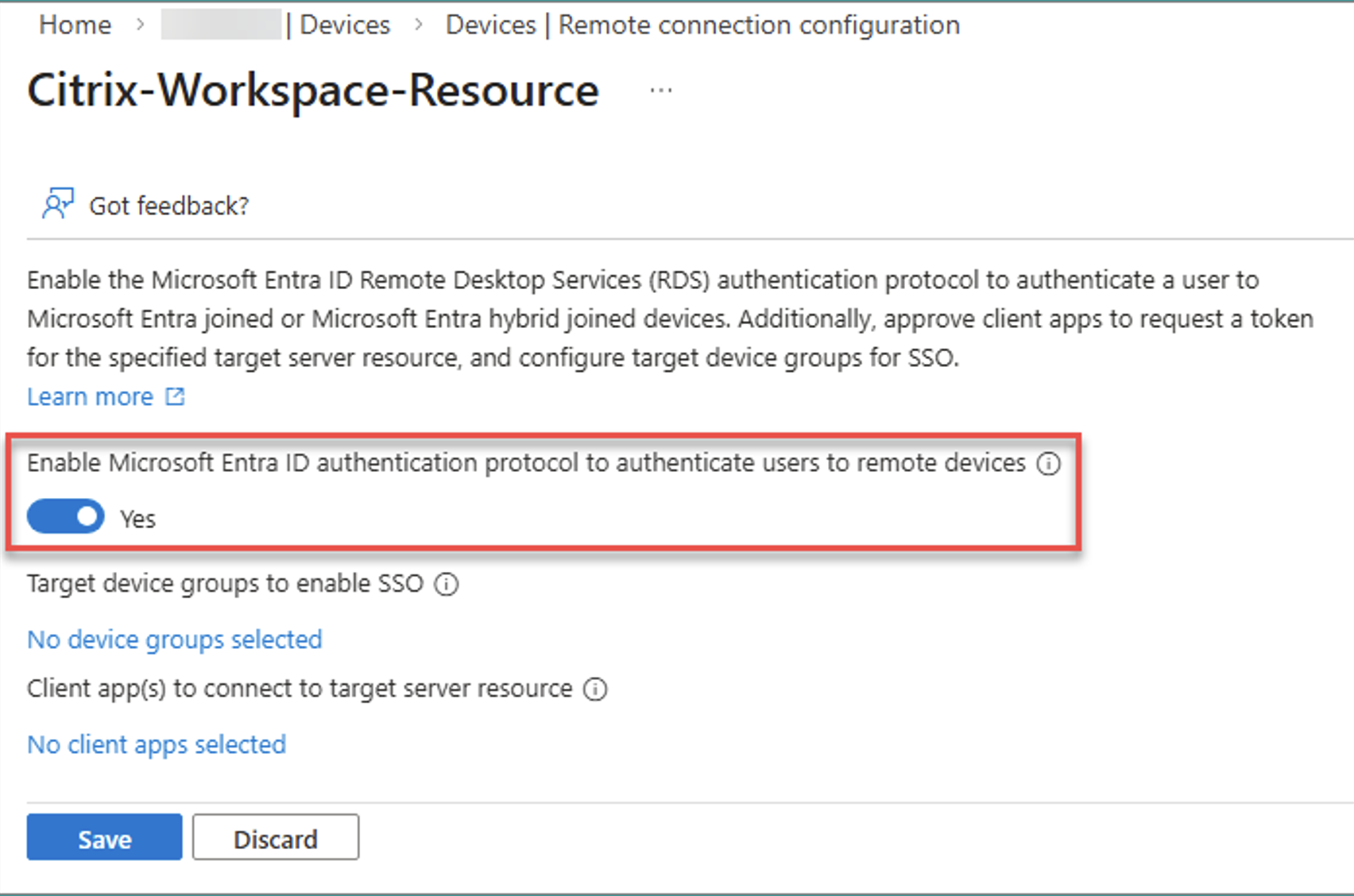
The Microsoft Entra ID Remote Desktop authentication protocol lets a client silently pass a signed-in user’s Entra ID identity to an Entra-joined or hybrid-joined session.
- Go to Microsoft Entra ID → Devices → Manage → Remote connection configuration.
- Select Citrix-Workspace-Resource.
- Enable Microsoft Entra ID Remote Desktop Services authentication protocol.
Approve the client application for Remote connection
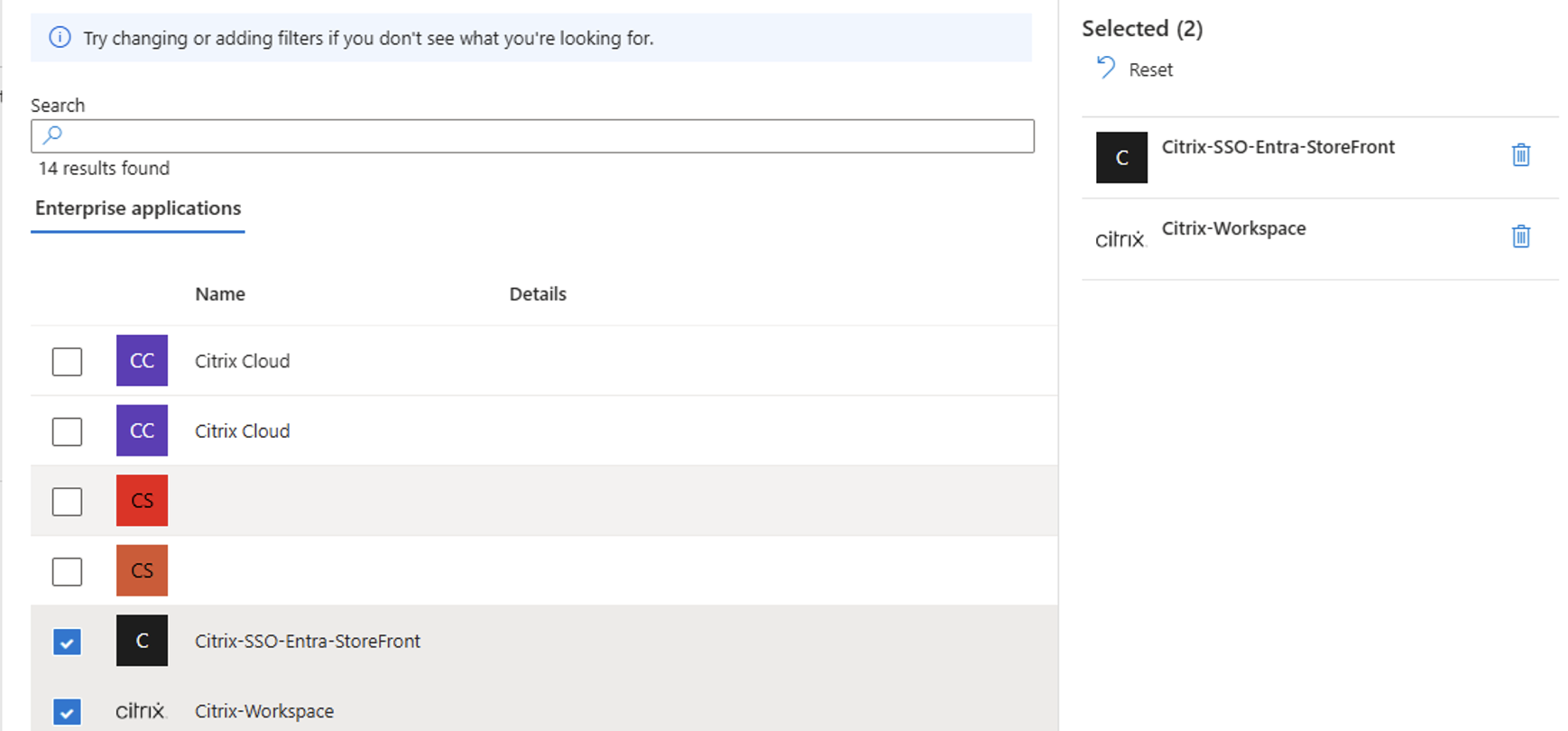
Add the Citrix Client application as an approved client in the Citrix Resource application:
- Click the link to add your trusted client applications.
- Select the Citrix-Workspace and the client app previously created (in steps above), then click Save.
Hide the user consent prompt (optional)
By default, users must click Yes to allow the Remote Desktop connection the first time they connect to each session host (Entra remembers up to 15 hosts for 30 days). To suppress this prompt:
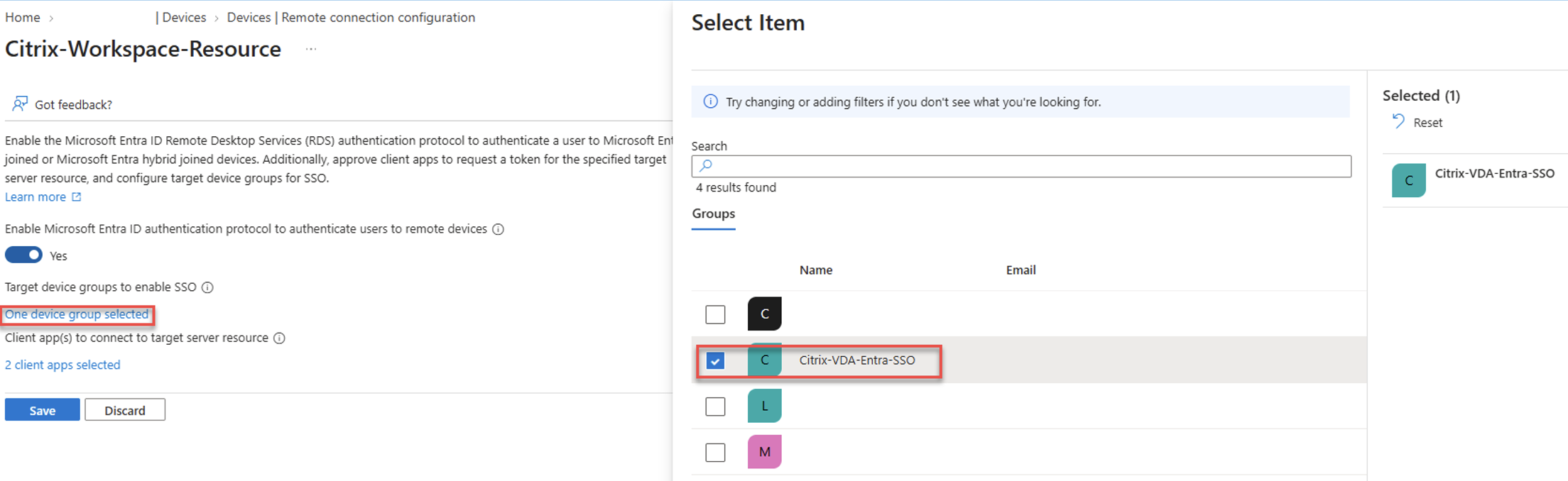
- In Microsoft Entra ID, create one or more groups containing the Entra joined / hybrid joined session hosts (max 10 groups). A dynamic group is recommended (note that this group had been previously created in an earlier stage).
- With the RDS authentication protocol already enabled, click the link to add target device groups and select the host group(s).
Active Directory Configuration
Create a Kerberos Server object in the Active Directory domain
Entra hybrid-joined machines require a Microsoft Entra Kerberos server object in Active Directory. Entra uses it to issue Kerberos ticket-granting tickets (TGTs) for the AD domain — letting users authenticate with modern credentials and still reach traditional AD-based resources. Service tickets and authorization remain under the control of on-premises domain controllers.
This implementation prompts for all credentials using modern authentication, per Microsoft’s guidance in Passwordless security key sign-in to on-premises resources. The PowerShell script used to create the Kerberos server object is below.
# Specify the on-premises Active Directory domain. A new Microsoft Entra ID
# Kerberos Server object will be created in this Active Directory domain.
$domain = $env:USERDNSDOMAIN

# Enter a UPN of a Hybrid Identity Administrator
$userPrincipalName = "administrator@contoso.onmicrosoft.com"

# Enter a Domain Administrator username and password.
$domainCred = Get-Credential

# Create the new Microsoft Entra ID Kerberos Server object in Active Directory
# and then publish it to Azure Active Directory.
# Open an interactive sign-in prompt with given username to access the Microsoft Entra ID.
Set-AzureADKerberosServer -Domain $domain -UserPrincipalName $userPrincipalName -DomainCredential $domainCred
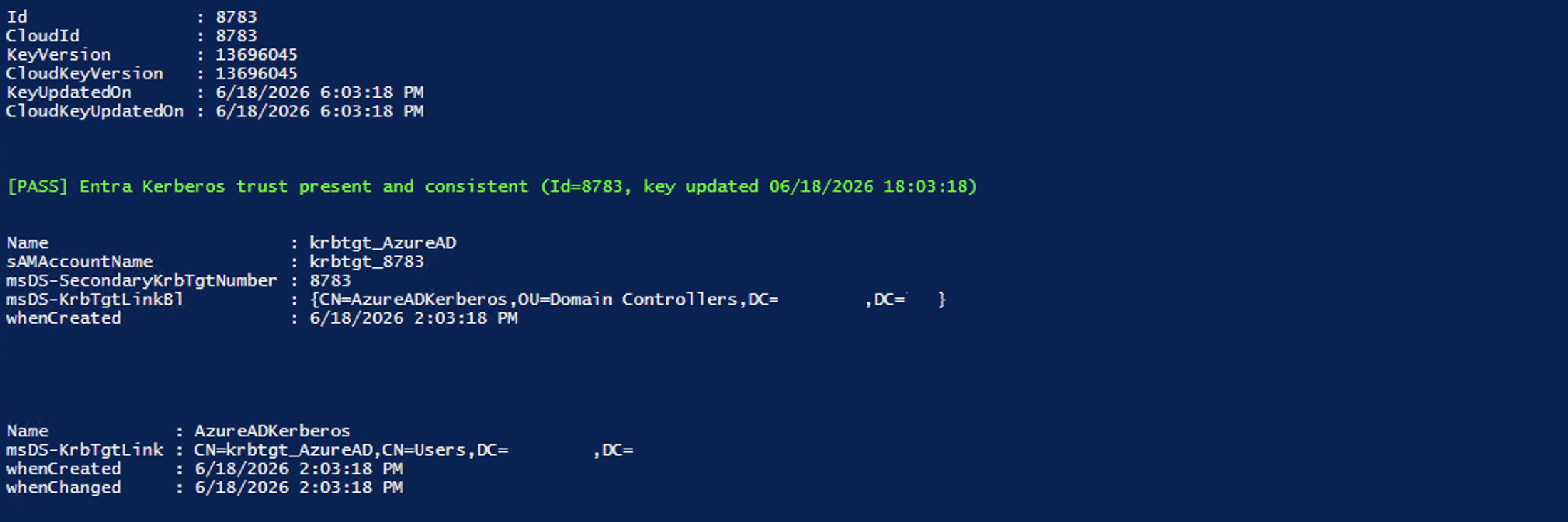
Once the Kerberos Server Object has been created, it is necessary to run the scrips to validate hybrid and on-premises object match. Here is an example of the validation scripts that have been used for our test scenario.
# Verify both sides: healthy = Id matches CloudId and KeyVersion matches CloudKeyVersion
$kdc = Get-AzureADKerberosServer -Domain $domain -UserPrincipalName $userPrincipalName -DomainCredential $domainCred
$kdc | Format-List Id,CloudId,KeyVersion,CloudKeyVersion,KeyUpdatedOn,CloudKeyUpdatedOn

# PASS/FAIL: created correctly when on-prem Id == cloud Id and key versions match
if ($kdc -and $kdc.Id -eq $kdc.CloudId -and $kdc.KeyVersion -eq $kdc.CloudKeyVersion) {
    Write-Host "[PASS] Entra Kerberos trust present and consistent (Id=$($kdc.Id), key updated $($kdc.KeyUpdatedOn))" -ForegroundColor Green
} else {
    Write-Host "[FAIL] Trust missing or mismatched - check the object above and confirm the credential is a Domain Admin" -ForegroundColor Red
}

# On-prem check: user CN is krbtgt_AzureAD, sAMAccountName is krbtgt_<number>, backlink to the computer object
Get-ADObject -LDAPFilter "(CN=krbtgt_AzureAD)" -SearchBase "CN=Users,$((Get-ADDomain).DistinguishedName)" `
    -Properties sAMAccountName,msDS-SecondaryKrbTgtNumber,msDS-KrbTgtLinkBl,whenCreated |
    Format-List Name,sAMAccountName,msDS-SecondaryKrbTgtNumber,msDS-KrbTgtLinkBl,whenCreated

# On-prem check: the AzureADKerberos computer object (Domain Controllers OU); link points back to the user
Get-ADComputer AzureADKerberos -Properties msDS-KrbTgtLink,whenCreated,whenChanged |
    Format-List Name,msDS-KrbTgtLink,whenCreated,whenChanged
Running the validation scripts will return similar results as shown in the image below.
Citrix VDA Configuration
Several prerequisites must be validated on the session host before Microsoft Entra single sign-on will function as expected. These prerequisites should be confirmed before proceeding with the configuration:
- The session host must meet the minimum supported Windows build requirements.
- The Citrix VDA must meet the minimum supported version requirements for Microsoft Entra single sign-on.
- The session host must use a supported Microsoft Entra join type, such as Microsoft Entra hybrid join where applicable.
- Passwordless authentication behavior must be considered. On Microsoft Entra hybrid-joined machines, the default Windows lock screen supports only username/password or smart card authentication. In passwordless environments, Citrix recommends disconnecting the session on lock instead of displaying the Windows lock screen.
- Users who are members of the Domain Admins group, either directly or through nested group membership, will be unable to log on and should be excluded from Citrix delivery groups.
Domain Admin group membership is an easily overlooked failure point and should be specifically reviewed during validation.
Ensure the Session host meets requirements
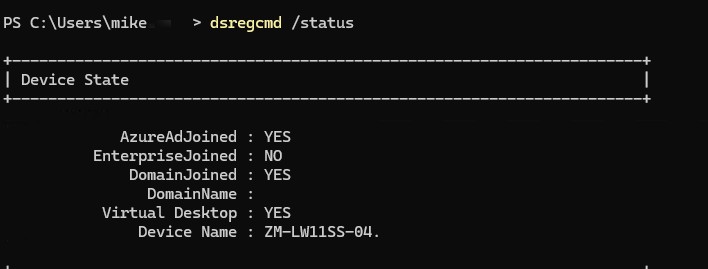
Confirm the Entra join state. Look for AzureAdJoined: YES (and DomainJoined: YES for hybrid-joined machines).
dsregcmd /status
Confirm the Windows build:
(Get-ItemProperty 'HKLM:\SOFTWARE\Microsoft\Windows NT\CurrentVersion').DisplayVersion

Confirm the installed VDA version:
Get-ItemProperty HKLM:\SOFTWARE\Microsoft\Windows\CurrentVersion\Uninstall\* | Where-Object DisplayName -like 'Citrix Virtual Apps and Desktops*' | Select-Object DisplayName, DisplayVersion

Session Lock Behavior
This configuration applies only to Microsoft Entra hybrid-joined machines. By default, when Windows locks, it shows the standard lock screen, which supports only username/password and smart card authentication.
In passwordless environments wherein users may not know their password, Citrix recommends disconnecting the session upon screen lock instead of showing the lock screen. This is done by creating a scheduled task that runs cmd.exe /c tsdiscon when the session locks. Citrix provides a script to create this task; the Task Scheduler GUI can also be used.
Domain Admin Group Membership
Users who belong to a domain admin group including via nested group membership have been observed to fail login. Ensure that the Citrix users are excluded from domain admin groups, whether direct or nested.
Allow custom SSPs and APs to be loaded into LSASS
Ensure that the Windows setting Allow Custom SSPs and APs to be loaded into LSASS is enabled on the session hosts. This setting is enabled by default and can be configured via Group Policy or via Intune under Computer Configuration\System\Local Security Authority.
NetScaler Gateway Configuration
For the Citrix SSO with Entra ID to be enabled the NetScaler Gateway must be configured using the OIDC Entra ID.
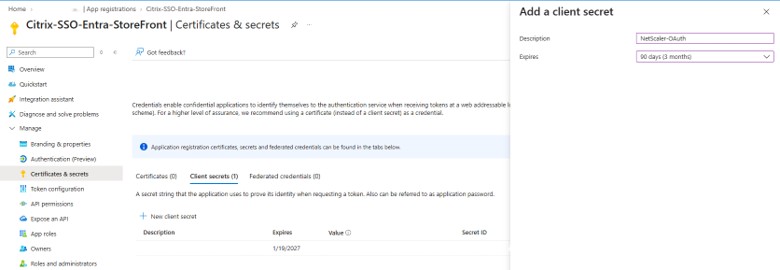
Create the Secret Id under App Registrations > Client Application > Manage > Certificates & secrets. Application (Client ID) can be found under the overview. Note: Make sure to record secret value as that is revealed only during the creation and it is needed for the <ClientSecret> in the policy creation.
Authentication
Create the OAuth/OIDC action, policy, and authentication virtual server (vServer) that authenticates users against Microsoft Entra ID; reference here for more details:. Create OAuth policy
# Fill out the entries enclosed in brackets <TenantId> <ClientId> <clientSecret> <TenantId>
add authentication OAuthAction OIDC-EntraID-NetScaler-SSO -authorizationEndpoint "https://login.microsoftonline.com/<TenantId>/oauth2/v2.0/authorize\\?prompt=login" -tokenEndpoint "https://login.microsoftonline.com/<TenantId>/oauth2/v2.0/token" -clientID <ClientId> -clientSecret <ClientSecret> -Attribute1 email -Attribute2 family_name -Attribute3 given_name -Attribute4 upn -CertEndpoint "https://login.microsoftonline.com/<TenantId>/discovery/v2.0/keys" -userNameField oid -allowedAlgorithms HS256 RS256 RS512 add authentication Policy EntraId_Authentication_policy -rule true -action OIDC-EntraID-NetScaler-SSO

add authentication Policy EntraId_Authentication_policy -rule true -action OIDC-EntraID-NetScaler-SSO

add authentication vServer EntraId_Authentication_VirtualServer SSL 0.0.0.0 443

set ssl vserver EntraId_Authentication_VirtualServer -sslProfile ns_default_ssl_profile_frontend

# Fill in <CertKeyName>
bind ssl vserver EntraId_Authentication_VirtualServer -certkeyName <CertKeyName>

add authentication authnProfile aaa-prof-entra-sso-prof -authnVsName EntraId_Authentication_VirtualServer

bind authentication vserver EntraId_Authentication_VirtualServer -policy EntraId_Authentication_policy -priority 100 -gotoPriorityExpression END
Load Balancing
Load-balances StoreFront behind a dedicated NetScaler LB vServer so the Gateway and content switching layer have a stable backend target.
# Fill in <StoreFront IP Address>
add service stf_srv <StoreFront IP Address> SSL 443

# Fill in <Load Balancer VIP>
add lb vserver lb_vs SSL <Load Balancer VIP> 443 -persistenceType NONE -cltTimeout 180

bind lb vserver lb_vs stf_srv
Gateway
Creates the VPN/ICA proxy vServer to which clients connect, and binds the SSL cert, STA server, the token-insertion rewrite policy, and the session policies.
# Fill in <Gateway vserver Name> <Gateway VIP>
add vpn vserver <Gateway Vserver Name> SSL <Gateway VIP> 443 -icaOnly ON -downStateFlush DISABLED -Listenpolicy NONE -tcpProfileName nstcp_default_XA_XD_profile -authnProfile aaa-prof-entra-sso-prof

# Fill in <Gateway Vserver Name> <STA Server URL>"
bind vpn vserver <Gateway Vserver Name> -staServer "<STA Server URL>"

# Fill in <Gateway Vserver Name>
bind vpn vserver <Gateway Vserver Name> -policy EntraId_Oauth_Insert_AccessToken_Policy -priority 100 -gotoPriorityExpression END -type REQUEST

# Fill in <Gateway Vserver Name> <Session Policy>
bind vpn vserver <Gateway Vserver Name> -policy <Session Policy> -priority 110 -gotoPriorityExpression NEXT -type REQUEST

# Fill in <Gateway Vserver Name> <CertKeyName>
bind ssl vserver <Gateway Vserver Name> -certkeyName <CertKeyName>
Content Switching
Routes incoming requests on a single VIP to either the StoreFront load balancer (for ticket redemption during session launch) or the Gateway vServer (for everything else, including initial authentication).
# Fill in <Gateway VServer Name>
add cs action cs_vpn -targetVserver <Gateway Vserver Name>

add cs action cs_lb_vs_StoreFront_act -targetLBVserver lb_vs

add cs policy cs_lb_vs_StoreFront_pol -rule
"HTTP.REQ.URL.CONTAINS(\"/Citrix/<StoreWeb>/Tickets/RedeemStoreTicket\")" -action cs_lb_vs_StoreFront_act

add cs policy cs_vpn_pol -rule true -action cs_vpn

add cs vserver cs_storefront_lbvs SSL <Content Switching VIP> 443 -cltTimeout 180 -persistenceType NONE

bind cs vserver cs_storefront_lbvs -policyName cs_lb_vs_StoreFront_pol -priority 100

bind cs vserver cs_storefront_lbvs -policyName cs_vpn_pol -priority 110

# Fill in < CertKeyName>

bind ssl vserver cs_storefront_lbvs -certkeyName <CertKeyName>
Rewrite Policy
Inserts the Entra ID OAuth access token into the login/authentication request as an HTTP header, so StoreFront can complete SSO instead of prompting the user again.
add rewrite action EntraId_Oauth_Insert_AccessToken_Header insert_http_header X-Citrix-OIDC-Access-Token "AAA.USER.ATTRIBUTE(\"accesstoken\")" -comment "A rewrite action to add the OAUTH access_token to subsequent user authentication requests"

add rewrite policy EntraId_Oauth_Insert_AccessToken_Policy "HTTP.REQ.URL.TO_LOWER.ENDSWITH(\"gatewayauth/login\") || HTTP.REQ.URL.TO_LOWER.ENDSWITH(\"citrixagbasic/authenticate\")" EntraId_Oauth_Insert_AccessToken_Header -comment "A rewrite policy to add the OAUTH access_token to subsequent user authentication requests"

# Bind to vpn vserver. Fill in <Gateway Vserver Name>
bind vpn vserver <Gateway Vserver Name> -policy EntraId_Oauth_Insert_AccessToken_Policy -priority 100 -type REQUEST
StoreFront Configuration
StoreFront can be configured for SSO with the Gateway configured for Entra ID with OIDC.
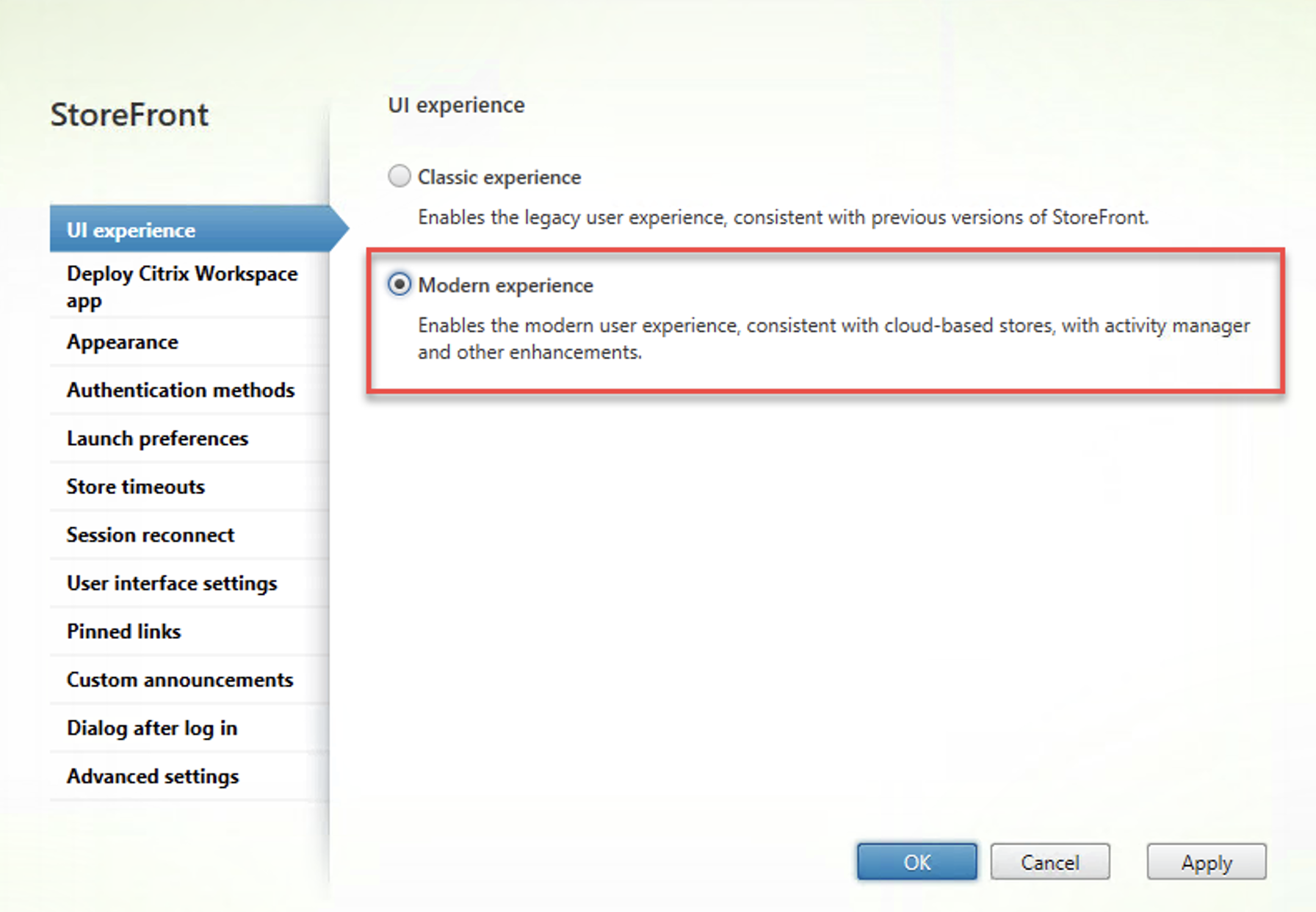
Set the UI experience by clicking under Manage websites and configuring modern experience.
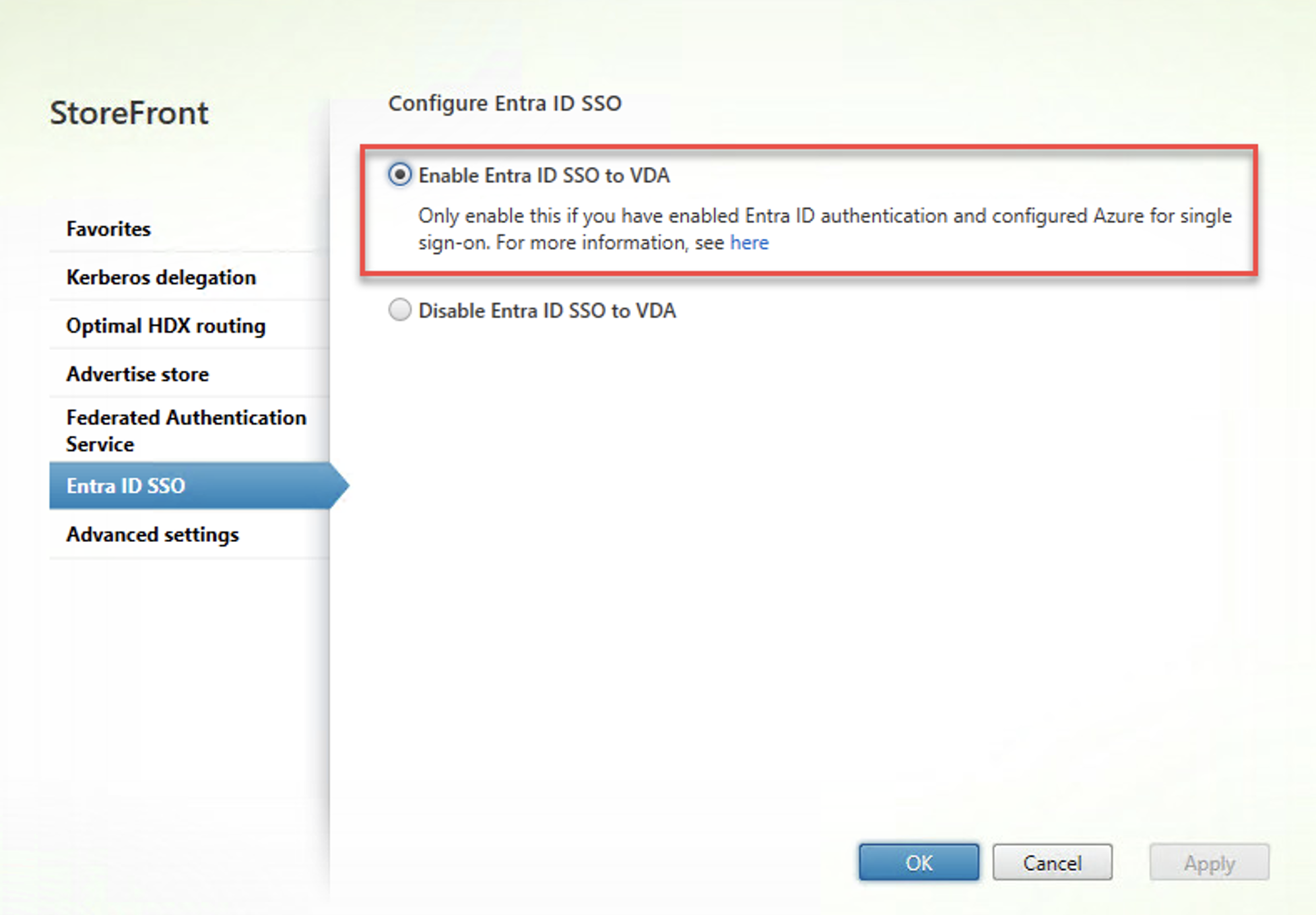
Configure store settings with Enable Entra ID SSO to VDA.
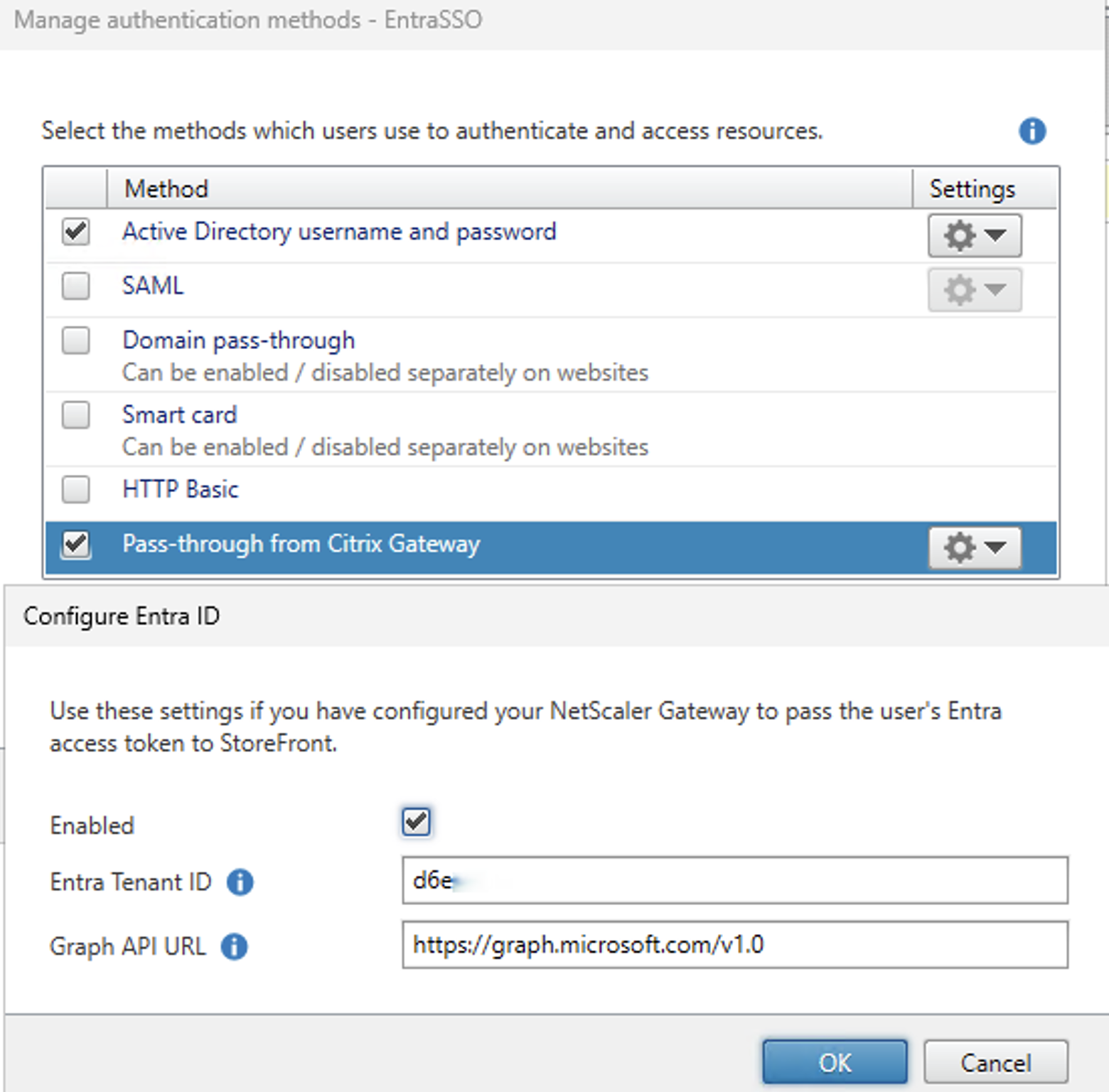
Entra ID would also need to be configured by clicking Pass-through from Citrix Gateway, selecting Configure Entra ID and enabling it, and entering the Entra Tenant ID as well as Graph API URL. Reference here for more details: Entra ID SSO
If desired, the following script may be used to automate the previous procedure on a StoreFront server. Once the variables are configured this script will create the StoreFront objects needed for Entra ID, OAuth, and gateway. This script assumes all gateways and stores will be created.
Delivery Group Configuration
The last step in the process is to configure the logon type of the delivery group to which the Citrix VDAs belong. Configuring the logon type on the delivery group is required because it determines how the Citrix VDA expects the user to authenticate to the Windows session after the user has already authenticated to Citrix Workspace via Entra.
Even though Entra performs the first authentication, the actual Windows VDI session also needs a valid Windows logon mechanism, and the delivery group logon type informs Citrix how that second authentication step (on the VDI) happens.
The following scripts need to be executed on the delivery group based upon the machine identity.
Microsoft Entra joined machines:
asnp citrix*
Get-XDAuthentication
Get-BrokerDesktopGroup -Name <dgName> | Set-BrokerDesktopGroup -MachineLogOnType "AzureAd"
Microsoft Entra Hybrid joined machines:
asnp citrix*
Get-XDAuthentication
Get-BrokerDesktopGroup -Name <dgName> | Set-BrokerDesktopGroup -MachineLogOnType "HybridAzureAd"
Validation
The following steps can be used to validate the component integrations and be able to triage any issues that may arise.
1. Access-tier authentication (Gateway and StoreFront)
- Browse to the NetScaler Gateway URL and confirm redirection to the Microsoft Entra sign-in page (not to a Citrix/AD logon form).
- Complete Entra authentication and confirm the request lands on the StoreFront store (Modern UI) with Citrix resource icons enumerated.
- On the NetScaler, confirm the OAuth/OIDC action to Entra succeeds (check aaad.debug and /var/log/ns.log if the redirect or token exchange fails).

2. End-to-end launch test
- From an endpoint device that meets the CWA minimum version (and with the Citrix Web Extension installed if using hybrid access), connect to the Gateway URL.
- Authenticate with Entra ID credentials.
- Launch a desktop or app from the hybrid-joined delivery group.
- Expected result: the Windows session opens directly to the desktop with no second credential prompt; this indicates SSO succeeded.
3. Confirm SSO actually occurred (not just a successful launch). A launch can succeed with a hidden prompt or fallback, thus it is important to verify the logon was genuinely Entra-backed:
- Inside the session, check the logon method — a klist in the session should show cloud/Entra-issued Kerberos tickets consistent with the Entra Kerberos TGT flow.
- Confirm no interactive password was entered during launch.
Reference Logs
StoreFront Logs
StoreFront logs can be found in “C:\ProgramData\Citrix\WorkspaceCloud\Logs\”. Logging level can be increased with set-stfdiagnostics.
Enable verbose logging
# Enable verbose tracing
Set-STFDiagnostics -All -TraceLevel "Verbose" -confirm:$False

# Disable verbose tracing
Set-STFDiagnostics -All -TraceLevel "Info" -confirm:$False
While attempting to troubleshoot, each step can be found in the following log files in “C:\ProgramData\Citrix\WorkspaceCloud\Logs\”. These files increment so the logs can be found in the newest modified file which may be 000.
| Step | File |
|---|---|
| Login attempt started | EntraSSOWeb###.svclog |
| Authentication (Entra SSO succeeded) | EntraSSOAuth###.svclog |
| Gateway detection, resource enumeration | EntraSSO###.svclog (request originates in EntraSSOWeb###.svclog) |
| Session launch, STA tickets, ICA generation | EntraSSO###.svclog |
| Launch status confirmation | EntraSSOWeb###.svclog |
| Store ticket redeemed | EntraSSO###.svclog |
NetScaler Logs
The content switching policy hit counter can be viewed to see if it increments. However, while troubleshooting, a Wireshark network trace was already collected from the NetScaler Gateway so a different view of the POST request and inserted header can be viewed here as well.

The details of the packet can be seen in the following image.
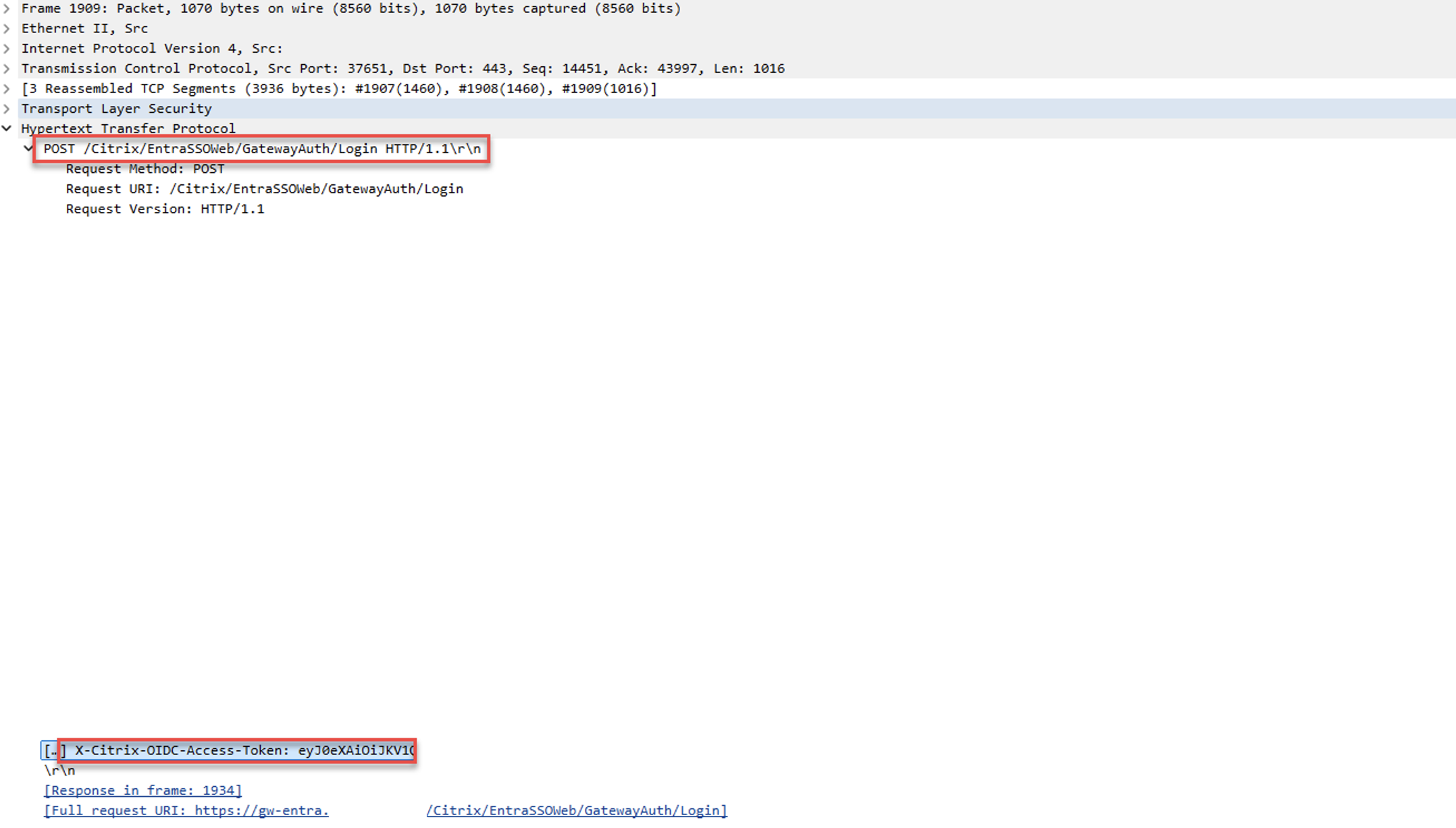
Entra Logs
Entra sign-in logs can be found In the Microsoft Entra admin center, go to Entra ID > Monitoring & health > Sign-in logs. Filter by the test user, application, and time of the attempted connection.
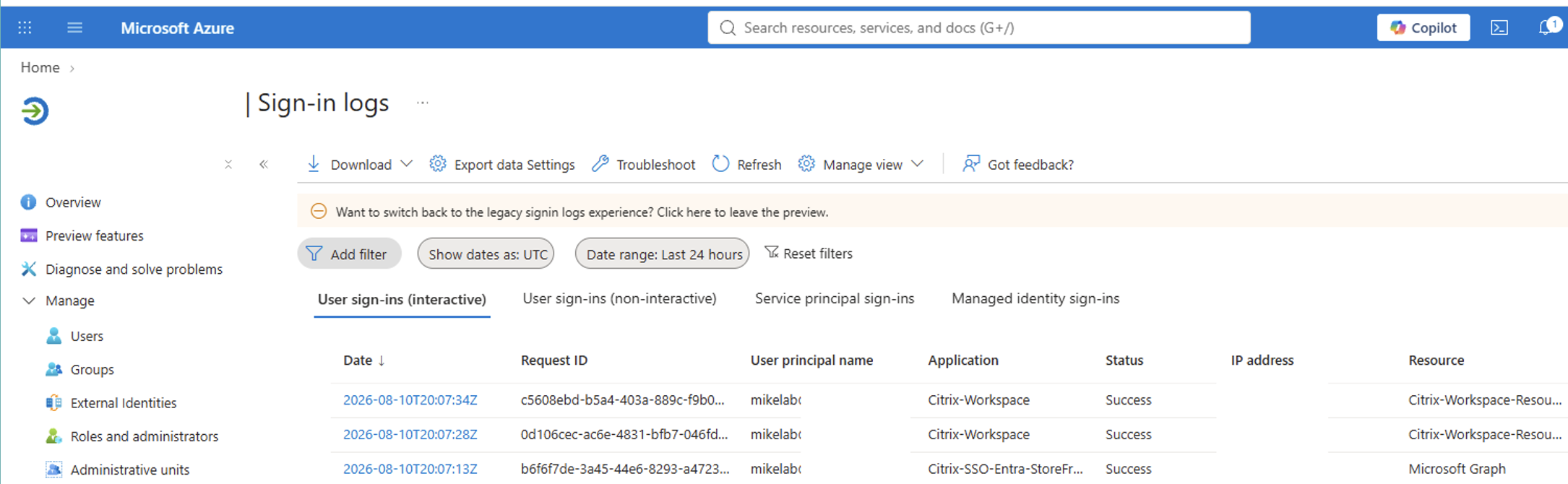
Troubleshooting
The three issues below are all variations of stale DNS entries or incorrect IP addresses configured.
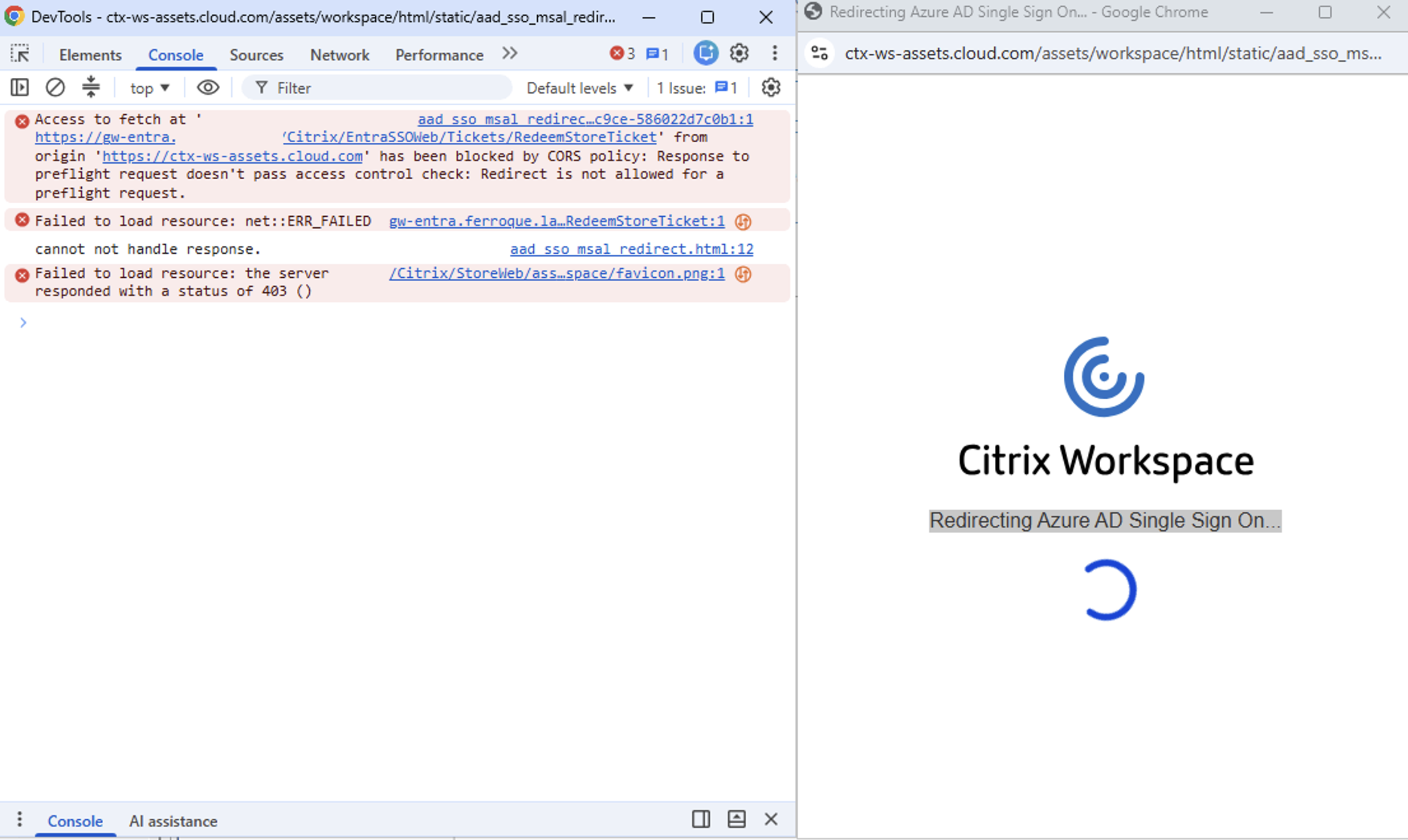
This “Redirecting Azure AD Single Sign On” popup must be seen for any session launch. During testing for this blog, while performing a hybrid login with web and CWA, a CORS block issue was encountered. The resolution was a static vServer entry on the StoreFront configuration for NetScaler Gateways. Once that IP address was updated to the correct content switch, the CORS error cleared.
If the Citrix browser extension is not enabled in private window, the redirecting Azure AD popup will not display and as such Citrix VDA SSO will not work as intended.
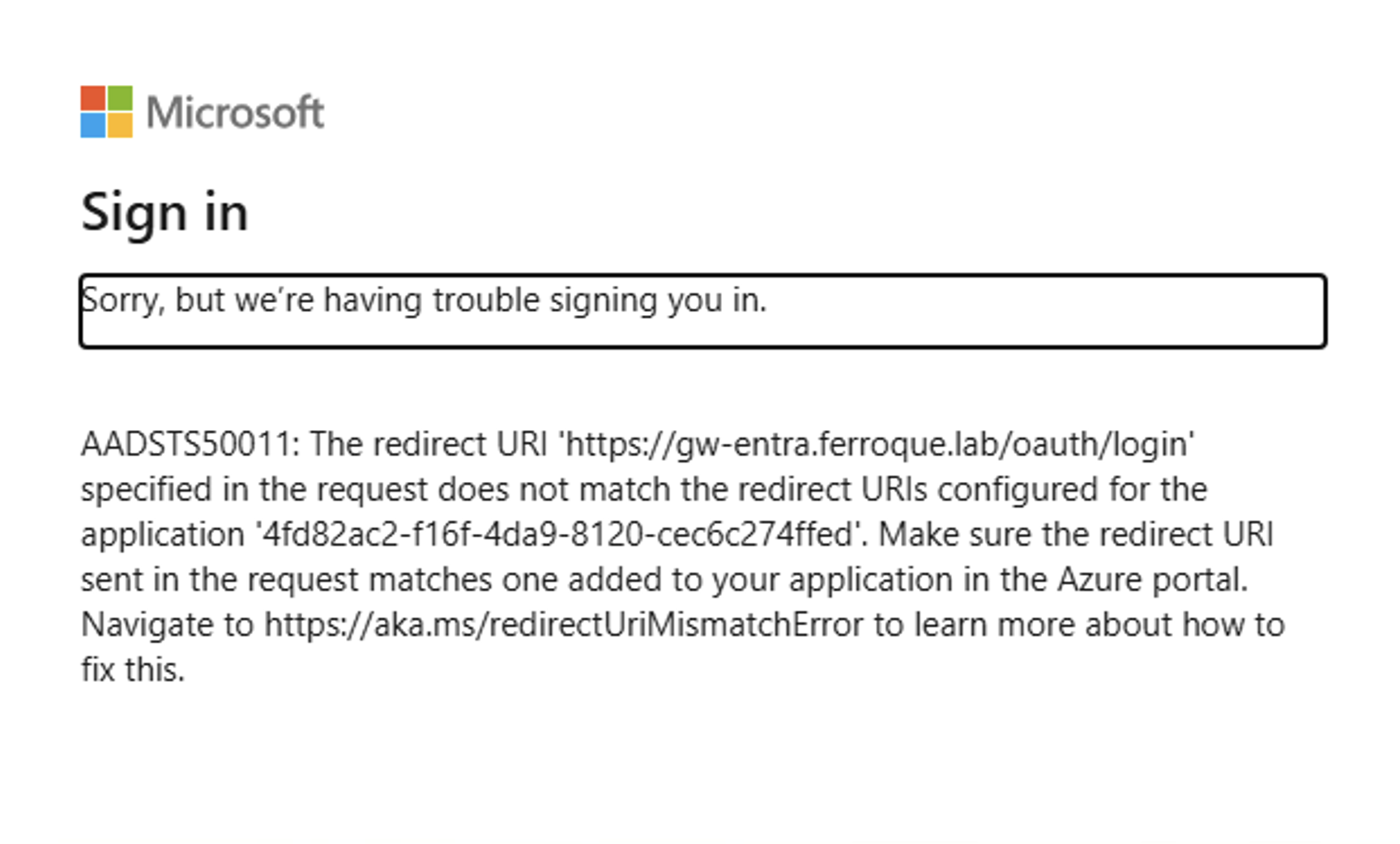
Final Thoughts for Successful Implementation
With the configuration completed and validated, users can authenticate once with their Microsoft Entra ID credentials and launch Citrix published resources on Entra hybrid-joined session hosts (Citrix VDAs) without being prompted to submit a second set of credentials.
Because this capability is still relatively new, it should be thoroughly tested before being relied upon in a production environment. Successful implementation depends upon several configuration elements that may not always produce obvious errors if misconfigured. Particular attention should be given to the RDS Entra authentication protocol, delivery group logon type, Active Directory-based application assignment, DNS resolution, and DNS views from both StoreFront and NetScaler Gateway. These validation steps should be repeated after any significant environmental or configuration change.
Once the initial deployment has been successfully validated, the configuration can be extended to additional delivery groups. The final configuration should also be documented as part of the as-built documentation and operational handoff. Organizations should continue to monitor Citrix documentation and release notes for changes to supported configurations, prerequisites, and known limitations.
Ferroque Systems has decades of experience designing and modernizing EUC solutions and we would be happy to talk with you about upgrading your Citrix authentication solution to use Entra-based SSO.


