
The Scenario
As organizations prepare for the April 15, 2026, retirement of file‑based licensing, many are evaluating their migration path to LAS. One of the most common misconceptions is that Offline Activation could be used whenever appliances lack direct internet access. This is not correct.
The planning process must always start with licensing, not connectivity[PR1] . Offline Activation is not determined by network isolation—it is determined by licensing. If the underlying NetScaler entitlement does not support Offline Activation, then a disconnected environment does not make it a valid option. The correct workflow is:
- Identify the NetScaler license entitlement model.
- Confirm whether the license type supports Offline Activation.
- Design the LAS migration steps appropriate for that entitlement.
Technical Assessment
Before implementing LAS Offline Activation, administrators should validate several prerequisites.
Step 1 – Identify Current License Model
Offline Activation is supported only for fixed‑bandwidth, per‑instance licensing models; examples include:
- 200 Mbps Advanced Edition
- 1 Gbps Premium Edition
- Fixed‑term, bandwidth‑based subscription licenses
To verify the current license on the NetScaler, submit the following command on NetScaler CLI (command-line interface):
- show license
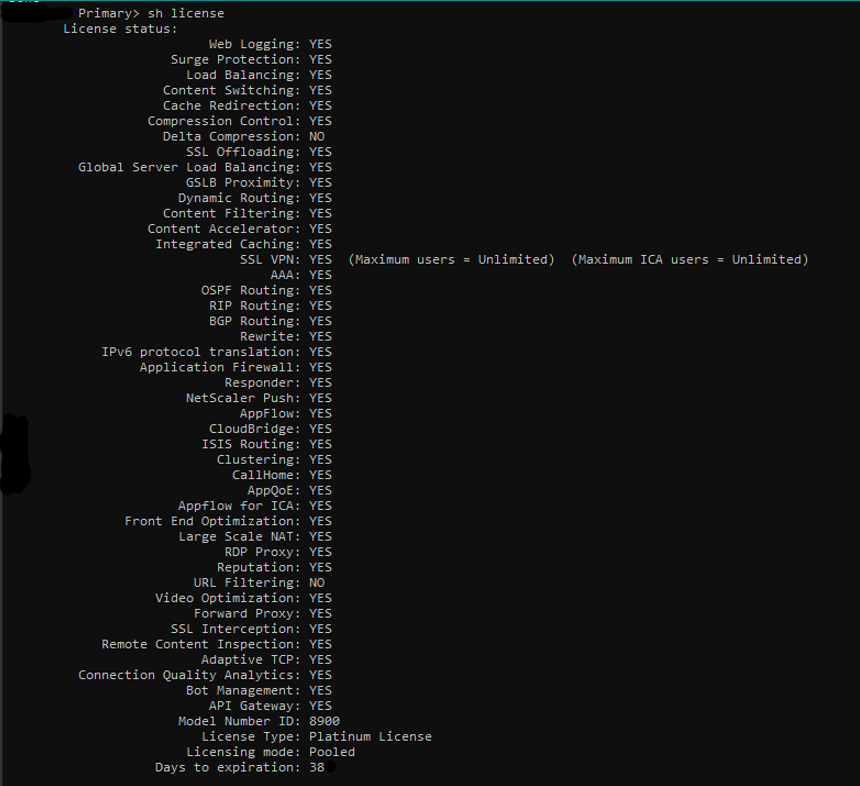
Look for:
- Licence Type
- License Mode
- Expiration Date or Grace Period
Then, validate in the licensing portal:
- From a web browser, go to http://www.citrix.com.
- Select Sign In > My Account and submit your user ID and password.
- Select Manage Licenses.
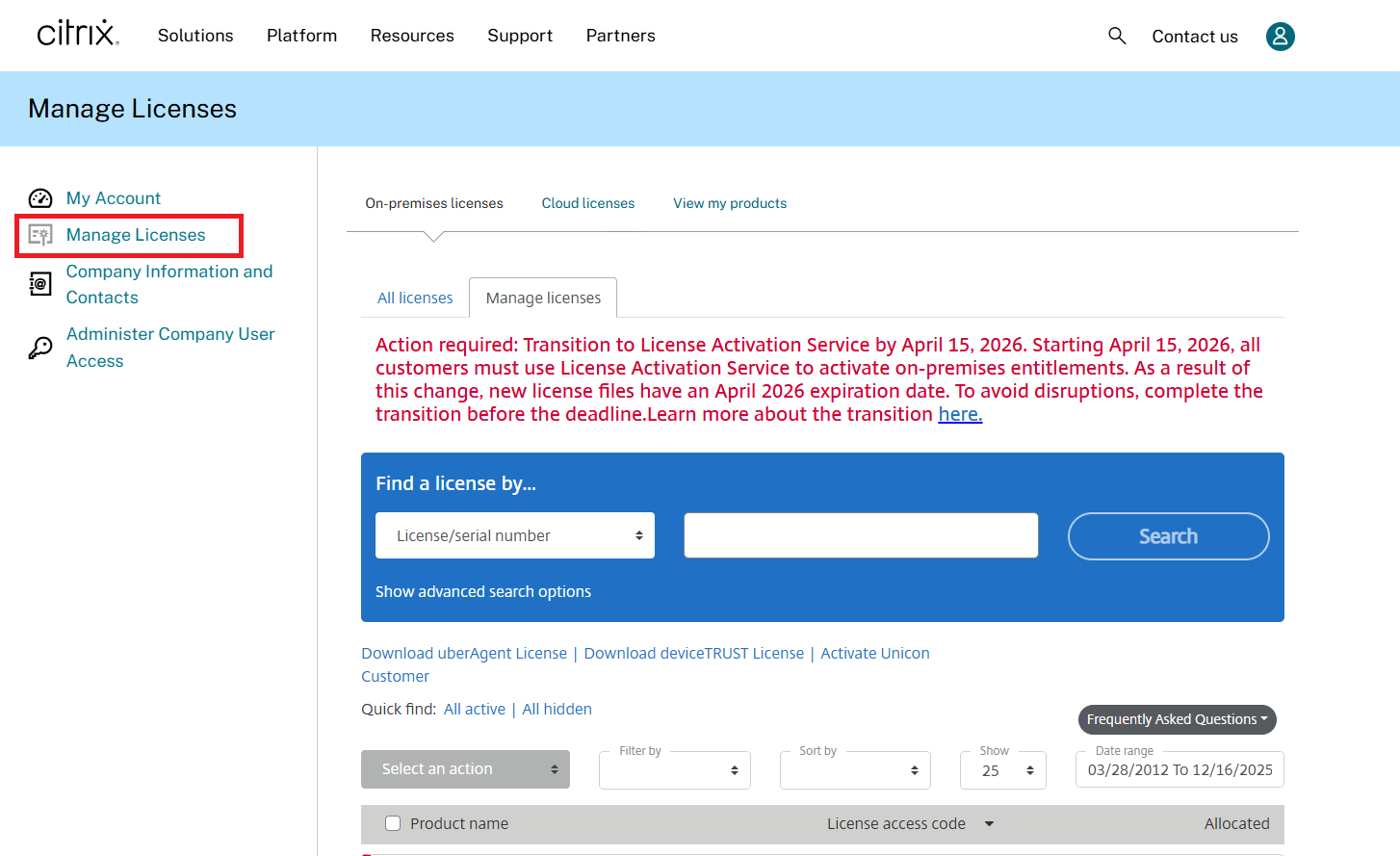
Check for:
- Fixed‑term bandwidth?
- Perpetual file‑based licenses?
- Flex or Pooled Licensing? (if so, Offline Activation does not apply)
Step 2 – Verify NetScaler Software Version
LAS requires minimum supported NetScaler firmware versions and builds. Supported versions include:
- NetScaler ADCs (MPX, VPX): 14.1-51.80, 13.1-60.29, 13.1-37.247 (FIPS)
- NetScaler SVM: 14.1-51.83, 13.1-60.30
- NetScaler Console Service: Supported from early September 2025.
- NetScaler Console on-prem: 14.1-51.83
- Note: For SDX appliances, upgrade NetScaler SVM to a LAS-supported build and transition to LAS-based licensing. The specific VPX build version does not impact LAS compatibility.
To verify the current NetScaler version, submit the following command on NetScaler CLI:
- show version

If running an older NetScaler firmware version/build, upgrade the NetScaler appliance before configuring LAS. Upgrading NetScaler firmware is outside the scope of this blog; more information is available here.
Offline Activation Configuration Steps
Step 1 – Generate an Offline Activation Request
In the NetScaler GUI, navigate to: System > Licenses > ADC License > LAS Activation.
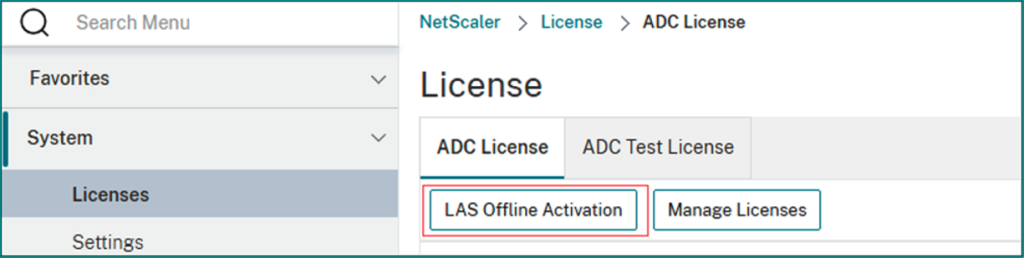
Step 2 – Generate the Offline Activation Request File
In the NetScaler GUI, navigate to Offline Activation Request, click Generate, then download the request file.
Citrix notes that this file includes unique identity information tied to the specific NetScaler appliance.
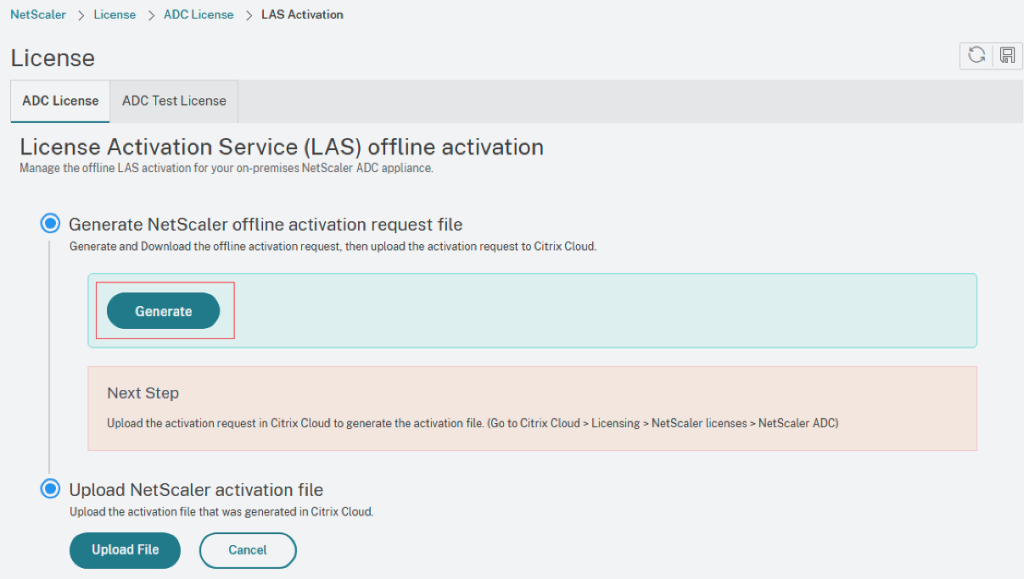
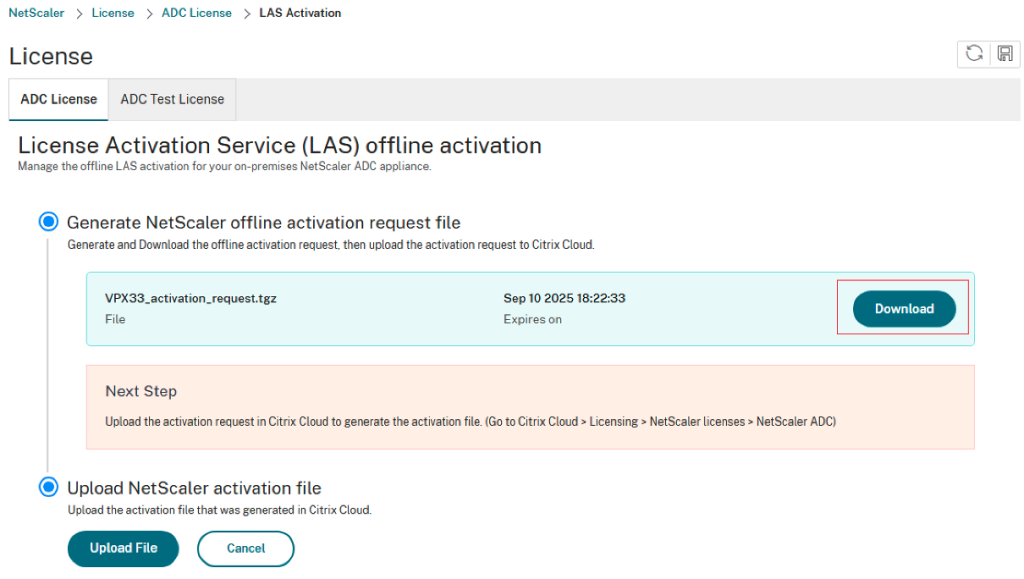
Step 3 – Upload the Request File in Citrix Cloud
Sign in to Citrix Cloud, then navigate to: Licensing → NetScaler Licenses → NetScaler ADC
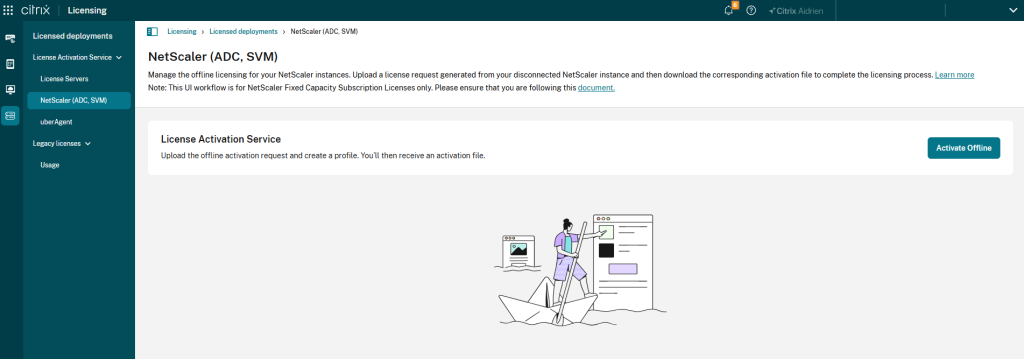
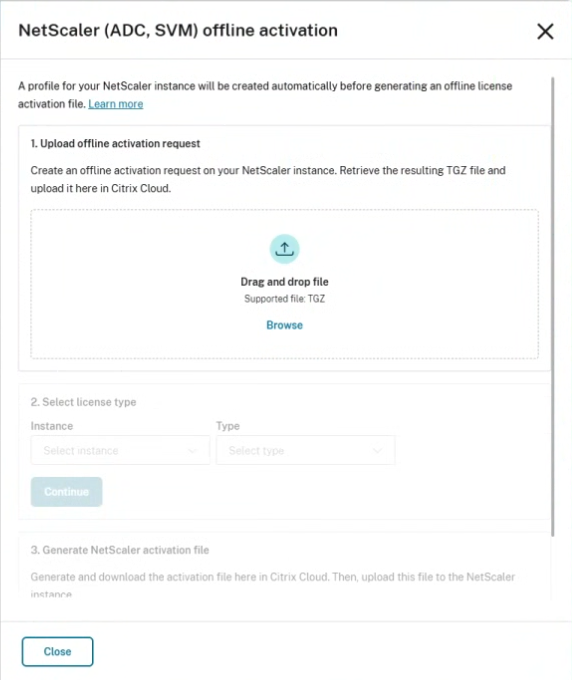
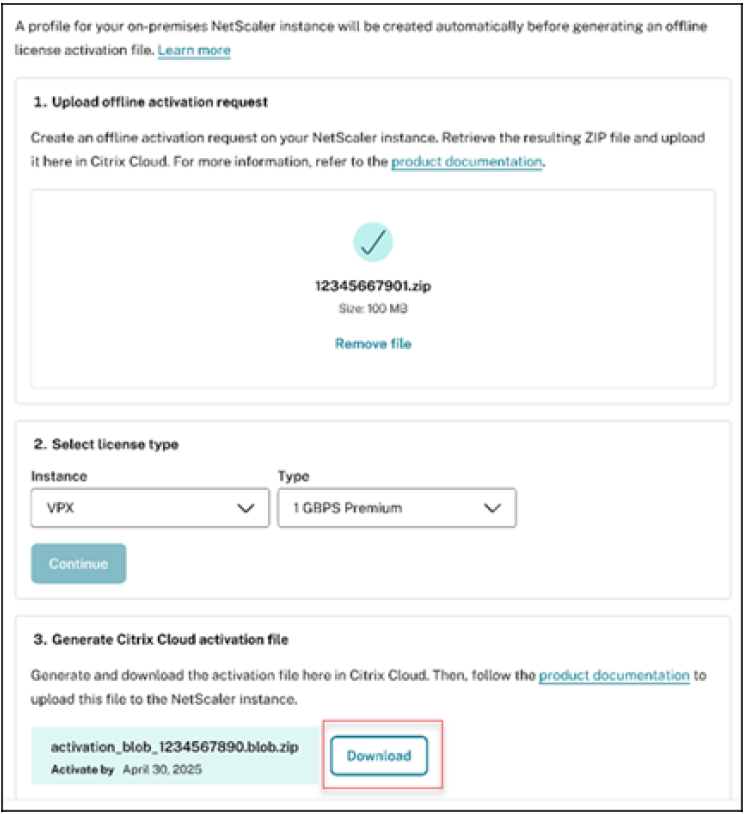
Upload the offline request file. After uploading:
- Select the correct entitlement (a dropdown appears if multiple fixed‑bandwidth licenses are available).
- Generate and download the activation file (also known as the activation blob).
NOTE: Citrix does not document a fixed one‑year expiration period for this activation file. Instead, LAS activations remain valid for the duration of the customer’s entitlement. When the entitlement renews, organizations must repeat the Offline Activation workflow to apply the new term.
Step 4 – Upload the Activation File Back to the NetScaler
Return to the NetScaler GUI and navigate to: System > Licenses > ADC License > LAS Activation.
Click Upload File, select the activation blob, and confirm.
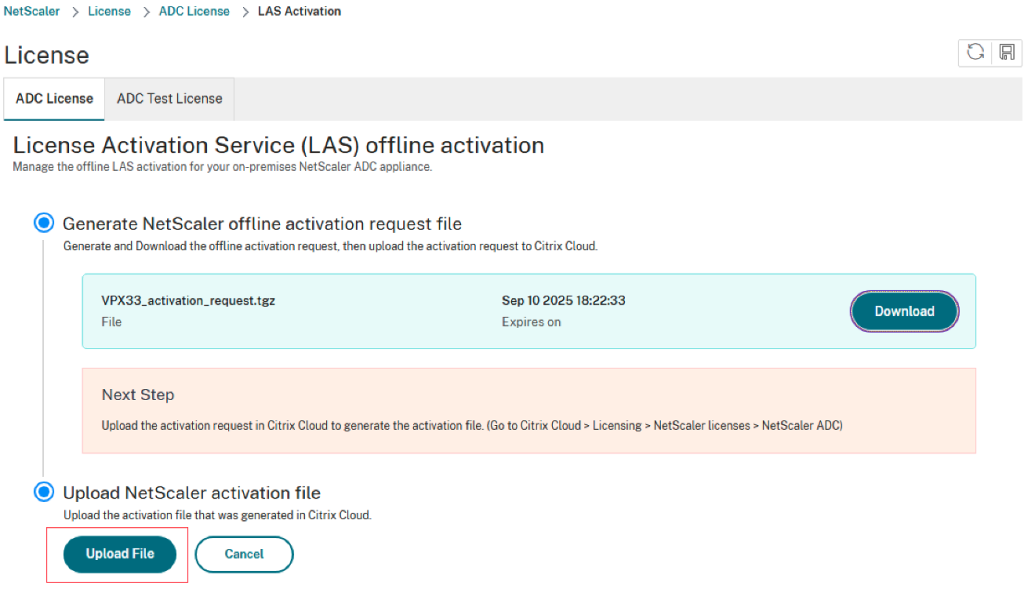
In the upload section, choose Upload File and upload the license activation file/blob that was generated in Citrix Cloud. Confirm the activation when prompted.
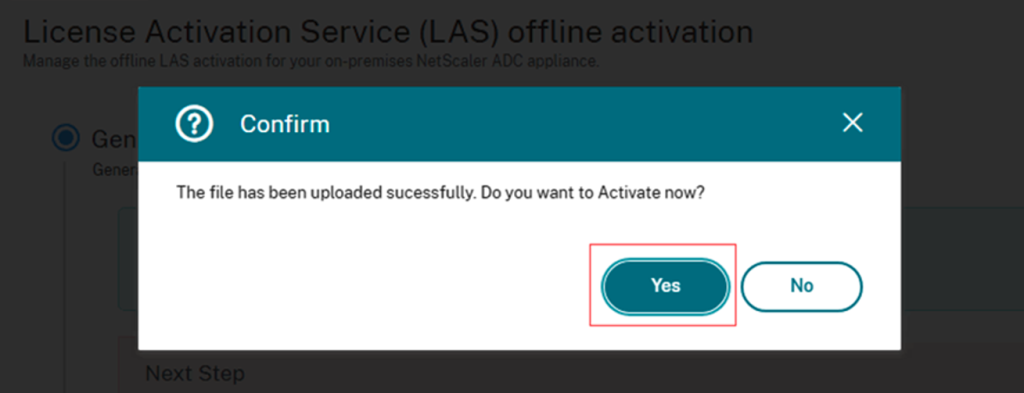
Step 5 – Reboot the NetScaler
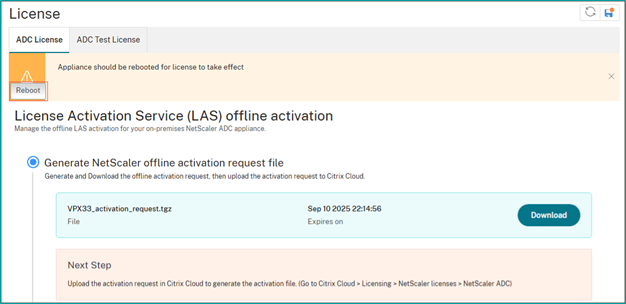
After uploading, the NetScaler appliance requires a warm reboot for the license to take effect.
Step 6 – Validate the Applied License
After the NetScaler returns from the reboot:
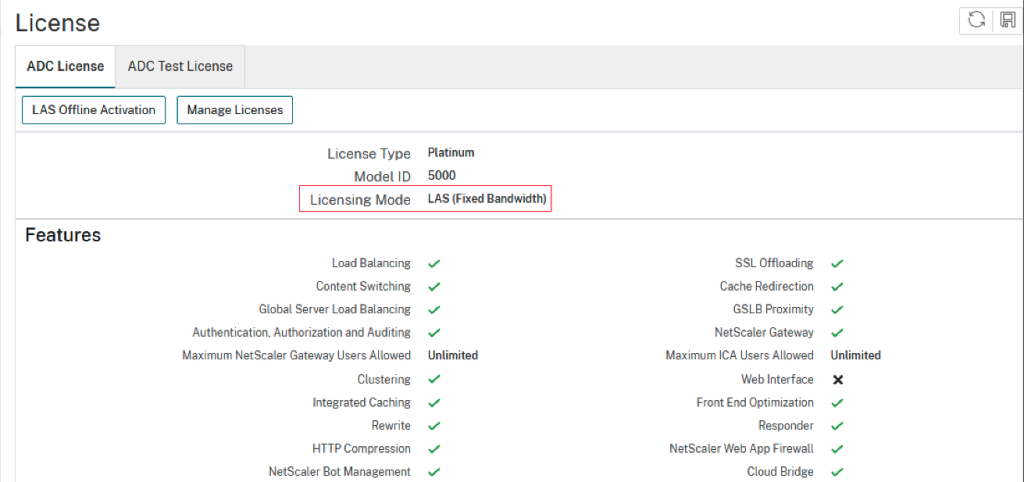
- Navigate to System → Licenses → ADC License.
- Confirm the correct license edition and bandwidth entitlement.
- Verify the license is listed as active.
Key Considerations
Several important considerations should be understood when planning LAS Offline Activation.
- Licensing Model Determines Eligibility. Offline Activation is only available when the entitlement supports it, regardless of connectivity.
- Flex Licensing Requires Cloud Connectivity. Flex subscription licensing uses centralized bandwidth tracking and cannot operate in Offline Activation mode.
- Legacy Licensing May Require Conversion. Organizations using older file‑based licenses may need to convert entitlements before moving to LAS.
- Plan Migration Before the Cutoff. With the retirement of file‑based licensing approaching on April 15, 2026, organizations should begin planning early to avoid rushed transitions.
Final Thoughts
Customers must become compliant with the new Citrix LAS licensing model by/before April 15, 2026 to maintain the validity of their Citrix licensing, and Offline Activation is a valid model that some customers may need to configure.
Ferroque Systems has decades of experience designing, deploying, and supporting Citrix and NetScaler environments of all sizes and complexities in numerous industries across countless enterprise and SMB customers. In this capacity, Ferroque has been assisting customers to become compliant with the new Citrix LAS licensing model for all Citrix and NetScaler products. We would be happy to talk with you about how we could assist your organization to become compliant with LAS, and/or with any other EUC initiative. Reach out to one of our experts today.