

As organizations adopt UniconOS to modernize endpoint delivery and provide access to Citrix VDI environments, support for locally connected peripherals remains an important operational requirement. Business workflows may still depend upon devices such as document scanners, signature pads, security tokens, smart card readers, and other specialized USB peripherals that must function inside a Windows VDI session.
Citrix generic USB redirection provides a practical method for making these peripherals available within the virtual environment. The device remains physically connected to the UniconOS endpoint but is redirected through the Citrix Workspace app and presented to the Windows Virtual Delivery Agent (VDA) as though it were connected directly to the virtual desktop.
This approach can simplify peripheral enablement by allowing the Windows VDA to use the appropriate Windows driver and vendor software, while UniconOS provides a lightweight and centrally managed endpoint platform. It can also help organizations preserve existing business workflows as they transition away from traditional Windows endpoints or legacy thin clients.
A successful implementation depends upon validating the complete redirection workflow rather than focusing on a single configuration layer. In other words, the peripheral must be detected by the UniconOS endpoint, made available through the Citrix session, recognized by the Windows VDA, and supported by the required Windows driver and application stack. This blog walks through that process, from configuring USB redirection rules on UniconOS to validating the device within the Citrix virtual desktop environment.
Objectives, Design Considerations, and Prerequisites
Objectives
The objective of this blog is to present a repeatable method for configuring and validating Citrix generic USB redirection for specialized peripherals from a UniconOS endpoint to a Citrix session hosted on a Windows VDA. In this blog, the specialized peripheral is a Fujitsu fi-7030 document scanner, currently supported by Ricoh.
The implementation and validation process is organized into two layers.
Layer 1 – Configure USB Redirection from UniconOS to the Windows VDA
- Identify the Vendor ID (VID) and Product ID (PID) of a target USB peripheral device.
- Configure device-specific rules in the Citrix Workspace app usb.conf file.
- Use Allow rules to make specified devices eligible for generic USB redirection and permit manual redirection.
- Use Connect rules to permit specified devices and request their automatic connection to the Citrix session.
- Deploy the usb.conf configuration file to the UniconOS endpoint in the following folder: /setup/ica/usb.conf.
- Align Citrix policies with the intended USB redirection path.
- Validate that the peripheral is available through the Citrix Toolbar and successfully presented to the Windows VDA.
Layer 2 – Validate USB Peripheral Functionality within the Windows VDA
- Confirm the Windows Device Manager detects the redirected peripheral device.
- Validate that the appropriate Windows driver is installed on the device.
- Validate basic device functionality using an appropriate vendor utility or test application.
- Distinguish UniconOS and Citrix redirection issues from Windows driver, vendor software, and business application issues.
Administrators who are already familiar with USB redirection from thin-client endpoints to a Windows VDA can proceed directly to the Configuration section to review the UniconOS implementation. Those seeking additional context should continue to the Design Considerations and Prerequisites sections before beginning the configuration.
Getting Started
The following items will need to be available to proceed with the concepts reviewed in this blog.
- An available Citrix CVAD or DaaS platform hosting VDI or published applications (ideally a non-production environment, to allow changes to be made while conducting these activities).
- A supported UniconOS endpoint with Citrix Workspace app configured to access the Citrix environment and launch the target Windows virtual desktop. Resource enumeration may be performed through a browser if the resulting session opens using the locally installed Citrix Workspace app.
- Administrative access to Scout Board or Scout Console to configure and deploy the USB configuration file to the UniconOS endpoint.
- Remote access to the endpoint through the Mirror or Remote Support feature, or physical access to the test endpoint.
- A target USB peripheral connected directly to the UniconOS endpoint.
- A text editor, such as Notepad++, to create and modify the usb.conf configuration file.
- If the Citrix VDA workload is managed through Citrix Cloud, administrative access is required to review and configure the applicable Citrix policies governing client USB device redirection and other peripheral redirection methods.
- A test user account with access to the target Citrix session or Machine Group.
- Administrative access within the Windows VDA, including permission to review Windows Device Manager and install or validate device drivers.
- The required Windows driver package and vendor utility for the target peripheral.
- A Windows VDA gold image, or equivalent image-management process, that can include the required peripheral drivers and supporting software.
The test environment should also allow administrators to temporarily disable alternative redirection methods in the Citrix DaaS console, such as TWAIN, SANE, or COM port redirection, for the target endpoint and peripheral device. This provides a controlled validation path for Citrix generic USB redirection.
For this blog, the test environment includes a UniconOS endpoint, a Fujitsu fi-7030 document scanner, a Windows VDA with the PaperStream IP driver installed, and PaperStream Capture as the primary validation utility.
Design Considerations
Since UniconOS is a Linux-based endpoint OS, Citrix generic USB redirection provides a straightforward method for presenting supported USB peripherals to a Windows VDA. The peripheral remains physically connected to the UniconOS endpoint and is transported through the Citrix generic USB channel to the virtual desktop.
With generic USB redirection, the UniconOS endpoint does not need a compatible device driver; instead, the required Windows driver is installed and managed within the Windows VDA.
Not every peripheral requires generic USB redirection or a device-specific VID/PID rule. Common devices such as keyboards, mice, headsets, webcams, and smart card readers may use optimized Citrix virtual channels instead. Administrators may still see a device appear in the Citrix Toolbar even when its VID and PID are not explicitly listed in the usb.conf file, because the default Citrix USB rules may also make the device available as a redirection candidate.
Generic USB redirection is more applicable to specialized peripherals, such as document scanners, signature pads, biometric devices, and security peripherals that must be presented directly from UniconOS to the Windows VDA. Availability of SANE redirection depends on the installed Citrix Workspace app, VDA, and Citrix control-plane versions. Administrators should confirm that the Citrix Workspace app included with the applicable UniconOS image supports SANE redirection before treating it as an available alternative. Citrix recommends generic USB redirection for specialty devices that lack suitable optimized support, when an application requires direct access to the USB device, or when the required device driver is available only within the virtual desktop environment.
For scanners, Citrix also provides SANE scanner redirection as an optimized alternative for supported Linux endpoints. With SANE redirection, the scanning request is redirected to the client endpoint, where the scanner is accessed locally before the scanned data is returned to the Citrix session. This method requires the scanner to be supported by the underlying client OS. In the scenario demonstrated in this blog, generic USB redirection is intentionally used so the Fujitsu fi-7030 can be presented directly to the Windows VDA and use the existing PaperStream IP Windows driver and application stack without requiring scanner-specific driver support on UniconOS.
For specialized devices of this type, administrators can define rules in the usb.conf file to control whether the device is eligible for generic USB redirection and whether Citrix Workspace app should attempt to connect it automatically. The device’s effective behavior depends on the endpoint-side usb.conf rules, the default Citrix USB rules, and the applicable server-side Citrix policies. A higher-priority rule that matches the same device may override the behavior expected from the rule deployed to the endpoint. As a result, the peripheral may appear in the Citrix Toolbar, but it may not be consistently available or automatically connected as intended.
When validating the generic USB redirection path, administrators should avoid conflicts with other peripheral redirection methods. For the scanner workflow demonstrated in this blog, alternative scanner redirection methods (such as SANE or Citrix TWAIN redirection) should be temporarily disabled so that generic USB redirection has a clear validation path. Other methods, such as COM port redirection, should likewise be isolated when testing peripherals that use those interfaces.
Allowing multiple redirection channels to manage the same peripheral can create conflicts and make it difficult to determine which path is working. Testing one method at a time provides a clear validation path from the UniconOS endpoint, through Citrix Workspace app and the Citrix session, to the Windows VDA. Once generic USB redirection is validated, review and enable alternative redirection methods if/when the intended business workflow requires them.
Windows VDA Driver and Application Readiness
Once generic USB redirection has successfully presented the target peripheral to the Windows VDA, the device effectively operates within the Windows environment as though it were locally connected. The required Windows drivers, vendor utilities, and supporting software must therefore be installed and configured inside the VDA rather than on the UniconOS endpoint.
For non-persistent Citrix VDAs, the required driver packages and installation process should be incorporated into the VDA gold image or the organization’s equivalent image-management workflow before testing begins. For persistent VDAs, the drivers may be installed directly, although a standardized deployment method is still recommended to maintain consistency across the environment.
Before validating USB redirection, administrators should identify the required driver package, confirm where to obtain it, understand its installation requirements, and determine how to include it in the target VDA image. This preparation prevents administrators from mistaking a successful USB redirection for a complete peripheral implementation when Windows still lacks the software needed to operate the peripheral device.
In this blog, the target peripheral is a Fujitsu fi-7030 document scanner, currently supported by Ricoh. The required Windows driver package is PaperStream IP, which can be obtained from the Ricoh support and download site. PaperStream Capture application, also provided by Ricoh, is used as the primary validation utility to confirm that the redirected scanner and its driver stack function correctly inside the Windows VDA.
Configuration
Layer 1 – USB Redirection from UniconOS to the Windows VDA
Identify the VID and PID of a target USB peripheral
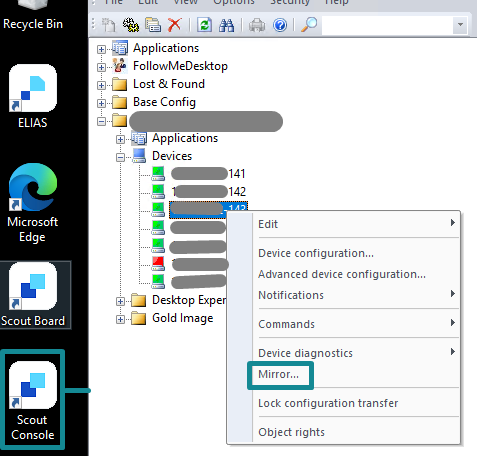
- Sign in to the Scout Server and open Scout Console > Expand the Devices tree, right-click the target UniconOS endpoint > Select Mirror to establish a remote session with the device.
Alternatively, Scout Board can be used to mirror the endpoint. Scout Console is used for the procedure demonstrated in this blog. If the administrator has physical access to the UniconOS endpoint, the mirroring step can be skipped.
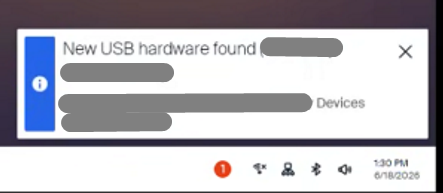
- Connect the target USB peripheral to an available USB port on the UniconOS endpoint. A New USB hardware found notification should appear in the lower-right corner of the desktop.
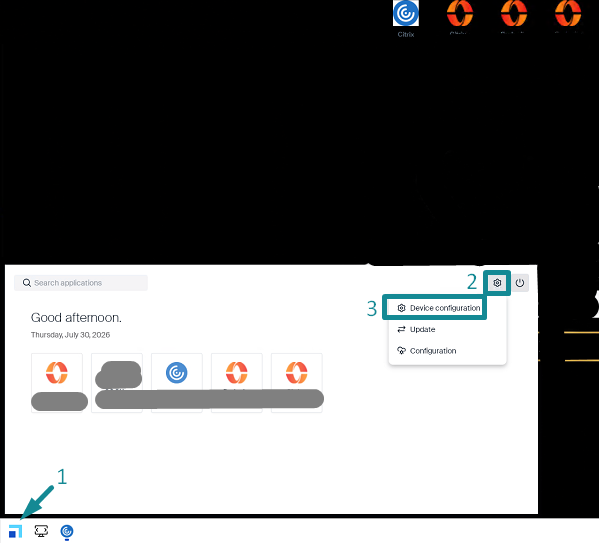
- On the UniconOS endpoint, select the UniconOS icon in the lower-left corner > select the gear icon > select Device configuration.
- In the Device configuration window, select Hardware from the left navigation menu > expand the USB section > locate the target peripheral in the list of connected USB devices. Record the Vendor ID (VID) and Product ID (PID), as these values will be used later to define the device-specific rules in the usb.conf file.
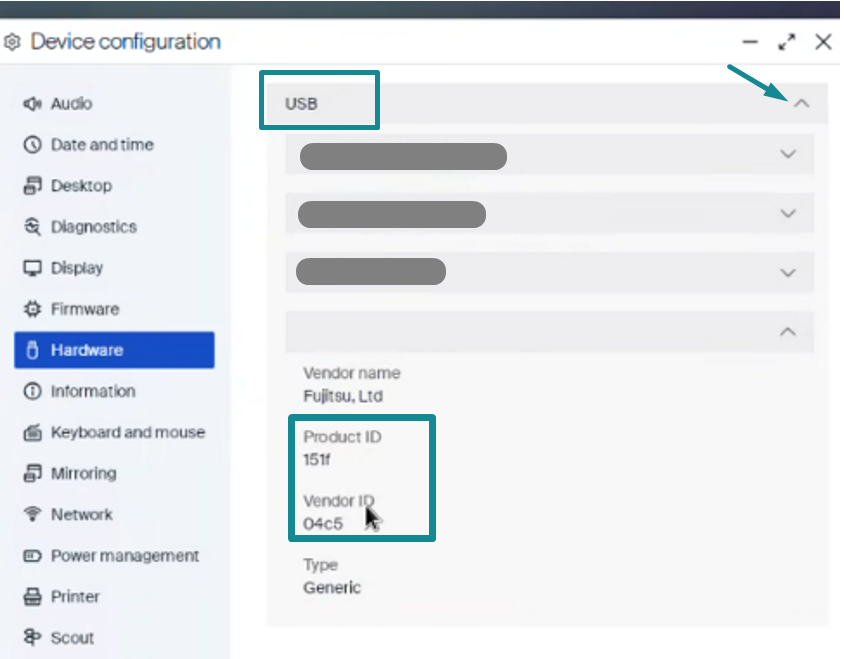
In this example, the connected Fujitsu fi-7030 scanner is identified by the following values:
Vendor ID (VID): 04C5
Product ID (PID): 151F
Configure device-specific rules in the usb.conf file and deploy to UniconOS
- On the Scout Server, open Notepad++ and select New to create a new text file.
- Add a device-specific rule using the VID and PID recorded in the previous step. For the initial controlled validation, use an ALLOW rule to make the peripheral eligible for generic USB redirection. If the device is not connected automatically, it can then be selected from the Citrix Toolbar:
ALLOW: VID=04c5 PID=151f # Fujitsu fi-7030 Scanner
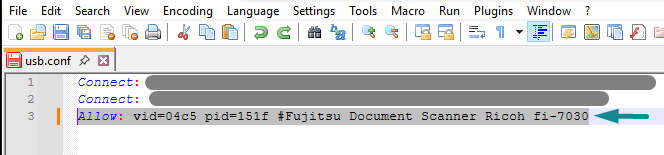
The rule contains the following components:
- Allow permits the matching peripheral to be offered for Citrix generic USB redirection, subject to the applicable Citrix policies and session configuration.
- VID=04c5 identifies the device manufacturer.
- PID=151f identifies the specific peripheral model.
- Text following the # character is an optional comment used to identify the device.
Citrix USB rules are written as plain-text entries, with one rule per line. Rules are evaluated from top to bottom, and the first matching rule is applied.
If the peripheral must connect automatically to the Citrix session, use a Connect rule instead:
Connect: vid=04c5 pid=151f # Fujitsu fi-7030 Scanner
CONNECT permits generic USB redirection and requests that the matching device connect automatically when the Citrix session starts or when the device is detected. Automatic connection also depends on the Citrix Workspace app configuration, session state, and applicable Citrix USB auto-redirection policies. Only one active endpoint-side rule should be configured for the same VID and PID during this controlled test.
In this blog, the ALLOW rule is validated first by confirming that the scanner is available through the Citrix Toolbar and can be redirected successfully. After that path is validated, a CONNECT rule can be tested if automatic connection is required.
- In Notepad++, select File > Save As > enter usb.conf as the file name > set Save as type to All types > select Save. Make note of the file location on the Scout Server.
- Confirm that the file is saved as a CONFIG file named usb.conf, rather than usb.conf.txt. In File Explorer, enable the display of file-name extensions and confirm that the file is named usb.conf, not usb.conf.txt. Review the file and verify the following:
- The VID and PID match the values identified on the UniconOS endpoint.
- The rule does not contain square brackets.
- If multiple peripherals are included, enter each rule on a separate line.
- Duplicate rules are not configured for the same peripheral.
- If included, the optional comment begins with # and accurately identifies the device. Access Scout Board and sign in using an account with permission to manage the target UniconOS endpoint.
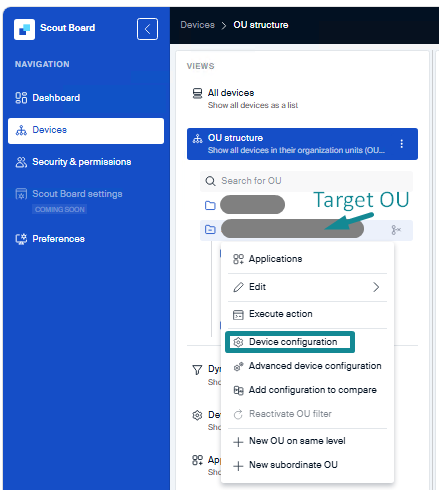
- Select Devices > OU structure > locate the OU containing the target UniconOS endpoint or the OU where the applicable device configuration is assigned > open the context menu for the target OU > select Device configuration.
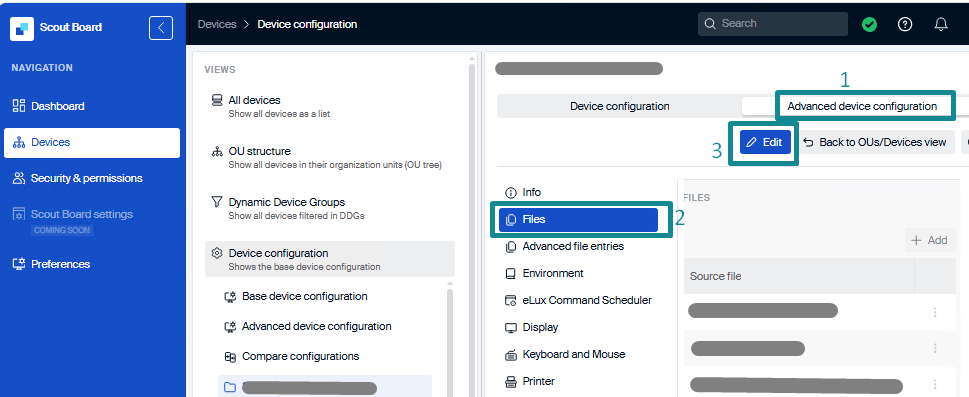
- On the Device configuration page, select Advanced device configuration > select Files from the left navigation menu > select Edit > select Add to create a new file entry.
- In the Add file entry window, select File system > browse to and select the usb.conf file created on the Scout Server > configure Destination file name as:
/setup/ica/usb.conf
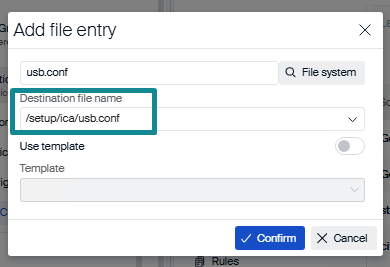
Select Confirm to add the file entry and save the updated device configuration if prompted.
- In Scout Board, locate the target UniconOS endpoint > open the available device commands > select Restart device. The restart allows the endpoint to retrieve and apply the updated configuration, including the deployed usb.conf file.
Note: When the file is assigned at the OU level, all applicable endpoints inheriting that OU configuration may receive the file. Therefore, the initial deployment should target a controlled test OU or endpoint before broader rollout.
- After the endpoint restarts, confirm that it reconnects successfully to Scout Board or Scout Console. The usb.conf file is now deployed to the UniconOS endpoint and ready to support the Citrix generic USB redirection workflow.
Layer 2 – Validate USB Peripheral Functionality within the Windows VDA
Align Citrix Policies with the Generic USB Redirection Path
Before validating the scanner inside the Windows VDA, confirm that the applicable Citrix policies permit generic USB redirection and prevent other scanner redirection methods from attempting to manage the same device.
For the generic USB validation performed in this blog, Client USB device redirection should be allowed, while Client TWAIN device redirection and SANE scanner redirection should be prohibited. This ensures the Fujitsu scanner is presented to the Windows VDA exclusively via the Citrix generic USB channel.
- Sign in to the Citrix DaaS management console > under Manage, select Policies.
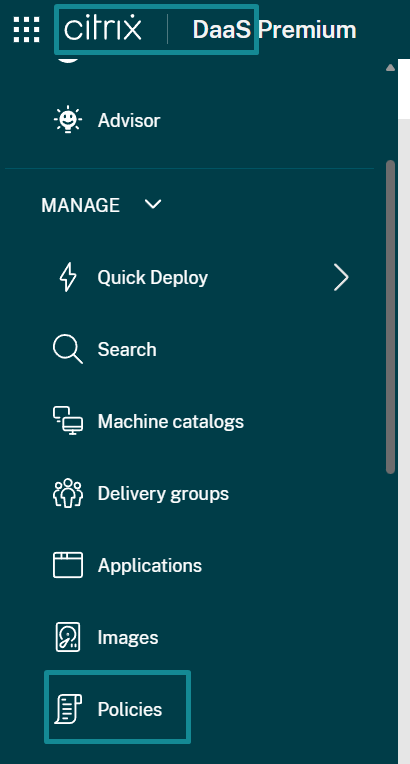
- Locate and edit the Citrix policy assigned to the target test user, delivery group, or Windows VDA. Search for and configure the following policies:
- Client USB device redirection = Allowed
- Client TWAIN device redirection = Prohibited
- SANE scanner redirection = Prohibited
Citrix evaluates both endpoint-side and server-side USB rules. Confirm that the applicable Citrix policy does not contain a higher-priority rule that denies the scanner or produces behavior inconsistent with the rule deployed through usb.conf.
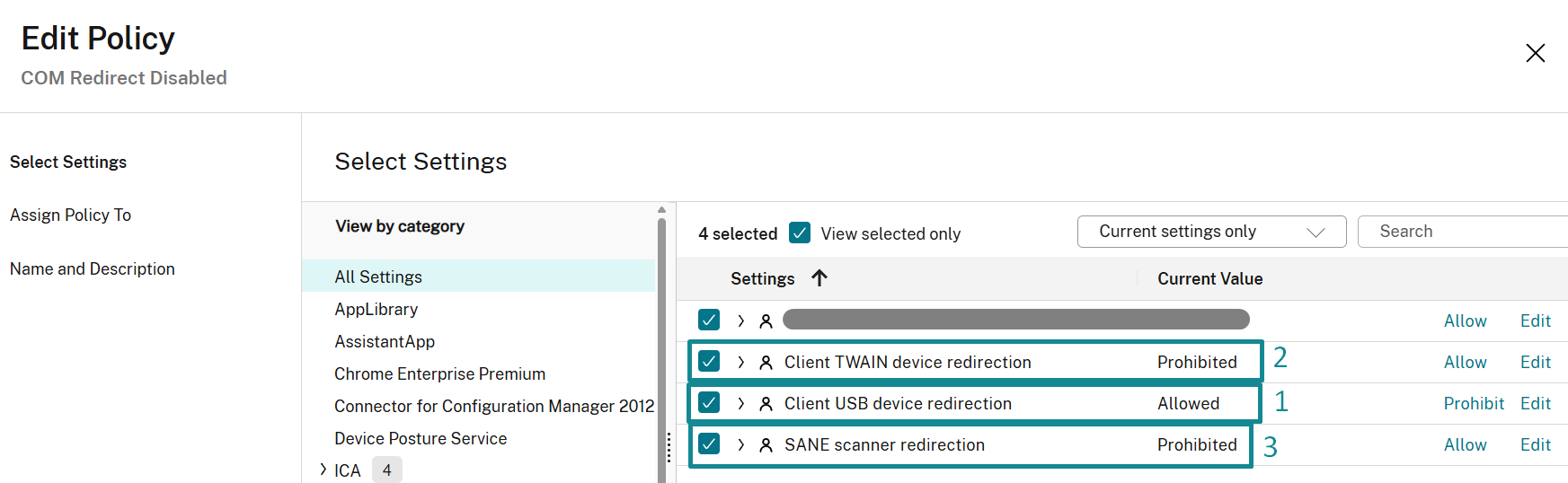
- Review Client USB device redirection rules for any rule that matches the scanner’s VID and PID.
- Where available, review Client USB device redirection rules (Version 2) for any matching ALLOW, CONNECT, or DENY rule.
- Review the policy assignment and priority. Confirm that the policy applies to the test user and the Windows VDA used for this validation and verify that no higher-priority policy applies conflicting USB settings. Save the updated policy.
Note: This policy configuration provides a controlled validation path for the Fujitsu scanner in this blog using Citrix generic USB redirection. It may not represent the final production configuration for every peripheral or business workflow.
Redirect the USB peripheral through the Citrix Toolbar
- From the UniconOS endpoint, launch the target Citrix virtual desktop using the locally installed Citrix Workspace app. Resource enumeration and launch may be initiated through a browser, provided the resulting ICA session opens using Citrix Workspace app.
- After the Windows VDA session launches, open the Citrix Toolbar > select Devices > locate the target USB peripheral in the list of available devices.

The peripheral may appear by its product name or as an Unknown Device, depending on how the Citrix Workspace app identifies the USB device. In this example, the Fujitsu fi-7030 scanner is not displayed by name in the Citrix Toolbar. The Unknown Device entry matches the scanner by the VID and PID recorded earlier from UniconOS. Therefore, the Unknown Device entry shown here is expected.
- Manually select Unknown Device, which represents the Fujitsu fi-7030 scanner in this blog, to redirect the peripheral into the Citrix session.
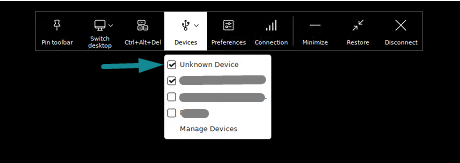
- For this validation, select the scanner from the Citrix Toolbar if it is not already connected. The ALLOW rule makes the scanner eligible for generic USB redirection but does not define all aspects of its connection behavior. A CONNECT rule requests automatic connection, although the result also depends on the Citrix Workspace app configuration and applicable Citrix policies. Confirm that the scanner remains selected and does not immediately disconnect, become greyed out, or return to an unselected state. A peripheral appearing in the Citrix Toolbar confirms that Citrix Workspace app has detected it as a potential redirection candidate; however, it does not yet confirm that the device has been successfully presented to Windows nor that the required driver has loaded. Therefore, the next step is to confirm that Windows Device Manager detects the target peripheral.
Confirm peripheral detection in Windows Device Manager and validate the Windows Driver Binding
- Within the Windows VDA session, select Start > locate and open Device Manager.
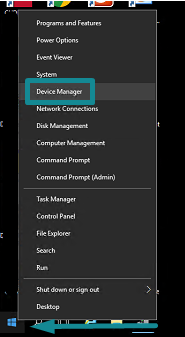
- Review the available device categories > locate the redirected Fujitsu fi-7030 scanner. Locate the redirected scanner in Device Manager. Depending on the Windows version and installed driver, the device may appear under Imaging devices, Cameras, Other devices, or another applicable device category.
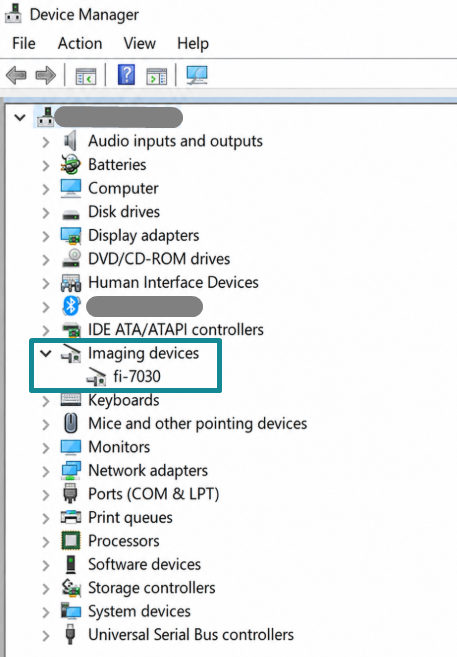
The scanner may initially appear by its recognized device name or as an Unknown Device, depending upon whether the required Windows driver has already been installed and successfully bound to the peripheral. If the scanner remains listed as an Unknown Device, this is a strong indication that the required driver is missing from the Windows VDA or has not successfully bound to the redirected device.
- Right-click the detected device > select Properties > select the Details tab > select Hardware Ids from the Property drop-down list > confirm that the detected device contains the same VID and PID previously identified on the UniconOS endpoint:
Vendor ID (VID): 04C5
Product ID (PID): 151F
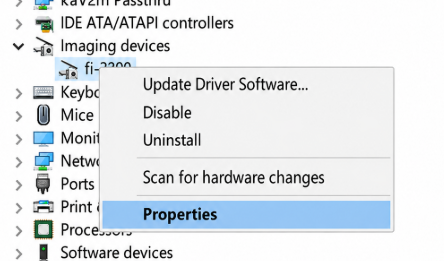
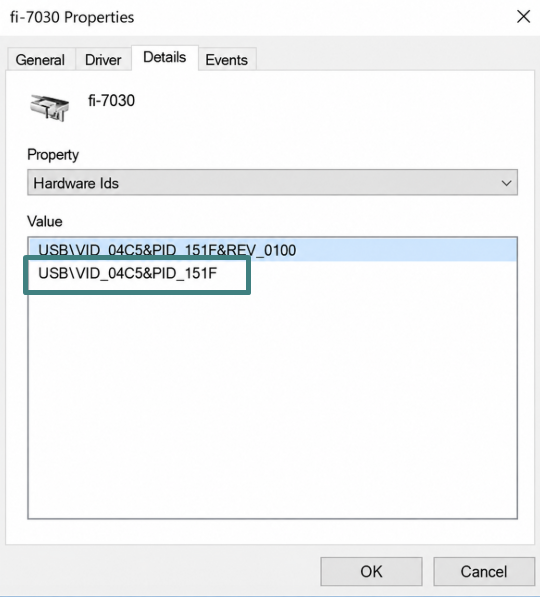
Matching VID and PID values confirm that the USB device presented inside the Windows VDA is the same Fujitsu fi-7030 scanner physically connected to the UniconOS endpoint.
- After confirming Windows detects the redirected scanner, validate the required Windows driver package is installed on the VDA. In this blog, the Fujitsu fi-7030 scanner uses the PaperStream IP (TWAIN) driver.
To confirm the driver package is installed, open Control Panel > Programs > Programs and Features > verify that PaperStream IP (TWAIN) is listed among the installed applications.
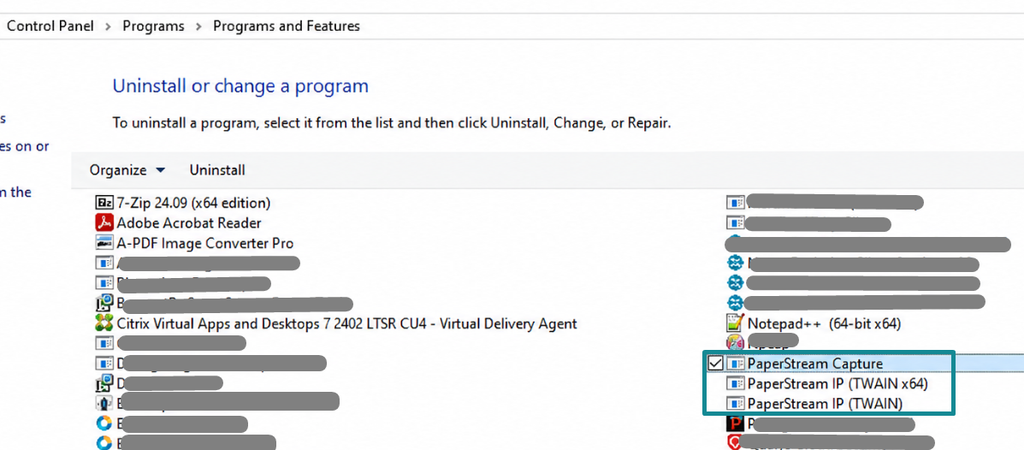
Next, confirm the driver has successfully bound to the redirected scanner. Open Device Manager > expand Imaging devices > right-click fi-7030 and select Properties > review the Driver tab.
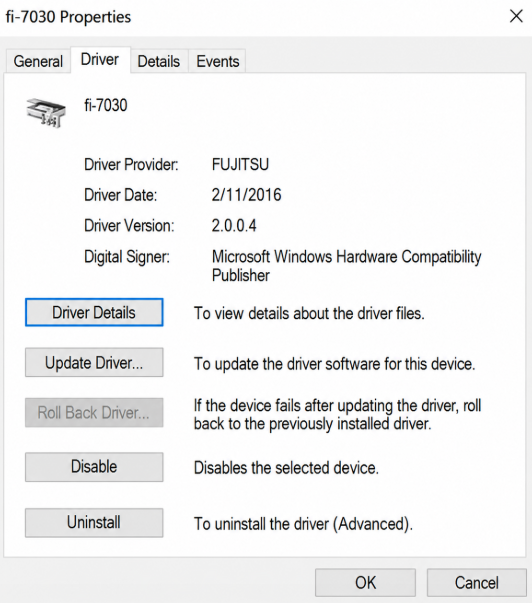
Confirm that Windows displays the expected driver provider and driver information for the scanner. The Events tab can also be reviewed to confirm device installation was requested, the scanner driver service was added, and the applicable device driver was installed. If you need further troubleshooting, select View All Events to review the associated Windows event information.
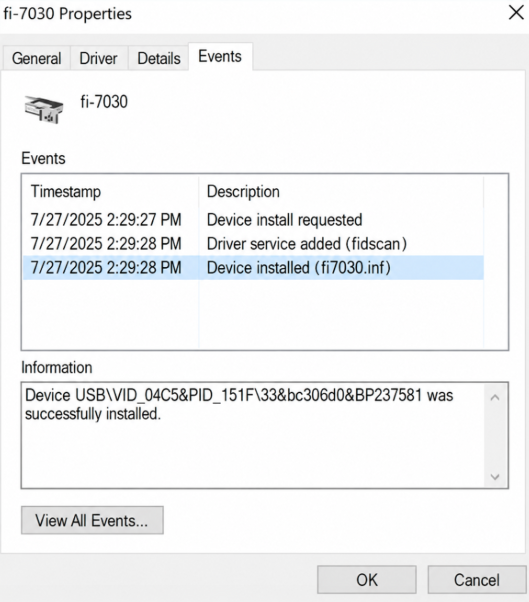
- If the scanner remains listed as an Unknown Device, or Windows reports that an appropriate driver is unavailable, install the required PaperStream IP (TWAIN) driver package within the Windows VDA, reconnect or restart the VDA if required, redirect the scanner again through the Citrix Toolbar, and confirm that Windows now correctly identifies the scanner and no longer reports a driver-related error.
For non-persistent Windows VDAs, the required driver package should be incorporated into the VDA gold image, or the organization’s equivalent image-management workflow, so the driver remains available across future VDA sessions. At this stage, two important parts of the workflow have been validated: the scanner has successfully reached the Windows VDA via Citrix generic USB redirection, and Windows has successfully identified the device and loaded the driver required to operate it.
Validate Scanner Functionality with PaperStream Capture application
After confirming that the Fujitsu fi-7030 scanner is detected in Windows Device Manager and the PaperStream IP (TWAIN) driver is successfully bound to the device, validate the scanner using the manufacturer-provided PaperStream Capture application.
PaperStream Capture provides a direct method to confirm that the redirected scanner and its driver stack are functioning correctly inside the Windows VDA before testing the business application.
- Load a test document into the Fujitsu fi-7030 scanner. Within the Windows VDA session, launch the PaperStream Capture application and select Scan.
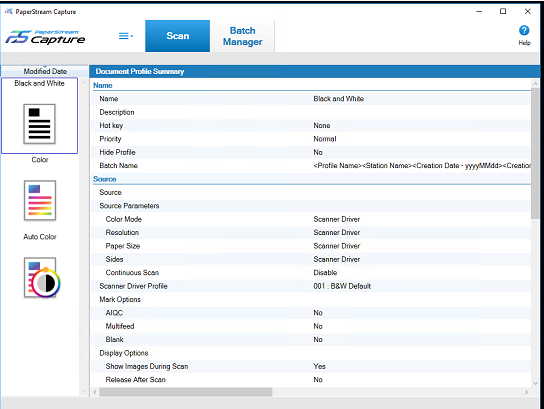
- Confirm that:
- PaperStream Capture detects the Fujitsu fi-7030 scanner.
- The scanner responds to the scan request.
- The document is successfully scanned.
- PaperStream Capture returns the scanned image.
- No USB communication, driver, or scanner-related error is displayed.
A successful scan through PaperStream Capture validates the following workflow:
UniconOS endpoint > usb.conf > Citrix generic USB redirection > Windows VDA > PaperStream IP (TWAIN) driver > PaperStream Capture
At this stage, the USB redirection path, Windows device detection, driver binding, and basic scanner functionality have all been successfully validated. If the scanner subsequently fails within another application, troubleshooting can now move beyond the UniconOS and Citrix USB redirection layers and focus on the application itself or its interaction with the scanner driver.
Troubleshooting and Interpreting the Validation Results
The validation process in this blog is designed to confirm each layer of the USB redirection workflow independently. If a failure occurs, the result from the previous successful checkpoint can be used to narrow the troubleshooting scope and identify which layer requires further investigation. In these situations, use the following validation results as a guide:
- The peripheral is not detected on the UniconOS endpoint: Review the physical USB connection, USB port, peripheral power state, and whether the UniconOS endpoint detects the device and displays its Vendor ID (VID) and Product ID (PID).
- The peripheral is detected by the UniconOS endpoint but does not appear in the Citrix Toolbar: Review the usb.conf configuration, confirm the VID and PID are correct, and verify the configuration file was successfully deployed to /setup/ica/usb.conf. For additional validation, administrators can include the available file-management utility in the UniconOS image and use it to confirm the usb.conf file is present on the endpoint. You can incorporate UniconOS software packages into the endpoint image via ELIAS and deploy them through the standard firmware update process. For additional information, see Creating images and templates in ELIAS 18 and Firmware update
- The peripheral appears in the Citrix Toolbar but cannot be redirected successfully: Review the Citrix session state, the applicable endpoint-side ALLOW or CONNECT rule, any matching server-side USB rule, and whether another Citrix peripheral-redirection method is attempting to manage the same device.
- The peripheral is redirected via the Citrix Toolbar but does not appear in Windows Device Manager: Citrix Workspace app has detected the device, and the user has not been successfully presented inside the Windows VDA. Review the Citrix generic USB virtual channel, the session type and state, the effective Citrix USB policies, and any endpoint side or server-side USB riles that match the device. . For additional guidance, see Citrix generic USB redirection troubleshooting guidance.
- The peripheral appears in Windows Device Manager as an Unknown Device: The generic USB redirection path has successfully presented the physical device to the Windows VDA; however, the required Windows driver is either missing or has not successfully bound to the peripheral.
- The peripheral is correctly identified in Windows Device Manager but does not function via the manufacturer-provided application: Review the Windows driver installation, vendor software configuration, device compatibility, and VDA image. Note that at this stage, the UniconOS and Citrix generic USB redirection layers have already been validated.
- The peripheral functions successfully via the manufacturer-provided application but fails within the business application: At this stage, the USB redirection workflow, Windows device detection, driver binding, and basic peripheral functionality have all been successfully validated. Troubleshooting should therefore focus on the business application and how it communicates with the driver or processes the data returned by the peripheral.
The troubleshooting approach is to validate each layer in sequence and use every successful checkpoint to eliminate the layers that are already functioning correctly. This approach streamlines troubleshooting effort and provides a clearer path toward identifying the actual source of the peripheral failure.
Final Takeaways
This blog demonstrates that specialized USB peripherals can be successfully supported when organizations adopt UniconOS for Citrix VDI access. By combining Citrix generic USB redirection with the appropriate Windows VDA drivers and applications, organizations can preserve critical peripheral workflows while transitioning away from traditional Windows endpoints or legacy thin clients.
For production rollout, administrators should validate business-critical peripherals and application compatibility before broader deployment. The layered validation approach demonstrated in this blog helps isolate issues across UniconOS, Citrix, Windows drivers, and business applications, providing greater confidence when adopting UniconOS as a thin-client platform.
Ferroque Systems helps organizations assess business requirements, design endpoint configurations and deployment models, conduct pilot rollouts, and implement broader deployments of UniconOS and other EUC solutions. Contact our team to discuss how we can support your endpoint-modernization initiative.


